How to Set Up Screen Time and Configure It for Your Family
Consider your own screen habits.. Update your iPhone or iPad to iOS 12 or later.. Open Screen Time.
Steps
1
Consider your own screen habits.
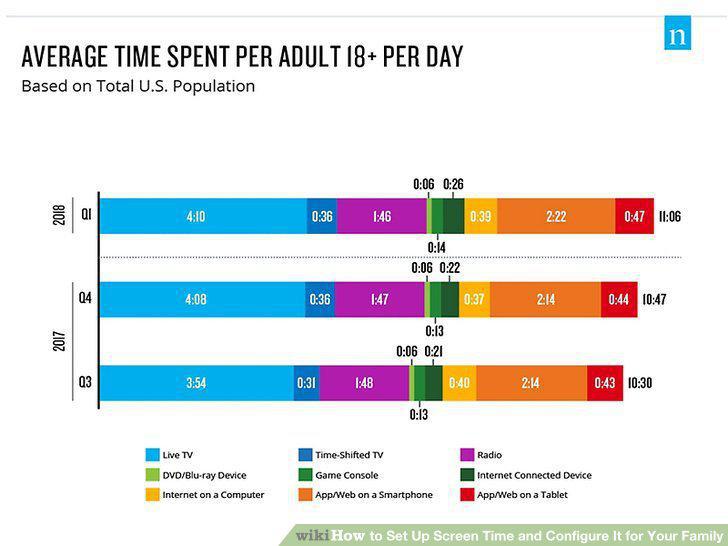
Consider your own screen habits.
2
Update your iPhone or iPad to iOS 12 or later.
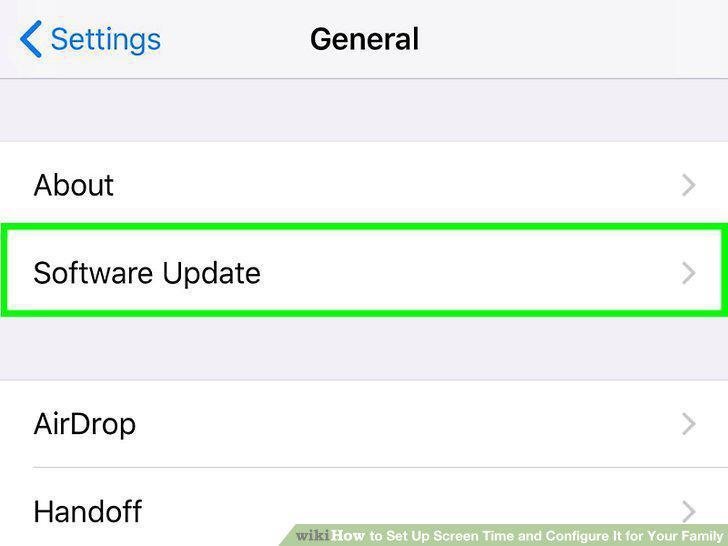
Update your iPhone or iPad to iOS 12 or later.
3
Open Screen Time.
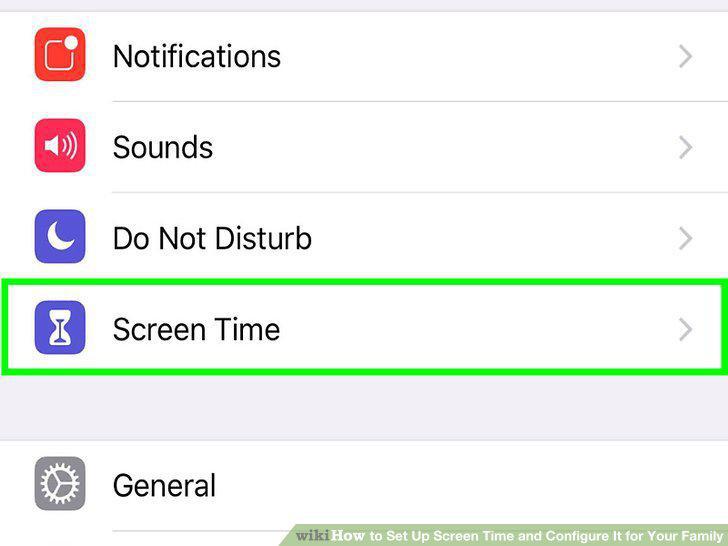
Open Screen Time.
4
Set limits for app usage.
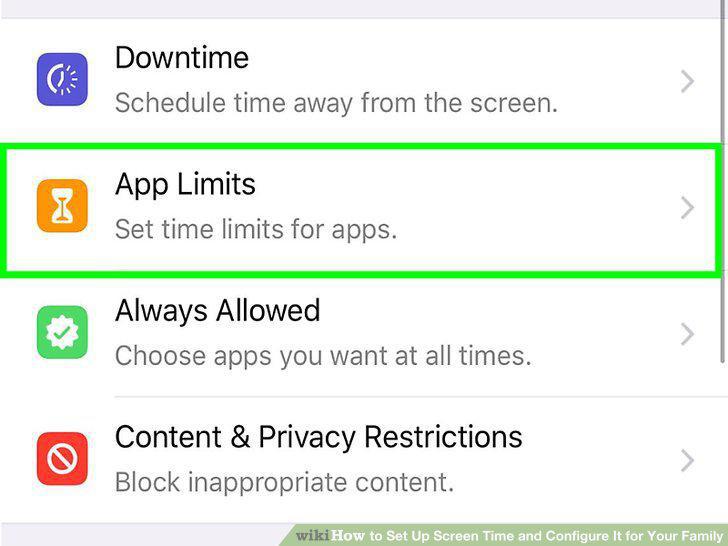
Set limits for app usage.
5
Configure a Downtime period.
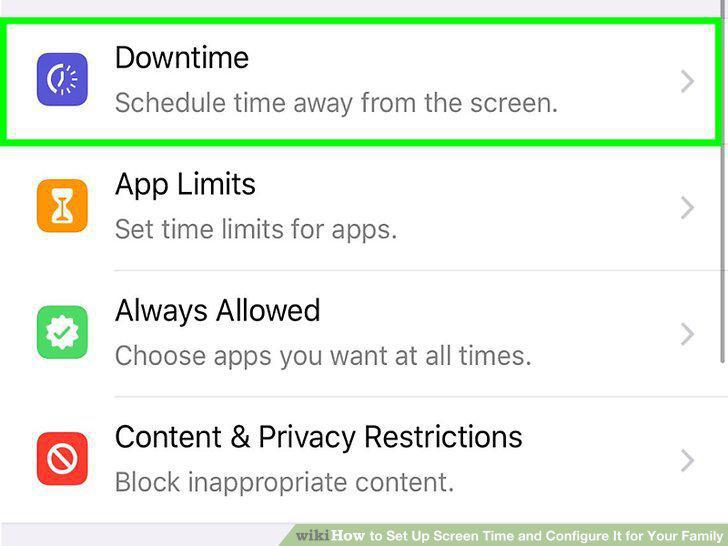
Configure a Downtime period.
6
Implement healthier screen habits.
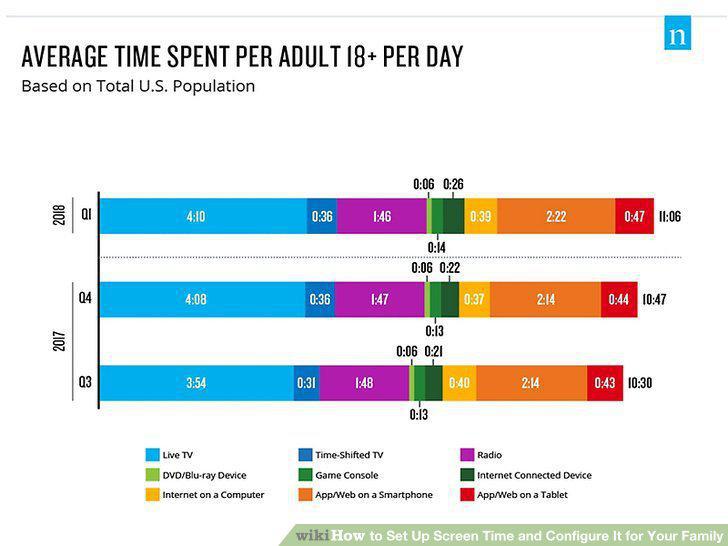
Implement healthier screen habits.
7
Update the child's phone or tablet to iOS 12.
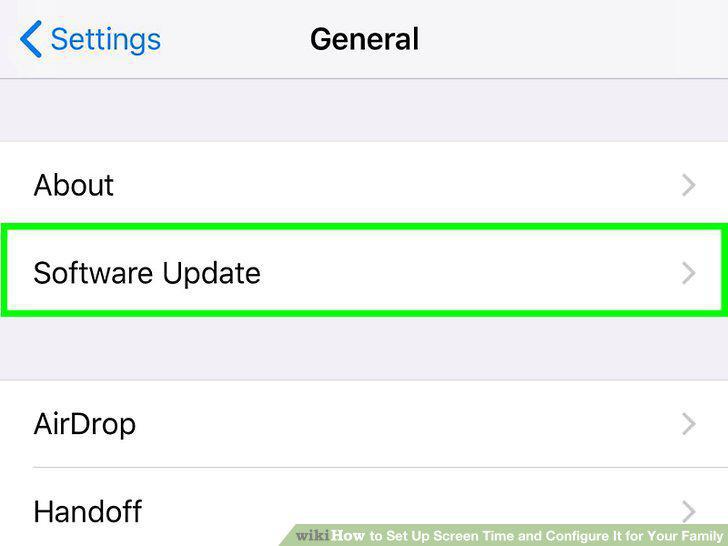
Update the child's phone or tablet to iOS 12.
8
Activate Family Sharing on your own iPhone or iPad.
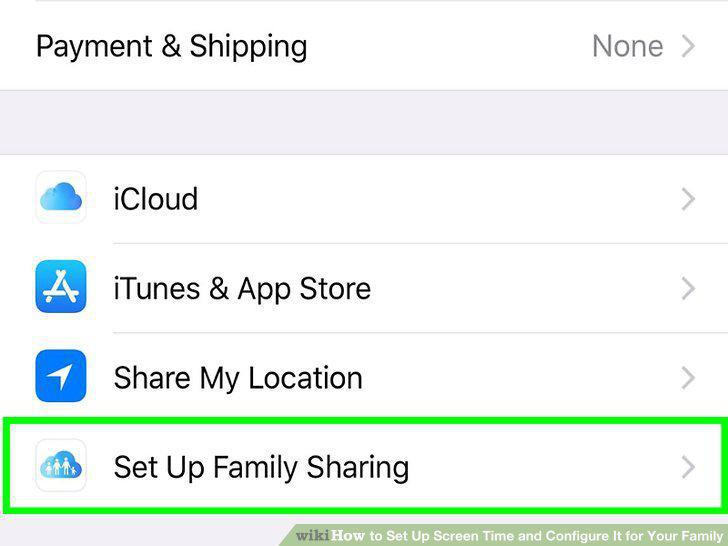
Activate Family Sharing on your own iPhone or iPad.
9
Enable Screen Time for your child.
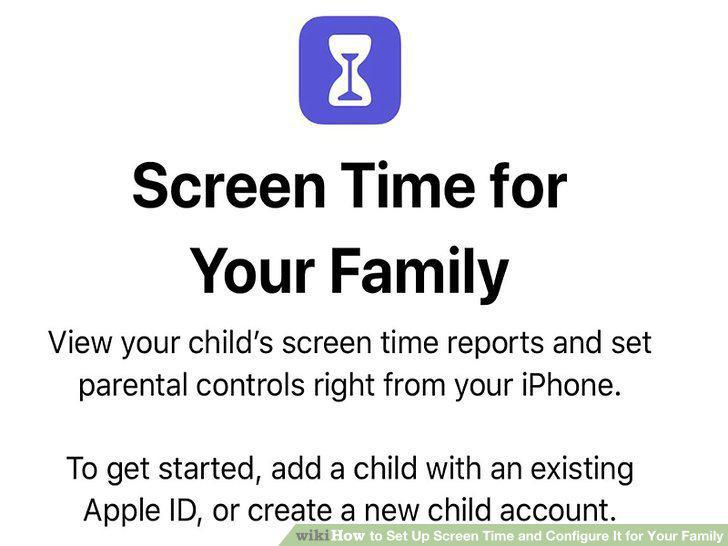
Enable Screen Time for your child.
10
Set Always Allowed apps.
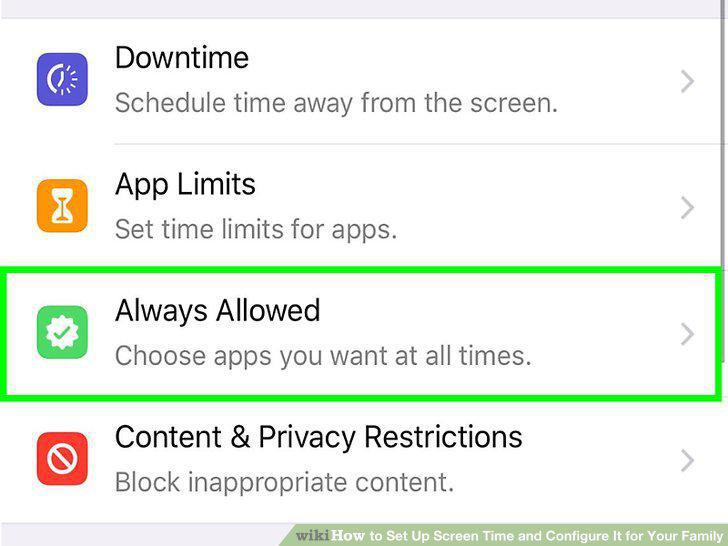
Set Always Allowed apps.
11
Set content and privacy restrictions.
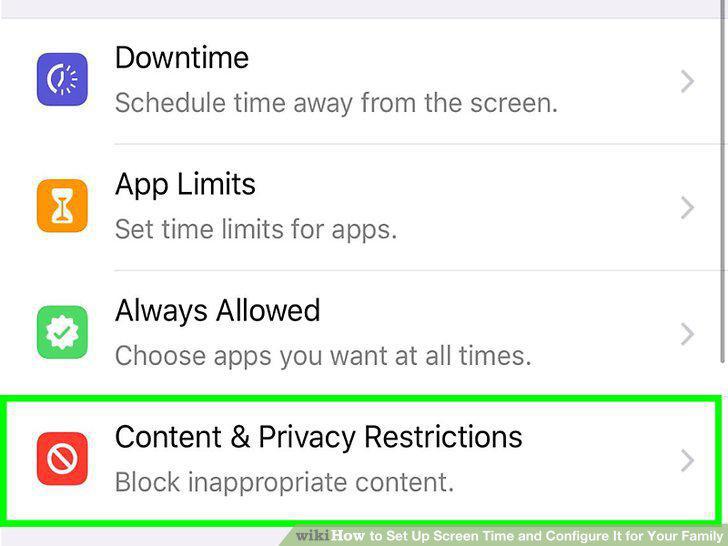
Set content and privacy restrictions.
Comments (0)
No comments yet. Be the first to share your thoughts!