How to Bundle on Poshmark on iPhone or iPad
Open the Poshmark app on your iPhone or iPad.. Find and tap the first item you want to add to your bundle.. Tap the three dots icon on the top-right.
Steps
1
Open the Poshmark app on your iPhone or iPad.
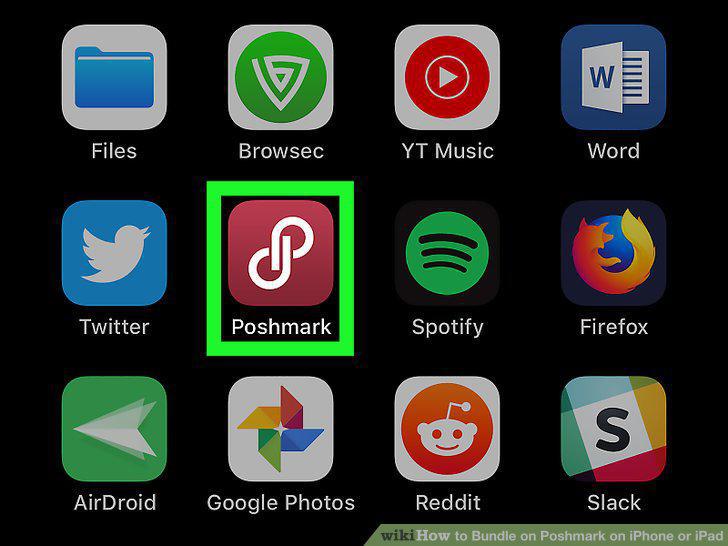
Open the Poshmark app on your iPhone or iPad.
2
Find and tap the first item you want to add to your bundle.
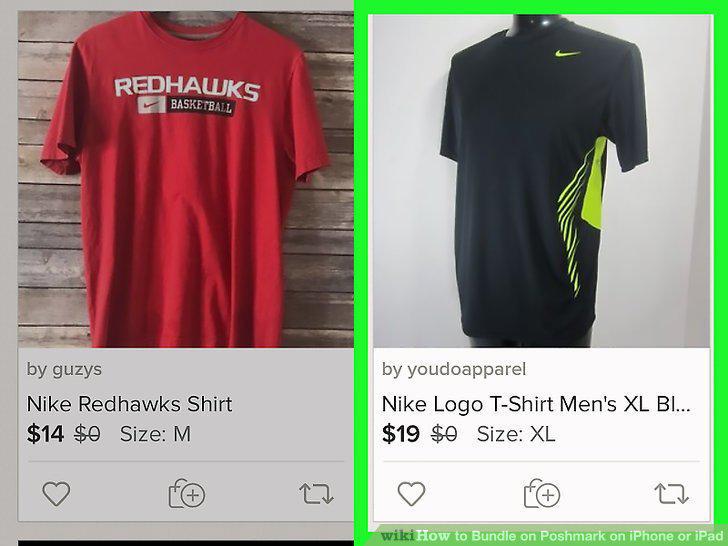
Find and tap the first item you want to add to your bundle.
3
Tap the three dots icon on the top-right.
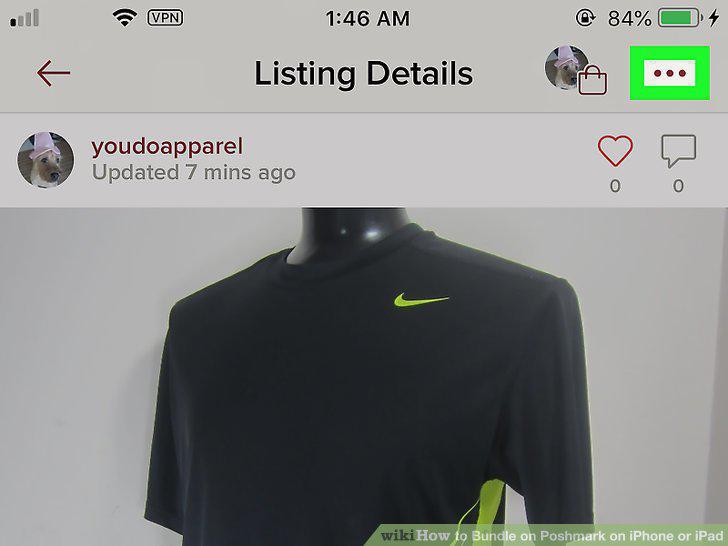
Tap the three dots icon on the top-right.
4
Select Add to Bundle on the pop-up menu.
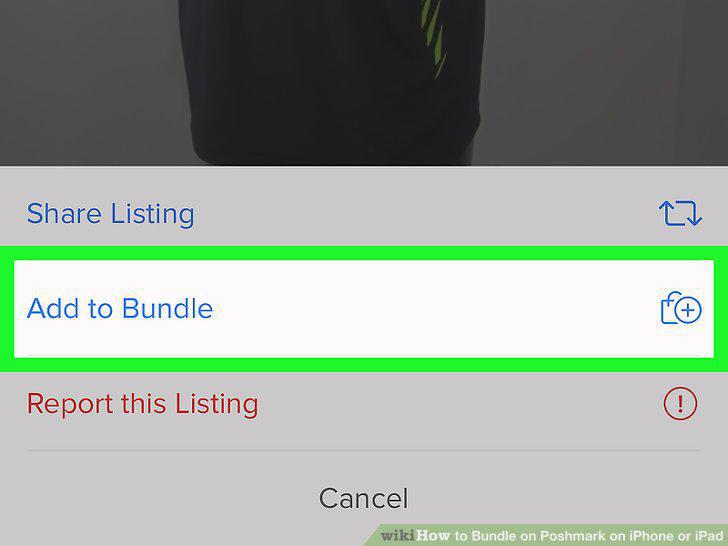
Select Add to Bundle on the pop-up menu.
5
Tap the icon on the top-left.
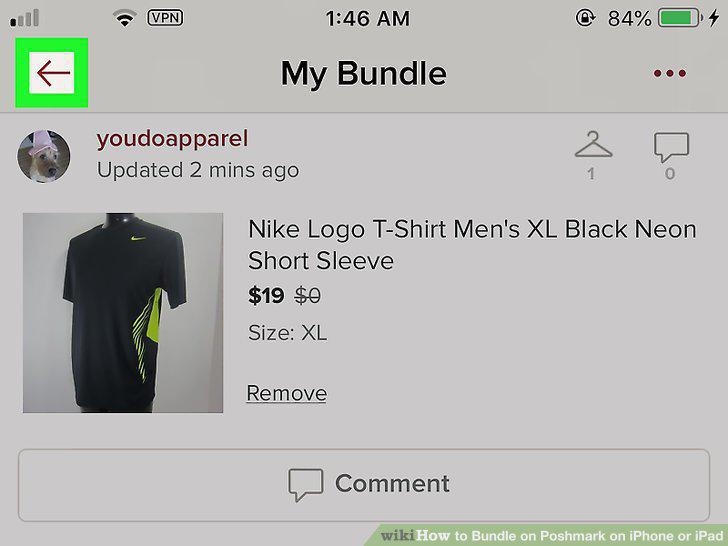
Tap the icon on the top-left.
6
Find and open the other item you want to add to your bundle.
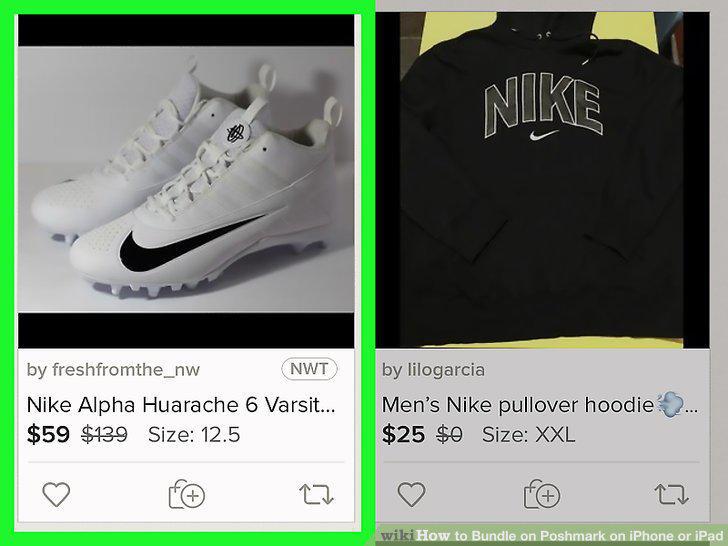
Find and open the other item you want to add to your bundle.
7
Tap the three dots icon on the top-right.
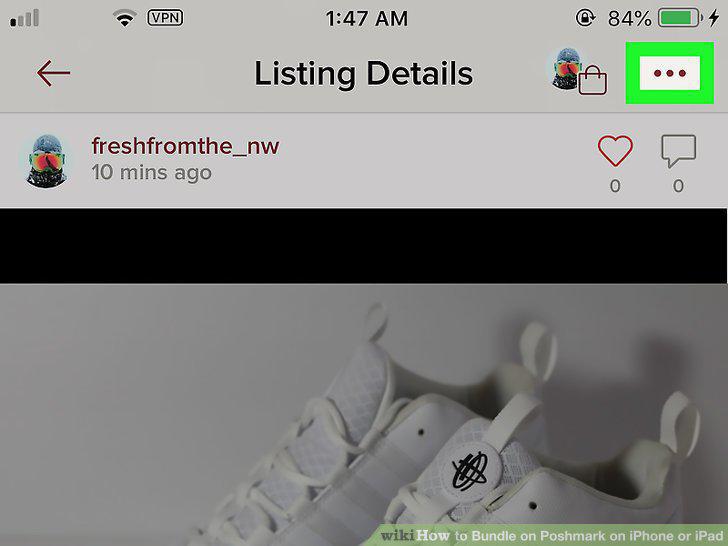
Tap the three dots icon on the top-right.
8
Select Add to Bundle on the menu.
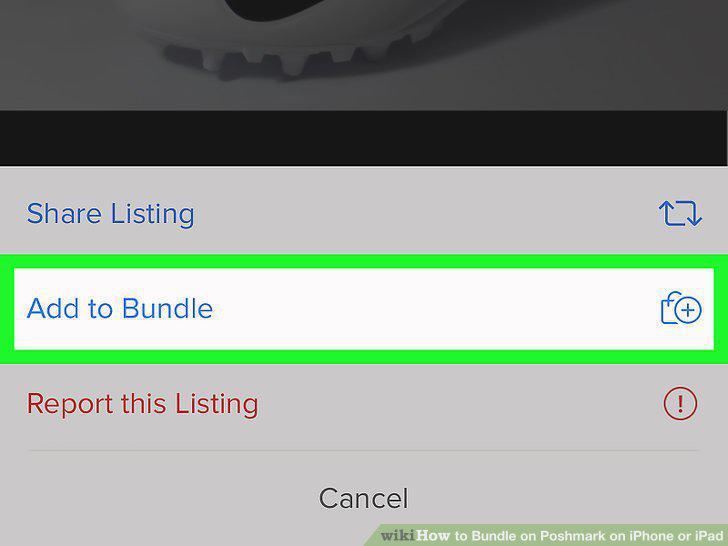
Select Add to Bundle on the menu.
9
Open the Poshmark app on your iPhone or iPad.
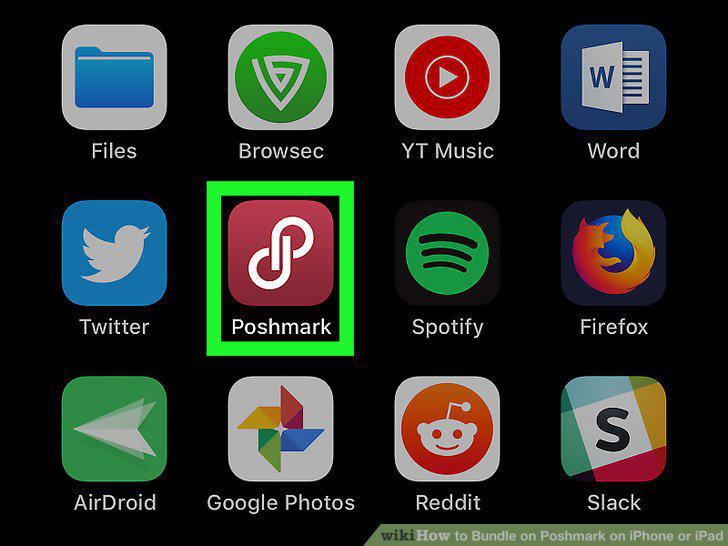
Open the Poshmark app on your iPhone or iPad.
10
Tap your username on the bottom-right.
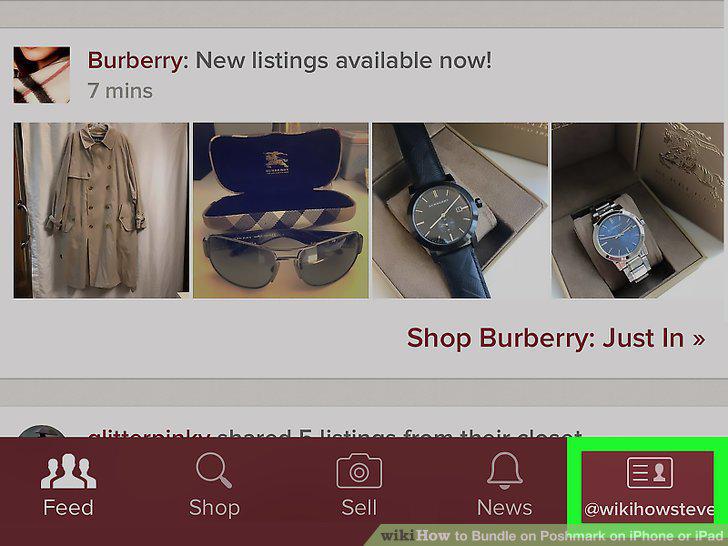
Tap your username on the bottom-right.
11
Tap My Bundles on the menu.
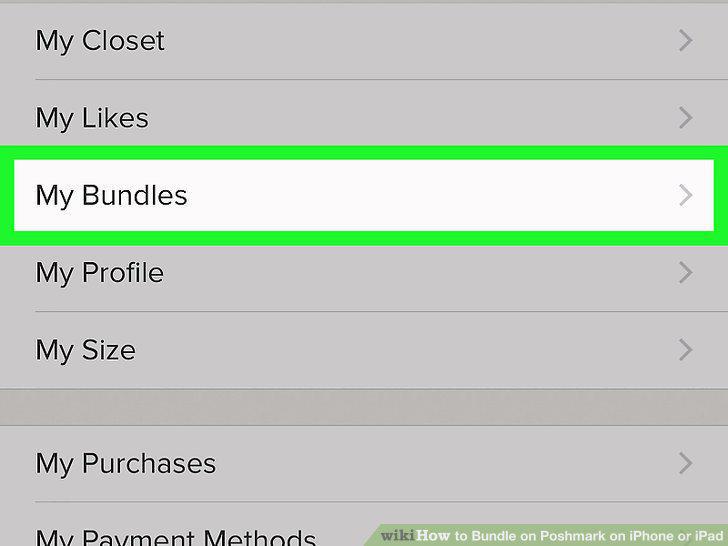
Tap My Bundles on the menu.
12
Tap View My Bundle next to a bundle.
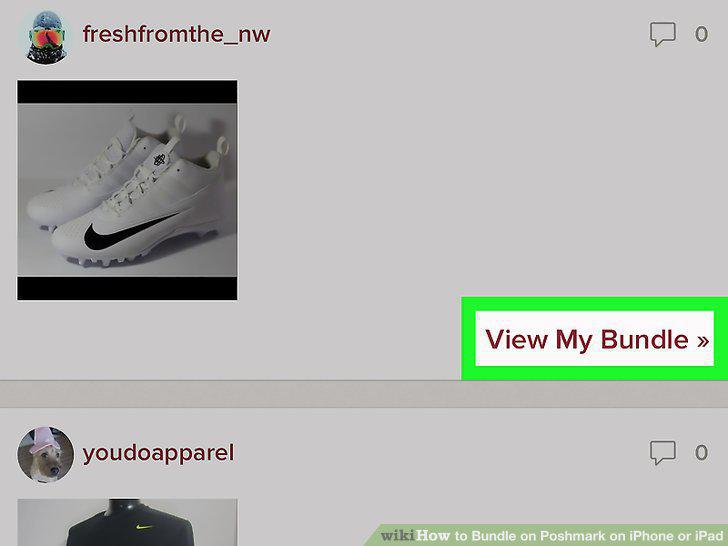
Tap View My Bundle next to a bundle.
13
Tap the three dots icon on the top-right.
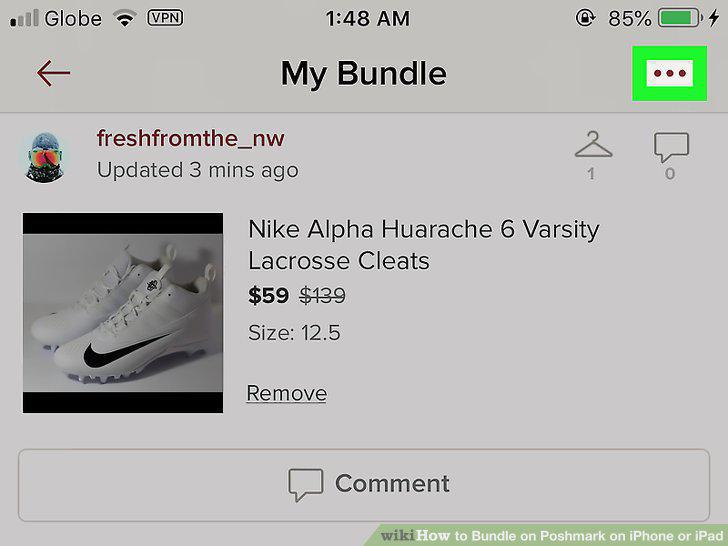
Tap the three dots icon on the top-right.
14
Tap Add to Bundle on the menu.
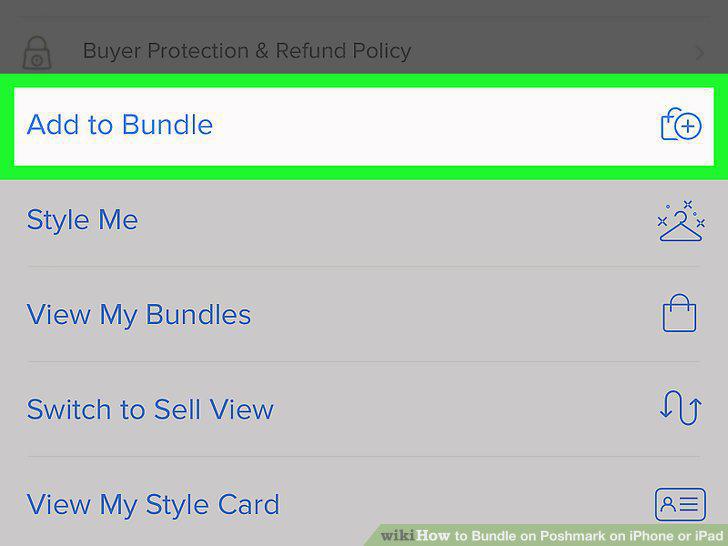
Tap Add to Bundle on the menu.
Comments (0)
No comments yet. Be the first to share your thoughts!