How to Blur the Background of a Photograph
Set your DSLR camera to the aperture setting.. Create distance between the camera, subject, and background.. Fill the frame with the subject in a medium shot.
Steps
Set your DSLR camera to the aperture setting.
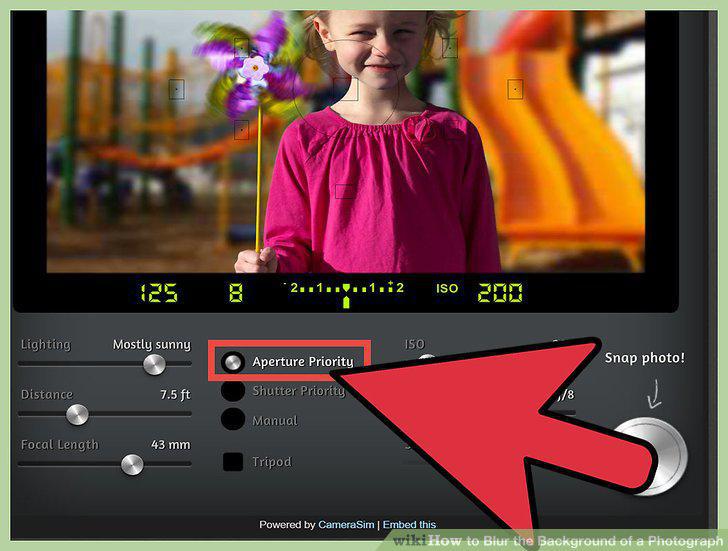
Set your DSLR camera to the aperture setting.
Create distance between the camera, subject, and background.
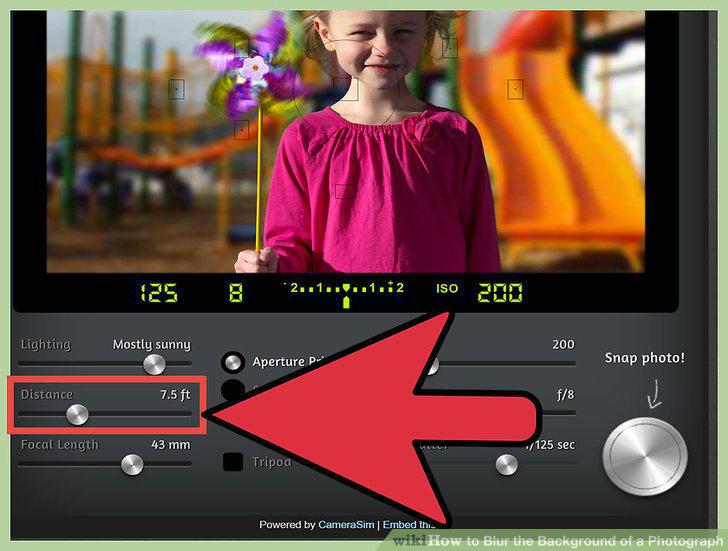
Create distance between the camera, subject, and background.
Fill the frame with the subject in a medium shot.
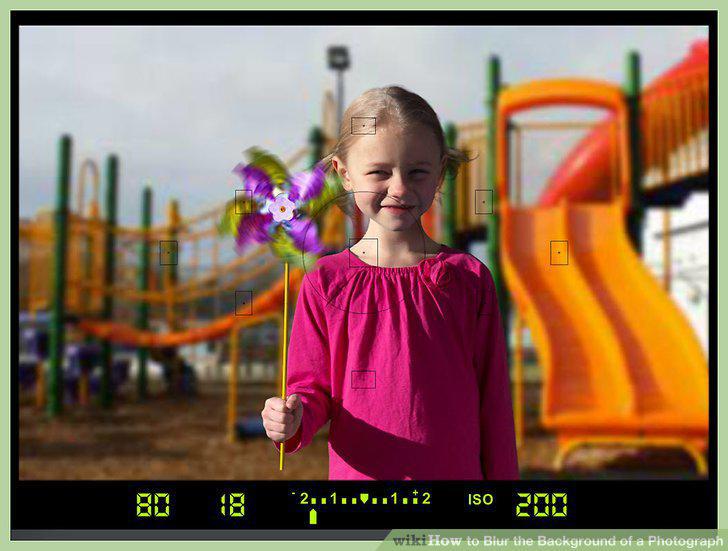
Fill the frame with the subject in a medium shot.
Zoom in.
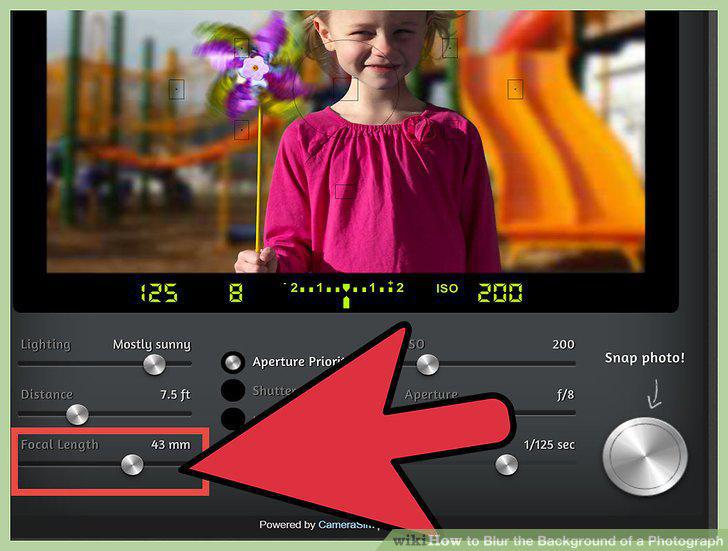
Zoom in.
Pan with a moving target.
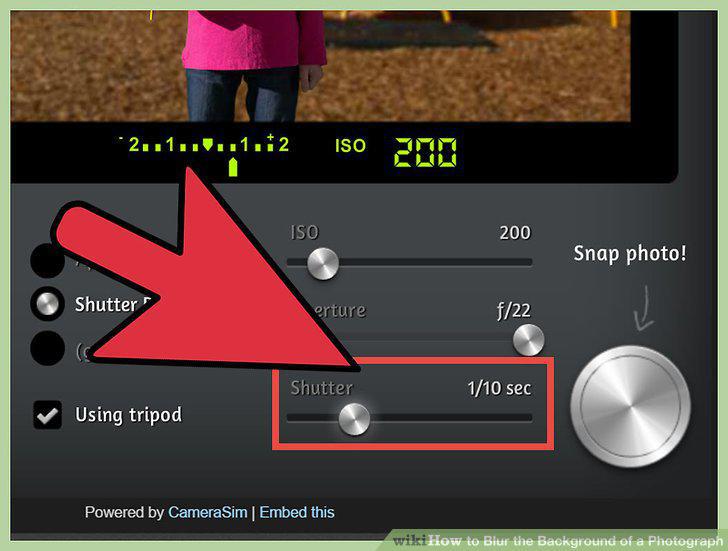
Pan with a moving target.
Set your camera to the auto setting and use portrait mode.
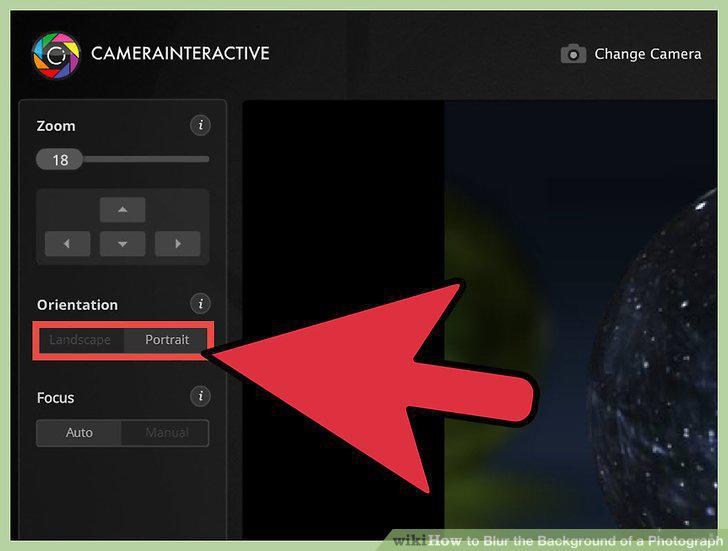
Set your camera to the auto setting and use portrait mode.
Adjust your auto focus settings in the menu.
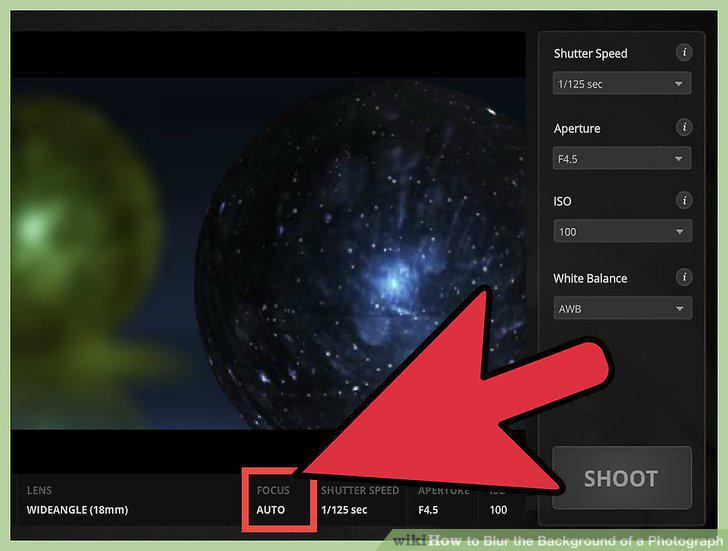
Adjust your auto focus settings in the menu.
Place your subject as far away from the background as possible.
Place your subject as far away from the background as possible.
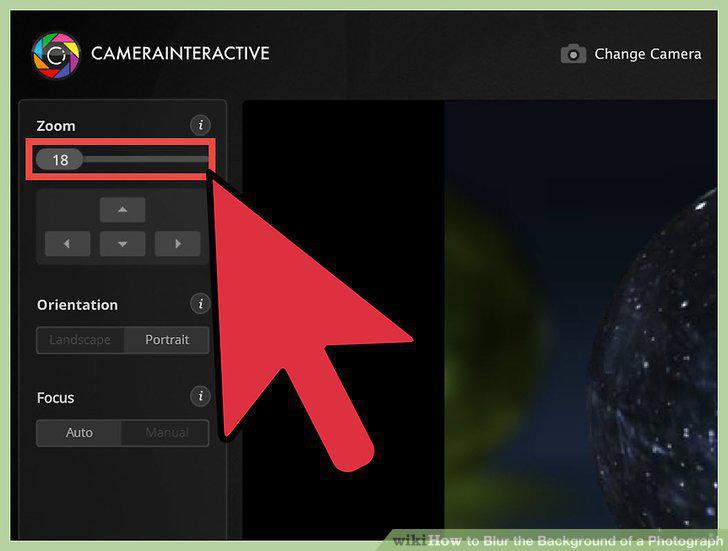
Zoom in as far as you can.
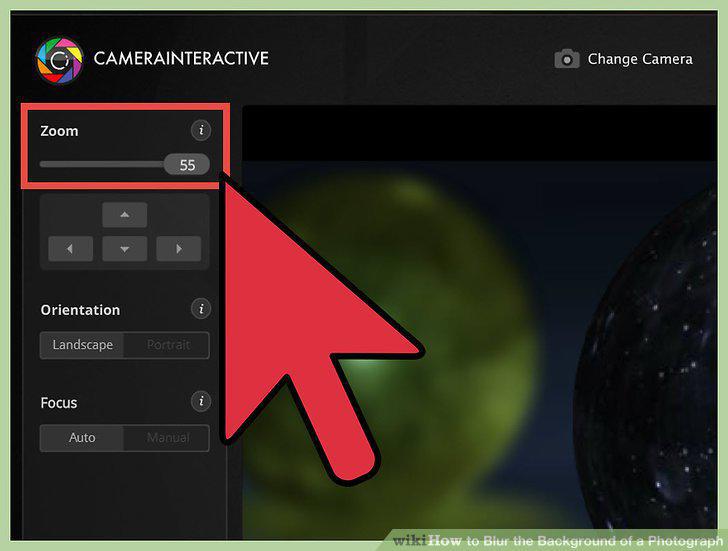
Zoom in as far as you can.
Employ Photoshop's Blur tool
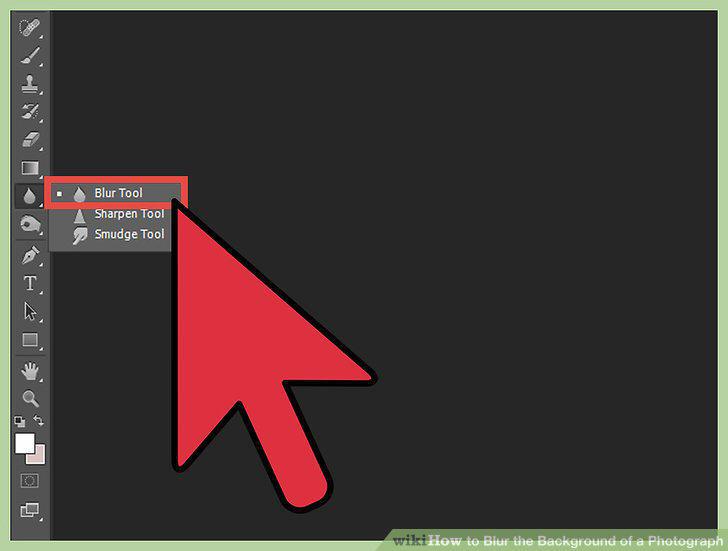
Employ Photoshop's Blur tool
Blur using layers.
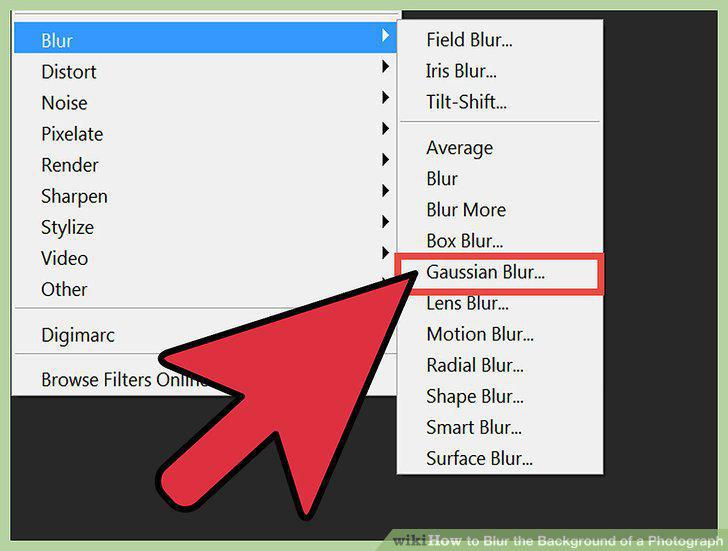
Blur using layers.
Blur the background of your photograph by making your image a "Smart Object".
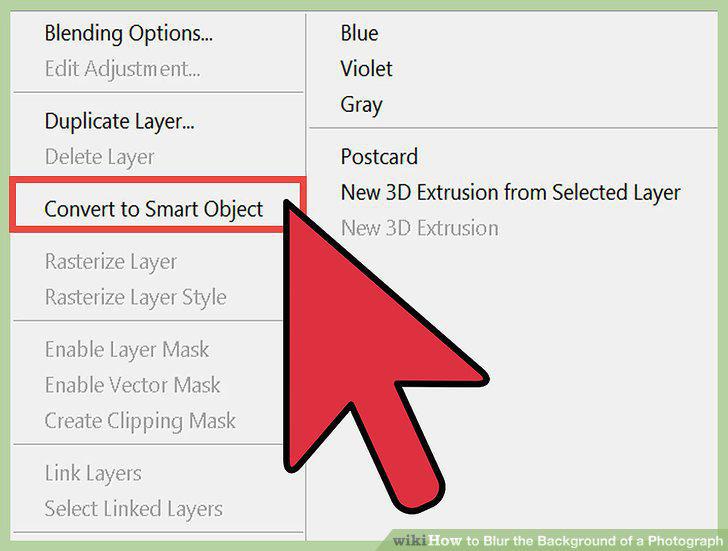
Blur the background of your photograph by making your image a "Smart Object".
Use the Quick Selection tool to blur a background.
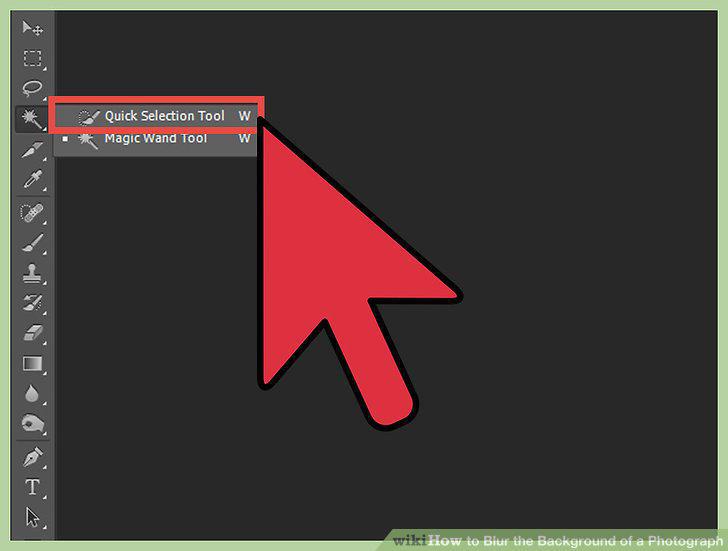
Use the Quick Selection tool to blur a background.
If you are using an updated version of Photoshop, try using the "smart blur" opt
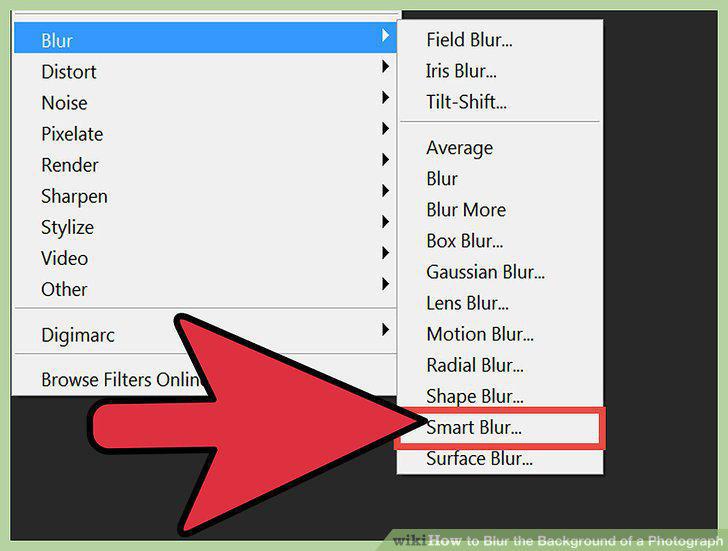
If you are using an updated version of Photoshop, try using the "smart blur" option.
Comments (0)
No comments yet. Be the first to share your thoughts!