How to Change Your Amazon Password on PC or Mac
Open Amazon in an internet browser.. Click the Accounts & Lists tab.. Click Login & security.
Steps
1
Open Amazon in an internet browser.
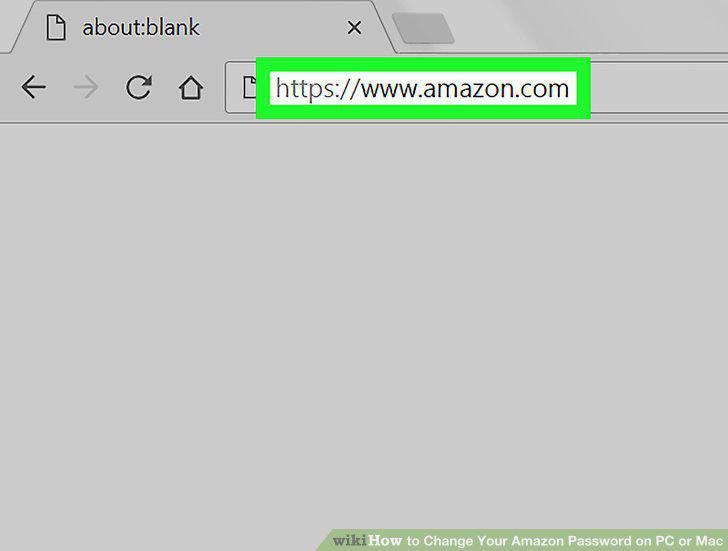
Open Amazon in an internet browser.
2
Click the Accounts & Lists tab.

Click the Accounts & Lists tab.
3
Click Login & security.
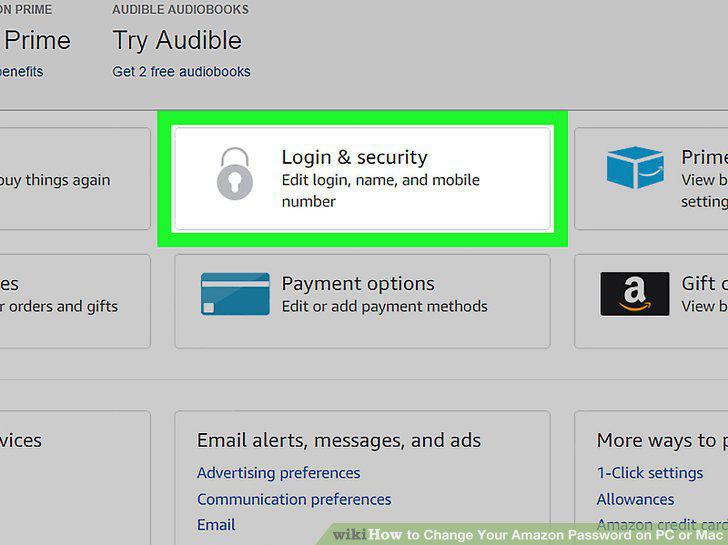
Click Login & security.
4
Sign in and verify your account.
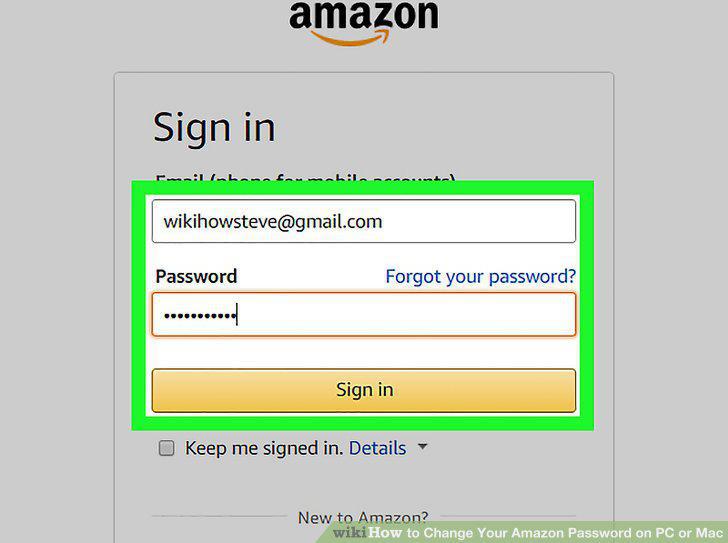
Sign in and verify your account.
5
Click Edit next to the Password box.
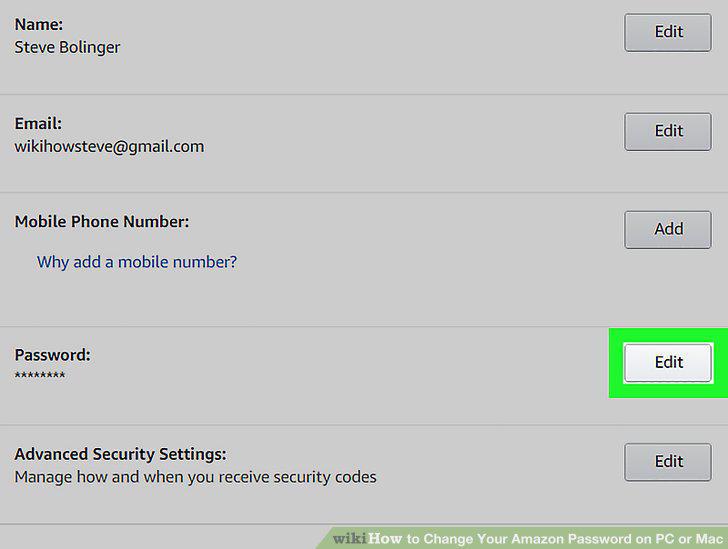
Click Edit next to the Password box.
6
Enter your current account password in the Current password field.
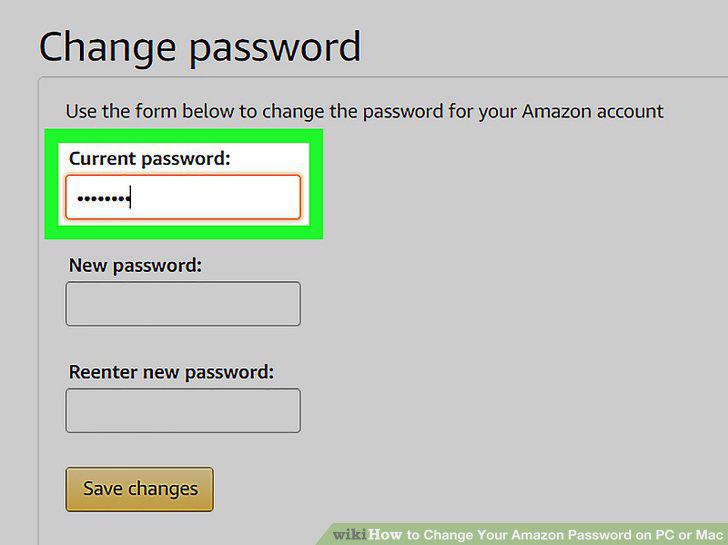
Enter your current account password in the Current password field.
7
Enter a new password in the New password field.
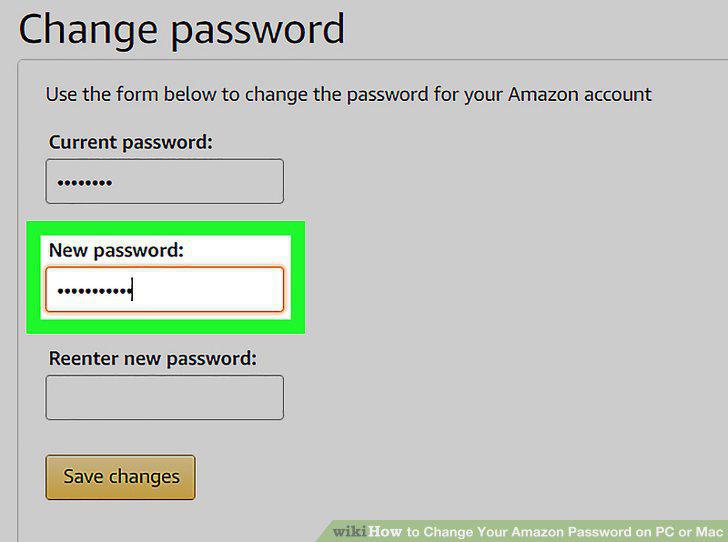
Enter a new password in the New password field.
8
Enter your new password again in the Reenter new password field.
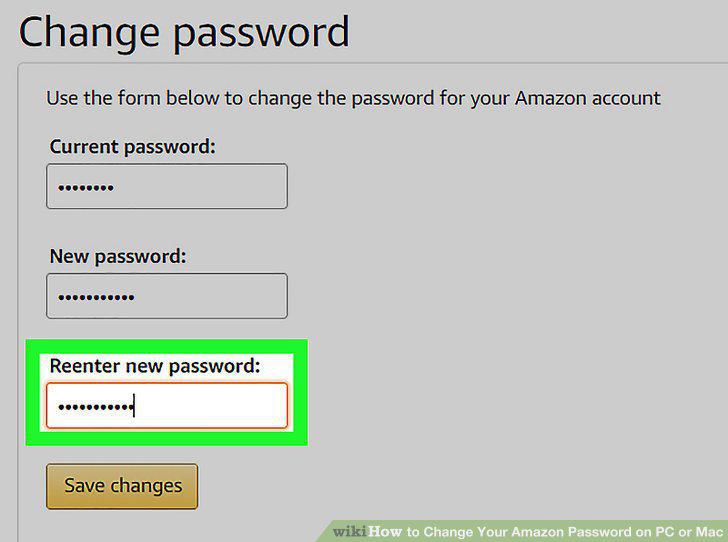
Enter your new password again in the Reenter new password field.
9
Click the orange Save changes button at the bottom.
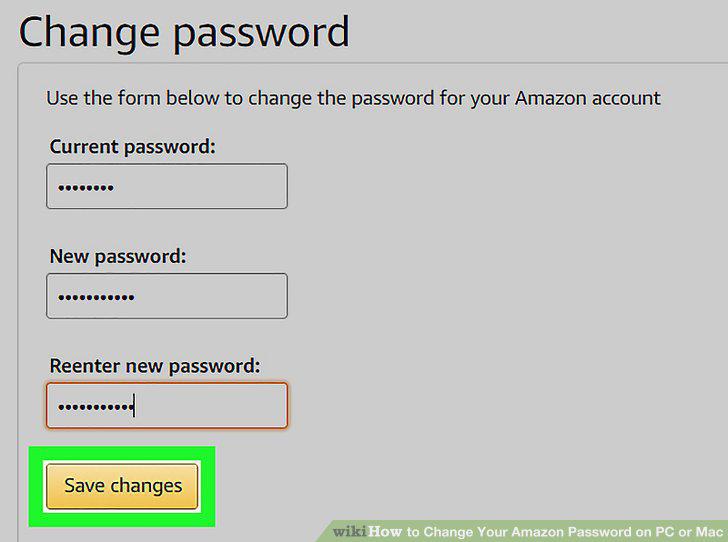
Click the orange Save changes button at the bottom.
Comments (0)
No comments yet. Be the first to share your thoughts!