How to Avoid Game Lag on a Low End System
Restart your computer.. Close background programs before gaming.. Refrain from updating your computer's operating system.
Steps
1
Restart your computer.
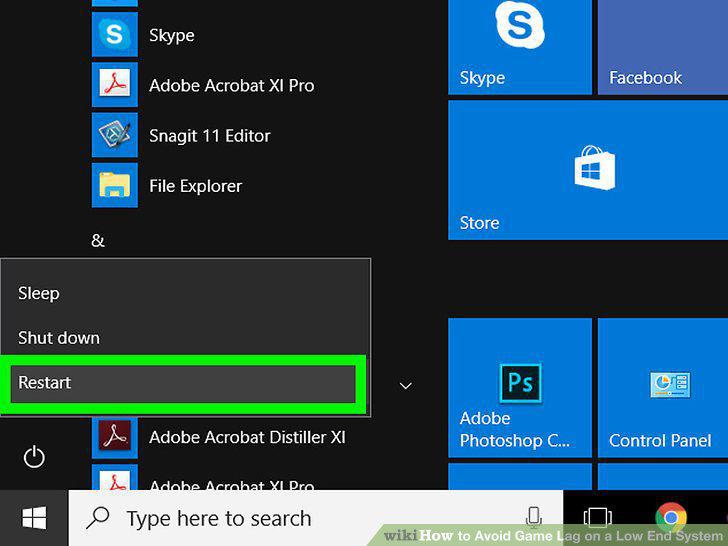
Restart your computer.
2
Close background programs before gaming.
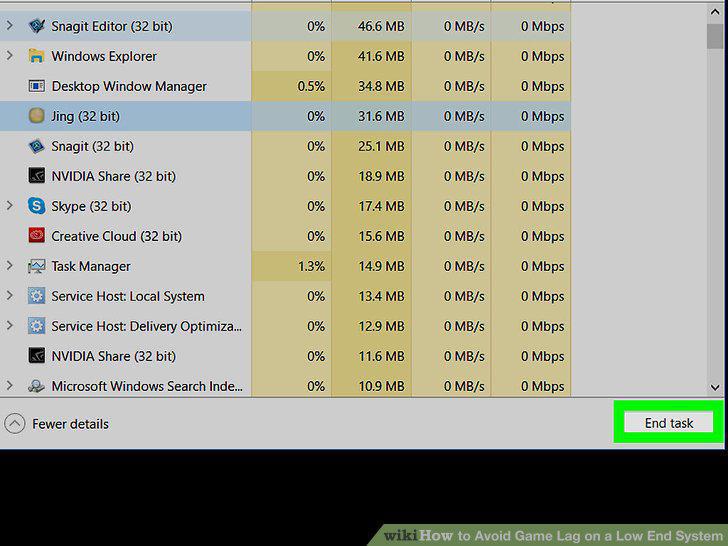
Close background programs before gaming.
3
Refrain from updating your computer's operating system.
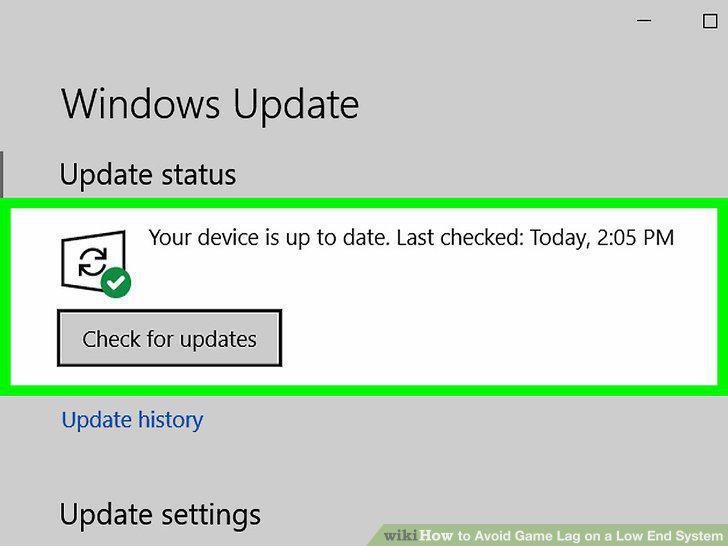
Refrain from updating your computer's operating system.
4
Update the game in question.
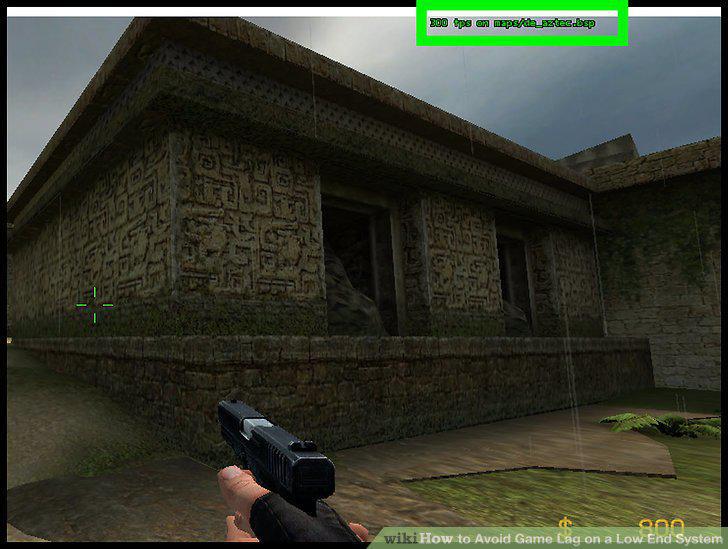
Update the game in question.
5
Add extra Random Access Memory (RAM) to your computer.

Add extra Random Access Memory (RAM) to your computer.
6
Open a game that is lagging.
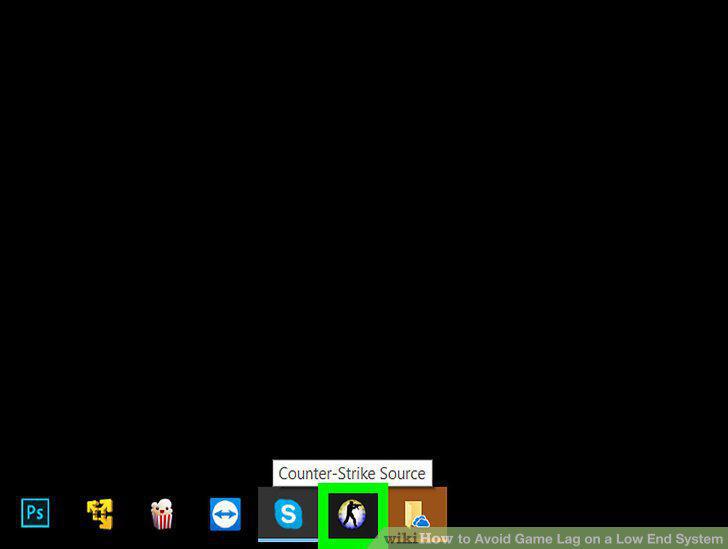
Open a game that is lagging.
7
Open the game's Settings.
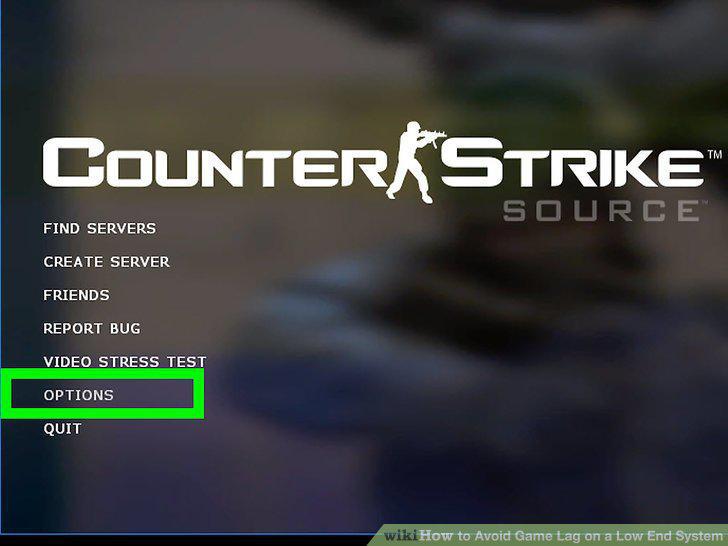
Open the game's Settings.
8
Select Video.
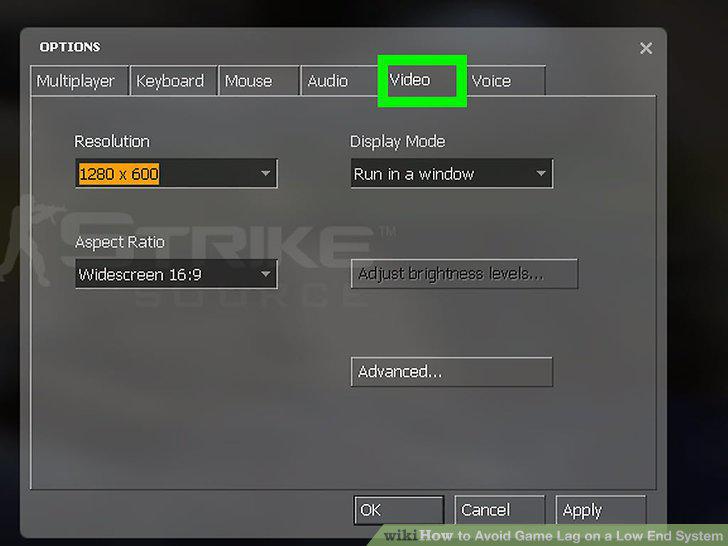
Select Video.
9
Find and change the "Quality" option if applicable.
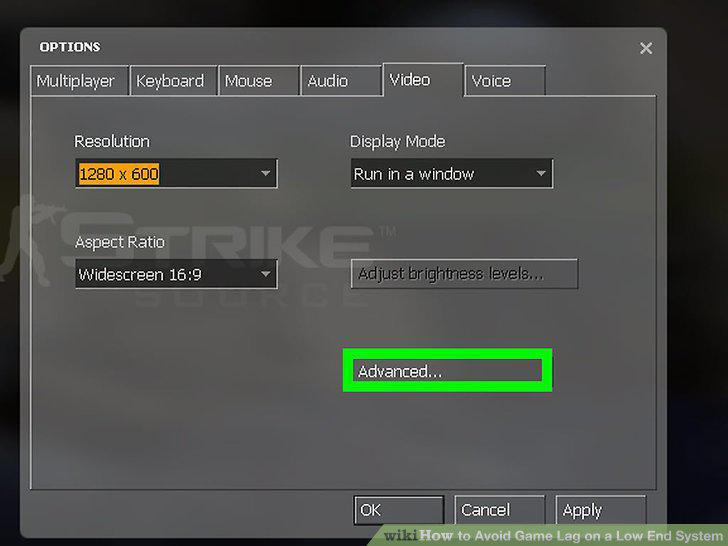
Find and change the "Quality" option if applicable.
10
Find and change the "Textures" option.
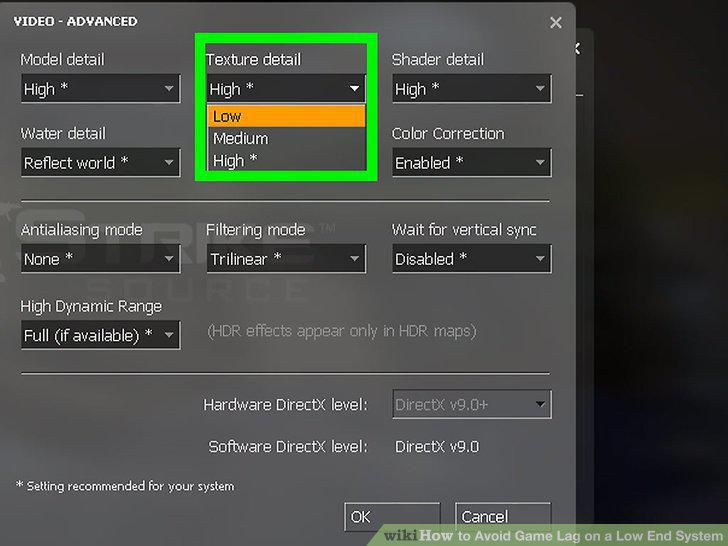
Find and change the "Textures" option.
11
Find and change the "Shadows" option.
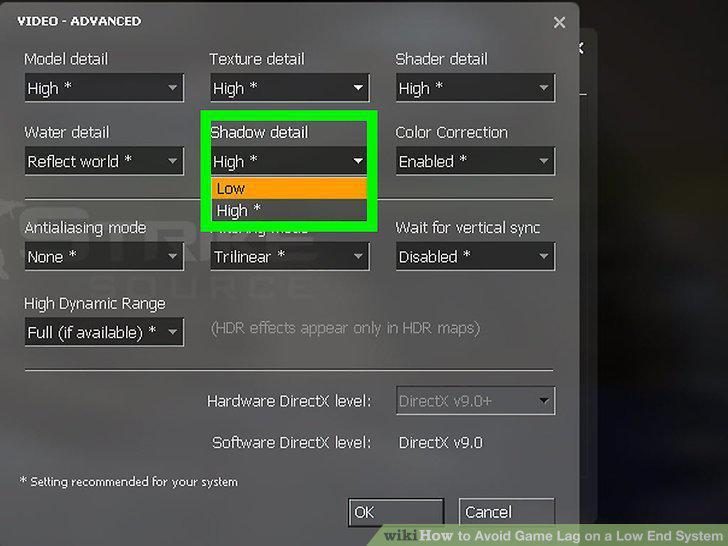
Find and change the "Shadows" option.
12
Disable the "Anti-Aliasing" option.
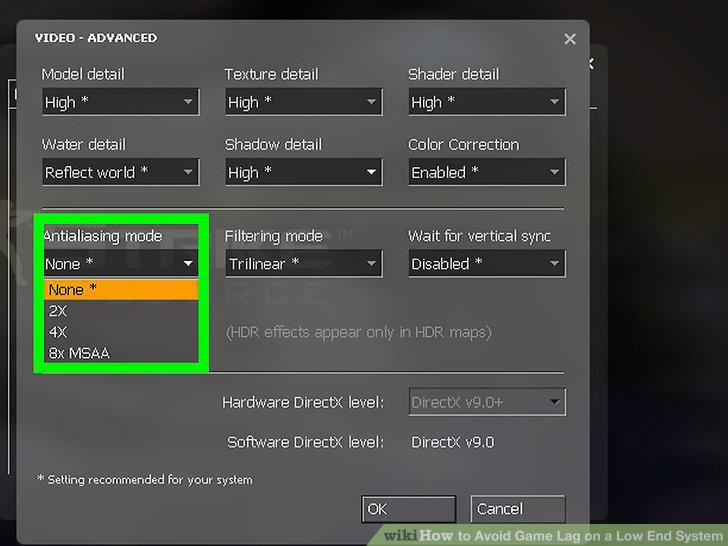
Disable the "Anti-Aliasing" option.
13
Change other "Video" (or "Graphics") settings.
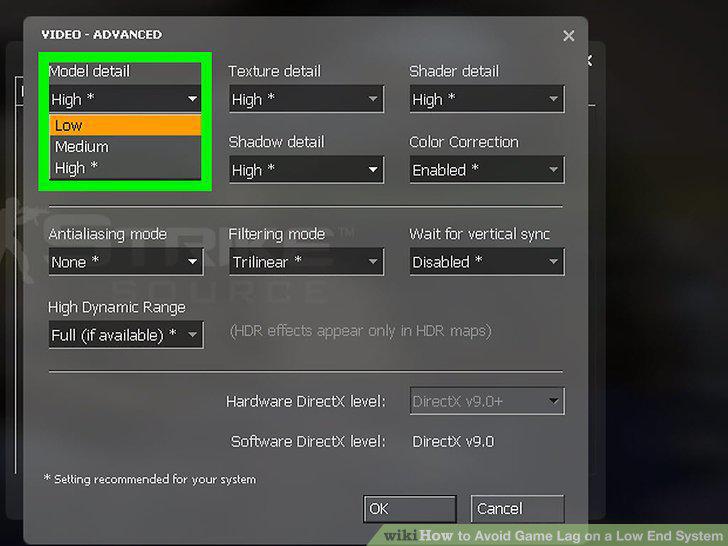
Change other "Video" (or "Graphics") settings.
14
Click your game's "Save" button.
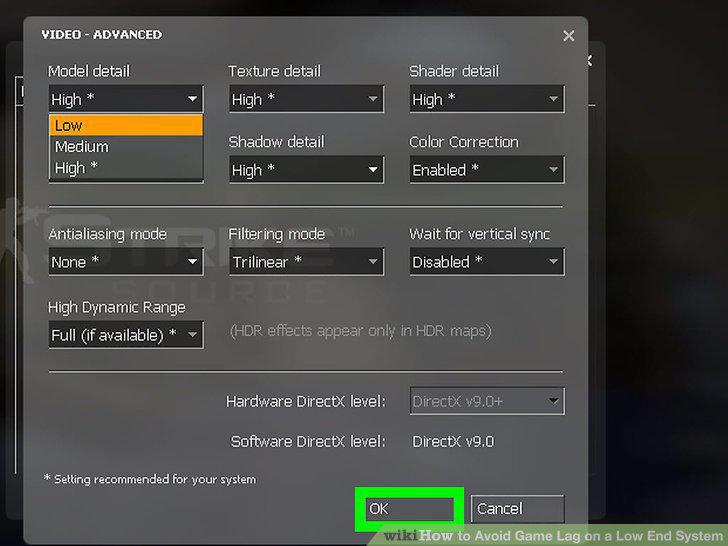
Click your game's "Save" button.
Comments (0)
No comments yet. Be the first to share your thoughts!