How to Blur a Face in a Photo
Use an in-built image editor for a simple option.. Prioritize free-to-use websites for simple blurring.. Expect more options and higher quality with pay-to-use services.
Steps
1
Use an in-built image editor for a simple option.
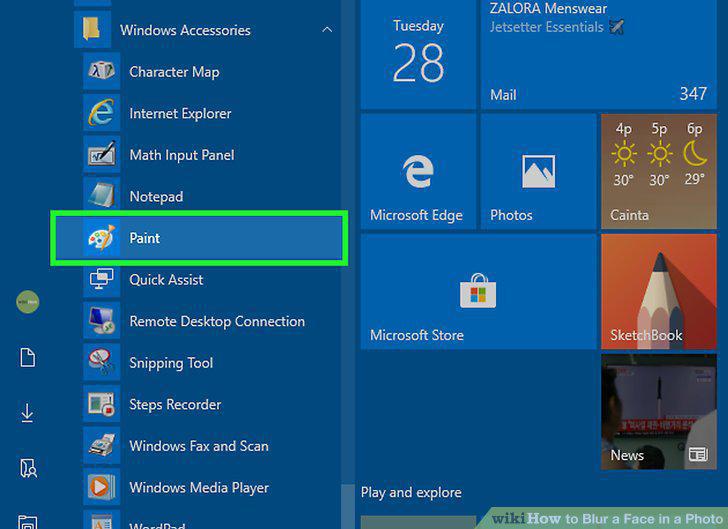
Use an in-built image editor for a simple option.
2
Prioritize free-to-use websites for simple blurring.

Prioritize free-to-use websites for simple blurring.
3
Expect more options and higher quality with pay-to-use services.

Expect more options and higher quality with pay-to-use services.
4
Search for face blurring apps in the app store.
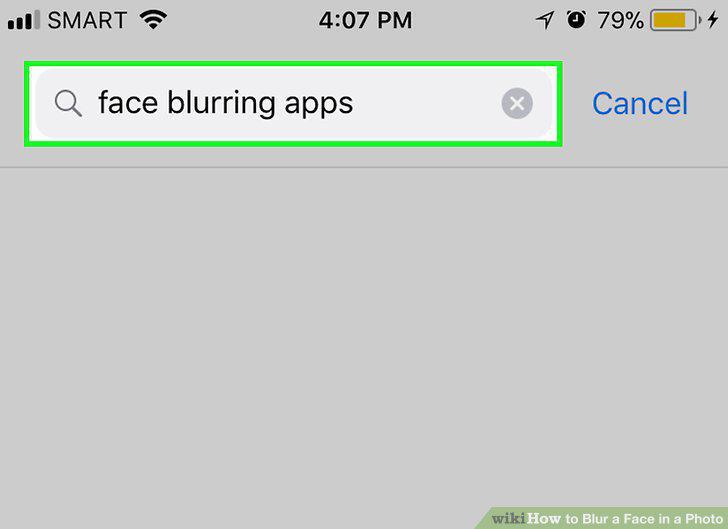
Search for face blurring apps in the app store.
5
Read the privacy agreement before choosing a service.

Read the privacy agreement before choosing a service.
6
Open the photo with your photo editor.
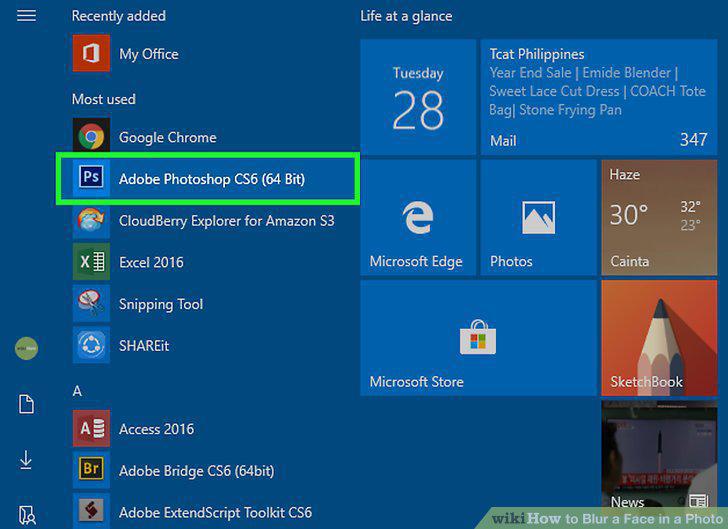
Open the photo with your photo editor.
7
Find the blur tool.
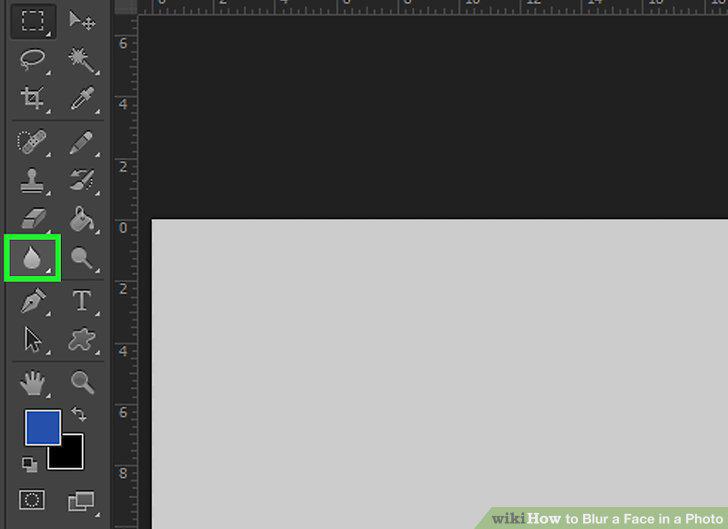
Find the blur tool.
8
Blur the faces in the photo.
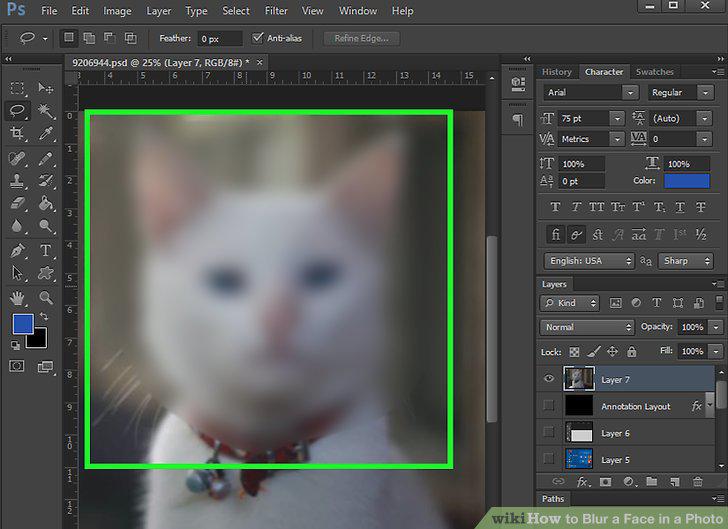
Blur the faces in the photo.
9
Save the photo.
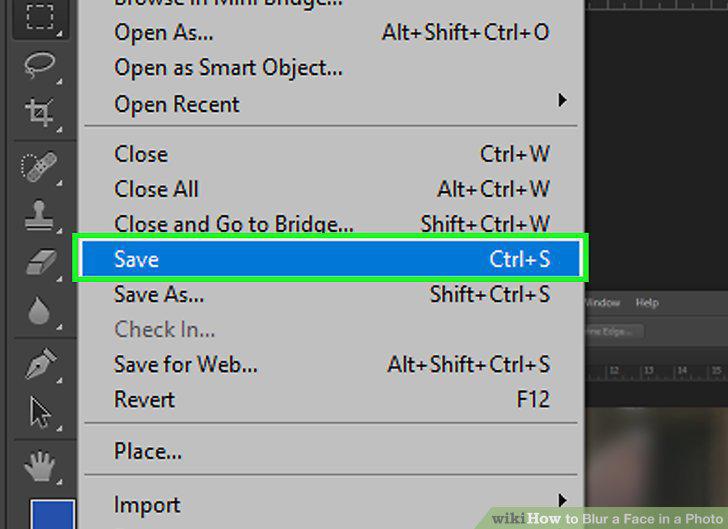
Save the photo.
Comments (0)
No comments yet. Be the first to share your thoughts!