How to Use an Apple Watch (for Seniors)
Make sure your iPhone is updated to the latest version.. Turn on your iPhone's Bluetooth.. Turn on your Apple Watch by holding down the side button.
Steps
Make sure your iPhone is updated to the latest version.
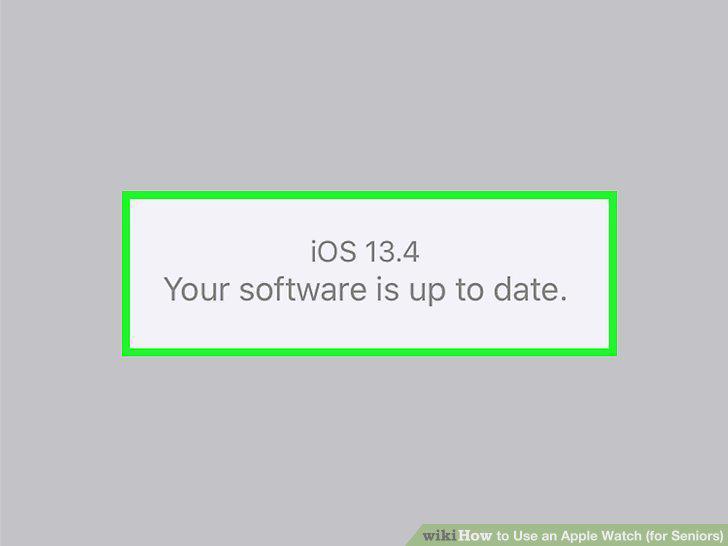
Make sure your iPhone is updated to the latest version.
Turn on your iPhone's Bluetooth.
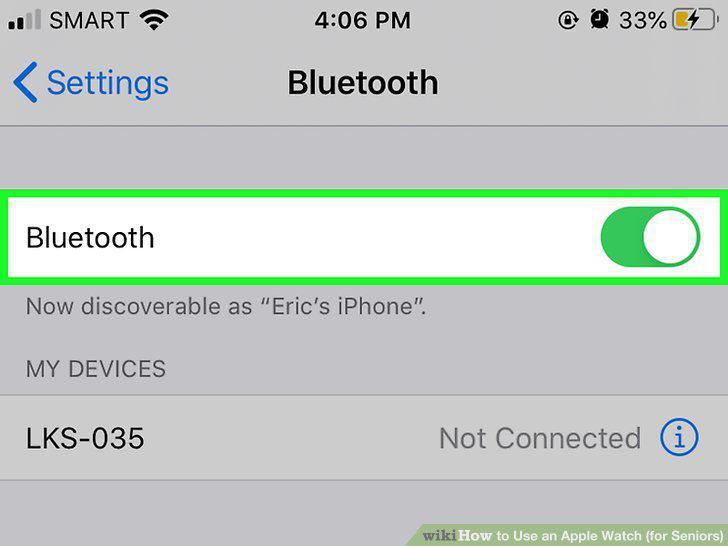
Turn on your iPhone's Bluetooth.
Turn on your Apple Watch by holding down the side button.
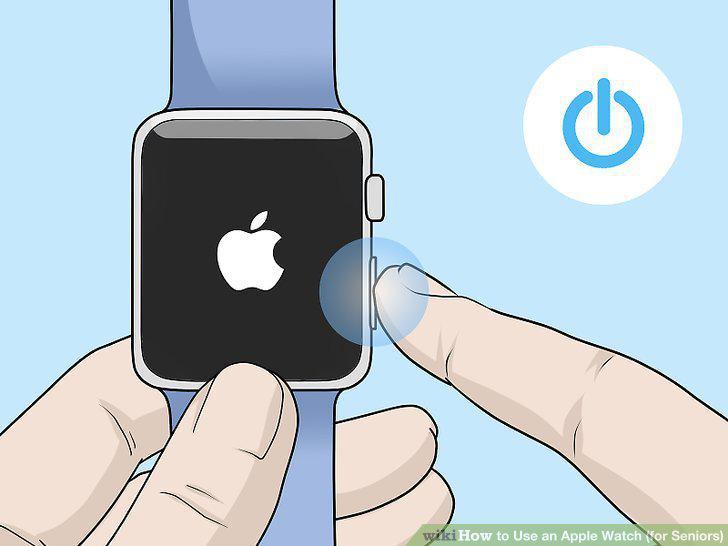
Turn on your Apple Watch by holding down the side button.
Hold your Apple Watch close to your iPhone, then tap "Continue.
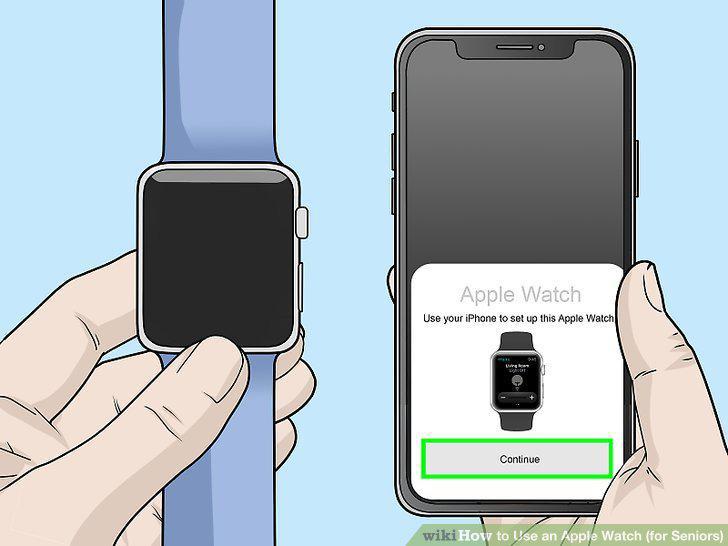
Hold your Apple Watch close to your iPhone, then tap "Continue.
Hold your iPhone over the animation on your Apple Watch.
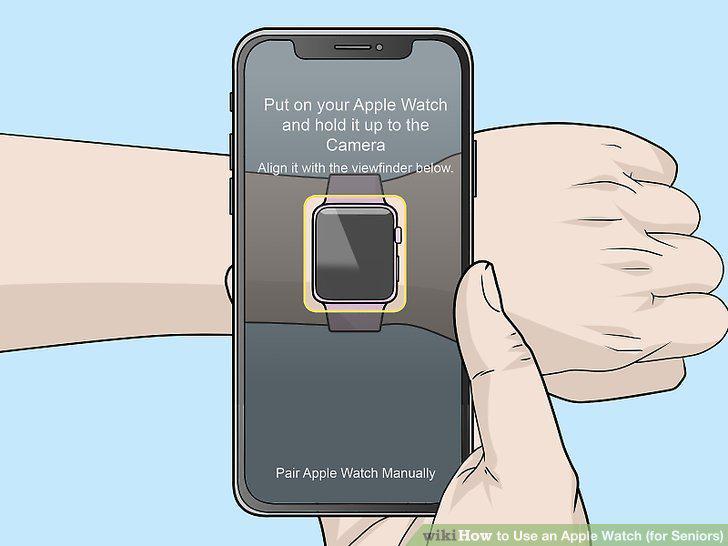
Hold your iPhone over the animation on your Apple Watch.
Restore your watch as a backup from a previous watch or set it up like new.
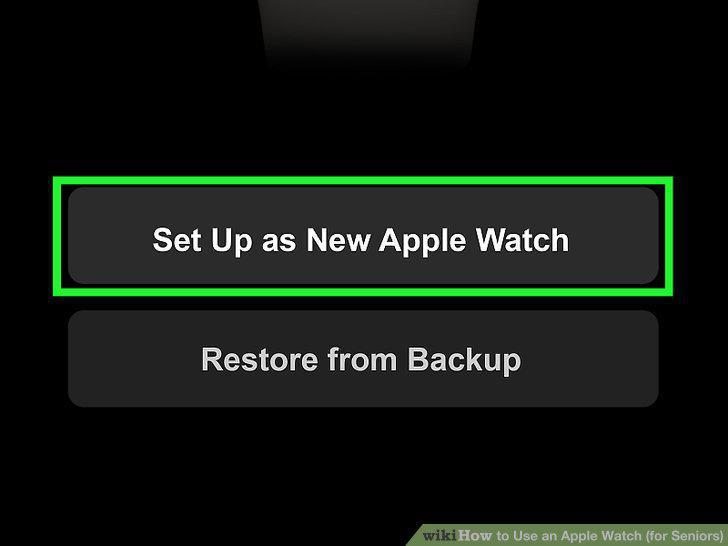
Restore your watch as a backup from a previous watch or set it up like new.
Sign in with your Apple ID if you are asked to.
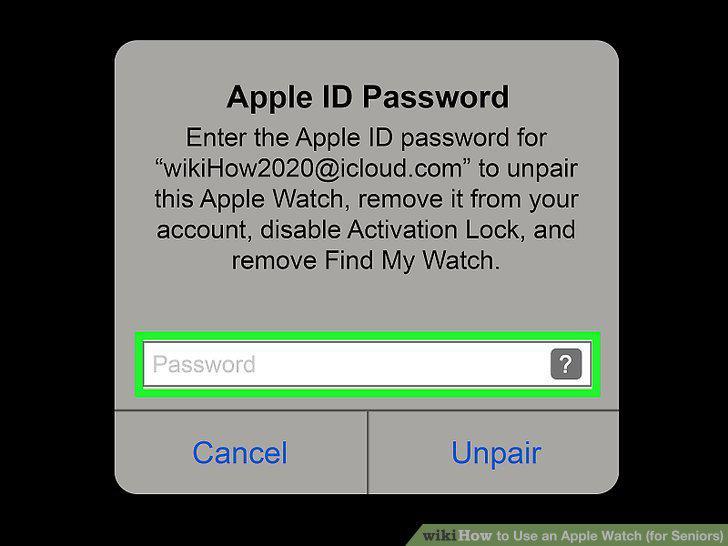
Sign in with your Apple ID if you are asked to.
Fix any settings you'd like to adjust on your watch.
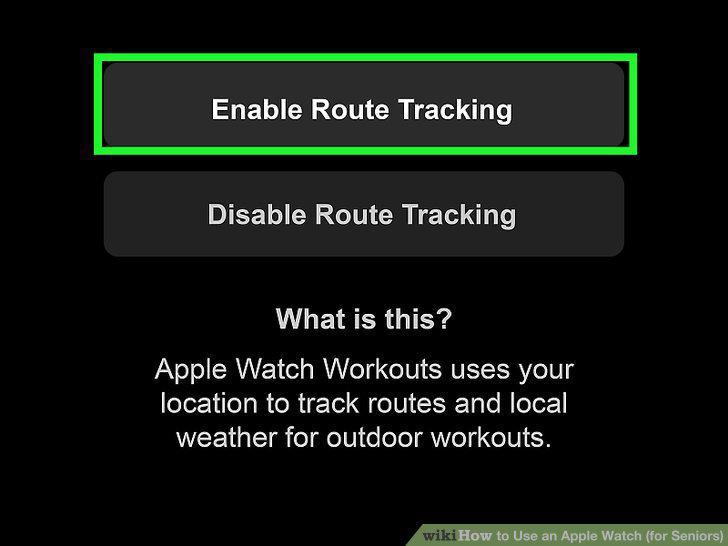
Fix any settings you'd like to adjust on your watch.
Create a passcode when prompted.
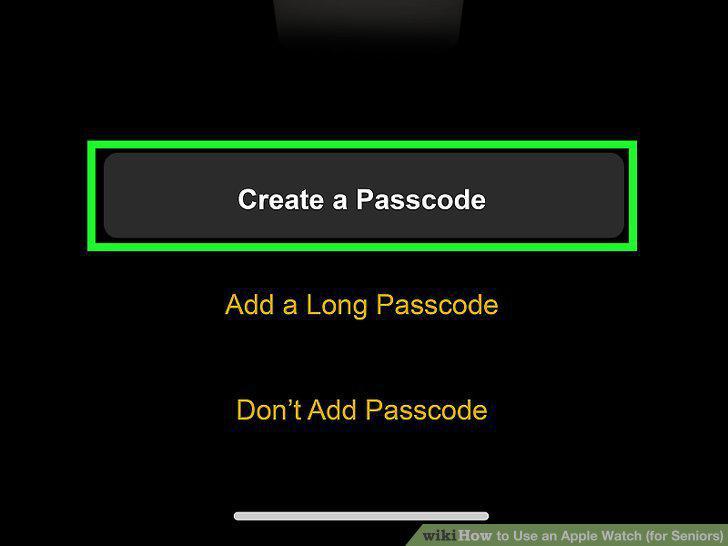
Create a passcode when prompted.
Pick out the features and apps available on your watch.
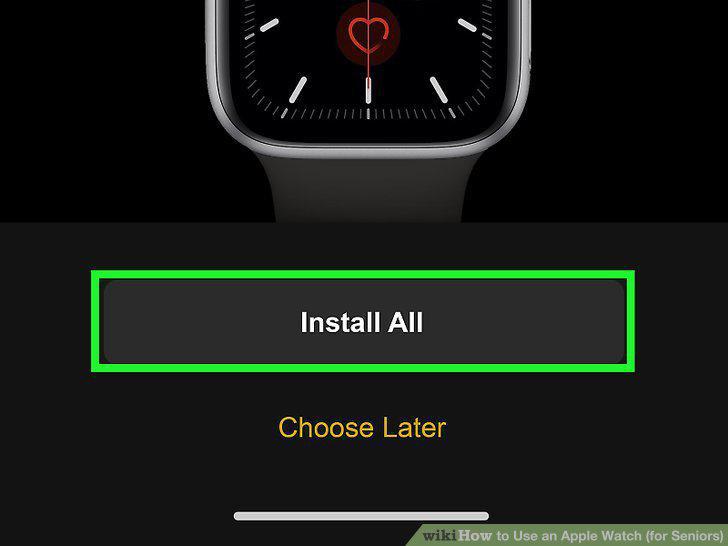
Pick out the features and apps available on your watch.
Allow your iPhone and Apple Watch to sync.
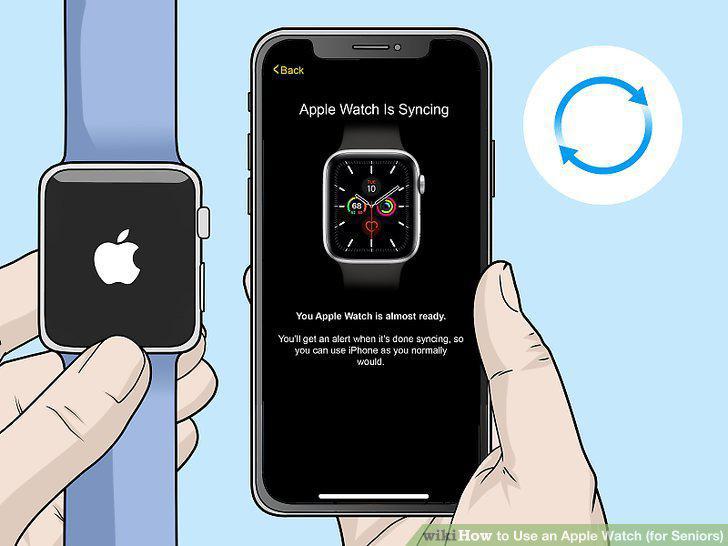
Allow your iPhone and Apple Watch to sync.
Put the Apple Watch on your wrist with the wrist strap.
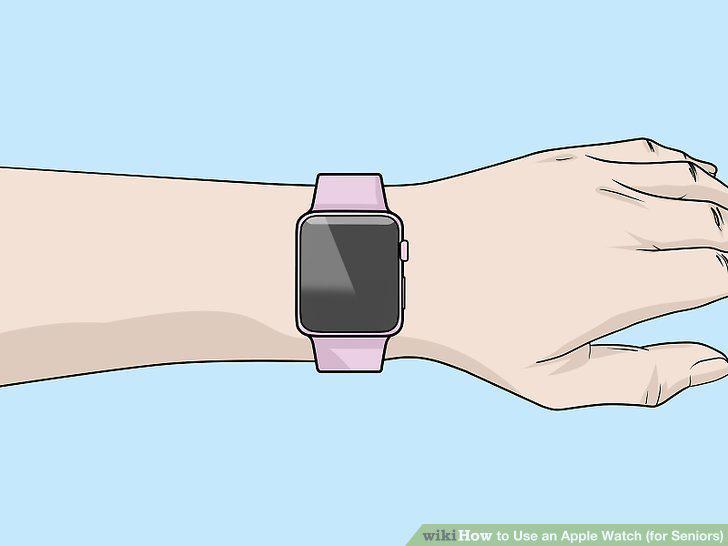
Put the Apple Watch on your wrist with the wrist strap.
Raise your wrist to wake up your watch's screen.
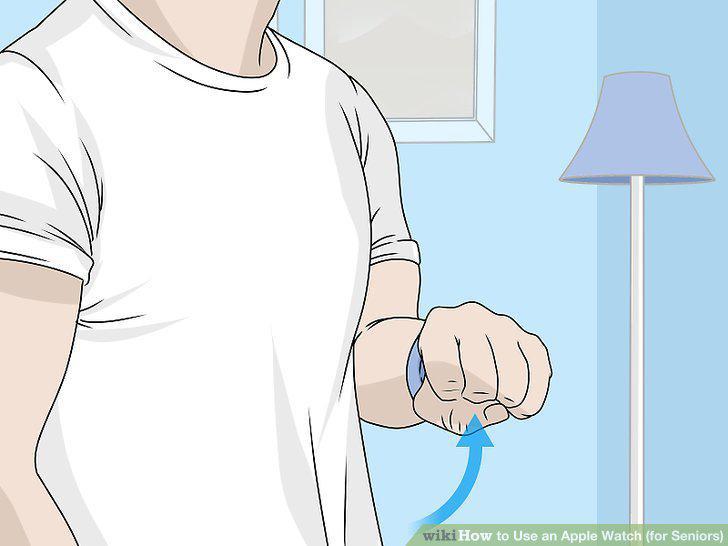
Raise your wrist to wake up your watch's screen.
Tap the screen with 1 finger to make the keyboard appear.
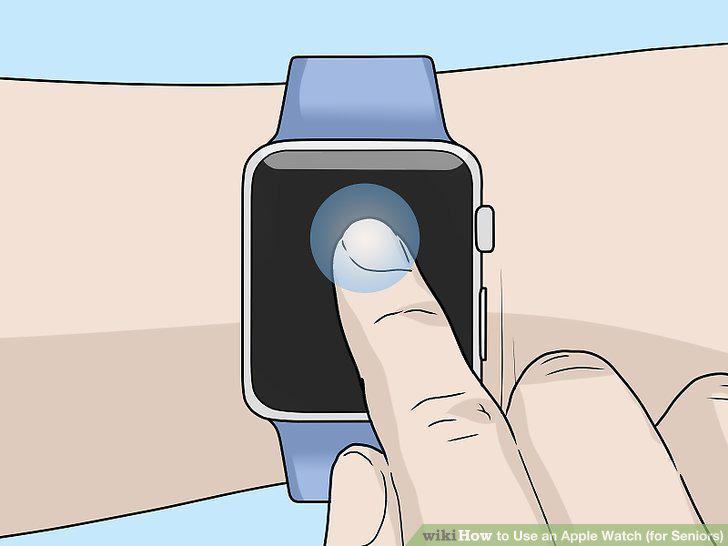
Tap the screen with 1 finger to make the keyboard appear.
Enter your passcode on the keypad.
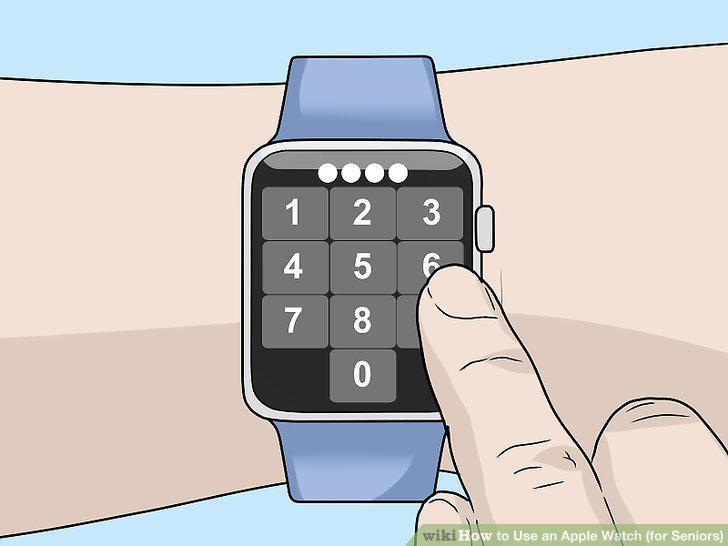
Enter your passcode on the keypad.
Press the Digital Crown button on the right of your watch face.
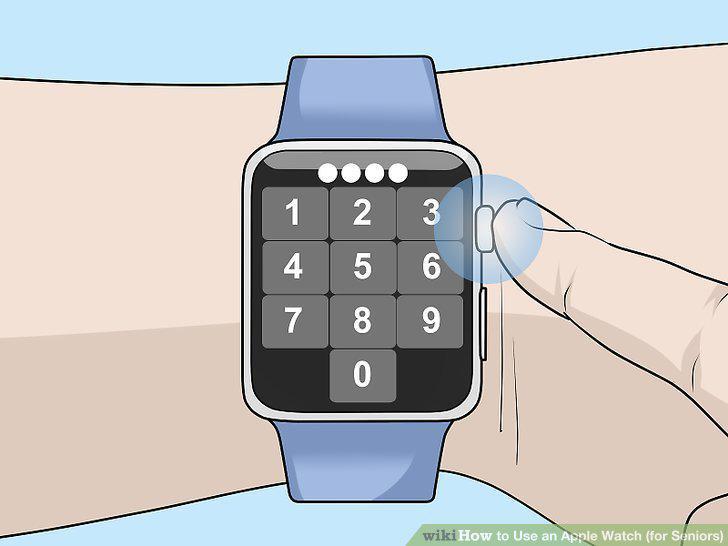
Press the Digital Crown button on the right of your watch face.
Drag your finger across your watch face to scroll.
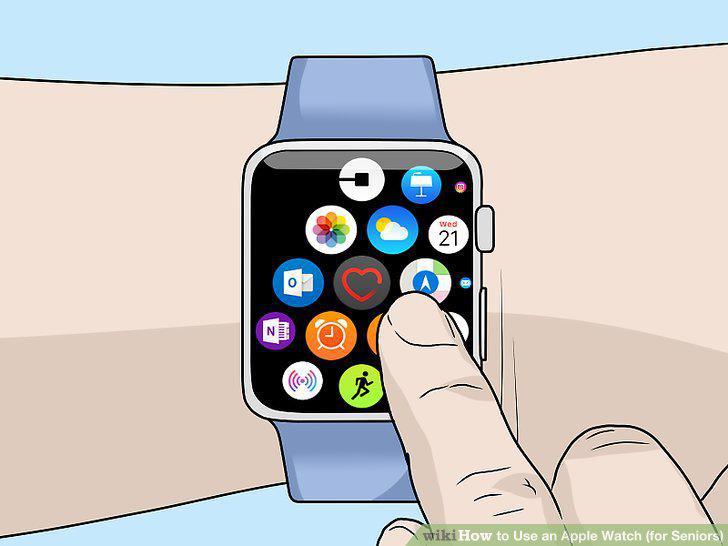
Drag your finger across your watch face to scroll.
Swipe to see different screens on your watch face.
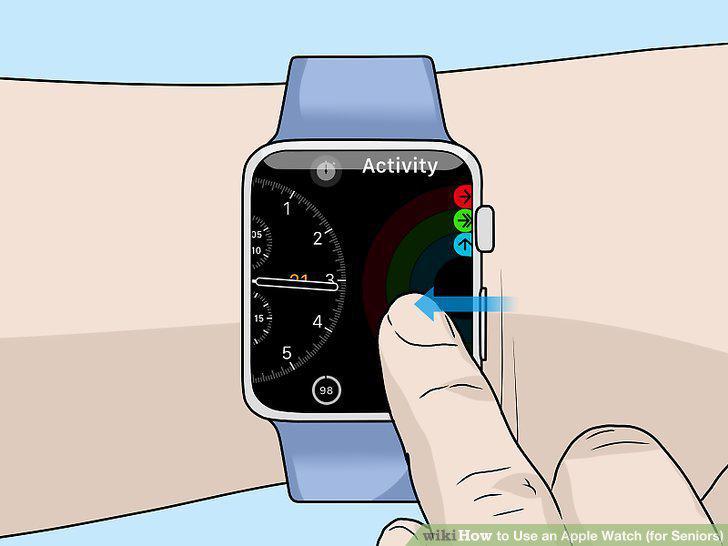
Swipe to see different screens on your watch face.
Attach the magnetic charger to the back of the watch to charge it.
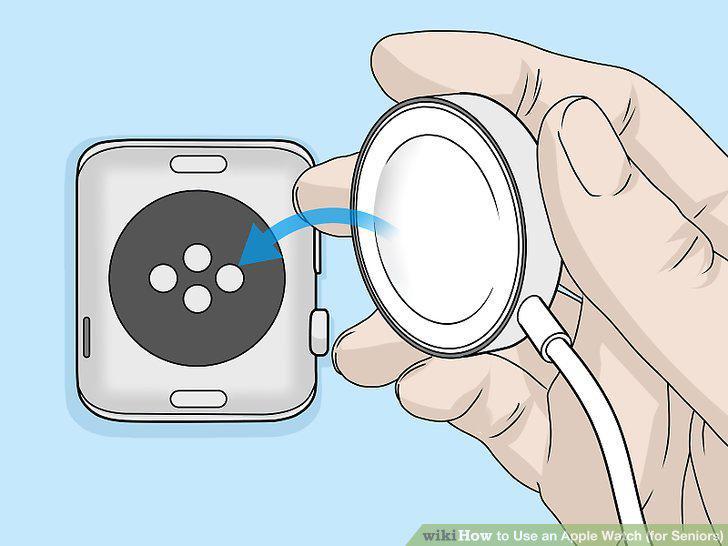
Attach the magnetic charger to the back of the watch to charge it.
Hold the release button on the back of your watch to change the band.
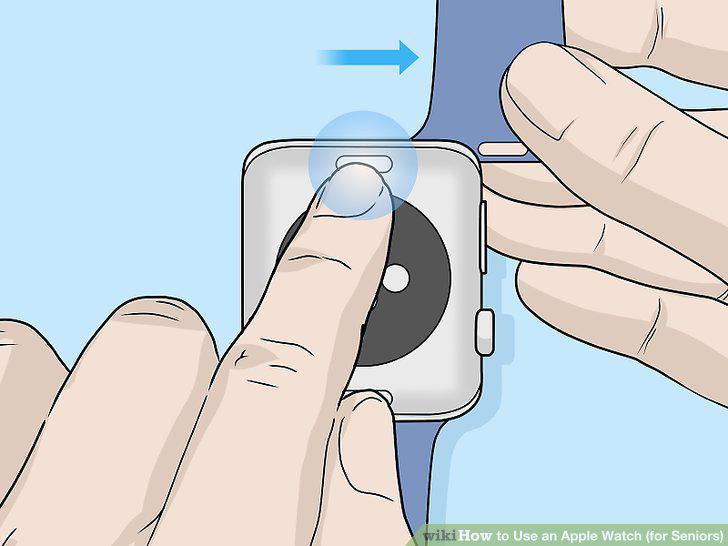
Hold the release button on the back of your watch to change the band.
Press down on the side button to use Siri.
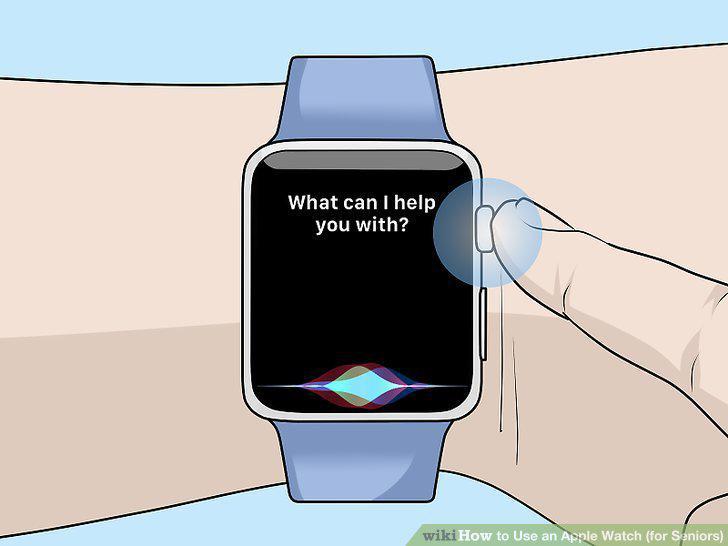
Press down on the side button to use Siri.
Download apps on your watch by using the App Store.
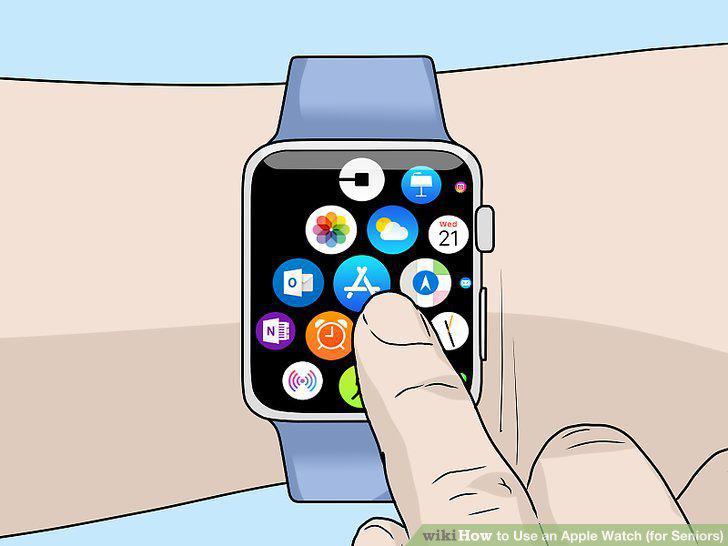
Download apps on your watch by using the App Store.
Fill out your Medical ID to track your health information.
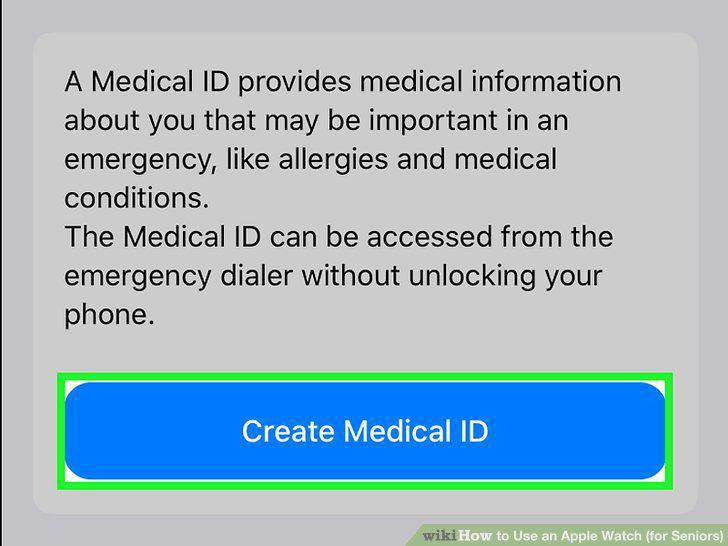
Fill out your Medical ID to track your health information.
Hold your finger on the Digital Crown to track your heartbeat.
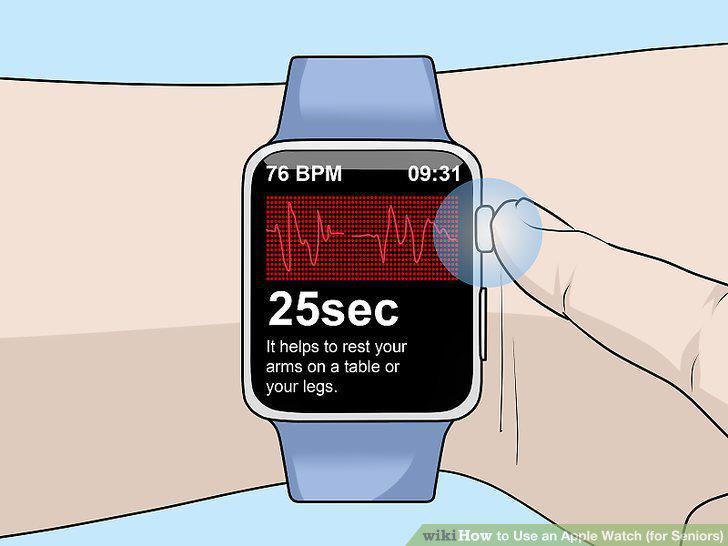
Hold your finger on the Digital Crown to track your heartbeat.
Set up heart rate notifications to be alerted about highs or lows.
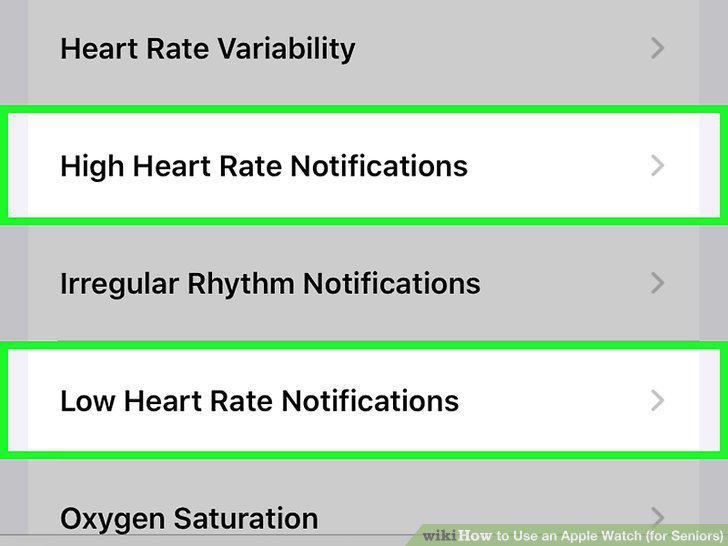
Set up heart rate notifications to be alerted about highs or lows.
Enable irregular rhythm notifications to get alerts about them.
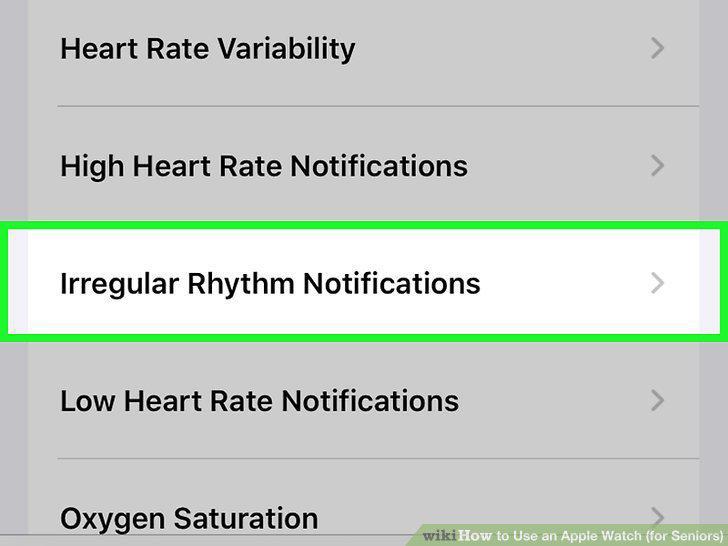
Enable irregular rhythm notifications to get alerts about them.
Contact emergency services if you take a hard fall.
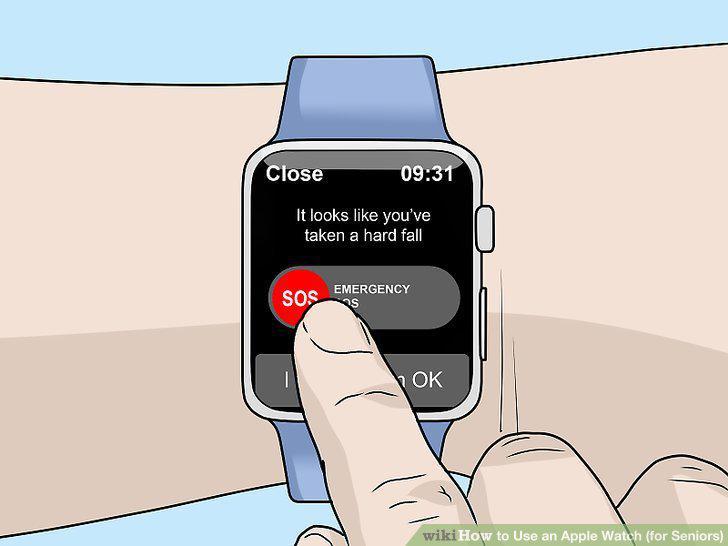
Contact emergency services if you take a hard fall.
Comments (0)
No comments yet. Be the first to share your thoughts!