How to Delete Photos
Open your device's photo manager app.. Select the photo you want to delete.. Locate and tap the "trash can" icon.
Steps
1
Open your device's photo manager app.
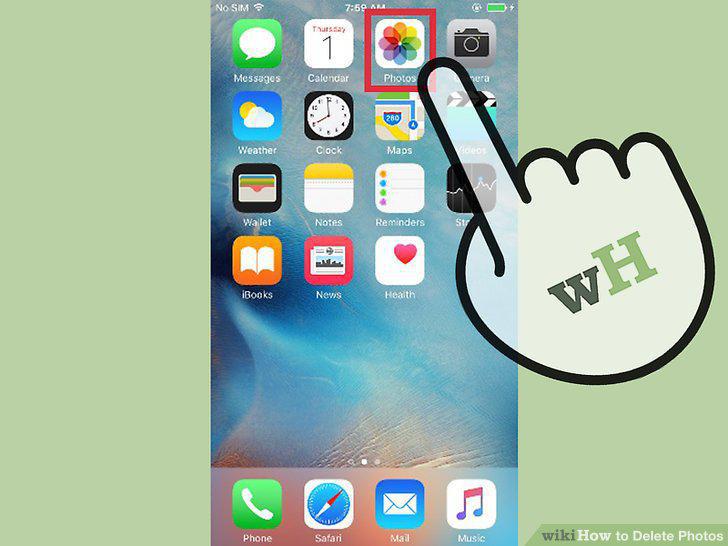
Open your device's photo manager app.
2
Select the photo you want to delete.
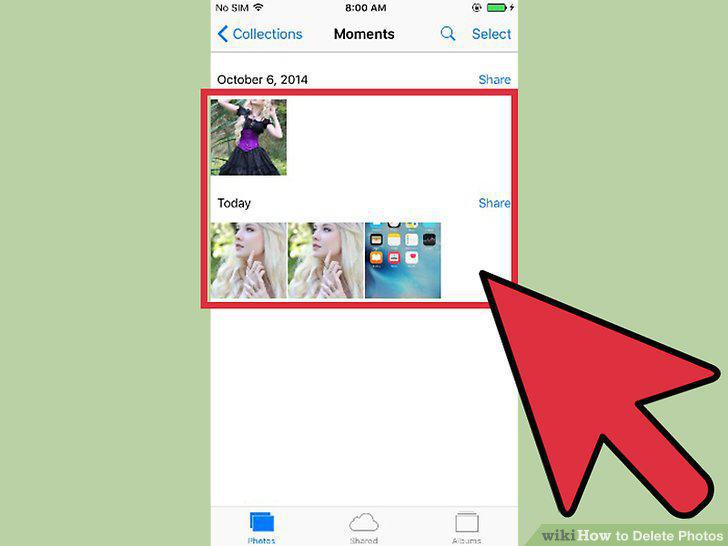
Select the photo you want to delete.
3
Locate and tap the "trash can" icon.

Locate and tap the "trash can" icon.
4
Select multiple photos to delete.
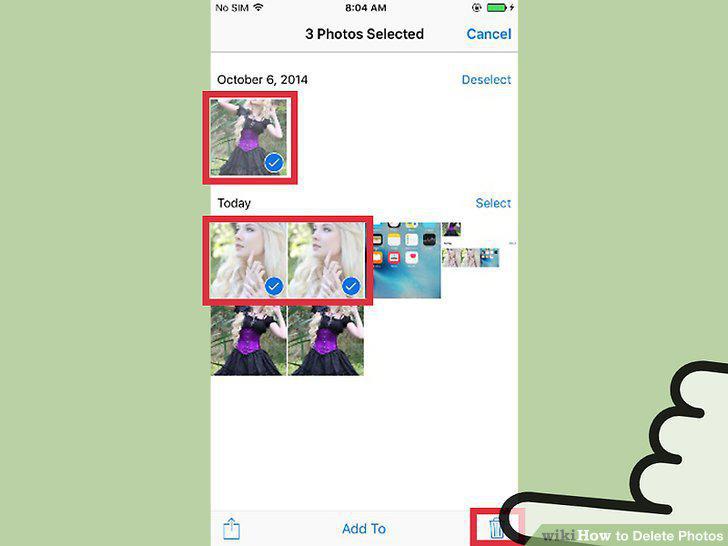
Select multiple photos to delete.
5
Delete photos permanently from your device.
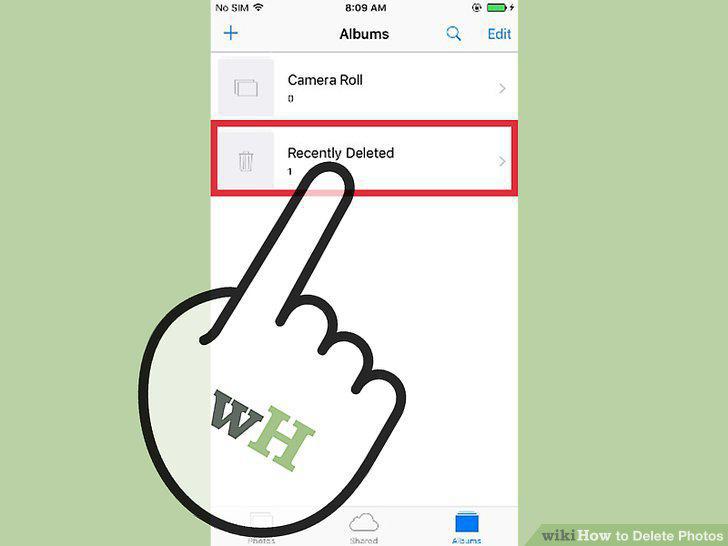
Delete photos permanently from your device.
6
Access the photo(s) you wish to delete.
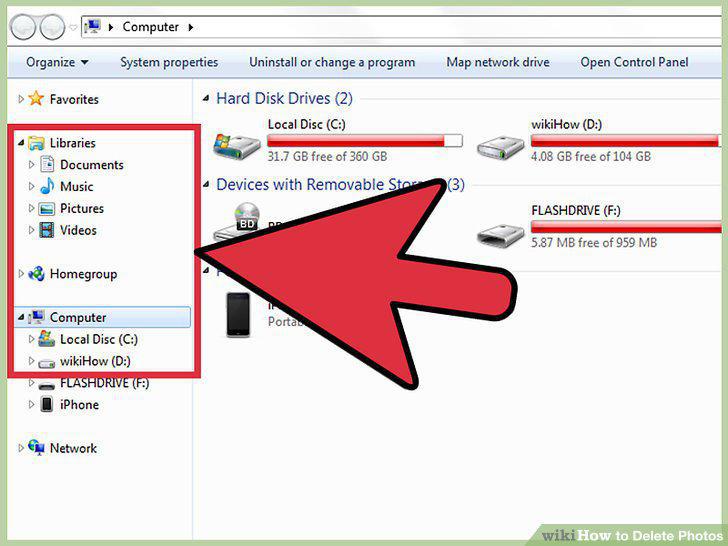
Access the photo(s) you wish to delete.
7
Right click the photo and hit "delete.
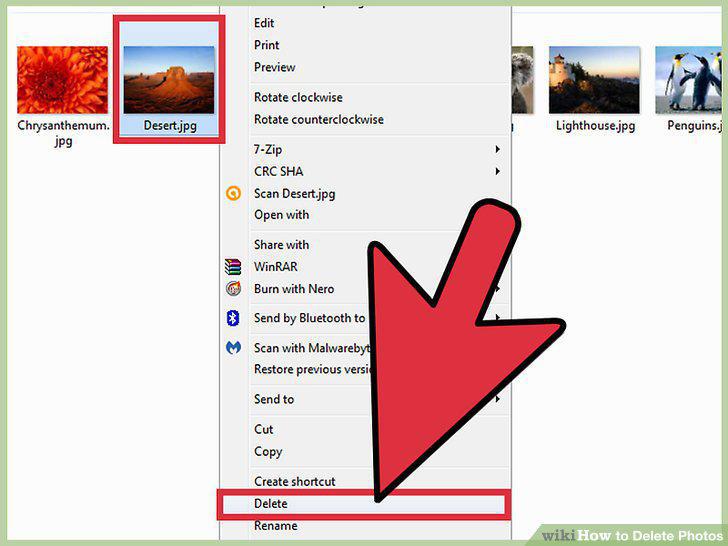
Right click the photo and hit "delete.
8
Drag unwanted photos to the trash.
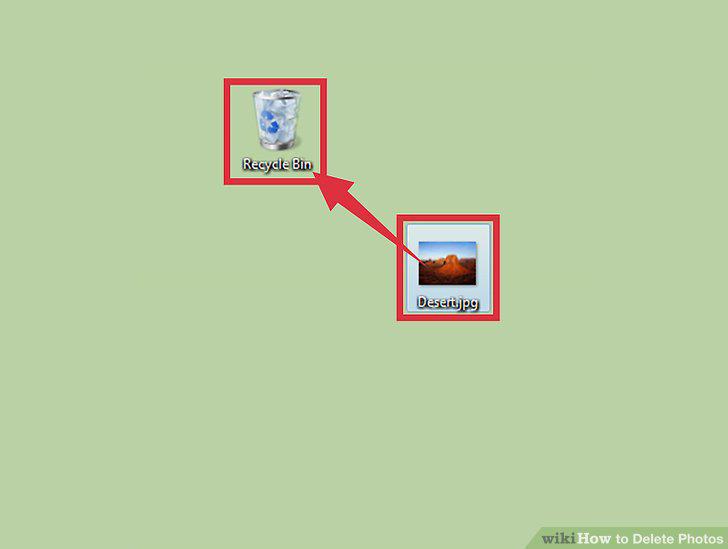
Drag unwanted photos to the trash.
9
Empty your trash can to free up storage space.
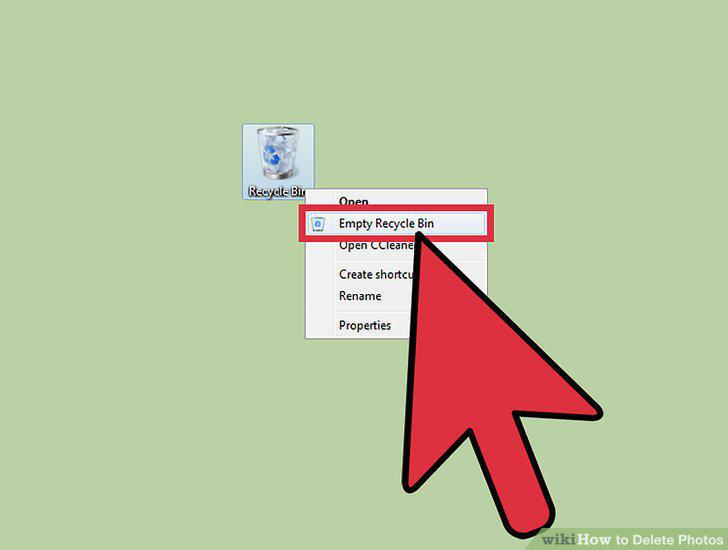
Empty your trash can to free up storage space.
10
Sync your photos to the Cloud.
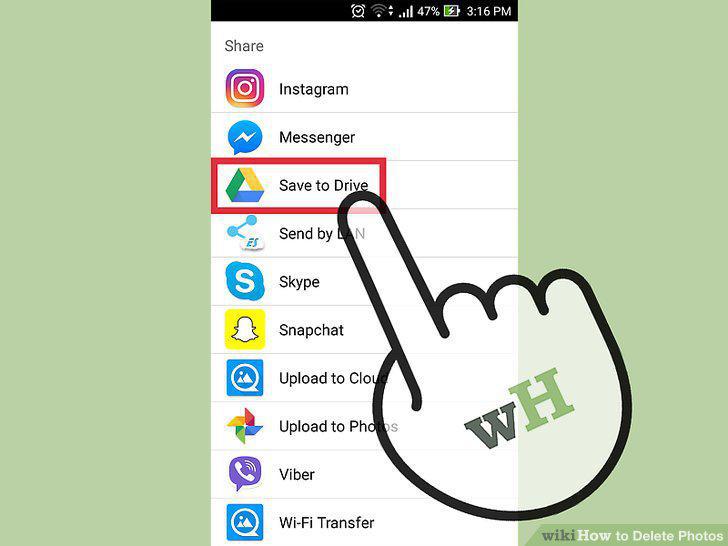
Sync your photos to the Cloud.
11
Email the photos to yourself.
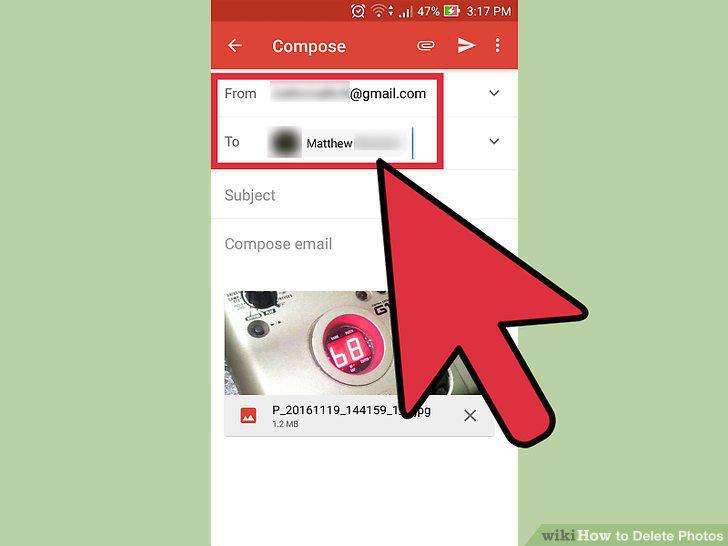
Email the photos to yourself.
12
Upload the photos to a flash drive.
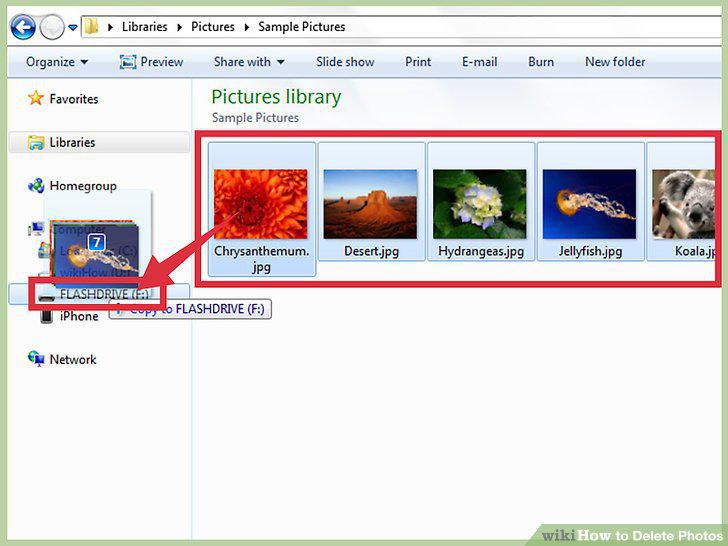
Upload the photos to a flash drive.
Comments (0)
No comments yet. Be the first to share your thoughts!