How to Change a PayPal Password
Go to the PayPal login page.. Click "Having trouble logging in?. Enter the email address for your PayPal account, and complete the captcha text.
Steps
1
Go to the PayPal login page.
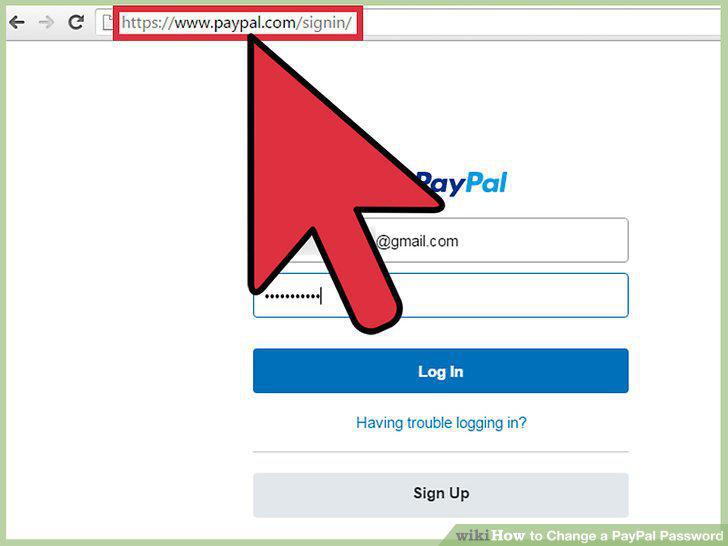
Go to the PayPal login page.
2
Click "Having trouble logging in?
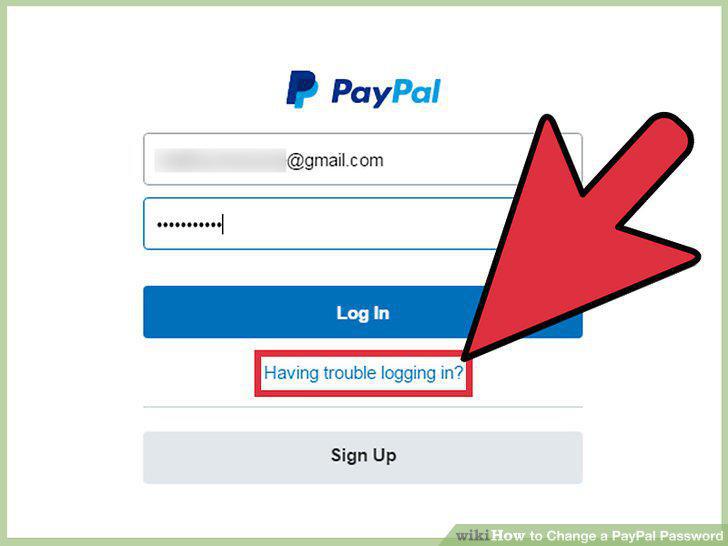
Click "Having trouble logging in?
3
Enter the email address for your PayPal account, and complete the captcha text.
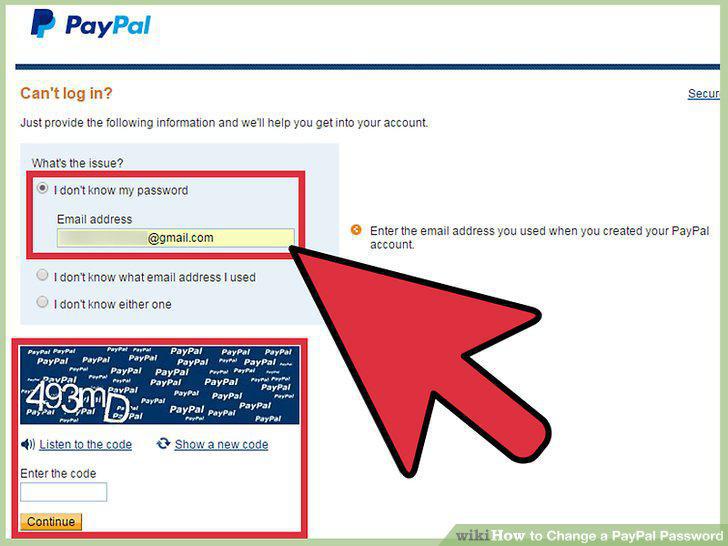
Enter the email address for your PayPal account, and complete the captcha text.
4
Select a verification method.
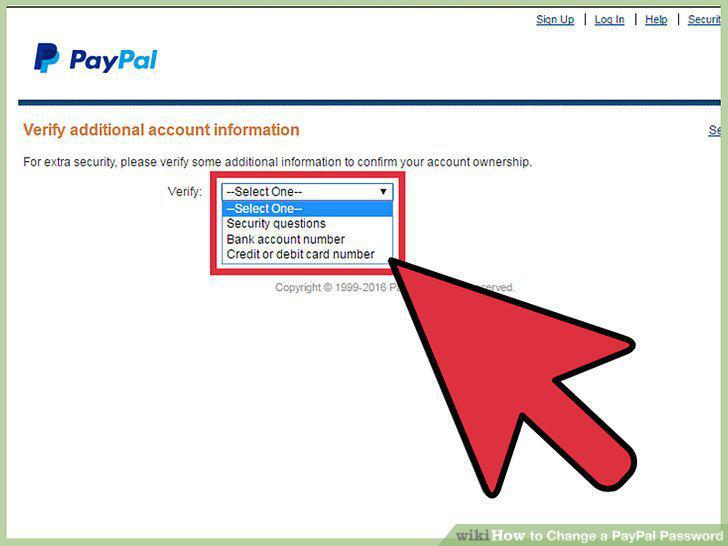
Select a verification method.
5
Enter the security code.
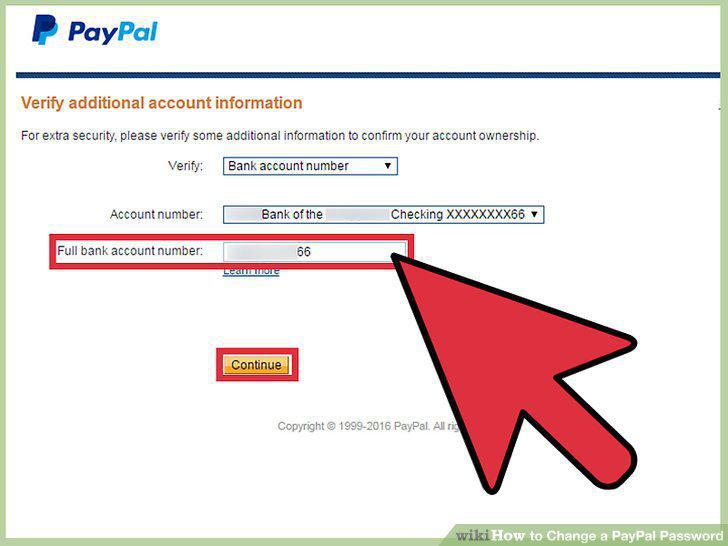
Enter the security code.
6
Enter your new password.
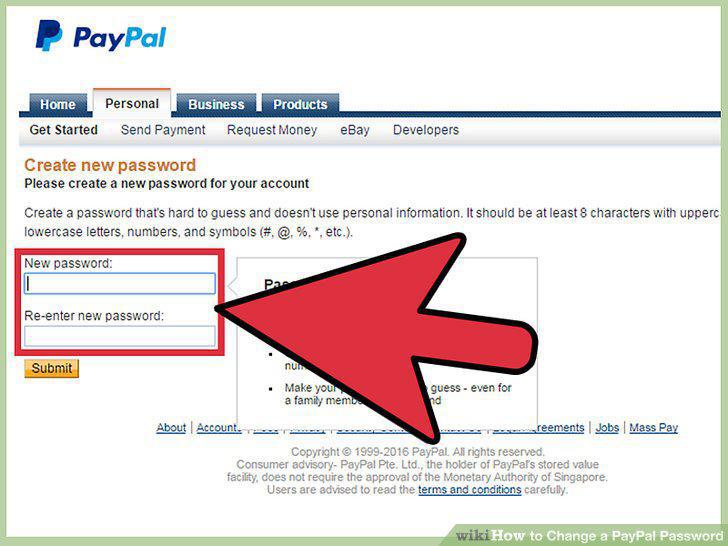
Enter your new password.
7
Confirm the new password.
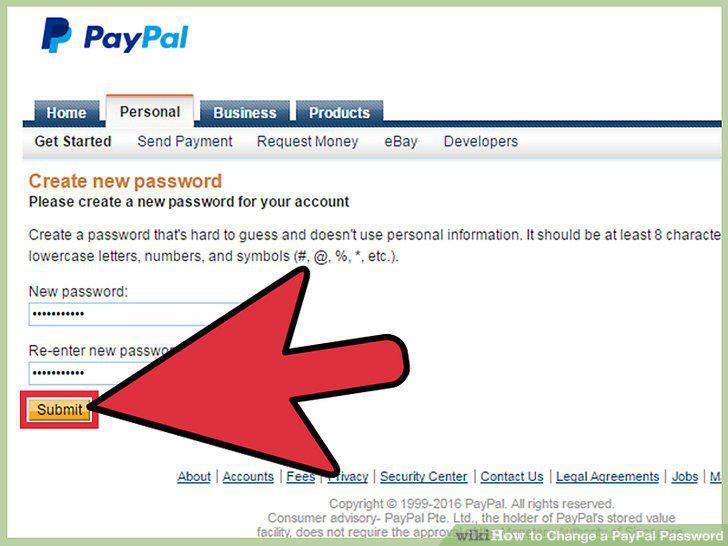
Confirm the new password.
8
Log into your PayPal account from the PayPal homepage.
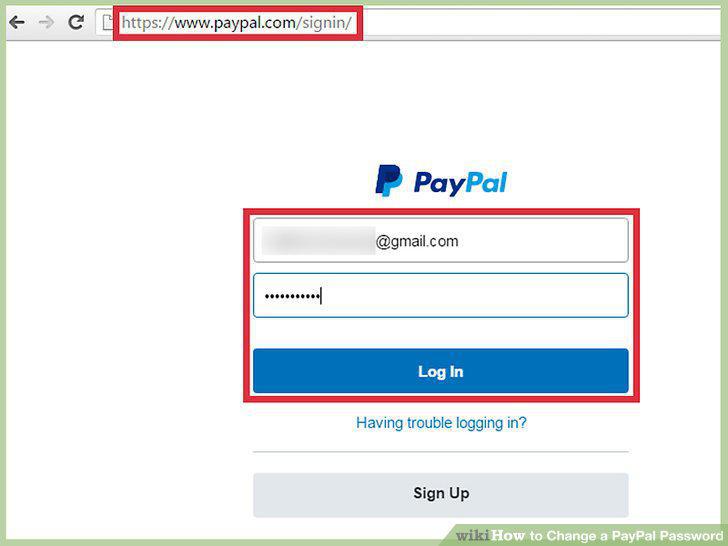
Log into your PayPal account from the PayPal homepage.
9
Access your profile.
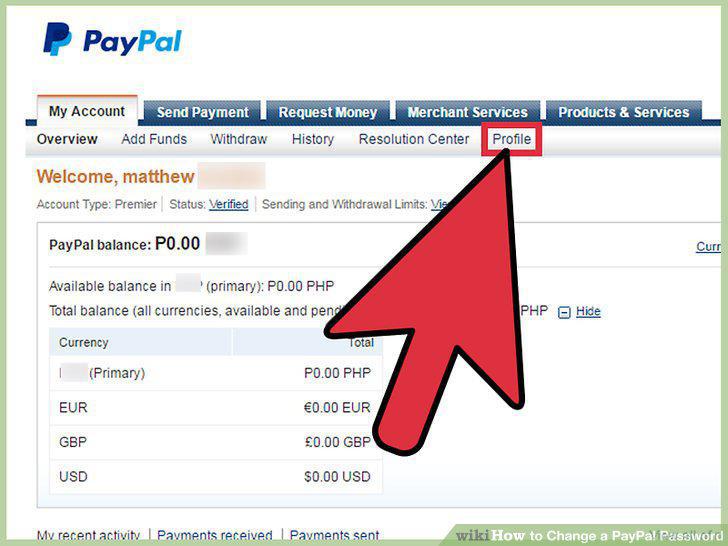
Access your profile.
10
Go to the "Security" menu.
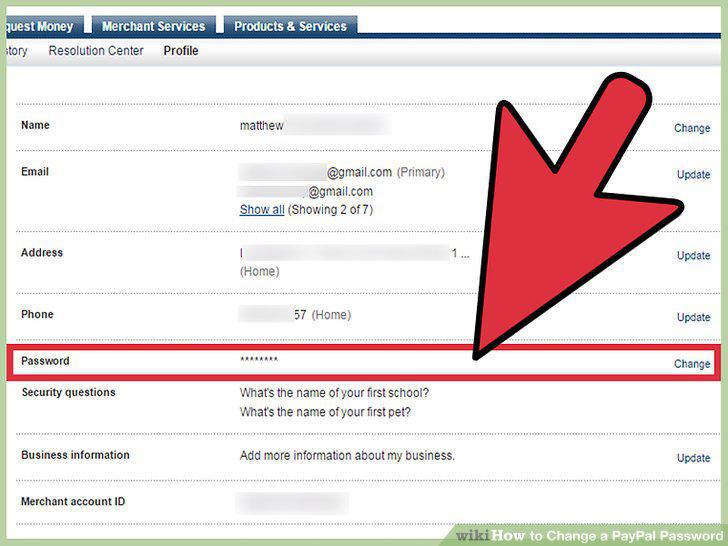
Go to the "Security" menu.
11
Edit your password.
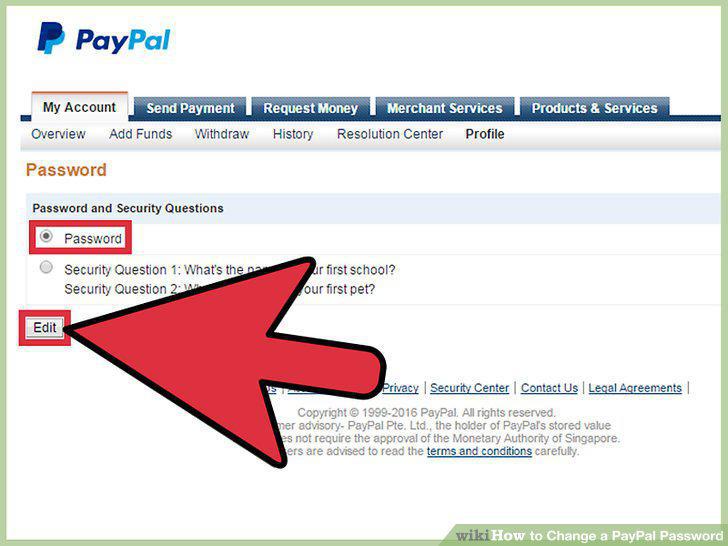
Edit your password.
12
Enter your old and new password information.
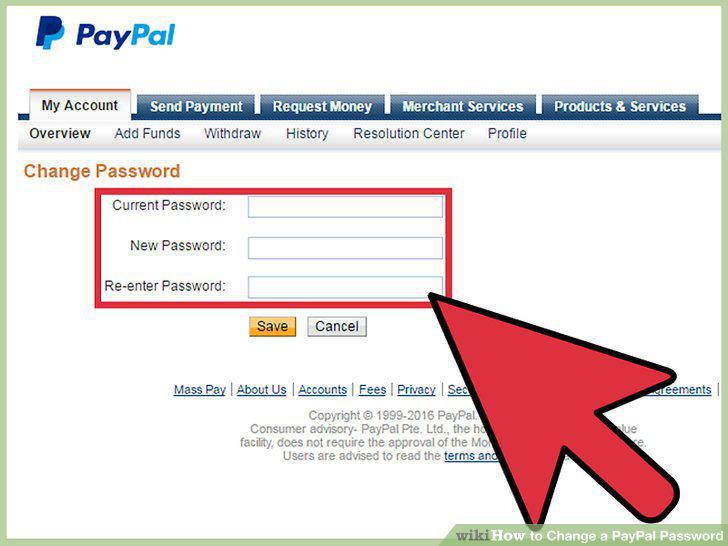
Enter your old and new password information.
13
Save your changes.
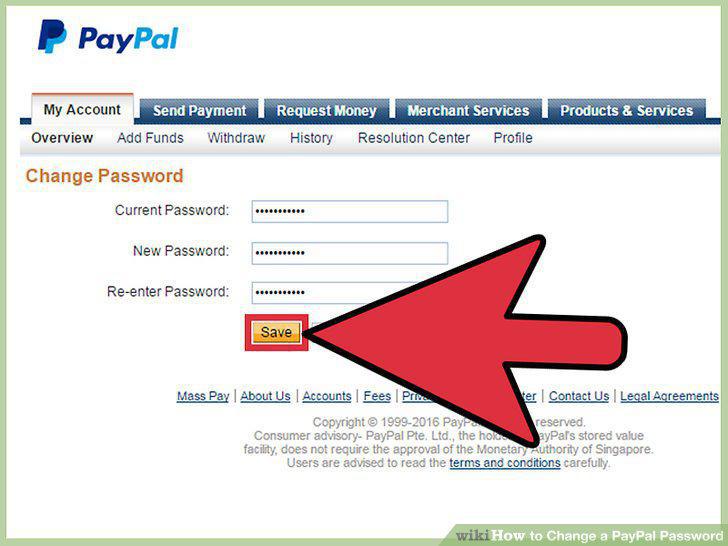
Save your changes.
Comments (0)
No comments yet. Be the first to share your thoughts!