How to Connect PayPal to Squarespace
Go to http://www.paypal.com/ and log into your business account.. Hover over your name and click Account Settings.. Click Update next to "API access.
Steps
Go to http://www.paypal.com/ and log into your business account.
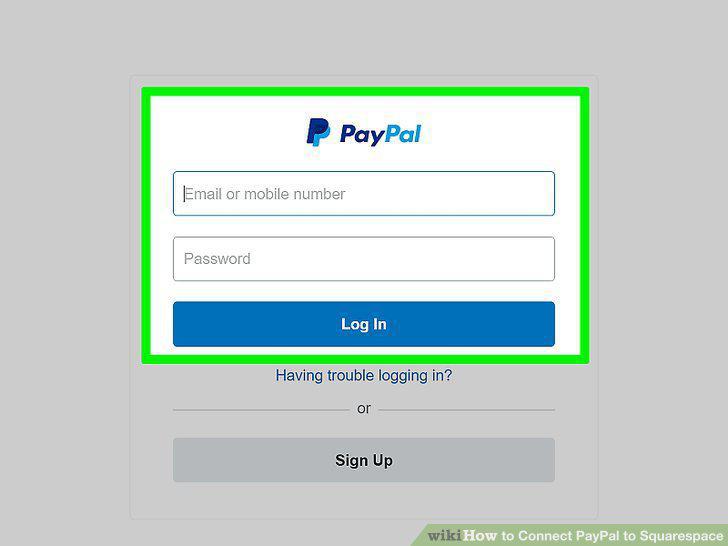
Go to http://www.paypal.com/ and log into your business account.
Hover over your name and click Account Settings.
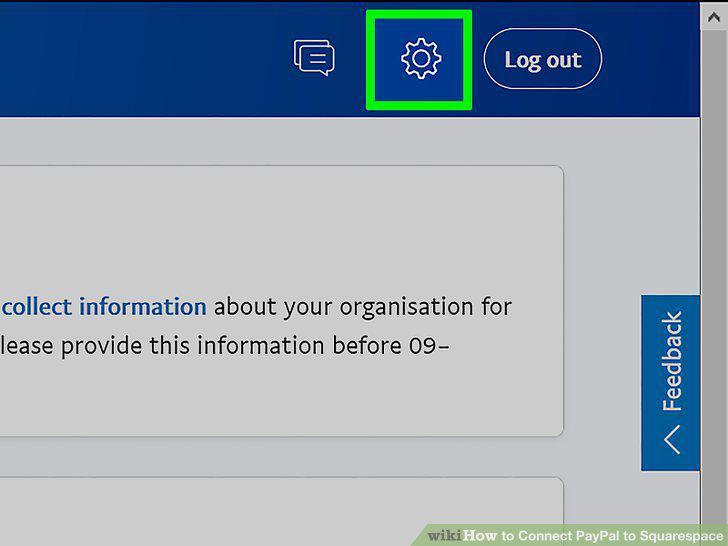
Hover over your name and click Account Settings.
Click Update next to "API access.
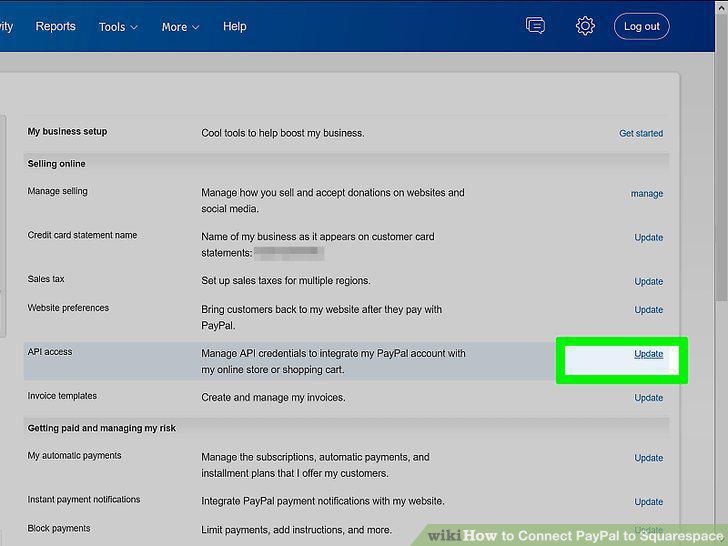
Click Update next to "API access.
Click Grant API permission.
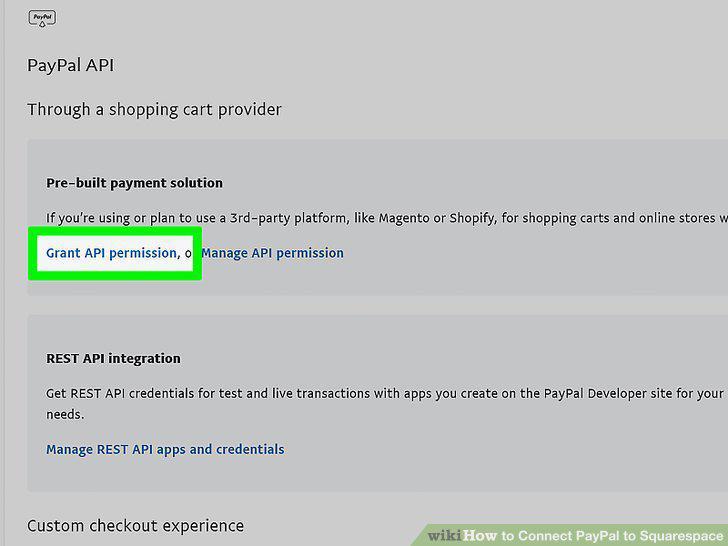
Click Grant API permission.
Enter "paypal-payments_api1.squarespace.com" next to "Third Party Permission Use
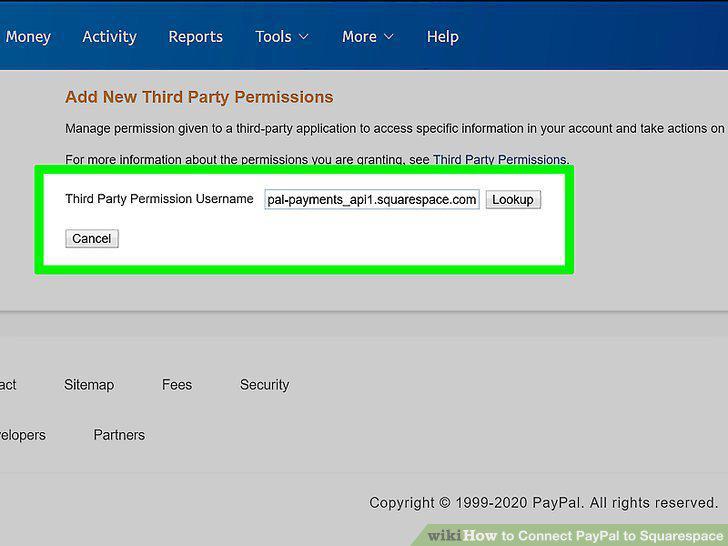
Enter "paypal-payments_api1.squarespace.com" next to "Third Party Permission Username" and click Lookup.
Click to select all the boxes and click Add.
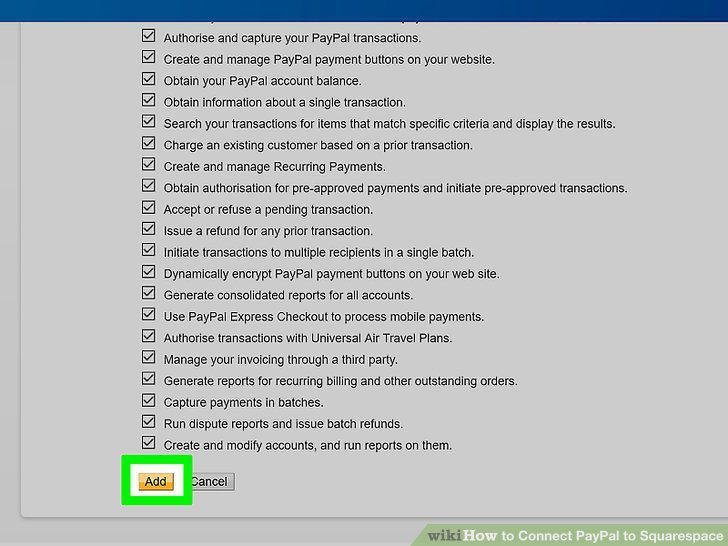
Click to select all the boxes and click Add.
Go to http://www.paypal.com/ and log into your business account.
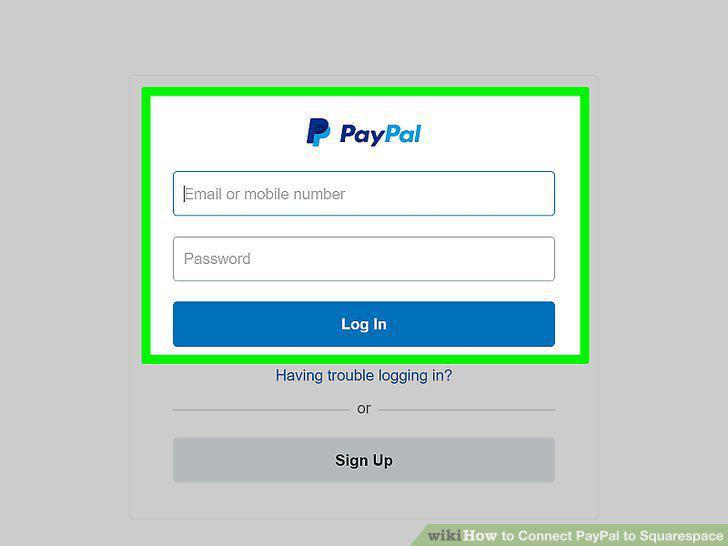
Go to http://www.paypal.com/ and log into your business account.
Hover over your name and click Account Settings.
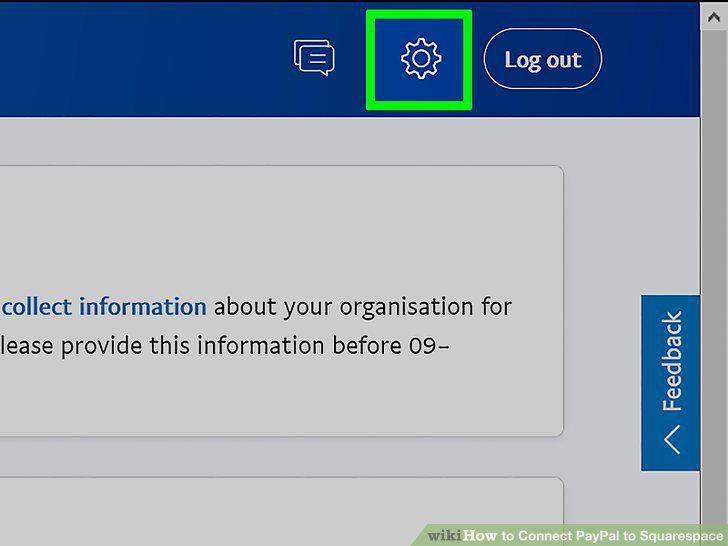
Hover over your name and click Account Settings.
Click Business Information.
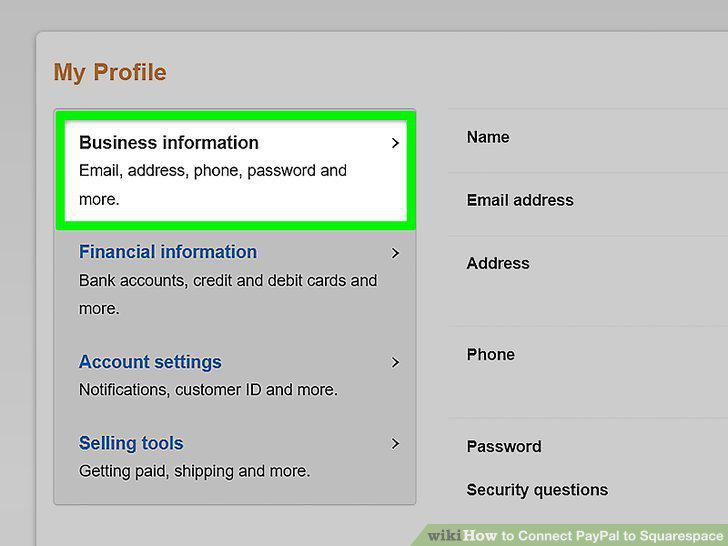
Click Business Information.
Copy the information next to "PayPal Merchant ID.
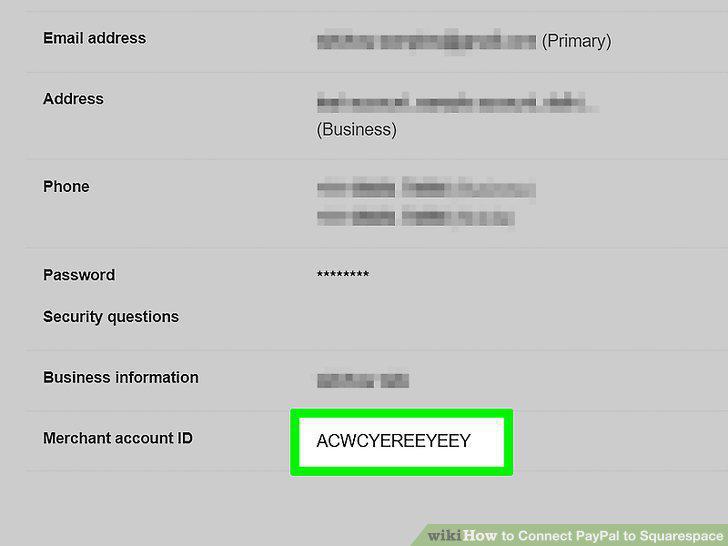
Copy the information next to "PayPal Merchant ID.
Log into your Squarespace site.
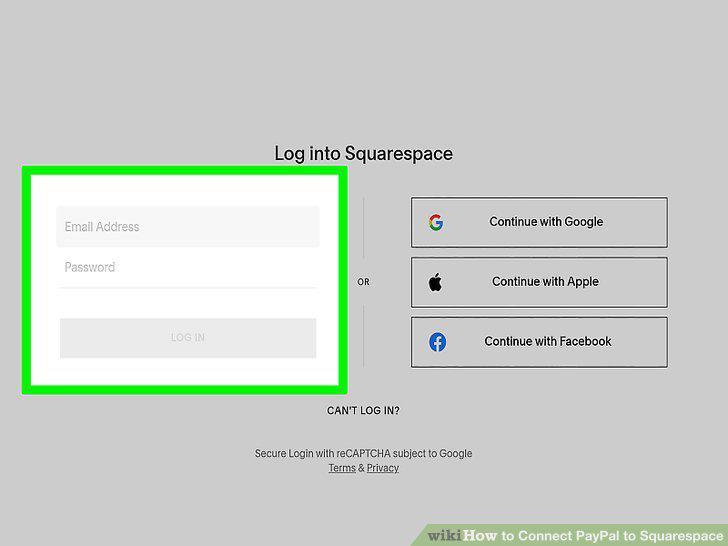
Log into your Squarespace site.
Click Commerce.
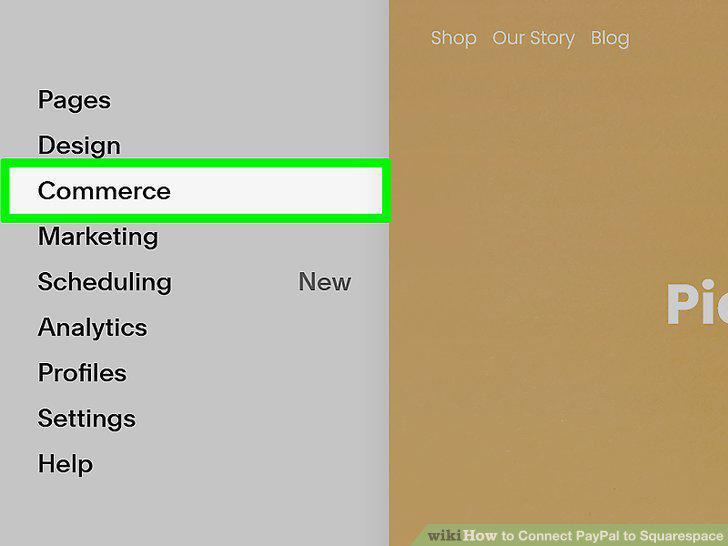
Click Commerce.
Click Payments.
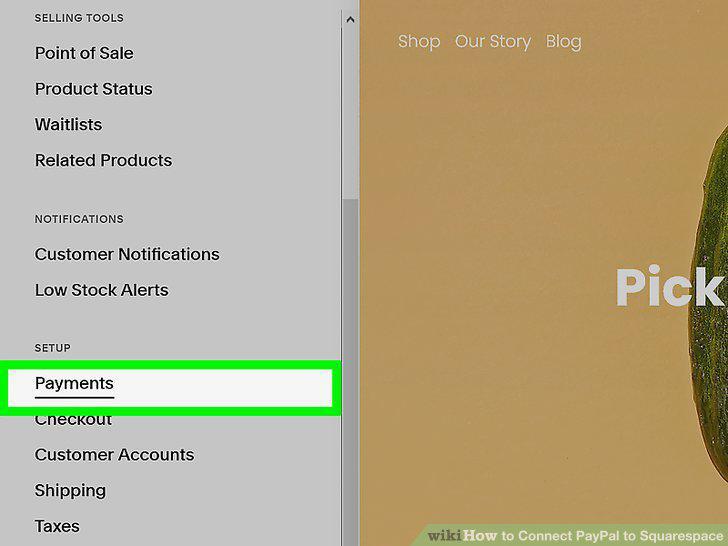
Click Payments.
Click Connect PayPal and enter your PayPal login information.
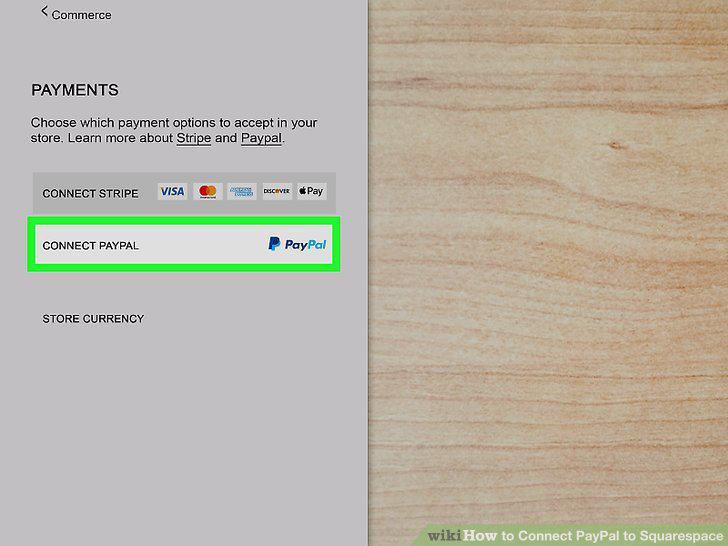
Click Connect PayPal and enter your PayPal login information.
Paste the PayPal Merchant ID.
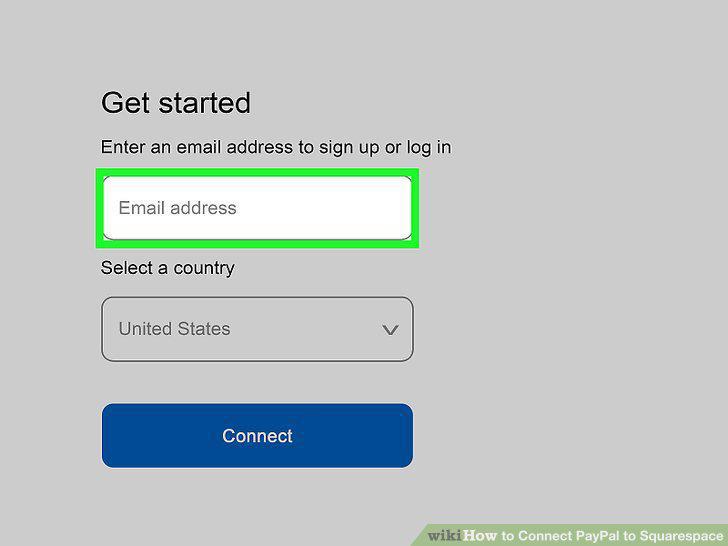
Paste the PayPal Merchant ID.
Click Connect.
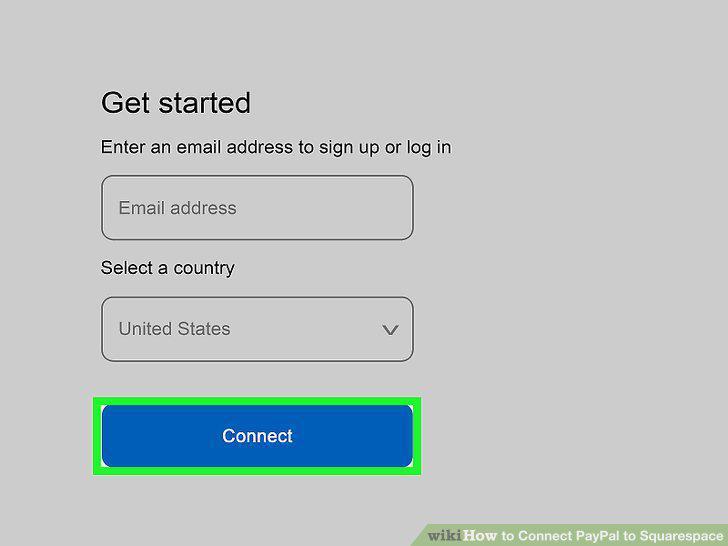
Click Connect.
Comments (0)
No comments yet. Be the first to share your thoughts!