How to Use Twitter Analytics
Go to https://analytics.twitter.com in a web browser.. View your 28-day summary.. Browse your monthly highlights.
Steps
1
Go to https://analytics.twitter.com in a web browser.
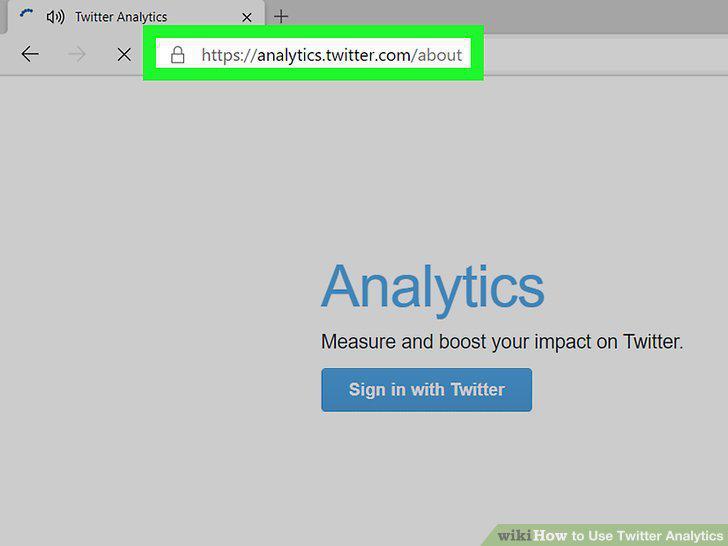
Go to https://analytics.twitter.com in a web browser.
2
View your 28-day summary.
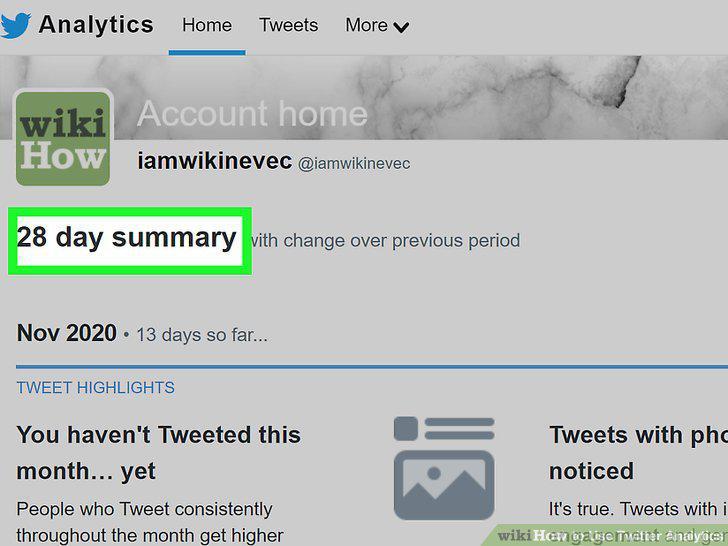
View your 28-day summary.
3
Browse your monthly highlights.
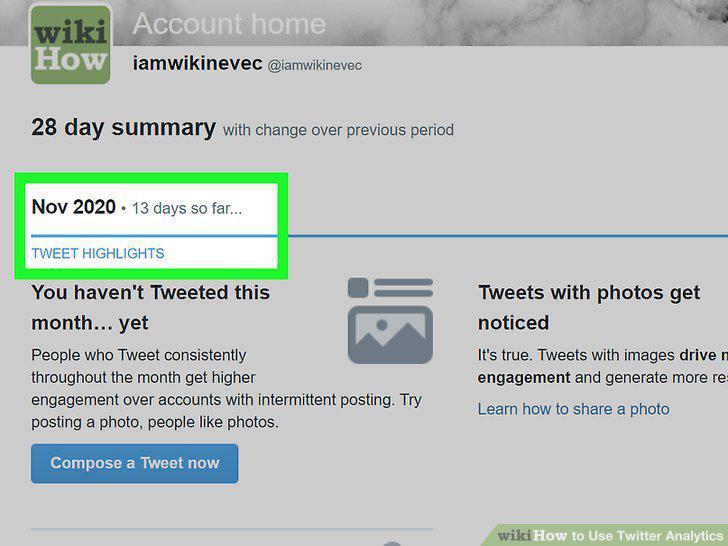
Browse your monthly highlights.
4
Go to https://analytics.twitter.com in a web browser.
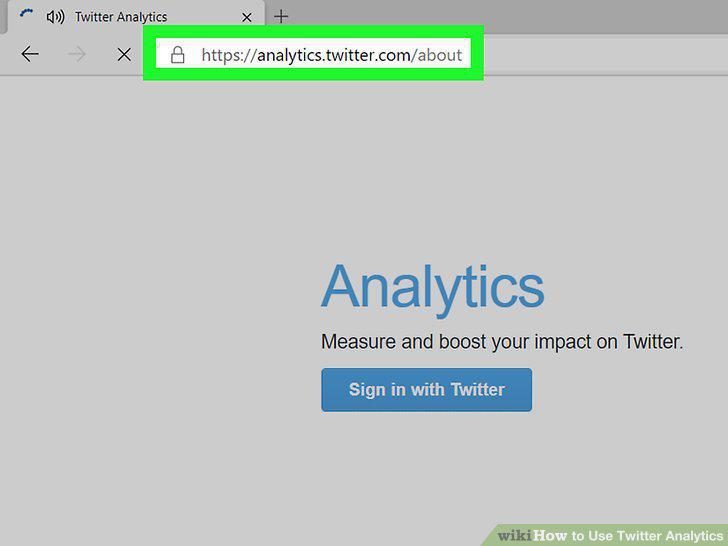
Go to https://analytics.twitter.com in a web browser.
5
Click the Tweets tab.
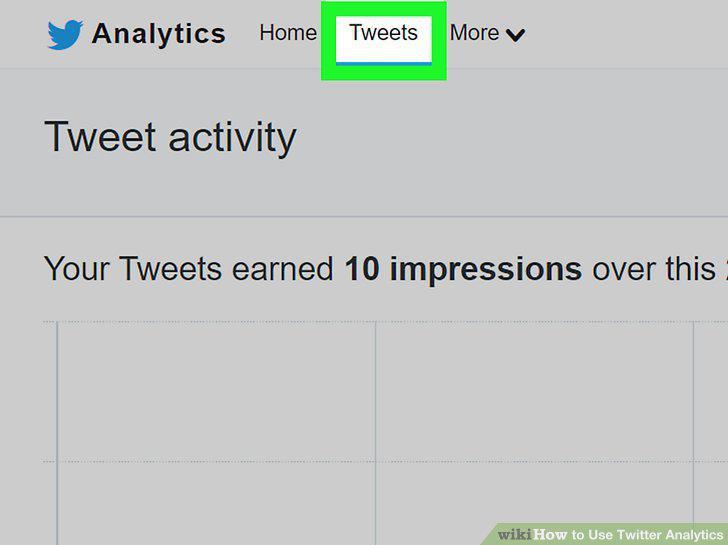
Click the Tweets tab.
6
Select a time period from the drop-down menu.
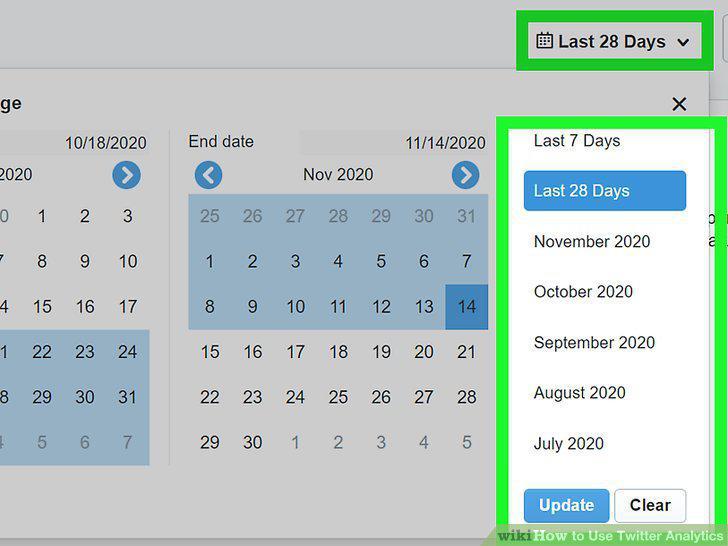
Select a time period from the drop-down menu.
7
View a breakdown of your tweets.
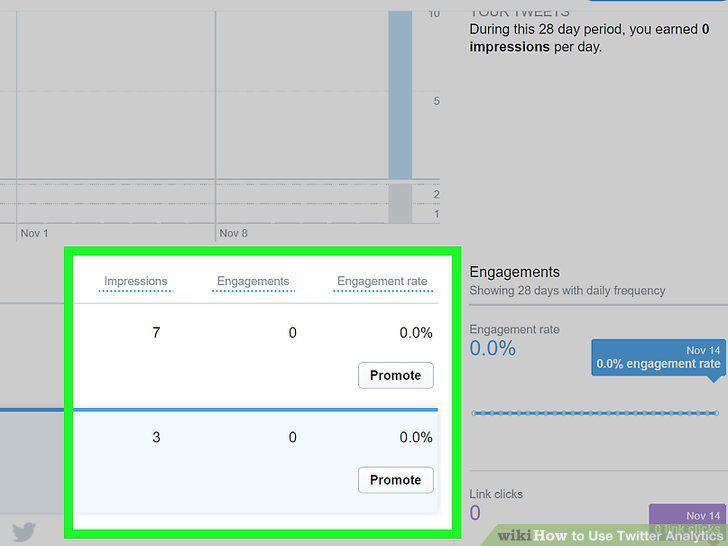
View a breakdown of your tweets.
8
Use the tabs above the tweet list to see different tweets.
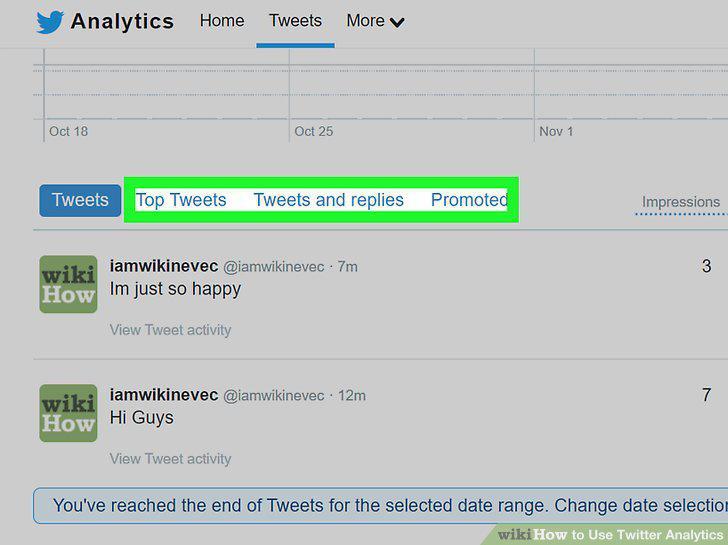
Use the tabs above the tweet list to see different tweets.
9
View the Engagements charts.
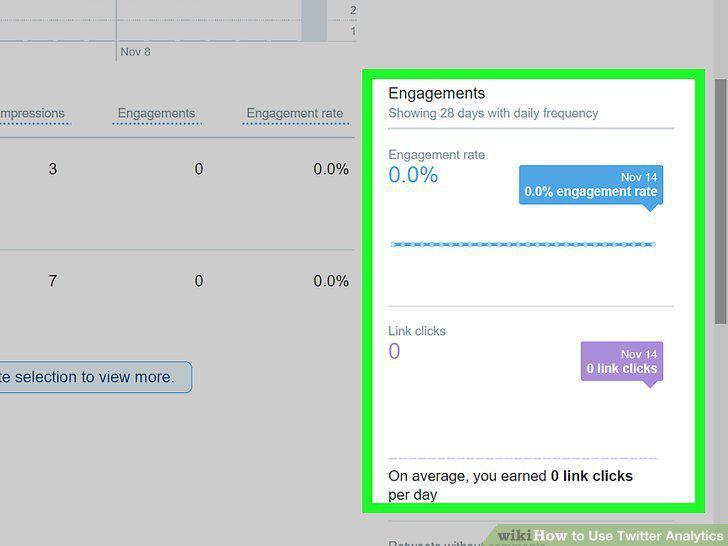
View the Engagements charts.
10
Go to https://analytics.twitter.com in a web browser.
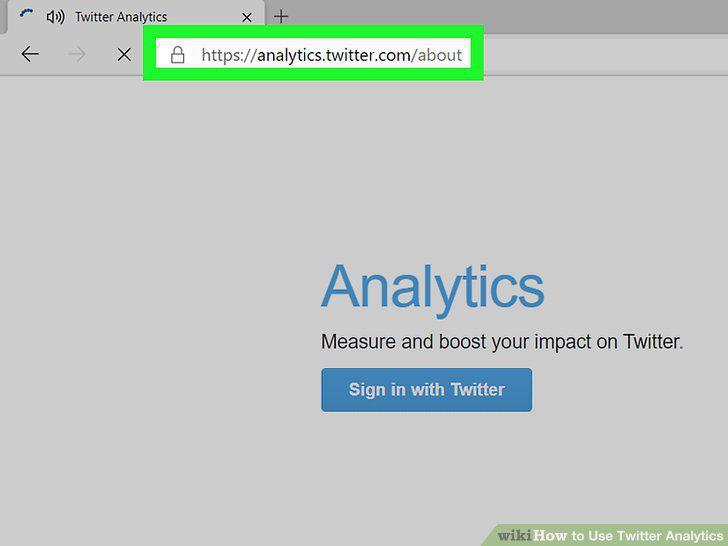
Go to https://analytics.twitter.com in a web browser.
11
Click the More tab.
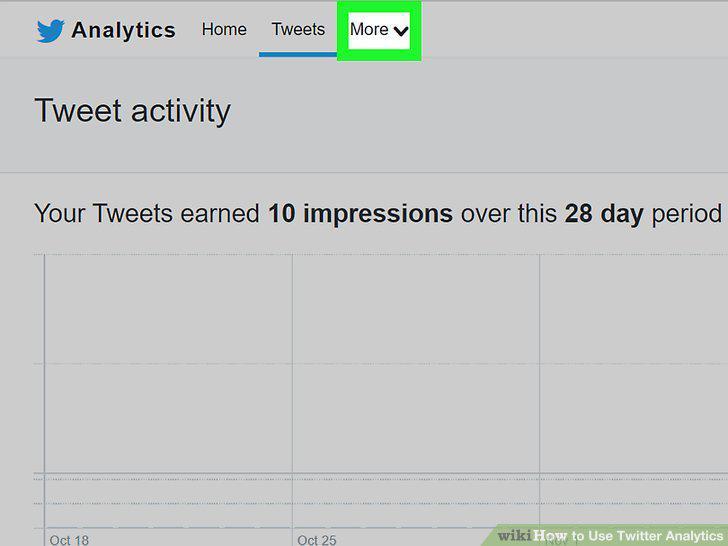
Click the More tab.
12
Click Videos on the menu.
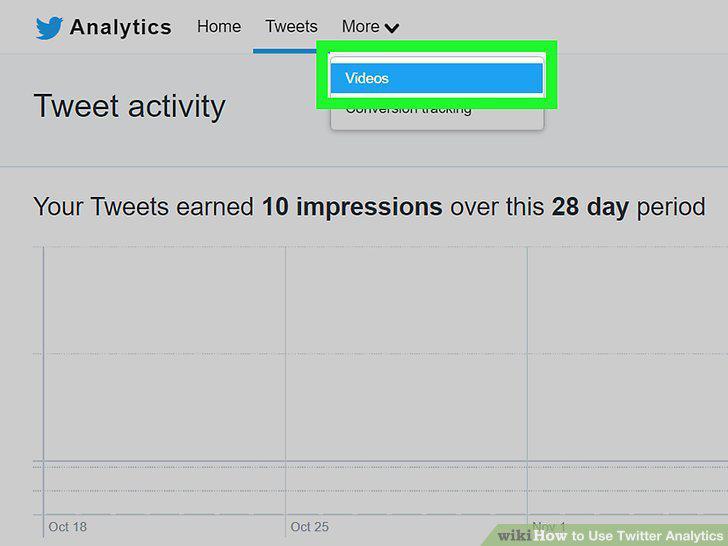
Click Videos on the menu.
13
Select a time period from the drop-down menu.
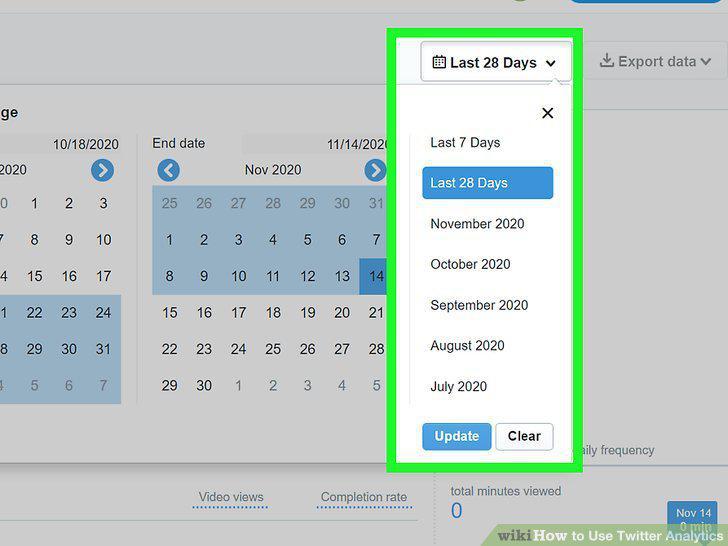
Select a time period from the drop-down menu.
14
View the statistics for specific videos.
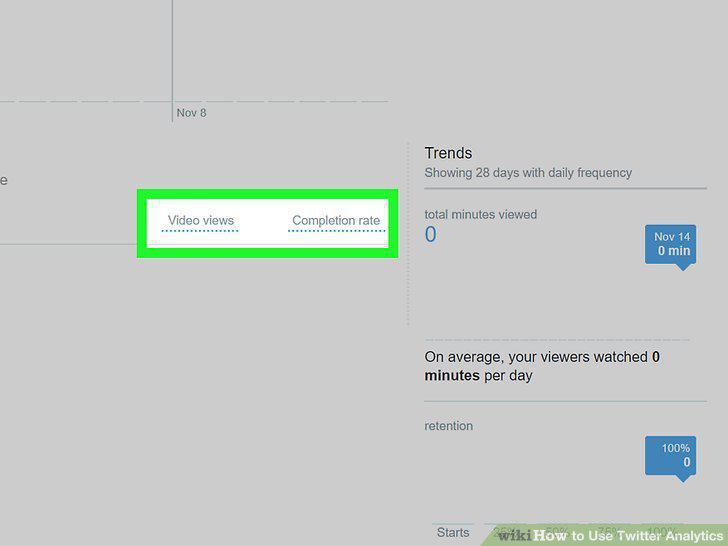
View the statistics for specific videos.
15
View your video trends.
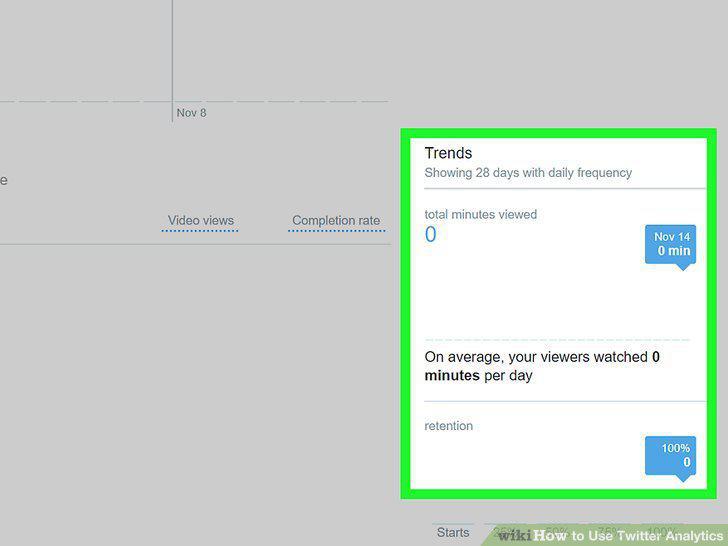
View your video trends.
Comments (0)
No comments yet. Be the first to share your thoughts!