How to Remove Ads from Kindle Fire HD
Login to your Amazon account.. Click the "Your Account" menu and select "Manage Your Kindle".. Click "Manage Your Devices".
Steps
1
Login to your Amazon account.
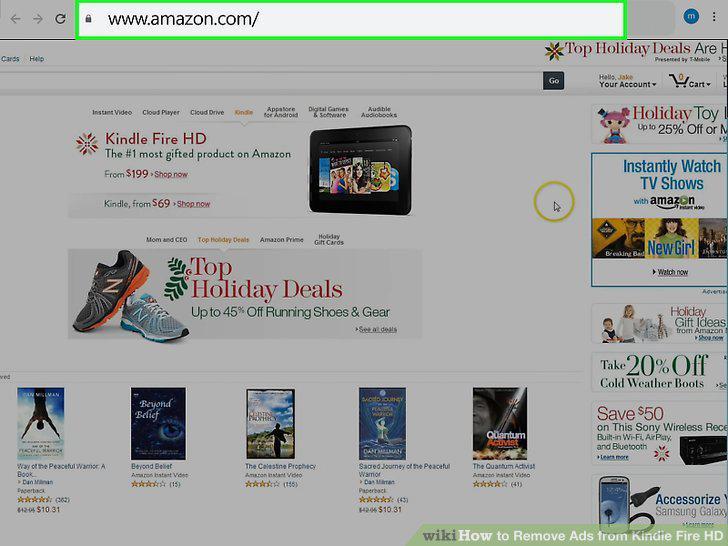
Login to your Amazon account.
2
Click the "Your Account" menu and select "Manage Your Kindle".
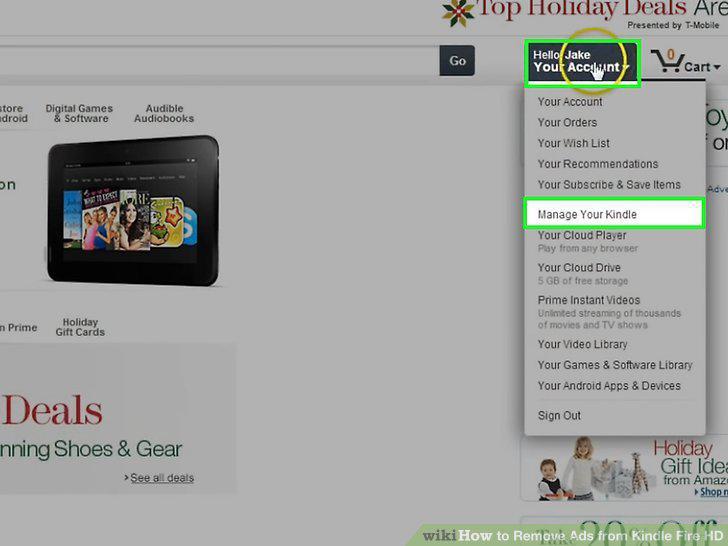
Click the "Your Account" menu and select "Manage Your Kindle".
3
Click "Manage Your Devices".
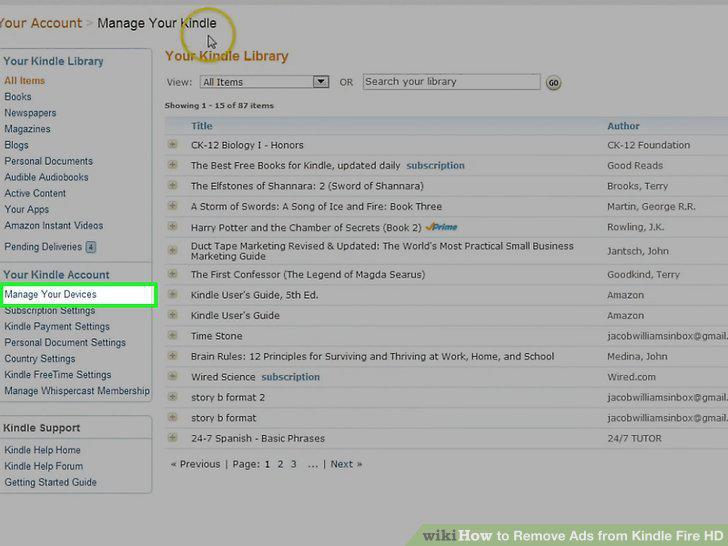
Click "Manage Your Devices".
4
Select your Kindle Fire HD from the list of devices.
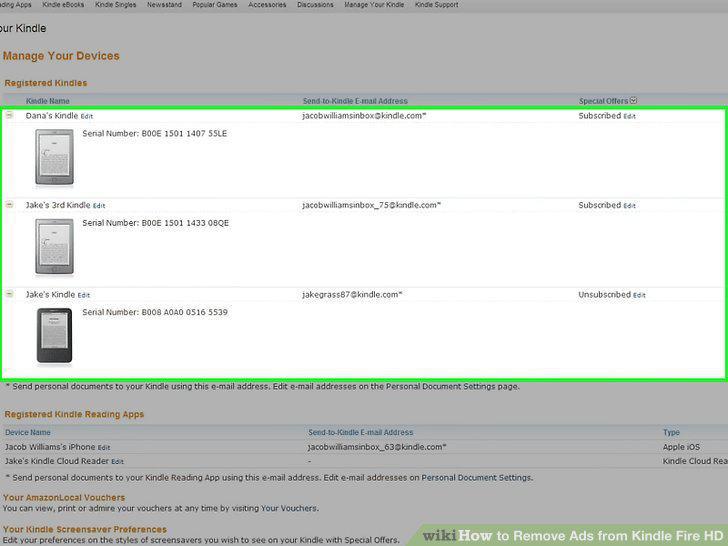
Select your Kindle Fire HD from the list of devices.
5
Click the "Edit" button next to "Special Offers".
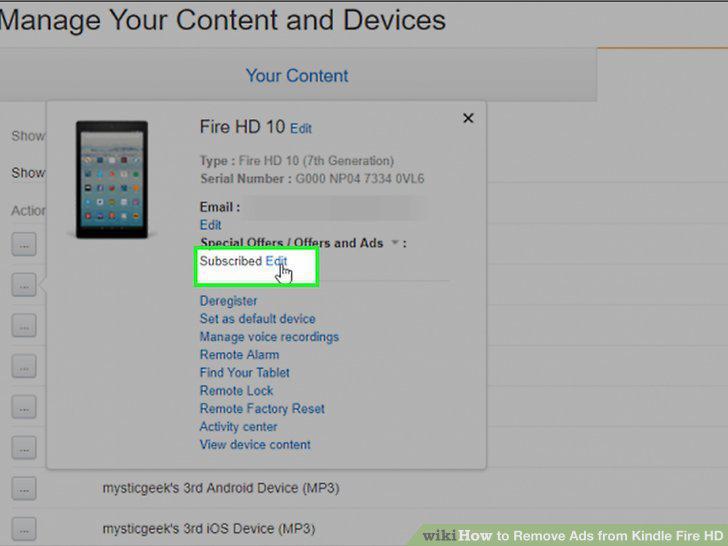
Click the "Edit" button next to "Special Offers".
6
Click "Unsubscribe now with one click".
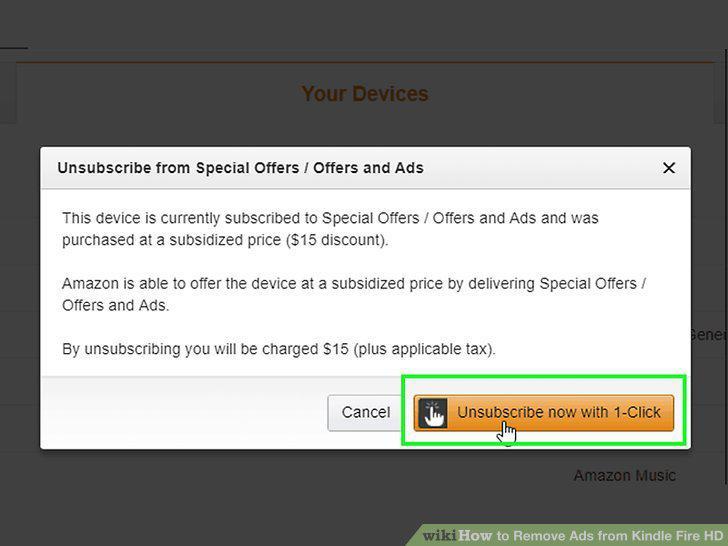
Click "Unsubscribe now with one click".
7
Power on your Kindle Fire HD.
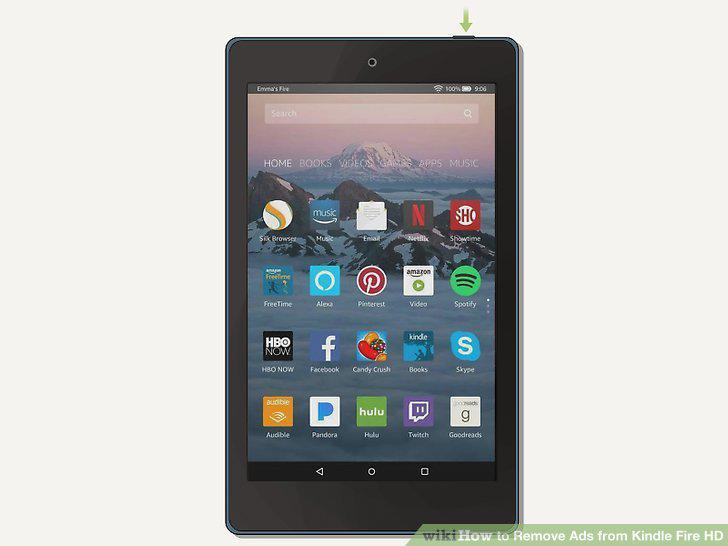
Power on your Kindle Fire HD.
8
Download and open ES File Explorer from the Amazon App Store.
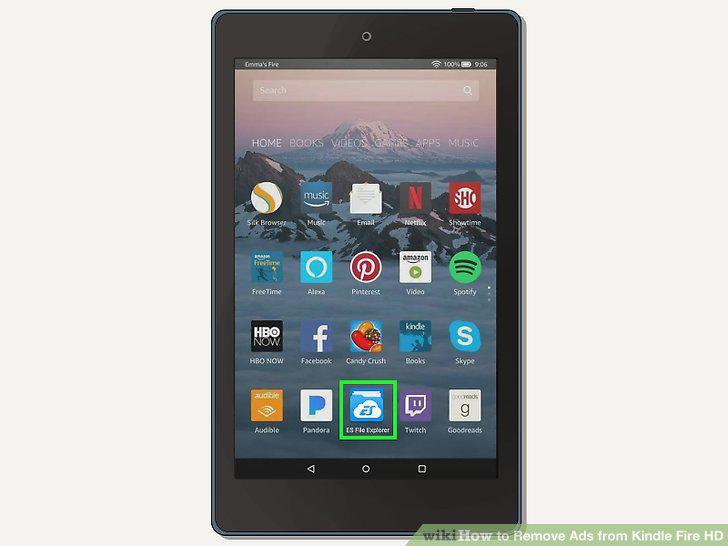
Download and open ES File Explorer from the Amazon App Store.
9
Tap "Homepage".
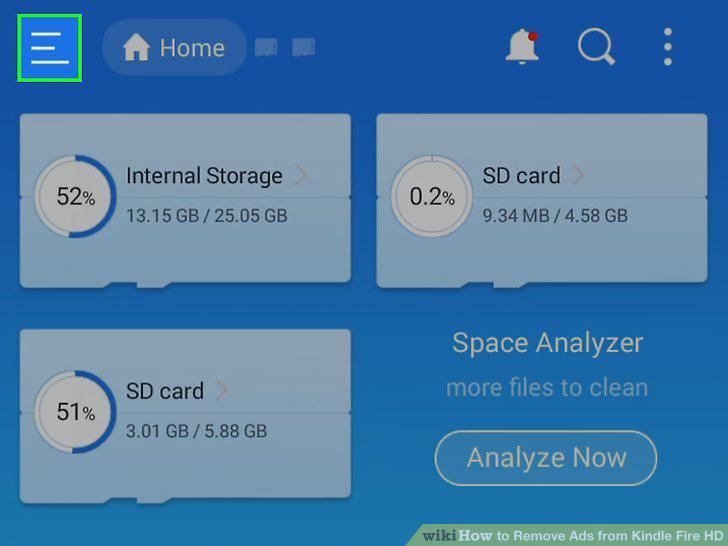
Tap "Homepage".
10
Tap "/ Device".
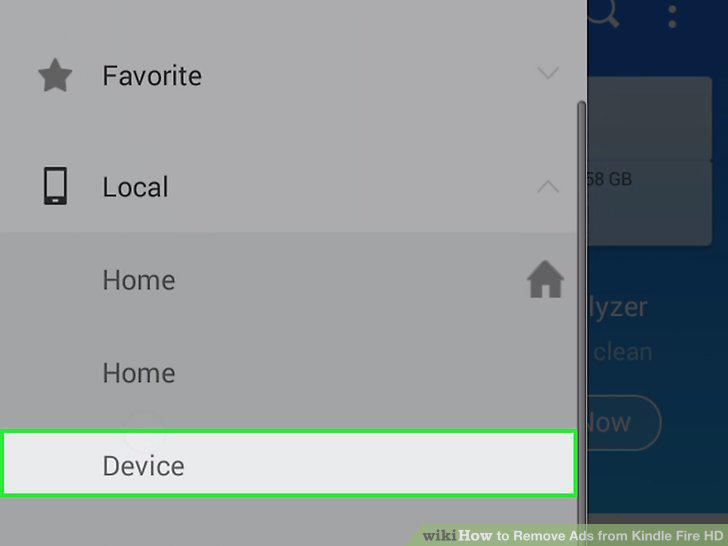
Tap "/ Device".
11
Tap the "System" folder to open it.
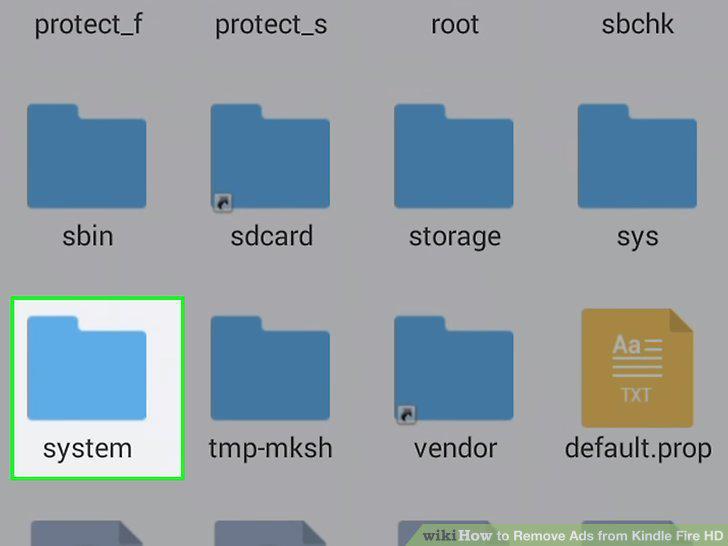
Tap the "System" folder to open it.
12
Tap the "App" folder to open it.
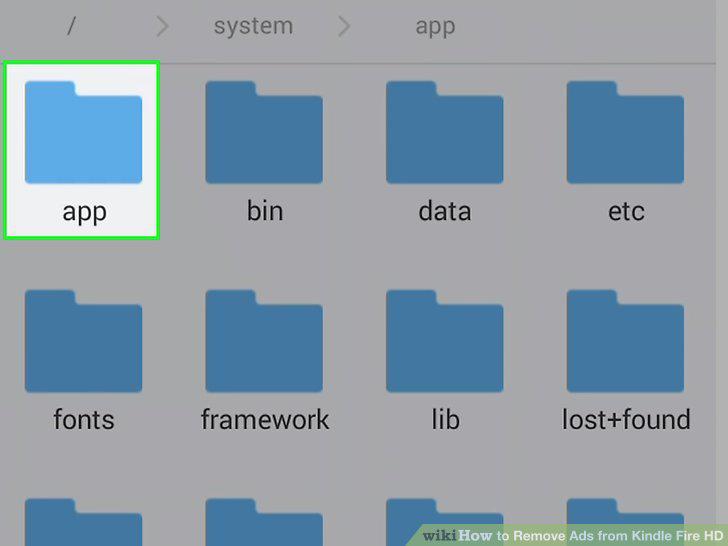
Tap the "App" folder to open it.
13
Tap the "dctp_apk" folder to open it.
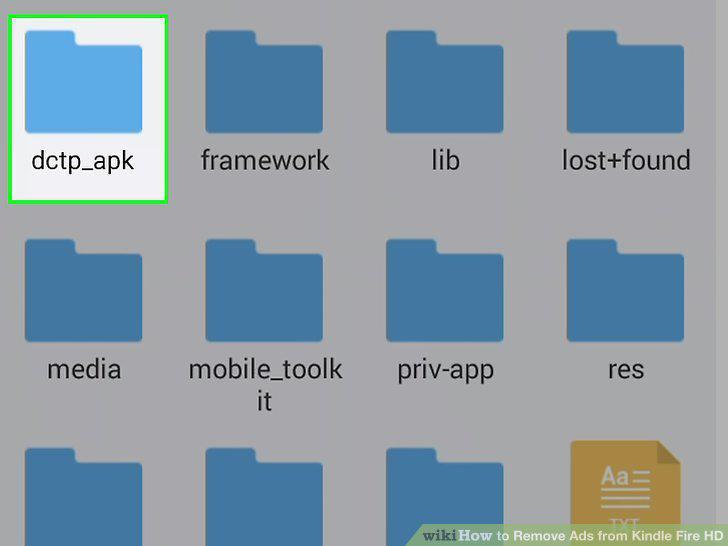
Tap the "dctp_apk" folder to open it.
14
Tap and hold the "dctp_apk.apk" file to select it.
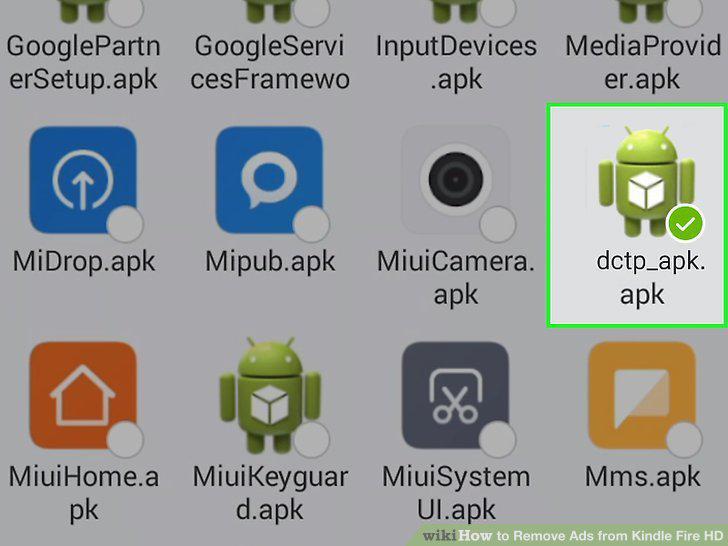
Tap and hold the "dctp_apk.apk" file to select it.
15
Tap "Rename".
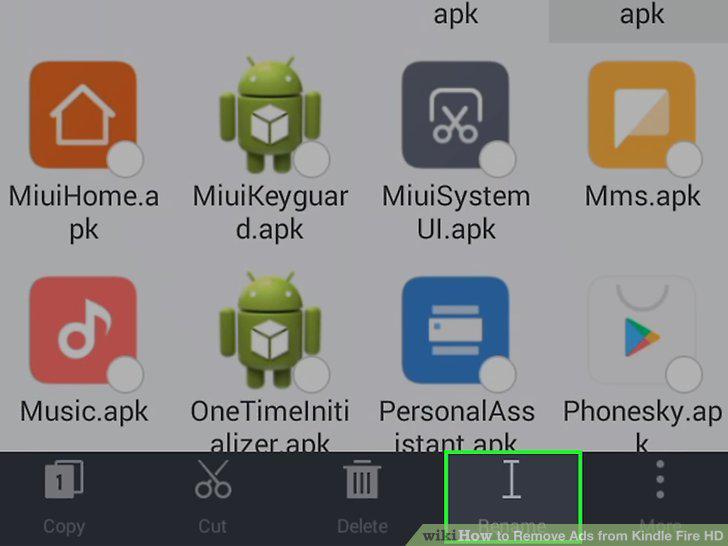
Tap "Rename".
16
Rename the file "dctp_apk.bat" and tap "OK".
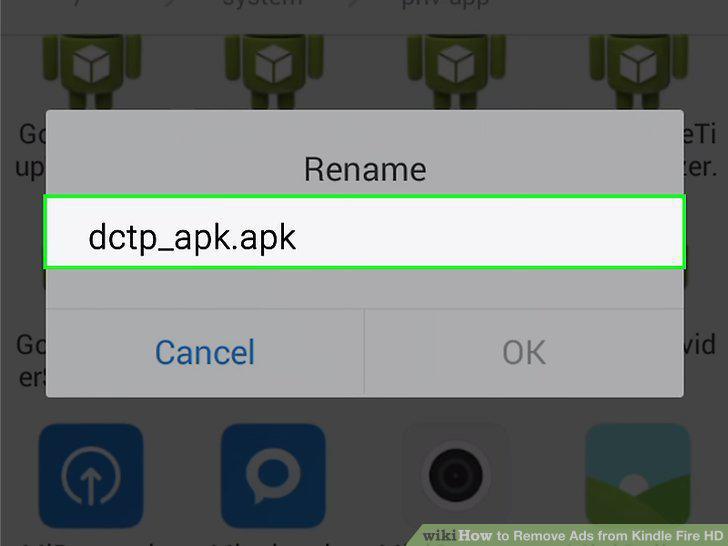
Rename the file "dctp_apk.bat" and tap "OK".
17
Restart your Kindle Fire HD.
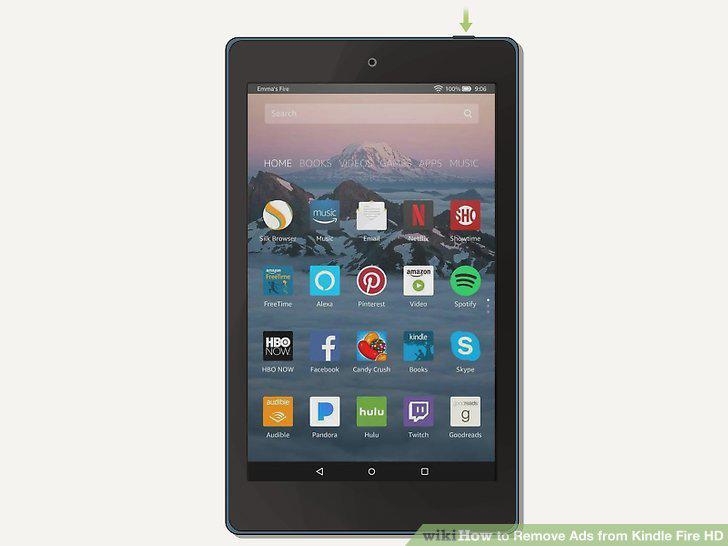
Restart your Kindle Fire HD.
Comments (0)
No comments yet. Be the first to share your thoughts!