How to Accept Payments on Paypal
Open a PayPal Business Account if you haven't already.. On the next screen, select "Create New Account.. Use the "Specialized Solutions" tab where applicable.
Steps
Open a PayPal Business Account if you haven't already.
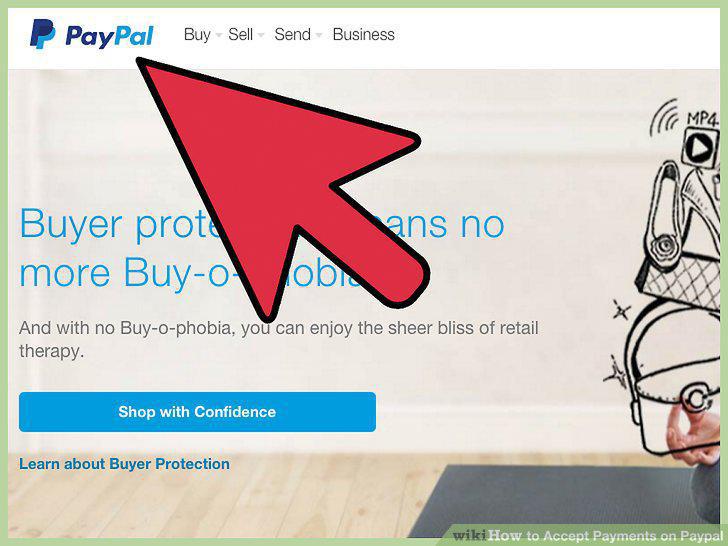
Open a PayPal Business Account if you haven't already.
On the next screen, select "Create New Account.
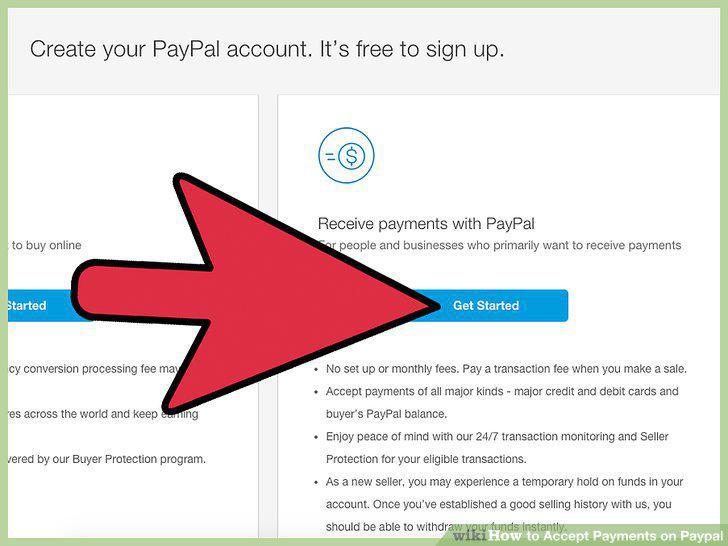
On the next screen, select "Create New Account.
Use the "Specialized Solutions" tab where applicable.
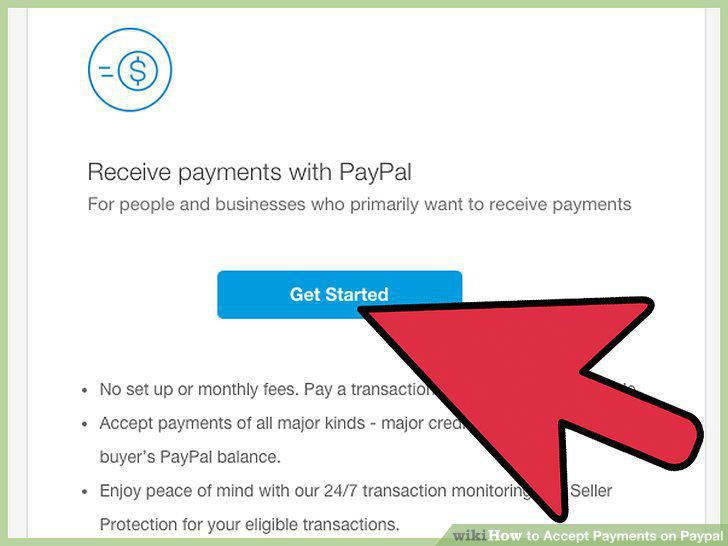
Use the "Specialized Solutions" tab where applicable.
Place a payment button on your business's website.
Place a payment button on your business's website.
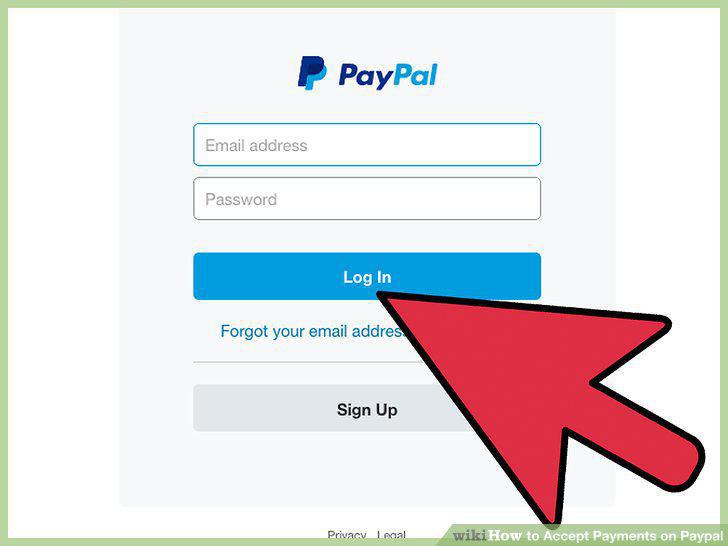
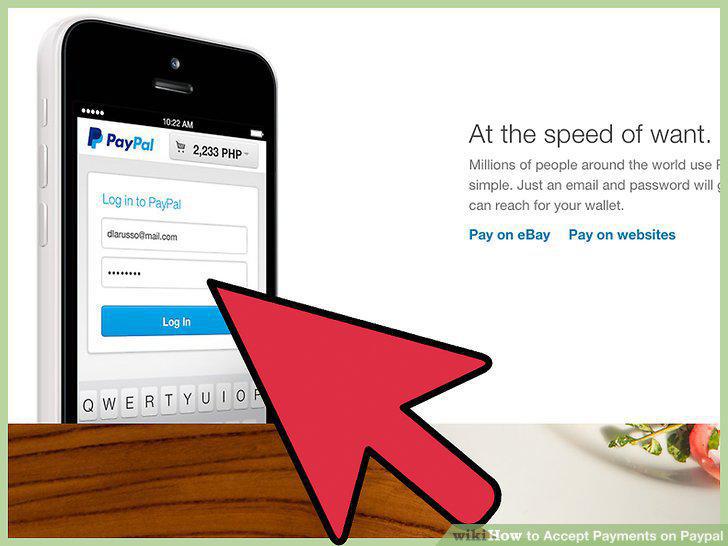
Log in to your account from the PayPal home page.
Log in to your account from the PayPal home page.
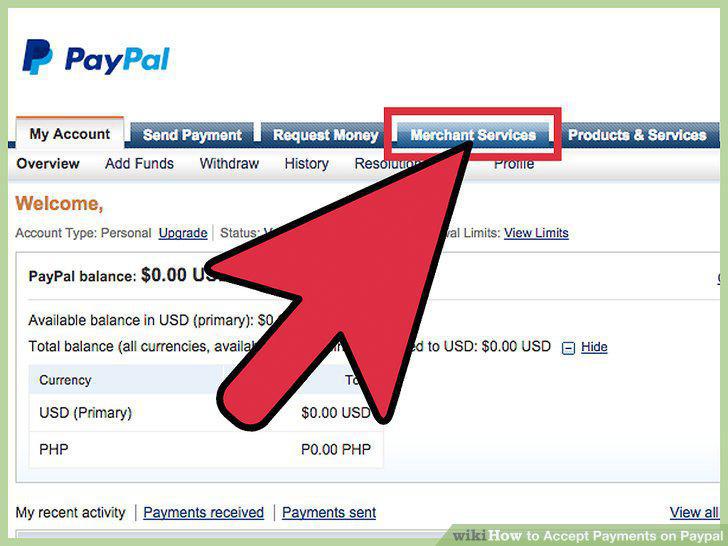
On your account page, select "Merchant Services.
On your account page, select "Merchant Services.
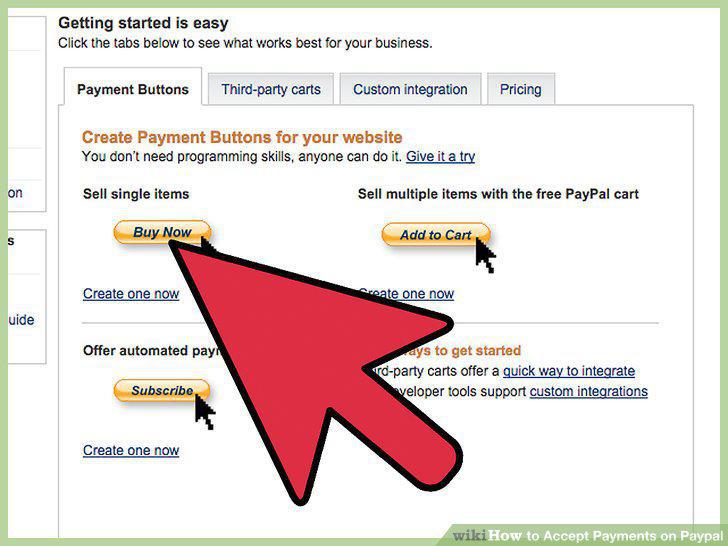
Select your desired button.
Select your desired button.
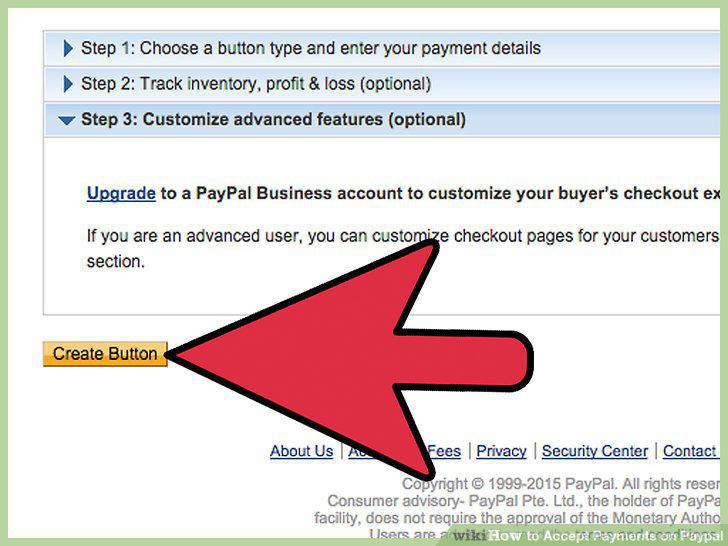
Select "Save Changes" at the bottom of the page.
Select "Save Changes" at the bottom of the page.
Purchase an Apple or Android smartphone or tablet if you don't have one.
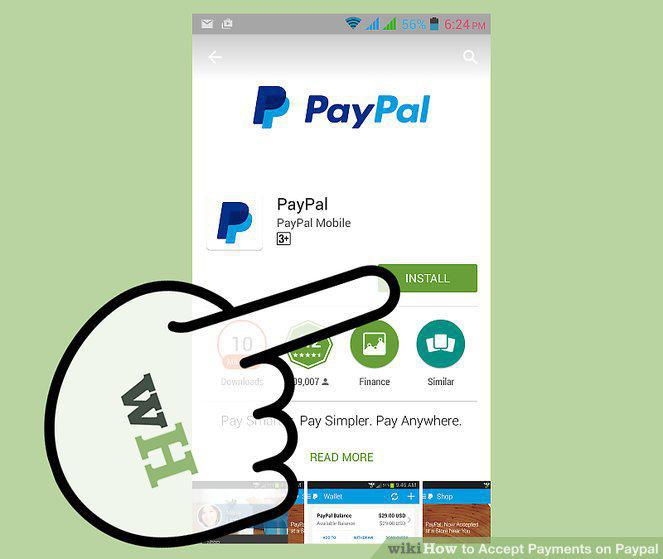
Purchase an Apple or Android smartphone or tablet if you don't have one.
Download the PayPal Here App onto your device.
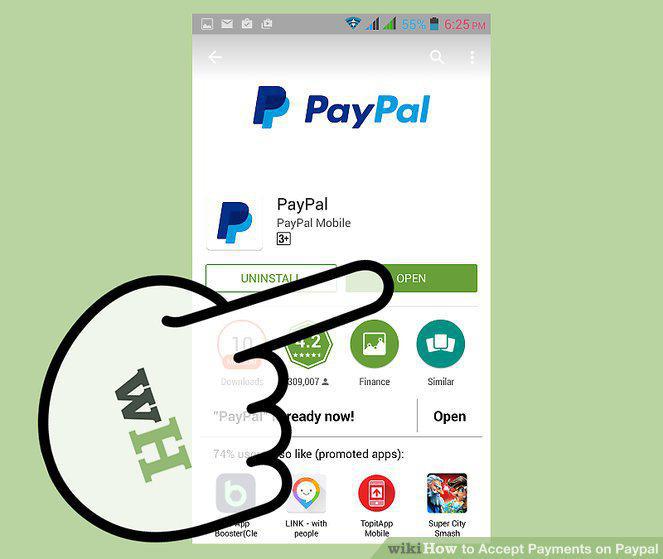
Download the PayPal Here App onto your device.
Open the App.
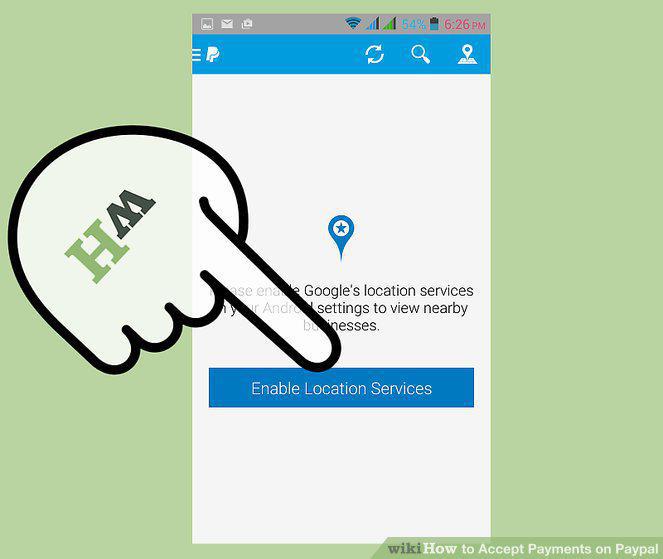
Open the App.
Update your business information by following the prompts.
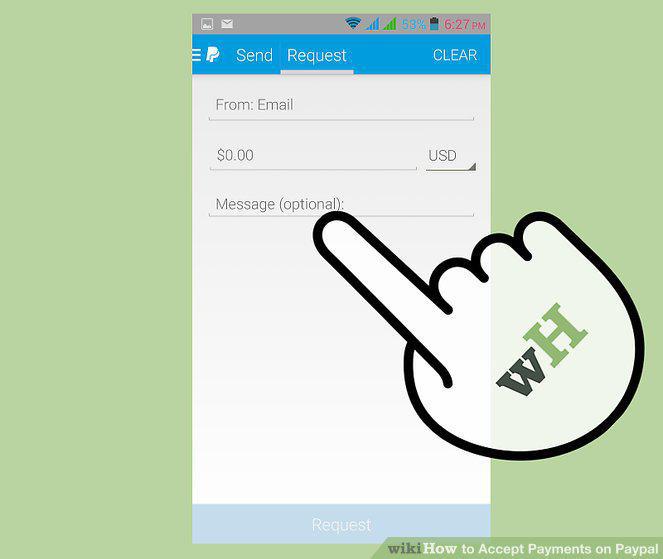
Update your business information by following the prompts.
Follow the app's instructions for setting up a payment plan.
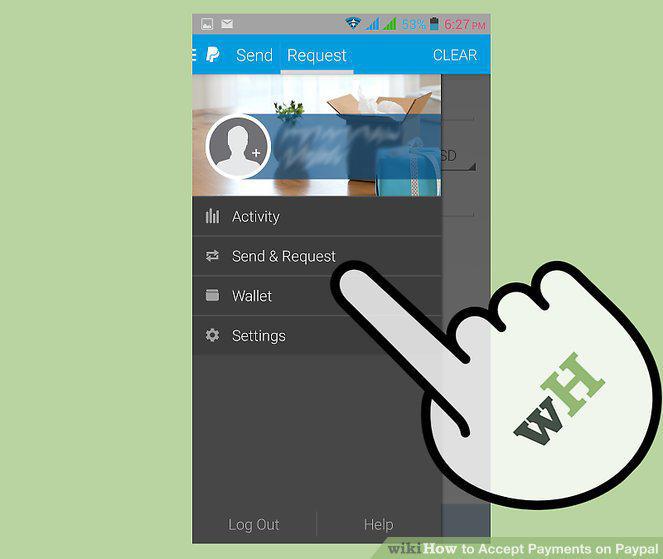
Follow the app's instructions for setting up a payment plan.
Input the customer's purchase amount.
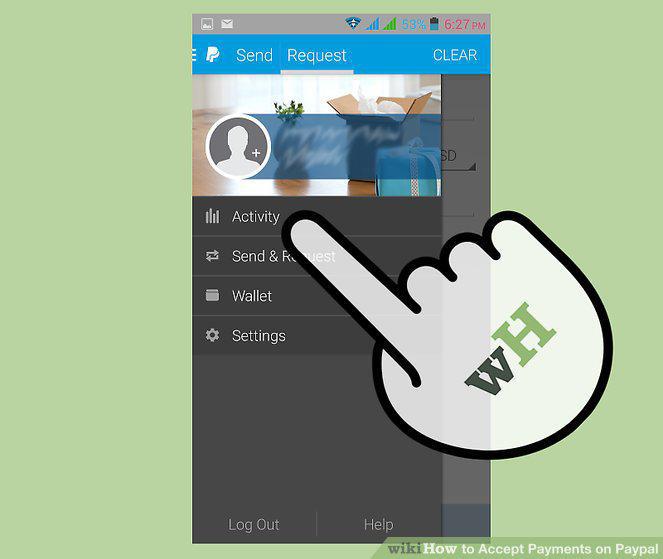
Input the customer's purchase amount.
Have your customer sign their signature directly on your smartphone.
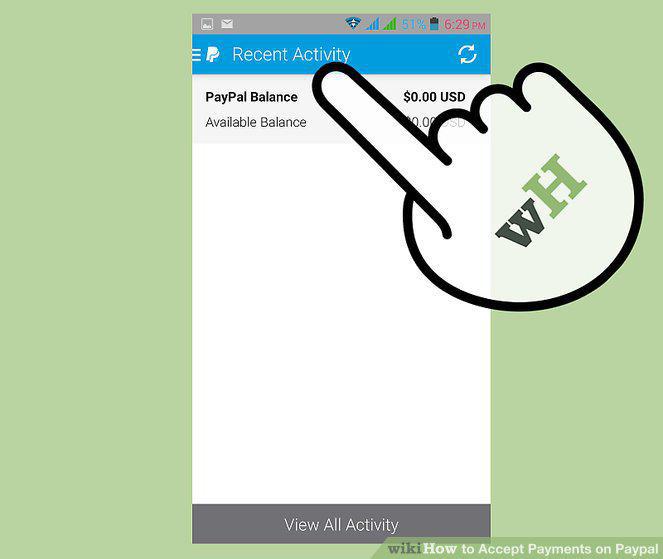
Have your customer sign their signature directly on your smartphone.
Obtain a valid email address and a PayPal account associated with that address.
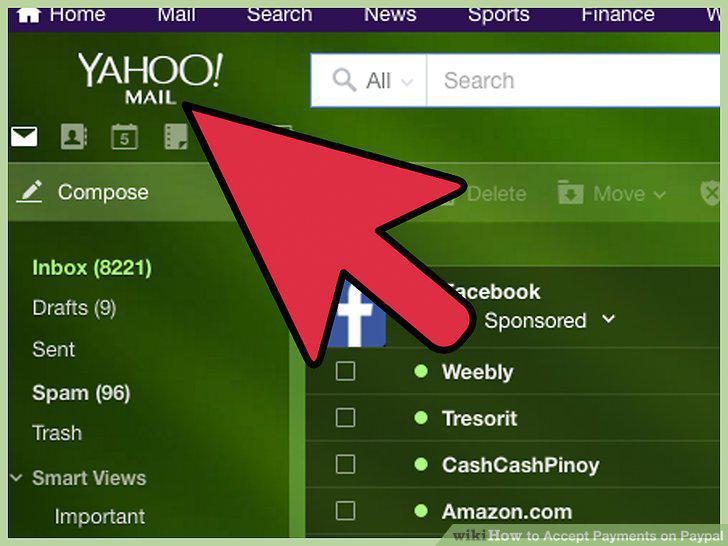
Obtain a valid email address and a PayPal account associated with that address.
Tell your employer which email address you used for your PayPal account.
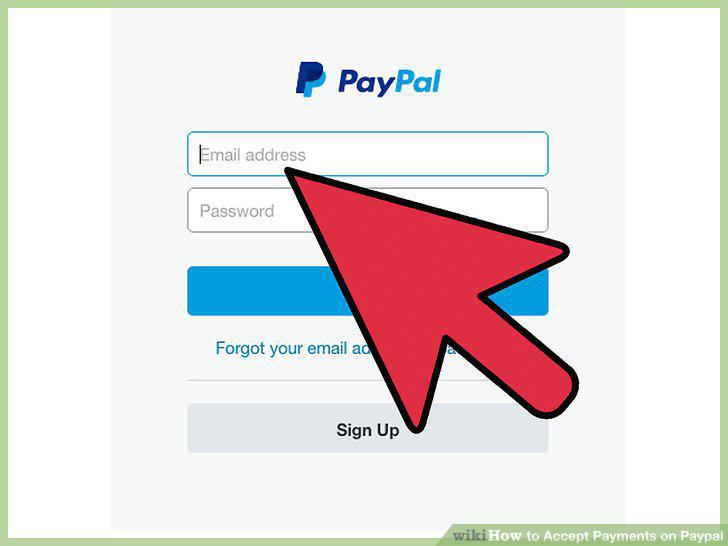
Tell your employer which email address you used for your PayPal account.
When your employer has paid you, log into your personal PayPal account.
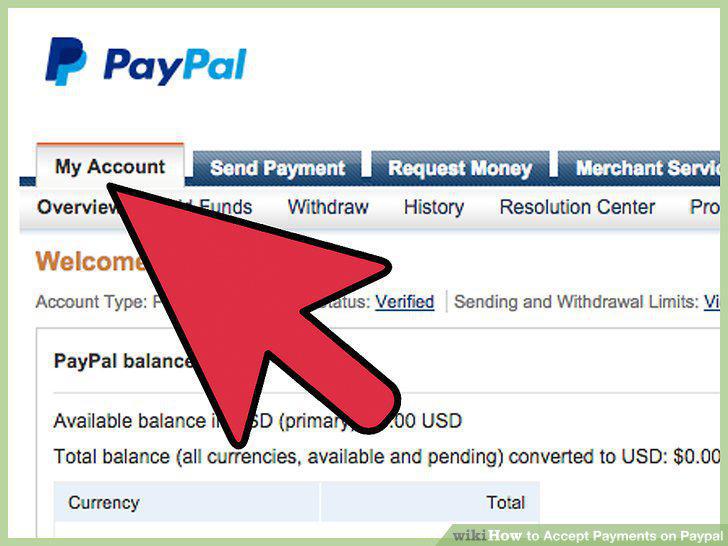
When your employer has paid you, log into your personal PayPal account.
On the next page, provide your payment information.
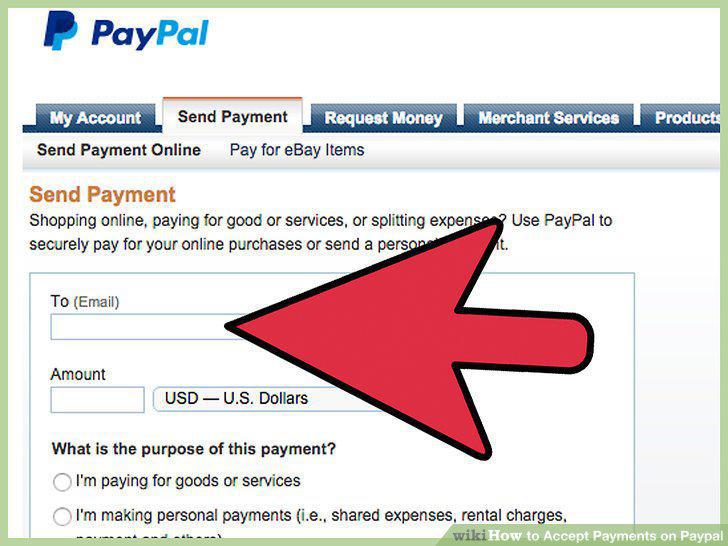
On the next page, provide your payment information.
Comments (0)
No comments yet. Be the first to share your thoughts!