How to Log Out of Netflix on Xbox
Open the Netflix app on your Xbox console.. Enter the code to access the support menu.. Select the "Sign Out" option.
Steps
1
Open the Netflix app on your Xbox console.
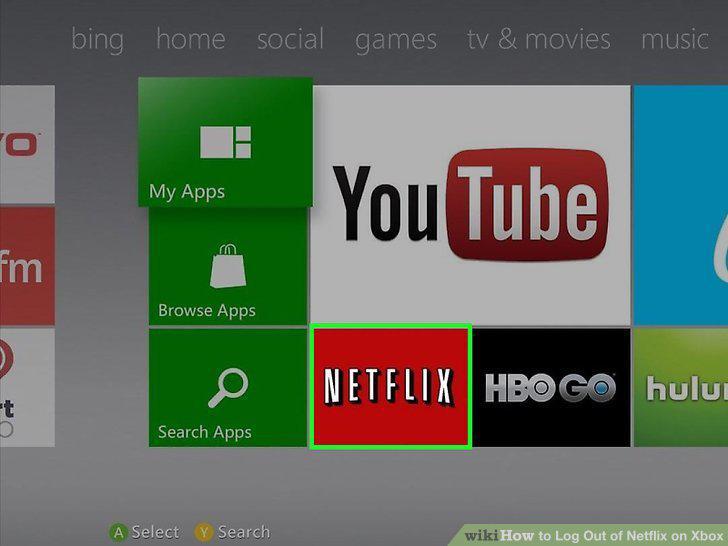
Open the Netflix app on your Xbox console.
2
Enter the code to access the support menu.
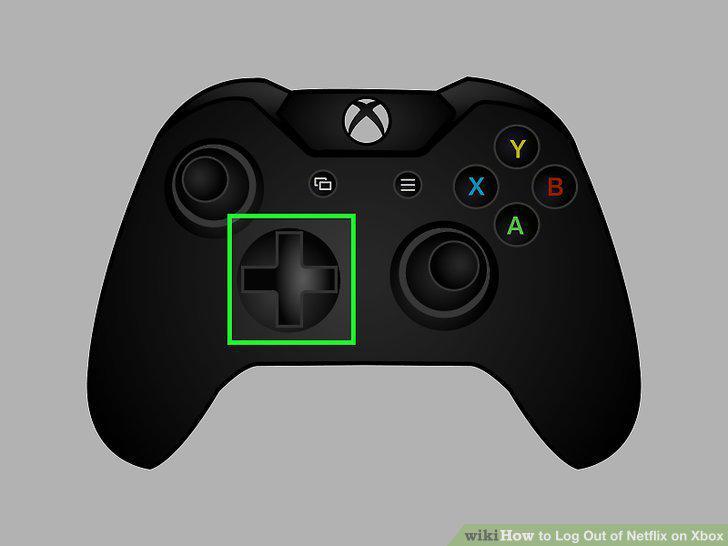
Enter the code to access the support menu.
3
Select the "Sign Out" option.
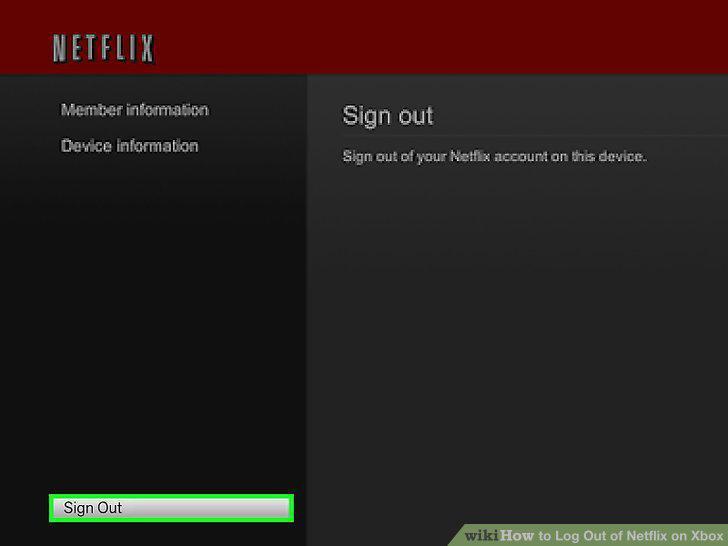
Select the "Sign Out" option.
4
Tap the "A" button to sign out.
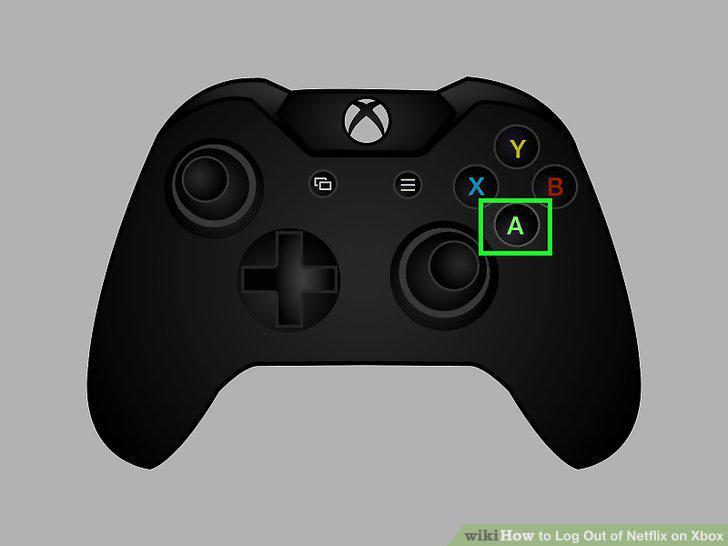
Tap the "A" button to sign out.
5
Open the Netflix app on your Xbox One.
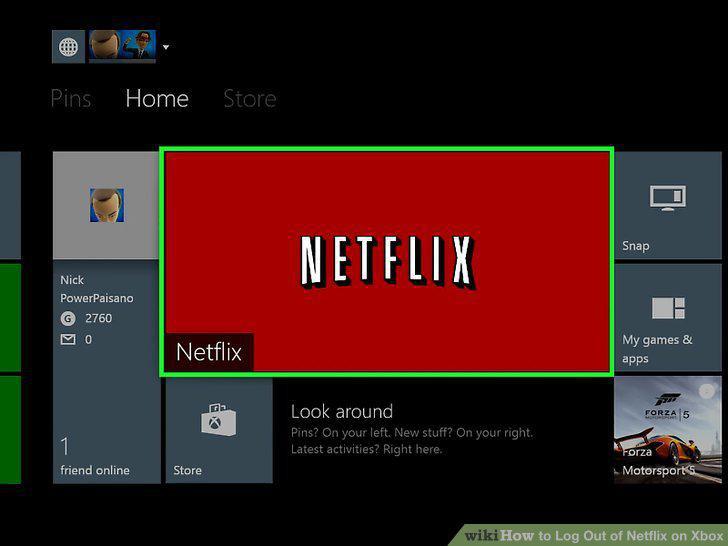
Open the Netflix app on your Xbox One.
6
Select the account you wish to access.
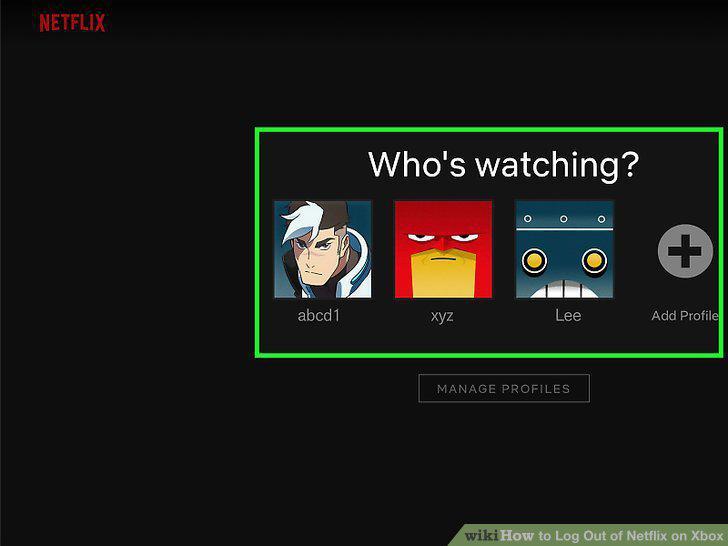
Select the account you wish to access.
7
Tap the "B" button on your controller.
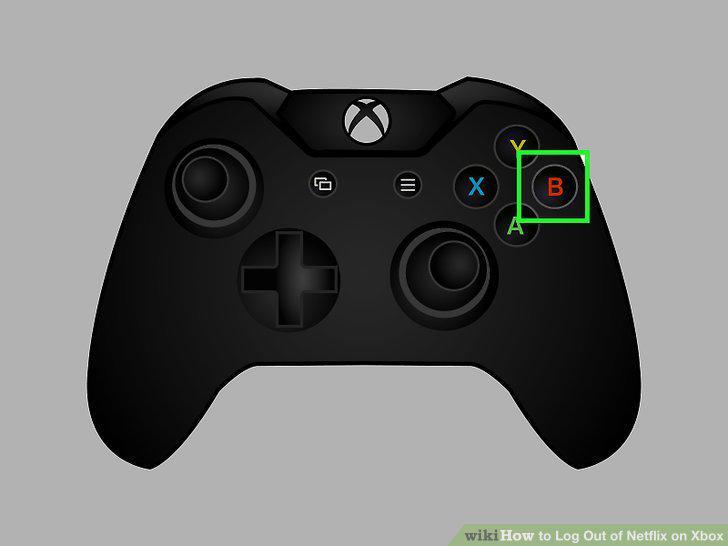
Tap the "B" button on your controller.
8
Press the analog stick right until you select "settings".
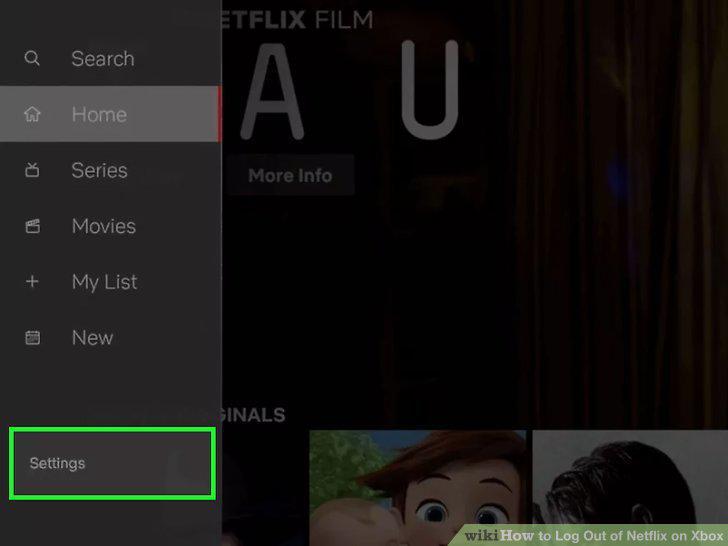
Press the analog stick right until you select "settings".
9
Tap "A" on your controller.
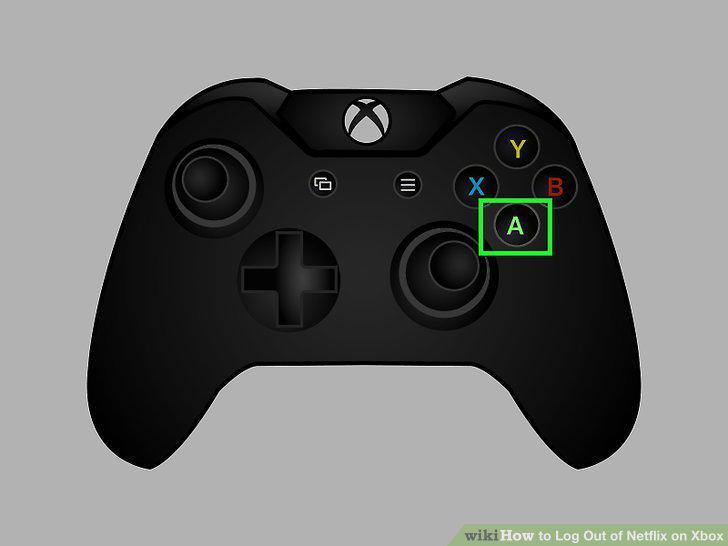
Tap "A" on your controller.
10
Select the "Log Out" option.
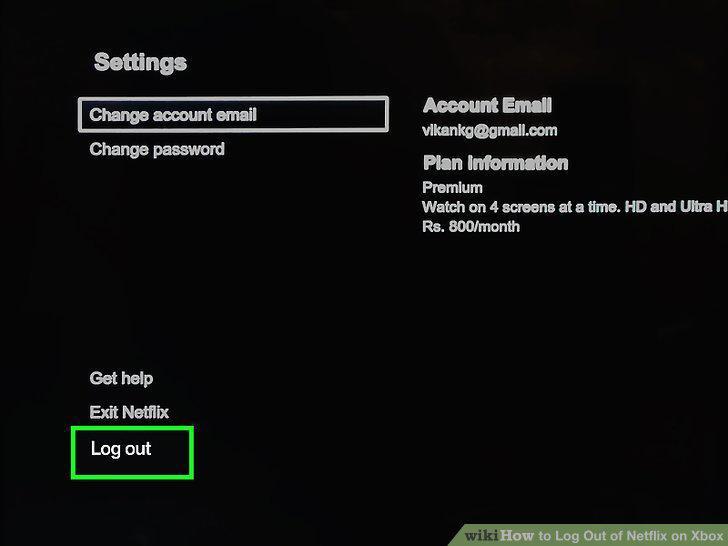
Select the "Log Out" option.
11
Open the Netflix app.
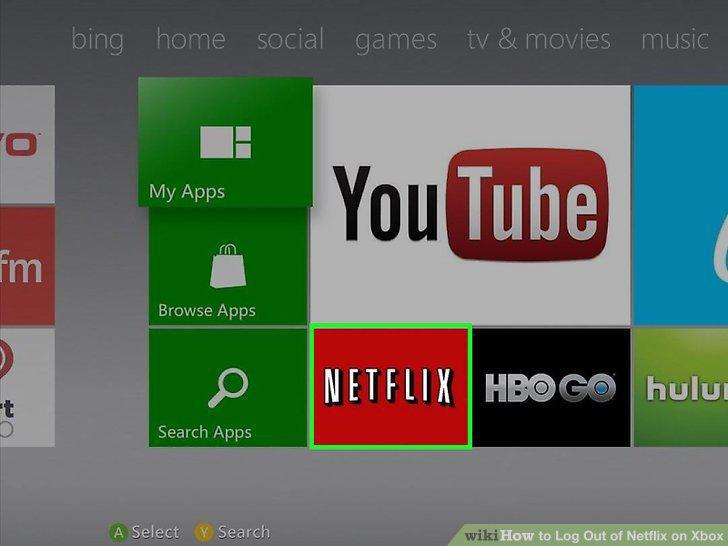
Open the Netflix app.
12
Press the left analog stick up.
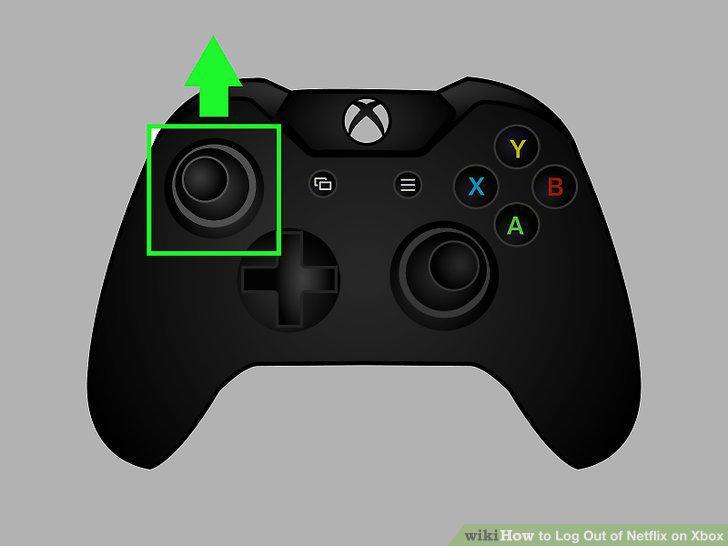
Press the left analog stick up.
13
Select the settings gear.
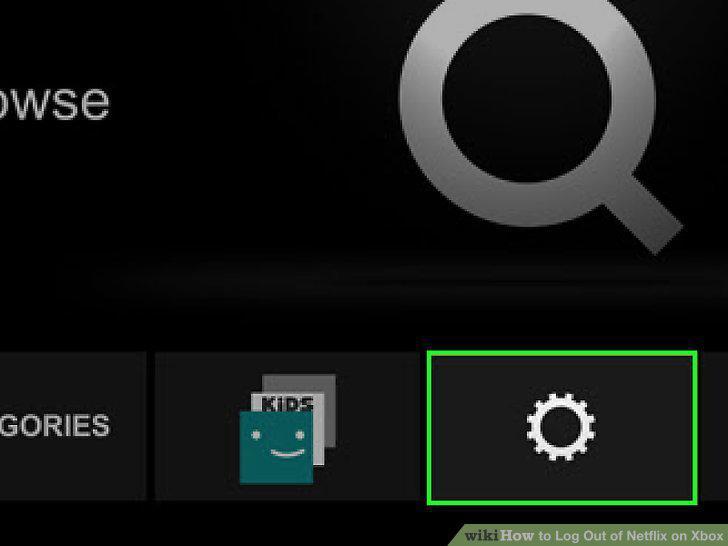
Select the settings gear.
14
Tap "A" to open the settings menu.
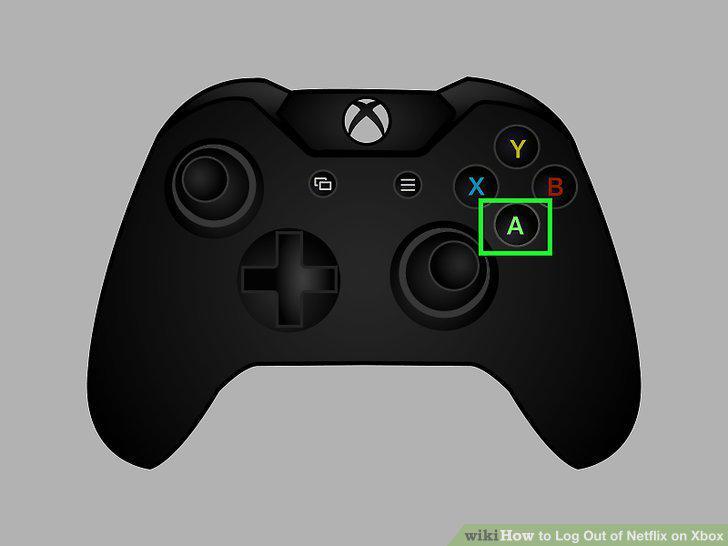
Tap "A" to open the settings menu.
15
Select the "Sign Out" option.
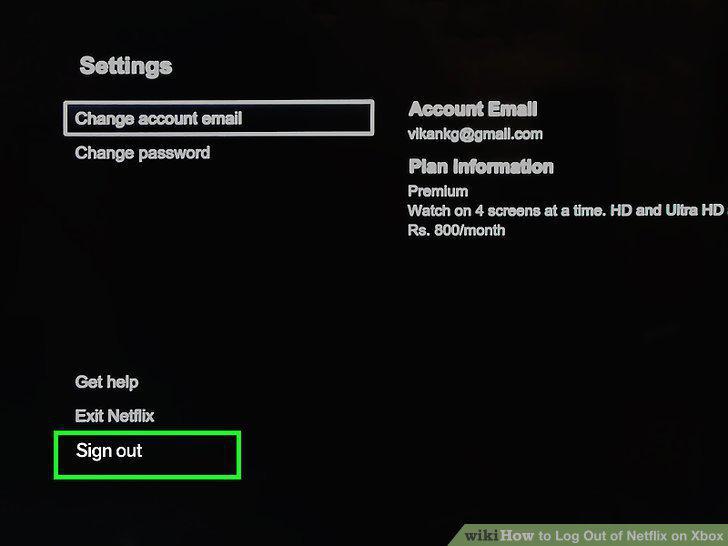
Select the "Sign Out" option.
16
Tap "A" over the "Yes" option.
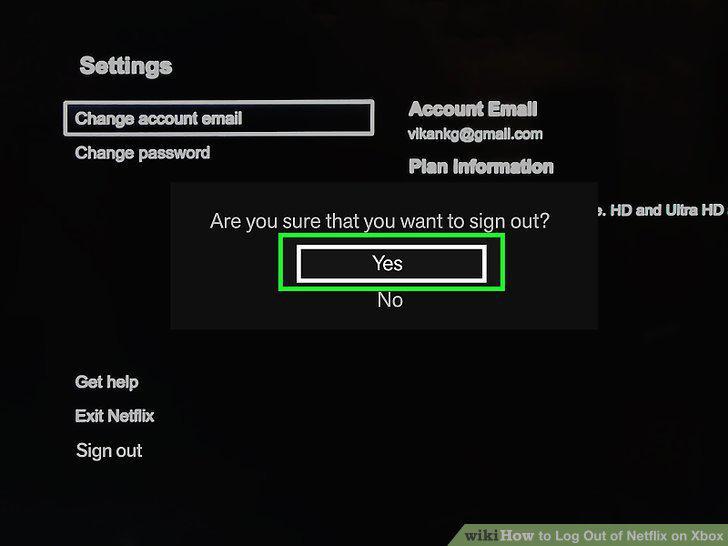
Tap "A" over the "Yes" option.
Comments (0)
No comments yet. Be the first to share your thoughts!