How to Dispute a PayPal Transaction
Log in to your PayPal account and go to the Resolution Center.. Open your dispute.. Specify a problem with the purchase or an unauthorized purchase.
Steps
Log in to your PayPal account and go to the Resolution Center.
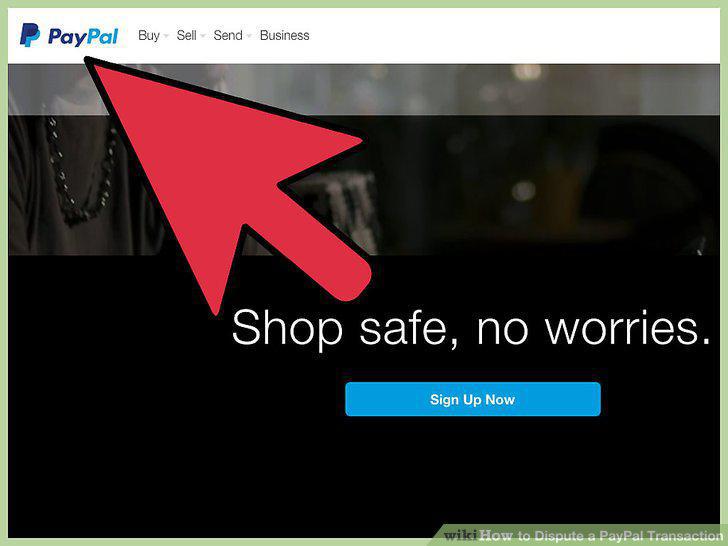
Log in to your PayPal account and go to the Resolution Center.
Open your dispute.
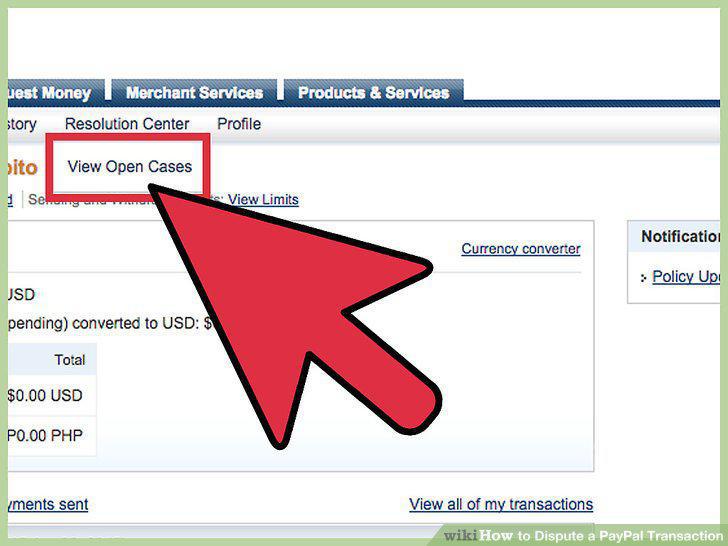
Open your dispute.
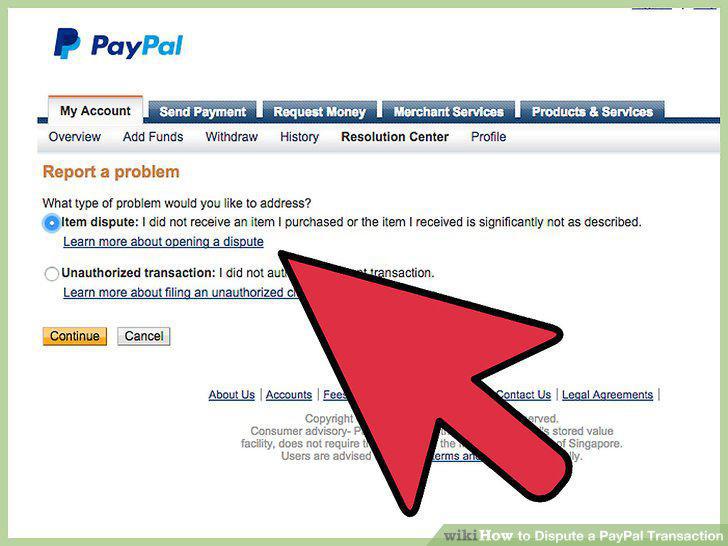
Specify a problem with the purchase or an unauthorized purchase.
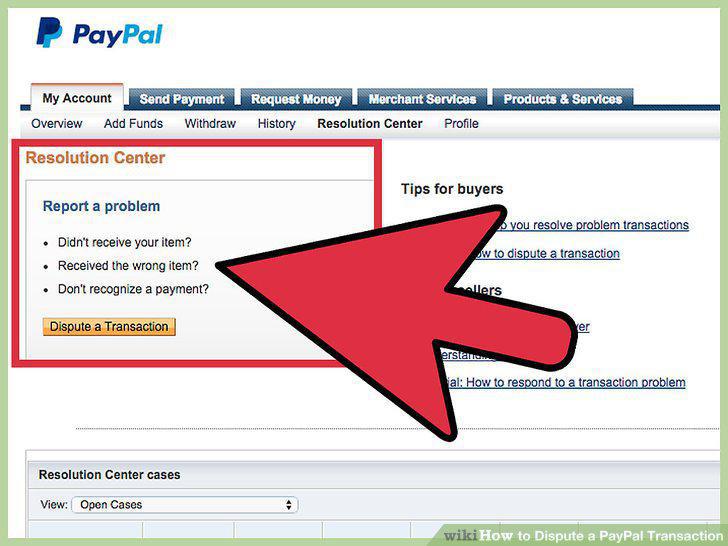
Specify a problem with the purchase or an unauthorized purchase.
Select the "category of your purchase" from a drop down menu.
Select the "category of your purchase" from a drop down menu.
Explain your dispute and set forth how you want the dispute resolved.
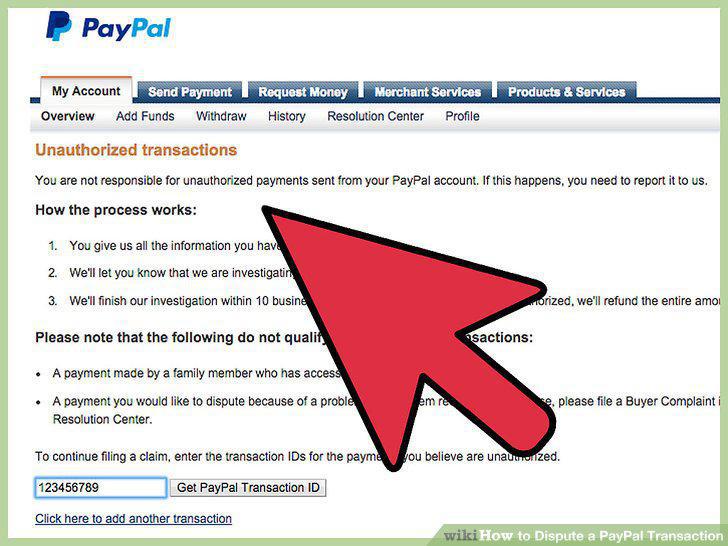
Explain your dispute and set forth how you want the dispute resolved.
Negotiate with the seller to resolve the situation.
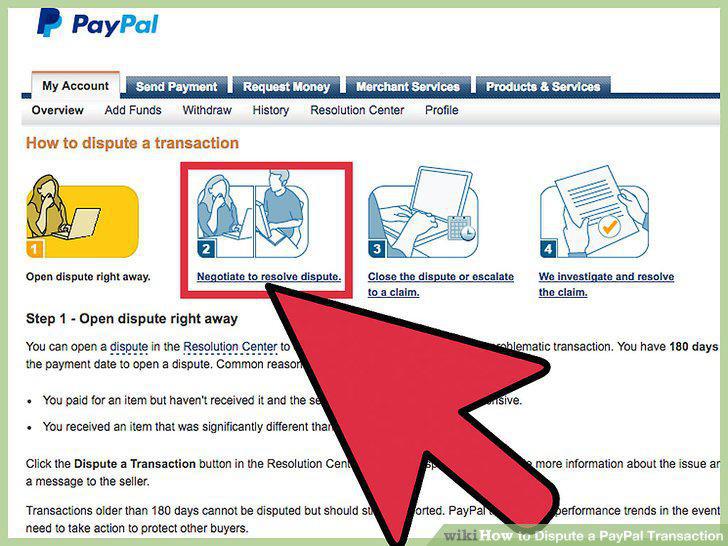
Negotiate with the seller to resolve the situation.
Close or escalate your dispute.
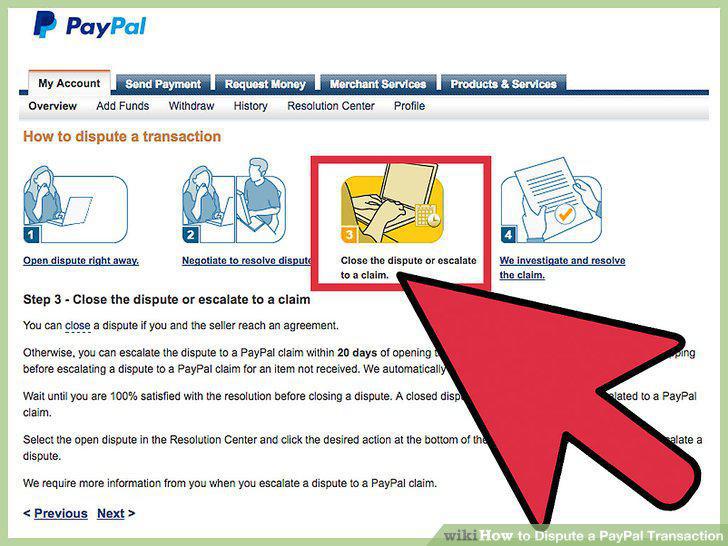
Close or escalate your dispute.
Log in to your PayPal account and go to the Resolution Center.
Log in to your PayPal account and go to the Resolution Center.
Open a dispute or click on an existing dispute.
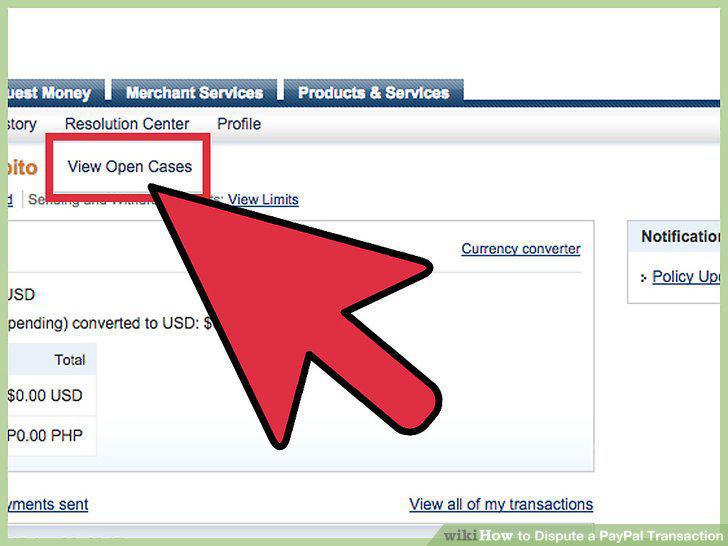
Open a dispute or click on an existing dispute.
Select the option to escalate under "More Options.
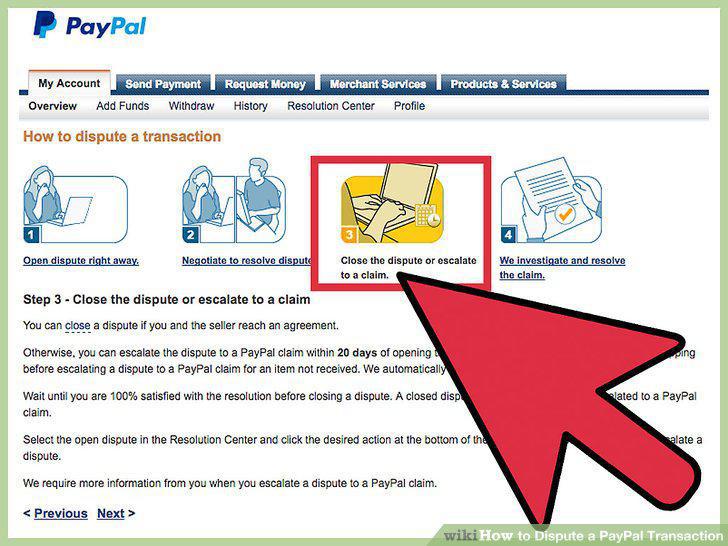
Select the option to escalate under "More Options.
Provide the information requested.
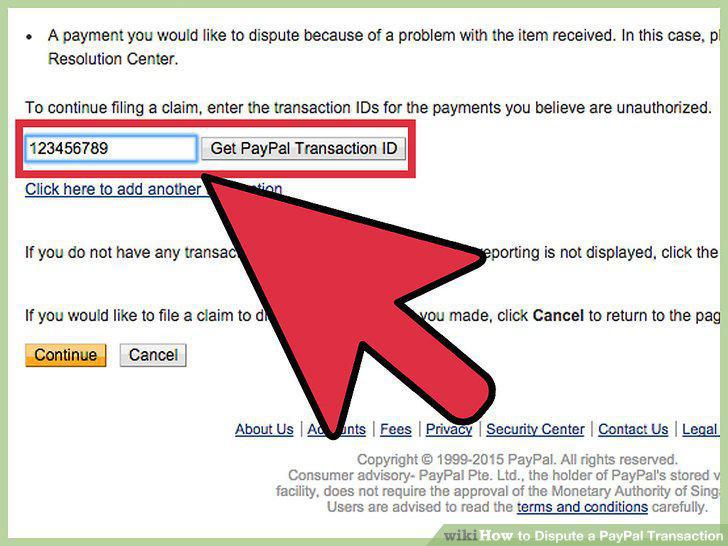
Provide the information requested.
Wait for PayPal to resolve your claim.
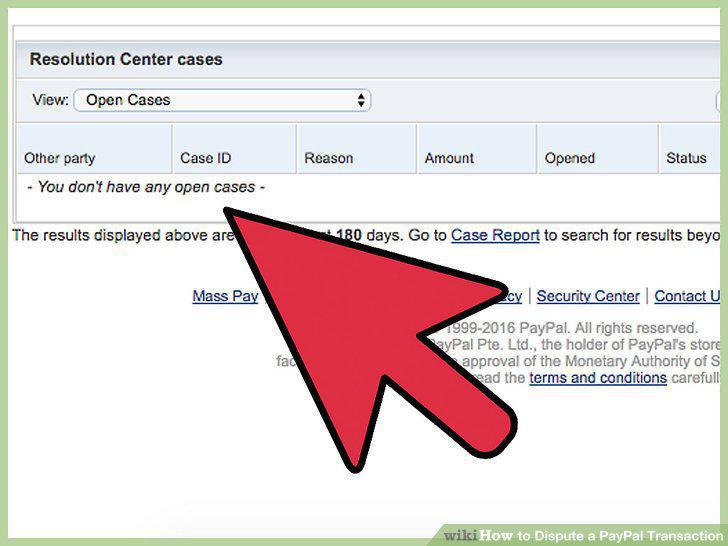
Wait for PayPal to resolve your claim.
Identify unauthorized activity.
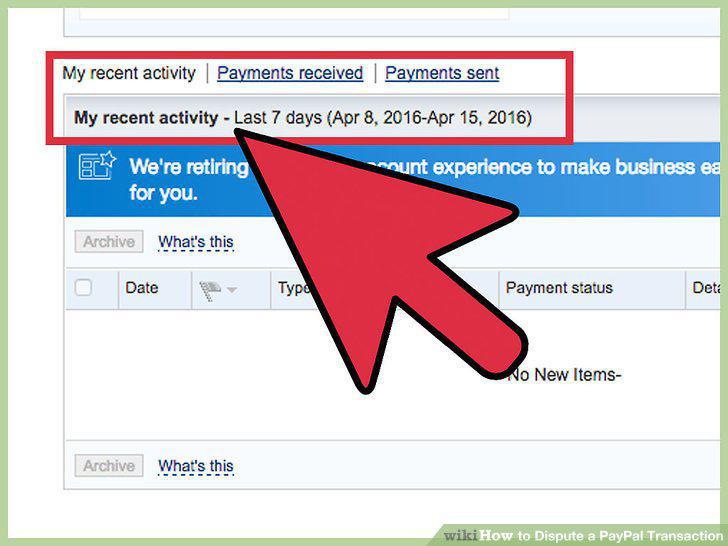
Identify unauthorized activity.
Log in to your PayPal account and go to the Resolution Center.
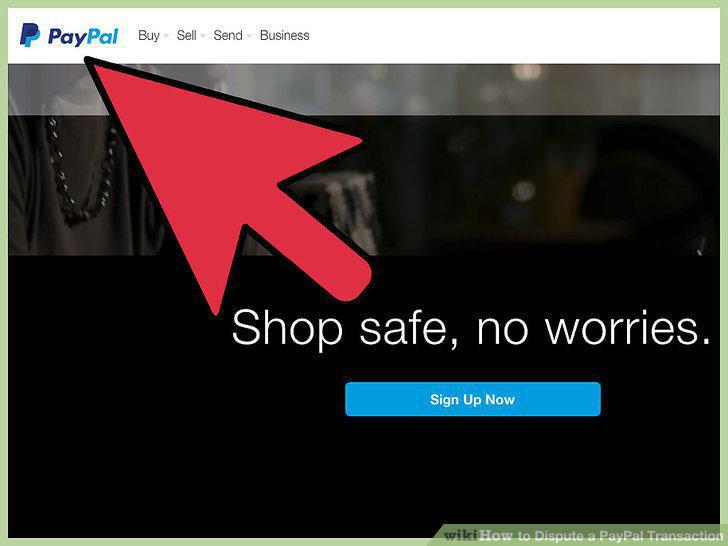
Log in to your PayPal account and go to the Resolution Center.
Click the "Report a Problem" button.
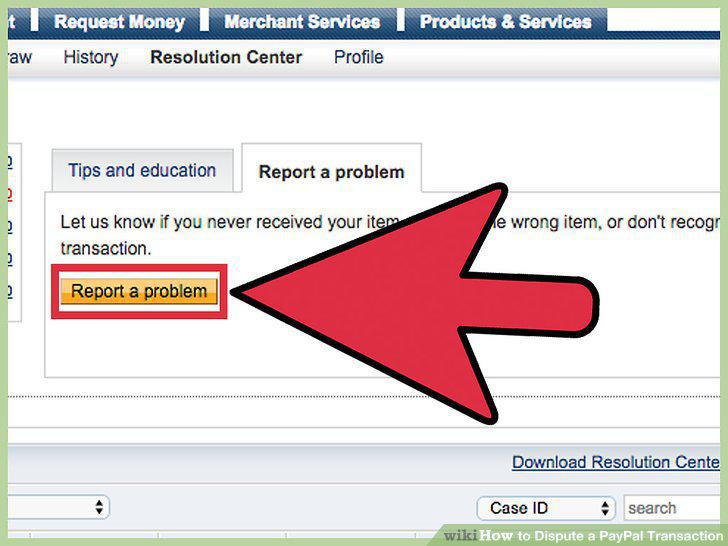
Click the "Report a Problem" button.
Provide the information requested by PayPal.
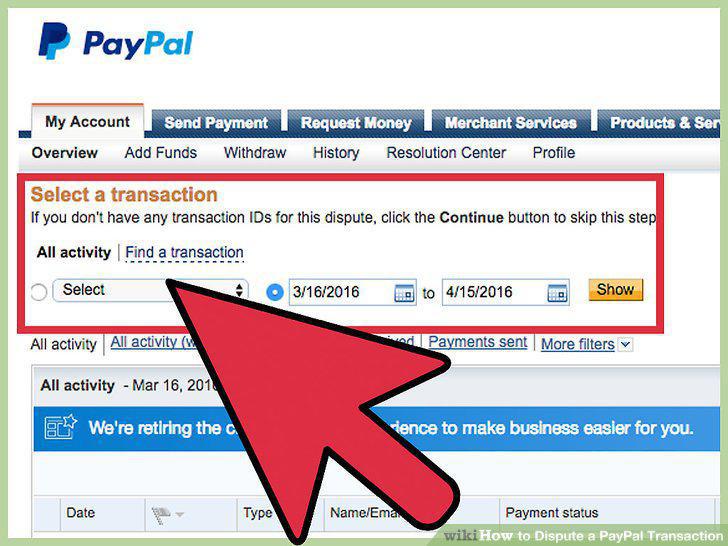
Provide the information requested by PayPal.
Change your PayPal password and security questions.
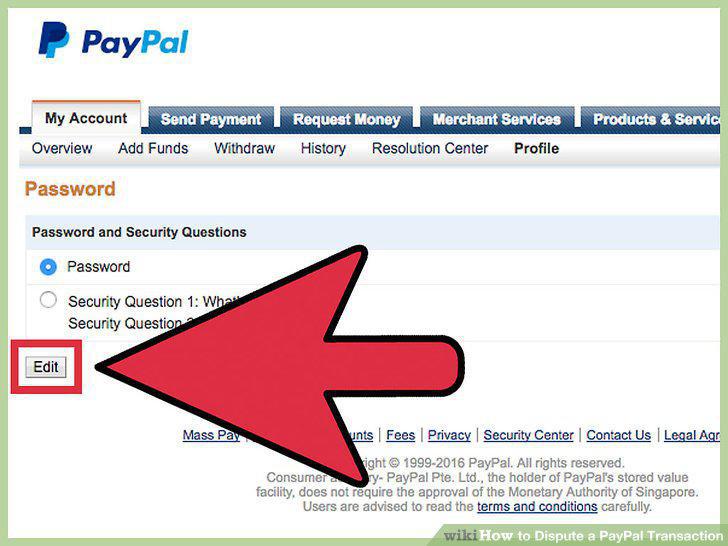
Change your PayPal password and security questions.
Wait for PayPal to review your claim.
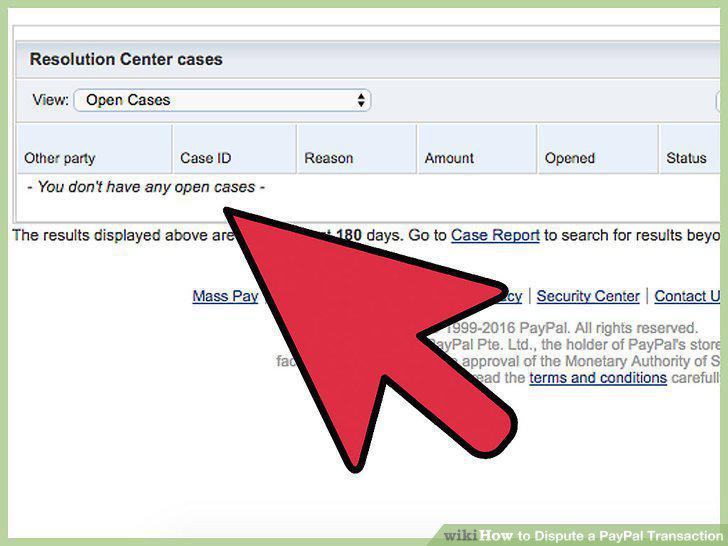
Wait for PayPal to review your claim.
Wait for PayPal's final decision.
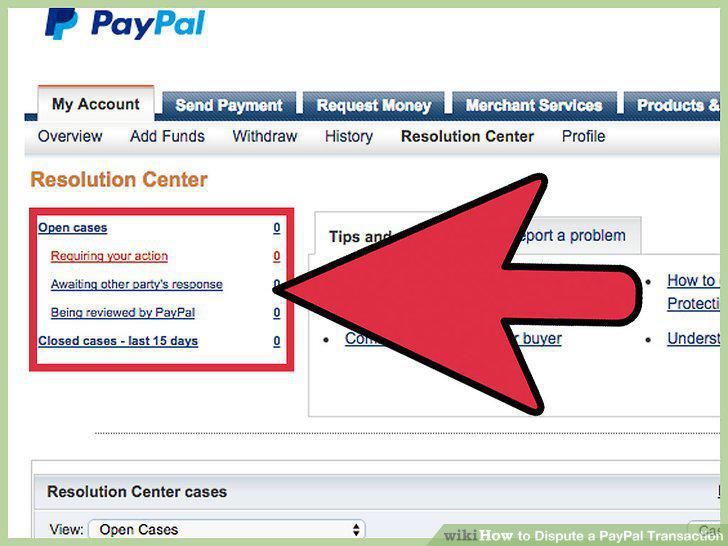
Wait for PayPal's final decision.
Comments (0)
No comments yet. Be the first to share your thoughts!