How to Cancel a Recurring Payment in PayPal
Go to https://www.paypal.com in a web browser.. Click on .. Click on the Payments tab.
Steps
1
Go to https://www.paypal.com in a web browser.
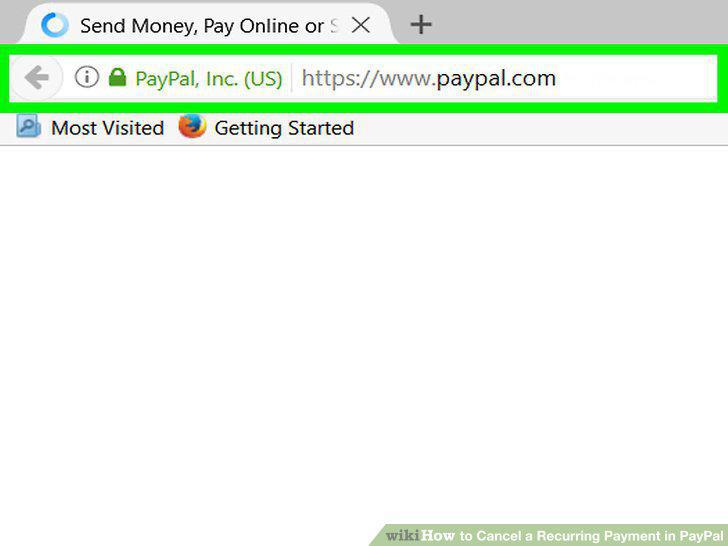
Go to https://www.paypal.com in a web browser.
2
Click on .
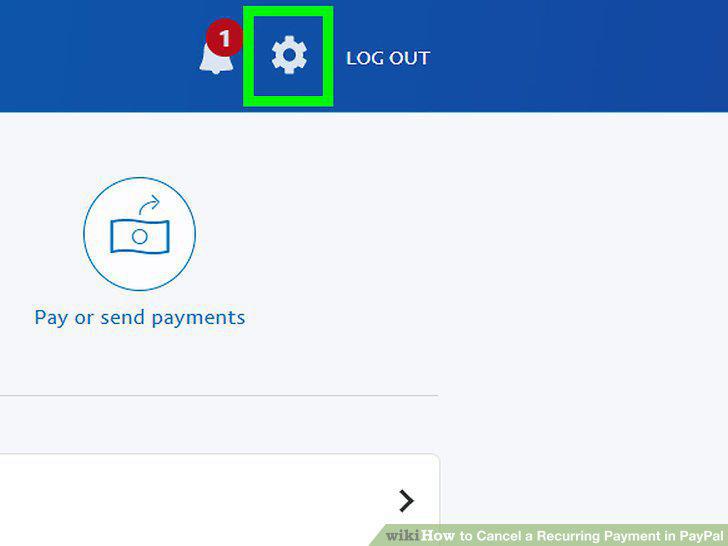
Click on .
3
Click on the Payments tab.
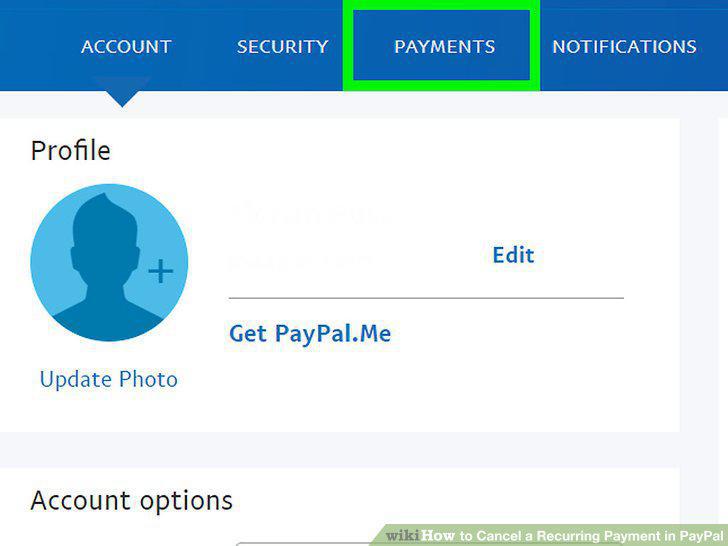
Click on the Payments tab.
4
Click on Manage pre-approved payments.
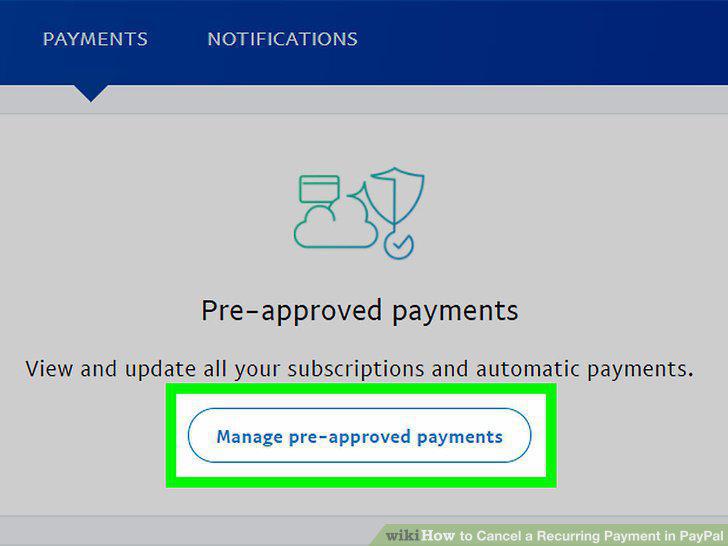
Click on Manage pre-approved payments.
5
Click on the payment you'd like to cancel.
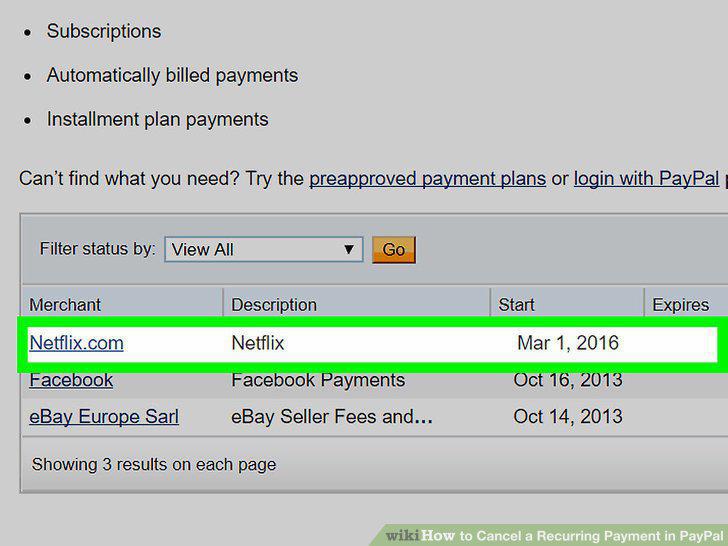
Click on the payment you'd like to cancel.
6
Click on Cancel.
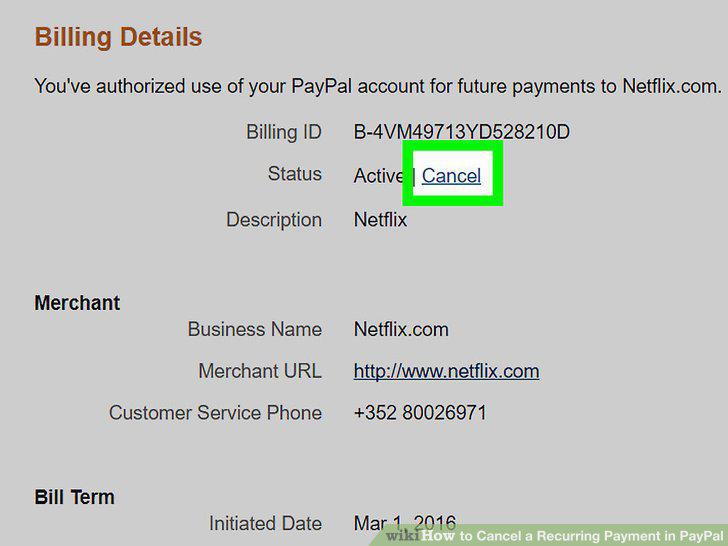
Click on Cancel.
7
Click on Yes to confirm.
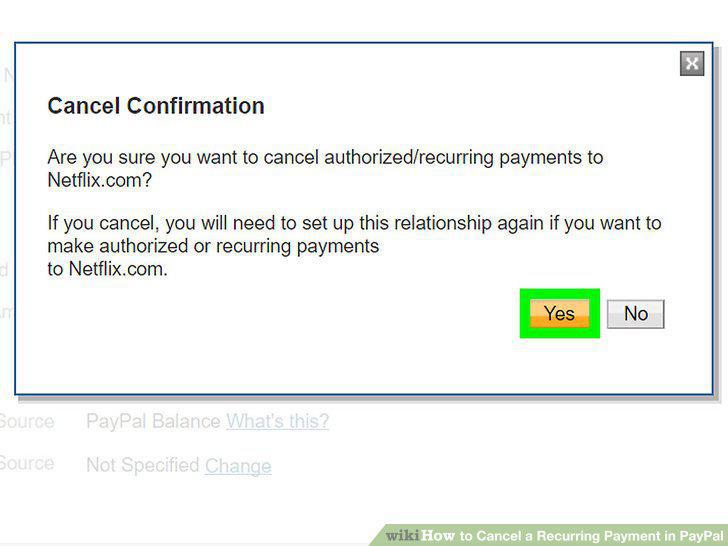
Click on Yes to confirm.
Comments (0)
No comments yet. Be the first to share your thoughts!