How to Change Your Steam Password
Open Steam on your computer.. Click the Steam tab.. Click Settings (Windows) or Preferences (Mac) on the menu.
Steps
1
Open Steam on your computer.
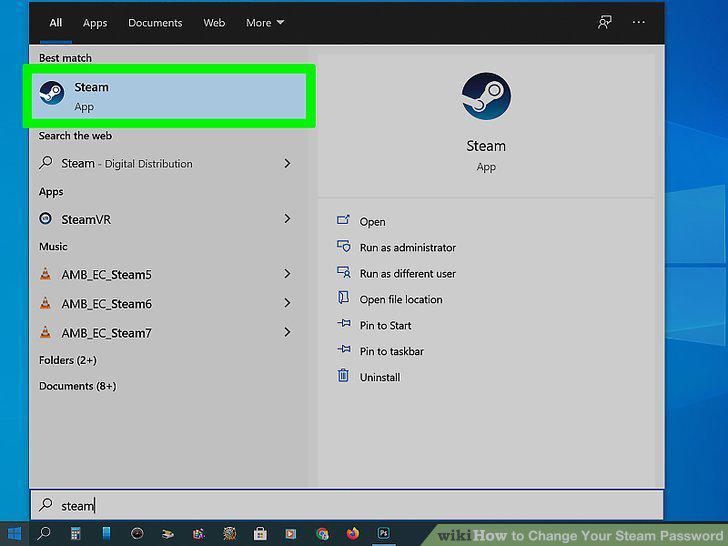
Open Steam on your computer.
2
Click the Steam tab.
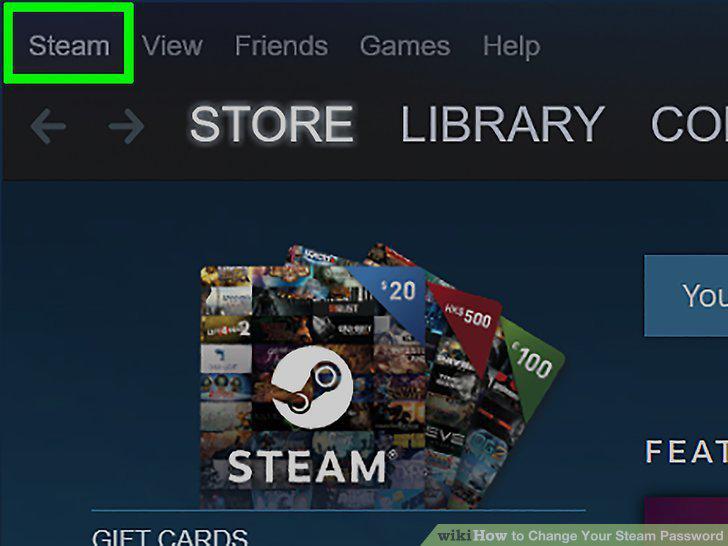
Click the Steam tab.
3
Click Settings (Windows) or Preferences (Mac) on the menu.
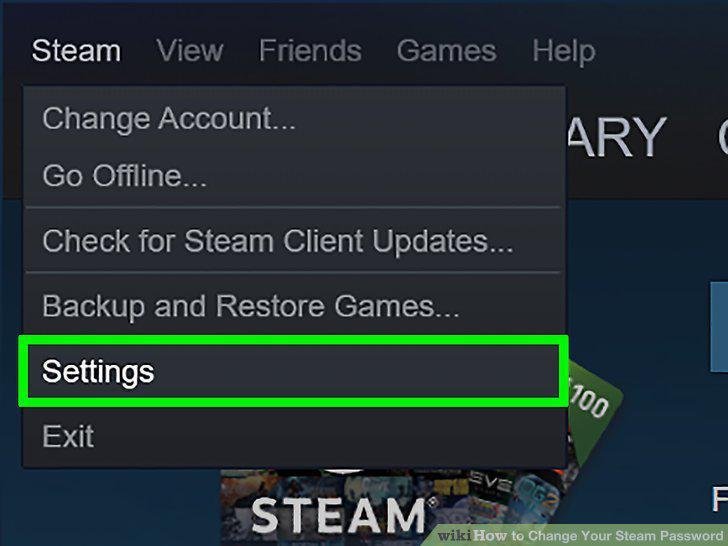
Click Settings (Windows) or Preferences (Mac) on the menu.
4
Click Change Password.
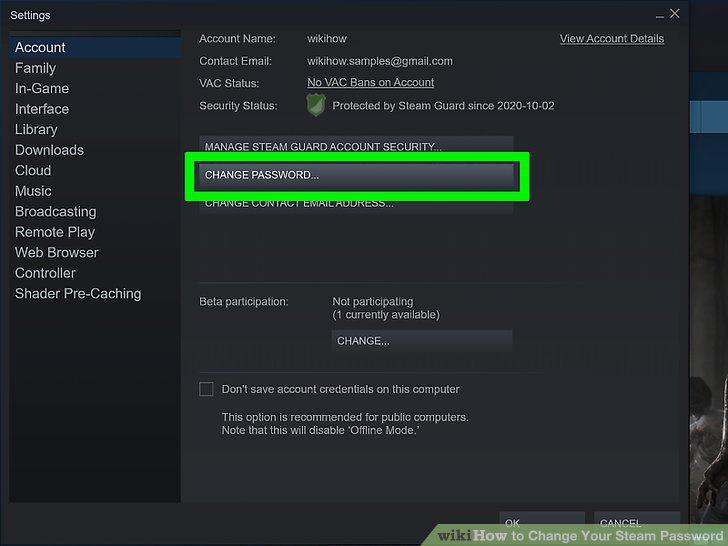
Click Change Password.
5
Click Email an account verification code to your email to verify your identity.
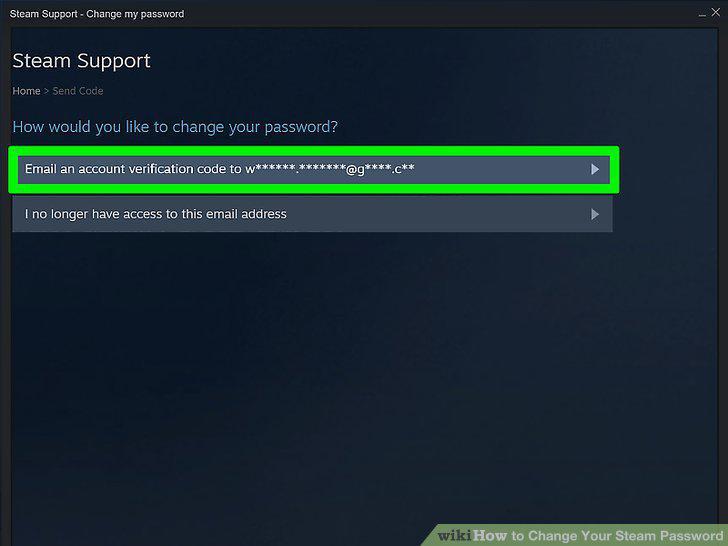
Click Email an account verification code to your email to verify your identity.
6
Enter the code (it's usually 5 characters long) and create a new password.
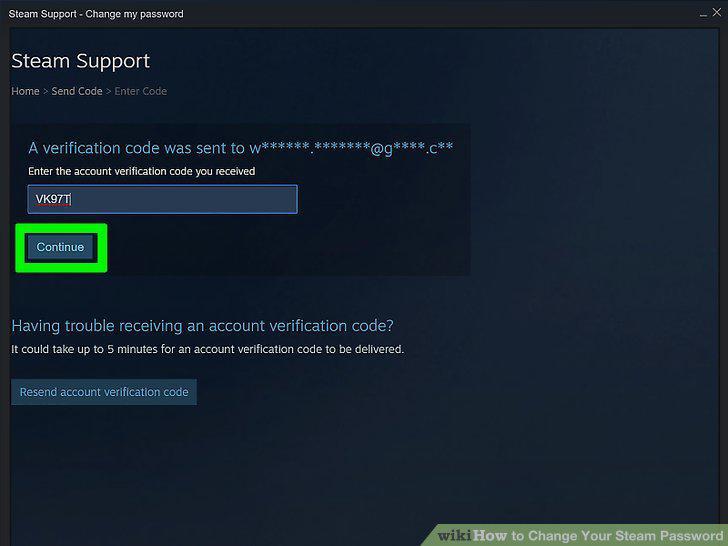
Enter the code (it's usually 5 characters long) and create a new password.
7
Click Change Password.
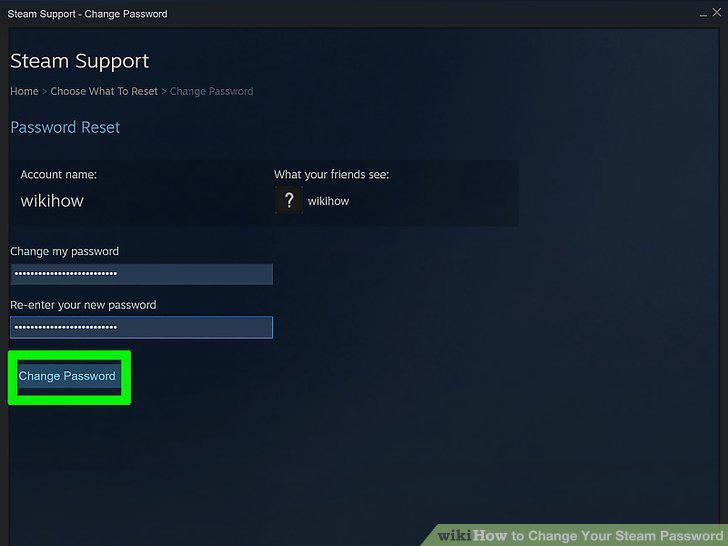
Click Change Password.
Comments (0)
No comments yet. Be the first to share your thoughts!