How to Delete a Repository
Open Github on your computer.. Click Sign In from the top right to log in to your Github account.. Go to the repository you wish to delete.
Steps
1
Open Github on your computer.
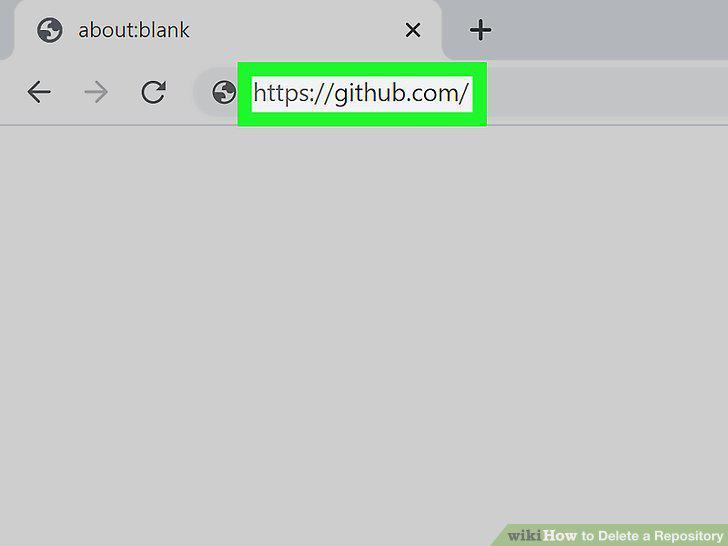
Open Github on your computer.
2
Click Sign In from the top right to log in to your Github account.
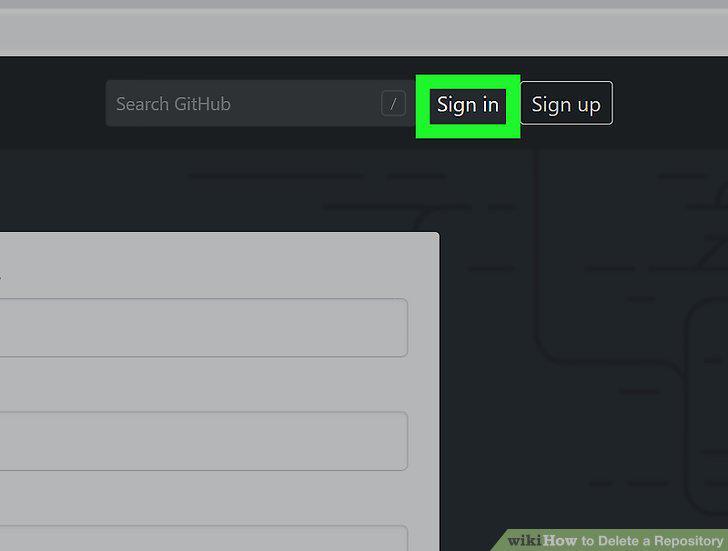
Click Sign In from the top right to log in to your Github account.
3
Go to the repository you wish to delete.

Go to the repository you wish to delete.
4
Click on the Settings tab.
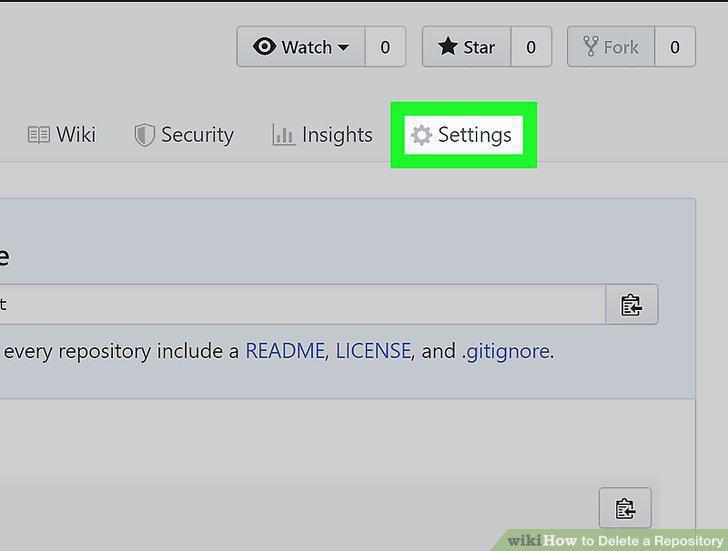
Click on the Settings tab.
5
Click Delete this repository.
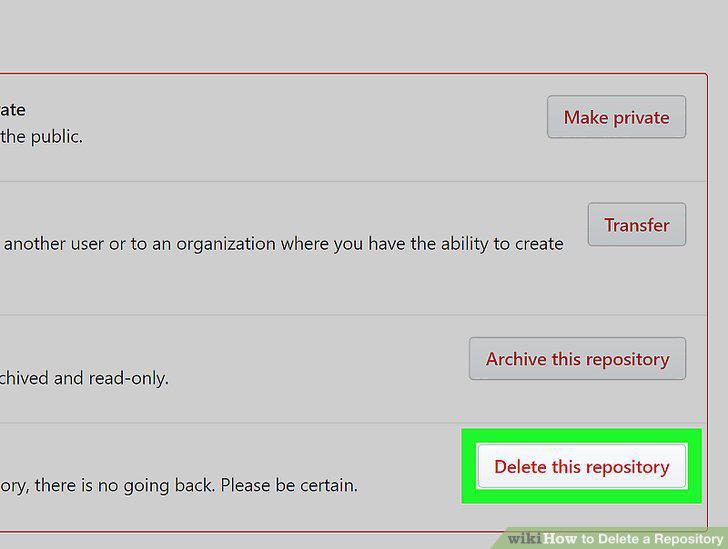
Click Delete this repository.
6
Confirm the repository name.
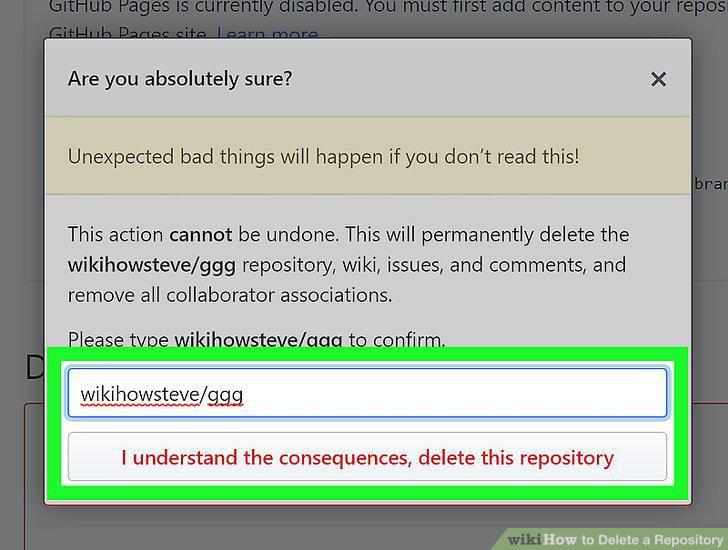
Confirm the repository name.
7
Search for the repository you wish to delete.

Search for the repository you wish to delete.
8
Right-click the repository.
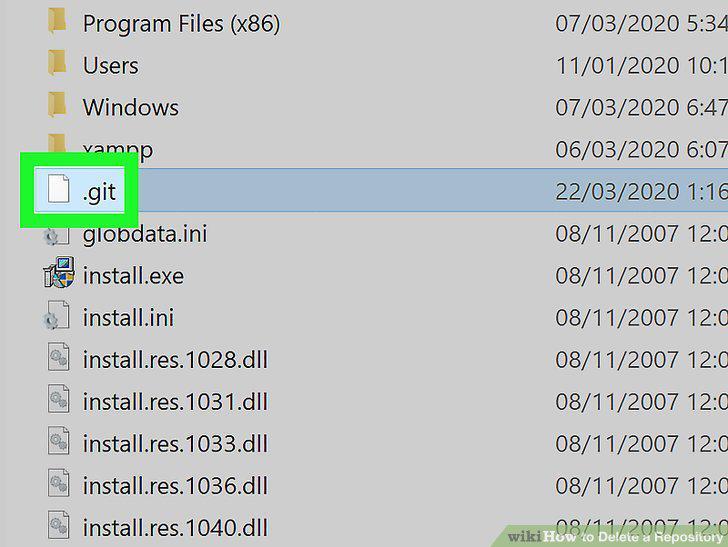
Right-click the repository.
9
Click Delete on the menu.
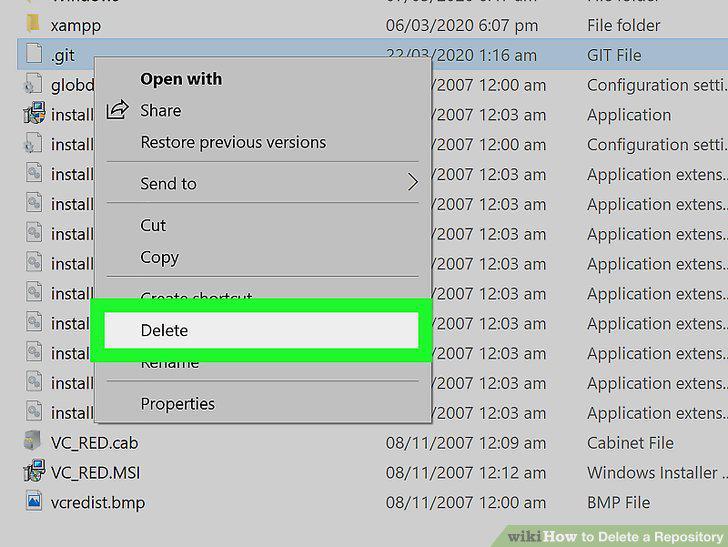
Click Delete on the menu.
Comments (0)
No comments yet. Be the first to share your thoughts!