How to Save Photos on Mac
Open your internet browser.. Find the image you want to save.. Right-click the picture you want to save.
Steps
1
Open your internet browser.
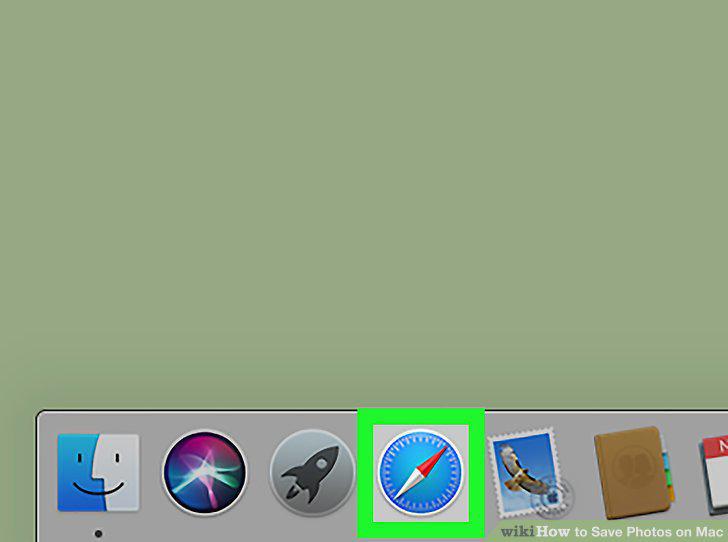
Open your internet browser.
2
Find the image you want to save.
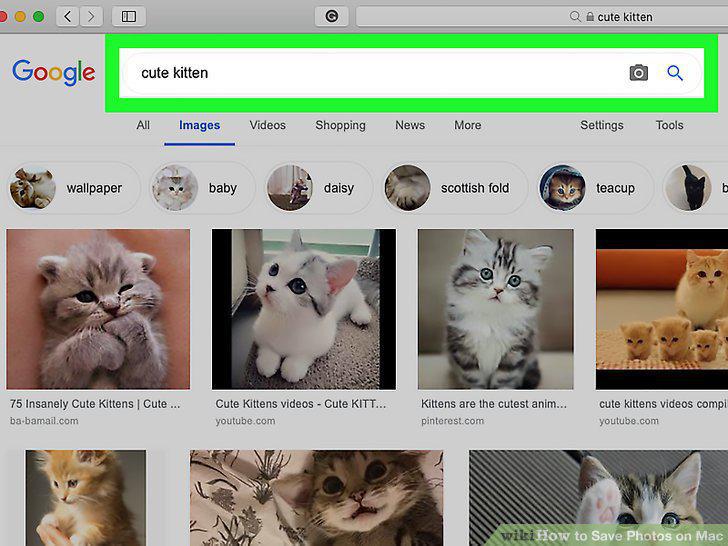
Find the image you want to save.
3
Right-click the picture you want to save.
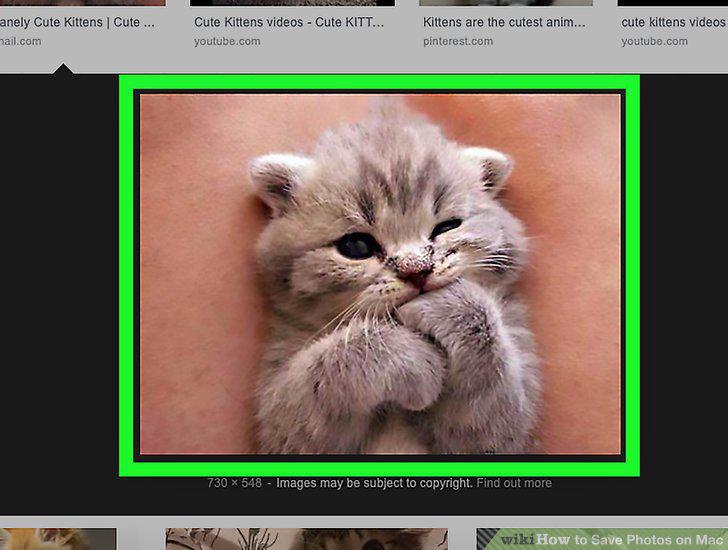
Right-click the picture you want to save.
4
Click Save Image As on the right-click menu.
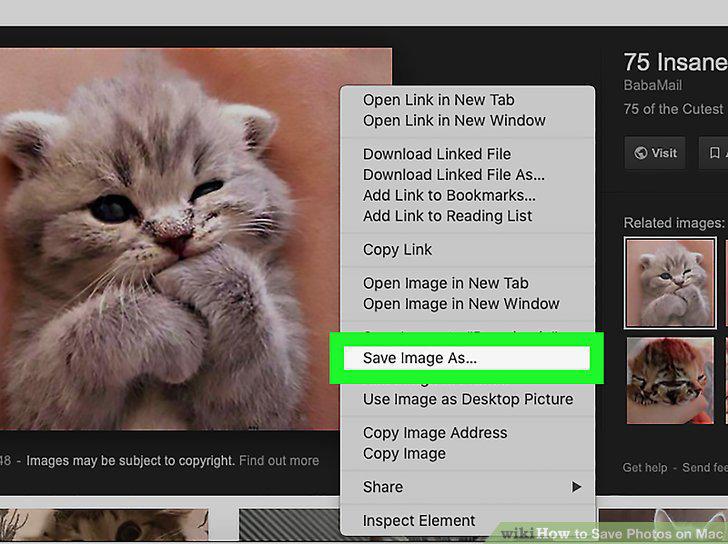
Click Save Image As on the right-click menu.
5
Select where you want to save the image.
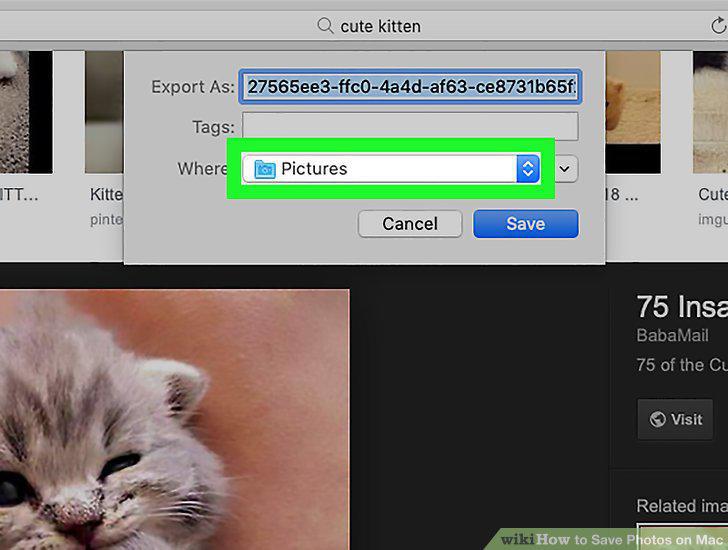
Select where you want to save the image.
6
Click the Save button.
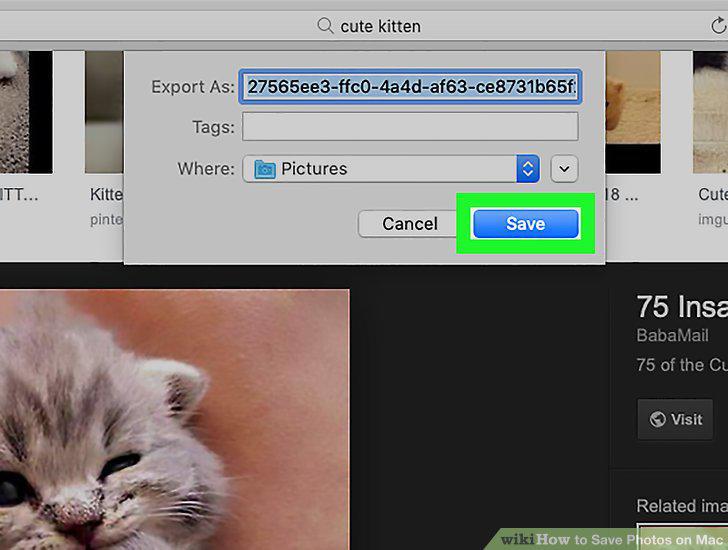
Click the Save button.
7
Plug your external source into your Mac.
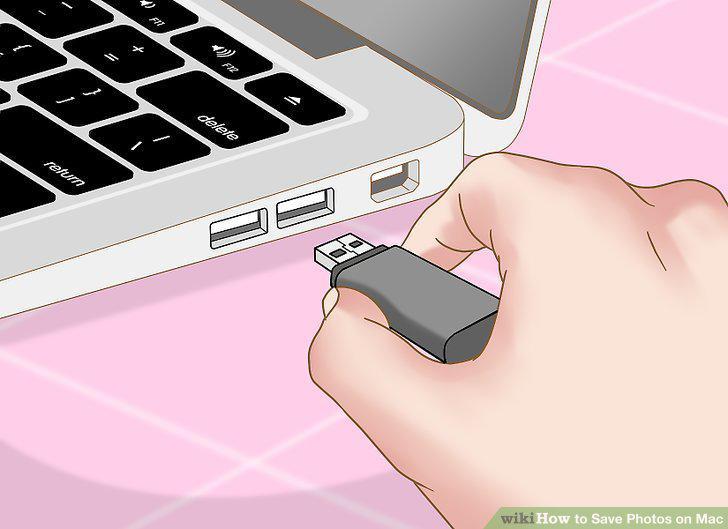
Plug your external source into your Mac.
8
Open the Photos app on your Mac.

Open the Photos app on your Mac.
9
Click the name of your external source on the left sidebar.
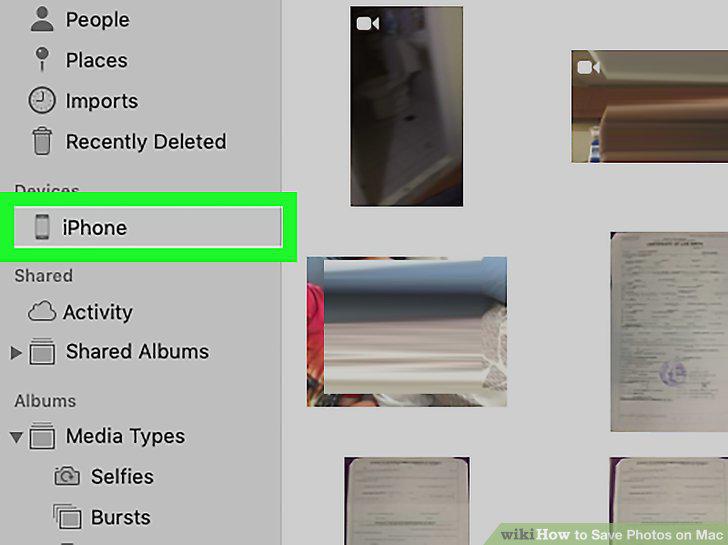
Click the name of your external source on the left sidebar.
10
Select all the images you want to save.
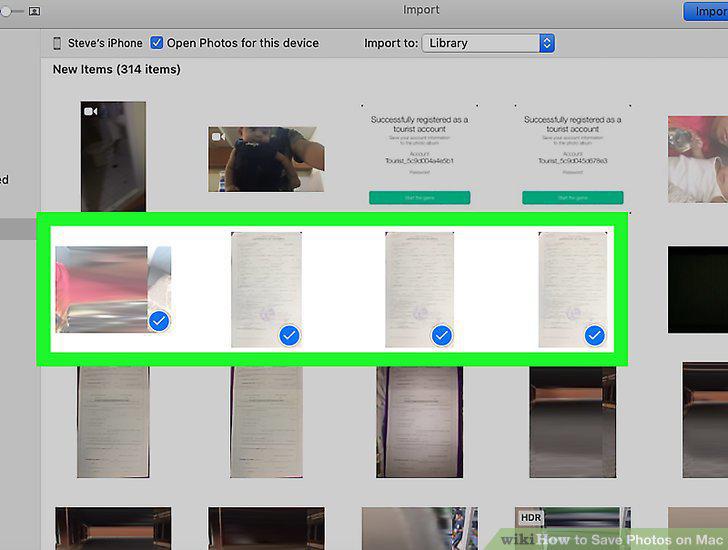
Select all the images you want to save.
11
Click the Import Selected button on the top-right.
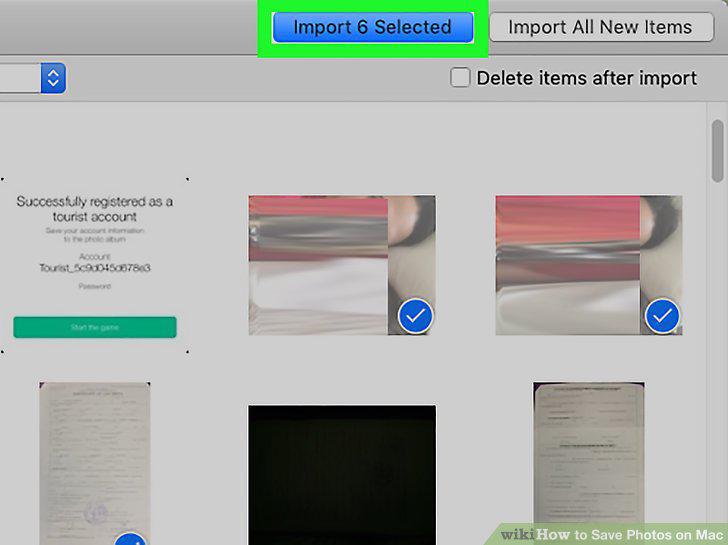
Click the Import Selected button on the top-right.
Comments (0)
No comments yet. Be the first to share your thoughts!