How to Mirror Your Screen on Windows
Make sure your screen receiver is set up and connected to Wi-Fi.. Open your computer's Start menu.. Click the gear icon on the bottom-left corner.
Steps
1
Make sure your screen receiver is set up and connected to Wi-Fi.
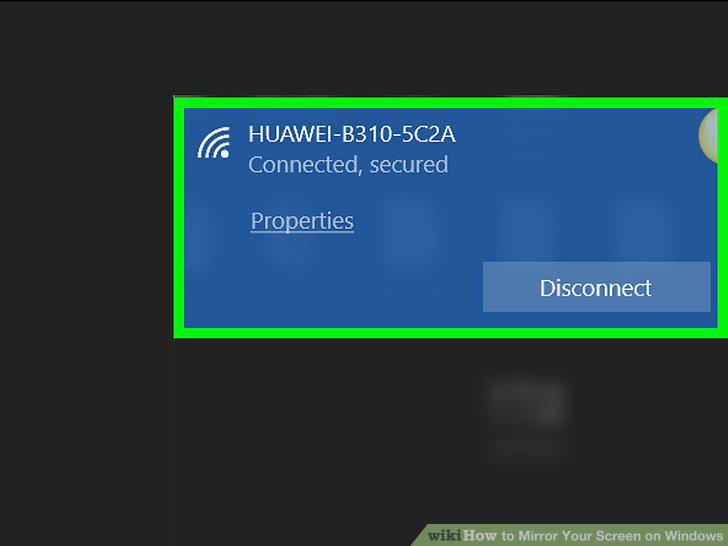
Make sure your screen receiver is set up and connected to Wi-Fi.
2
Open your computer's Start menu.
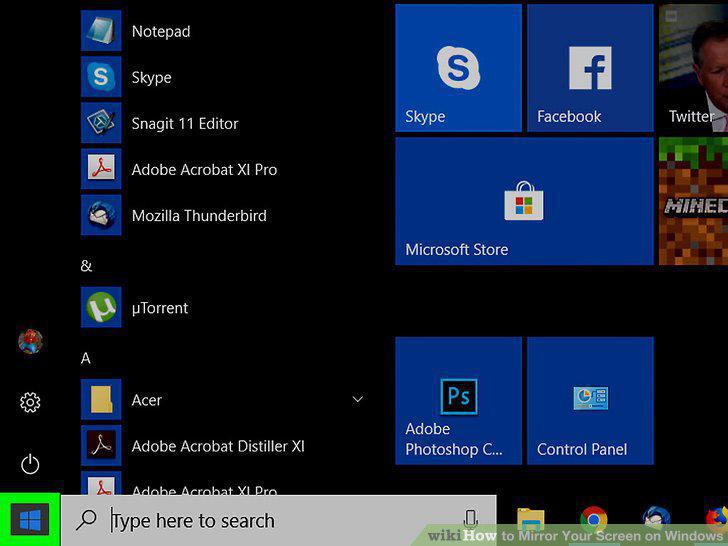
Open your computer's Start menu.
3
Click the gear icon on the bottom-left corner.
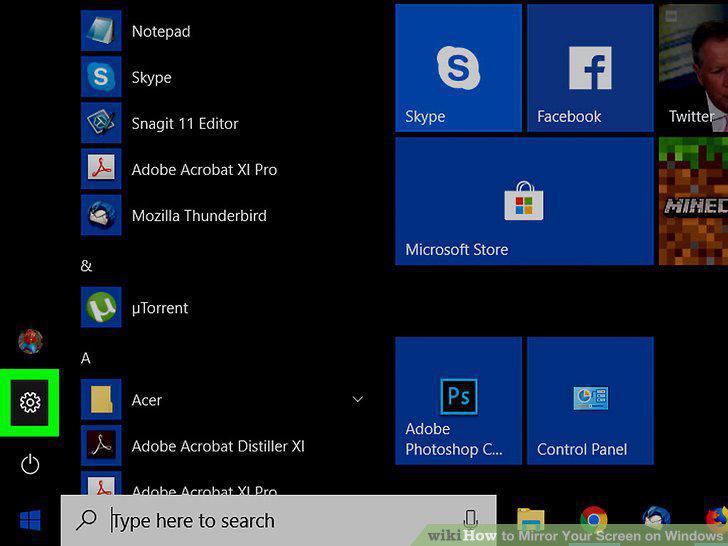
Click the gear icon on the bottom-left corner.
4
Click Devices in the Settings window.
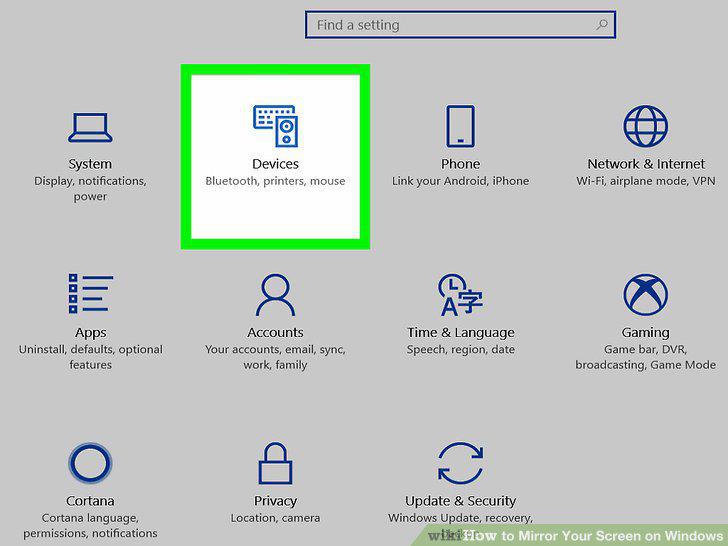
Click Devices in the Settings window.
5
Click Bluetooth & other devices on the left menu.
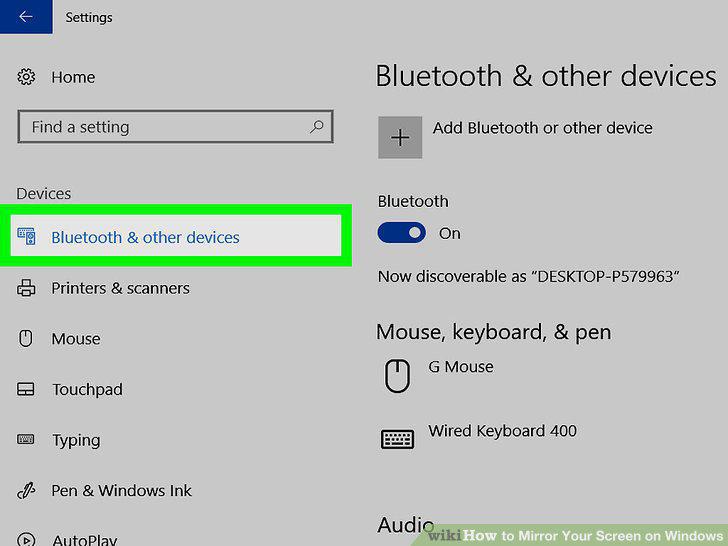
Click Bluetooth & other devices on the left menu.
6
Click + Add Bluetooth or other device.
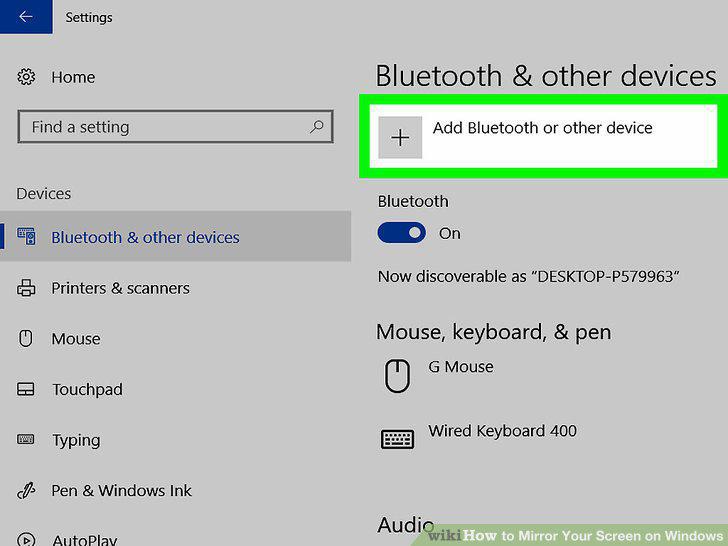
Click + Add Bluetooth or other device.
7
Select Wireless display or dock on the "Add a device" menu.
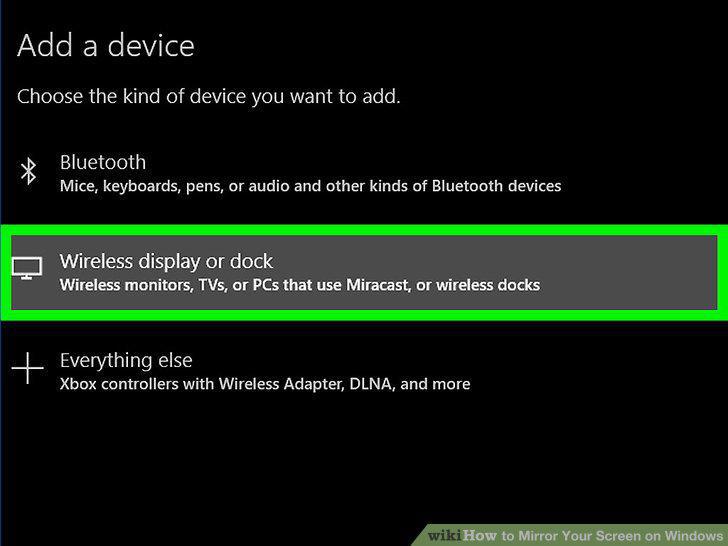
Select Wireless display or dock on the "Add a device" menu.
8
Click your display's name on the "Add a device" menu.
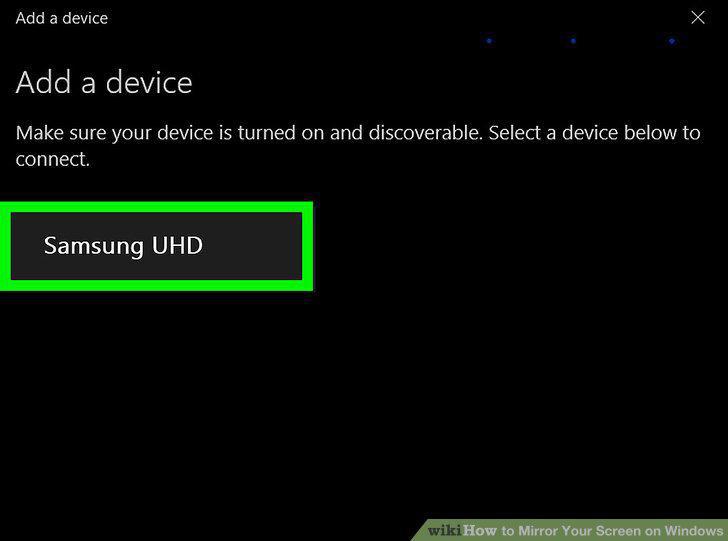
Click your display's name on the "Add a device" menu.
9
Click the Done button.
Click the Done button.
10
Get an HDMI cable.
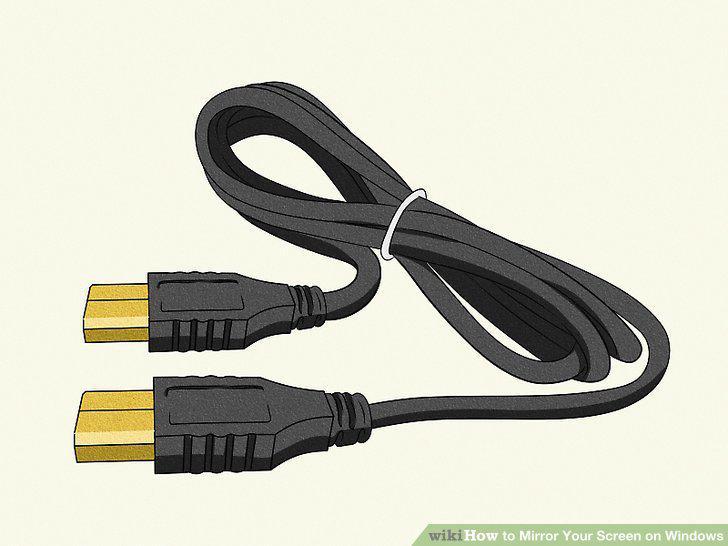
Get an HDMI cable.
11
Plug one end of the cable into an HDMI port on your computer.
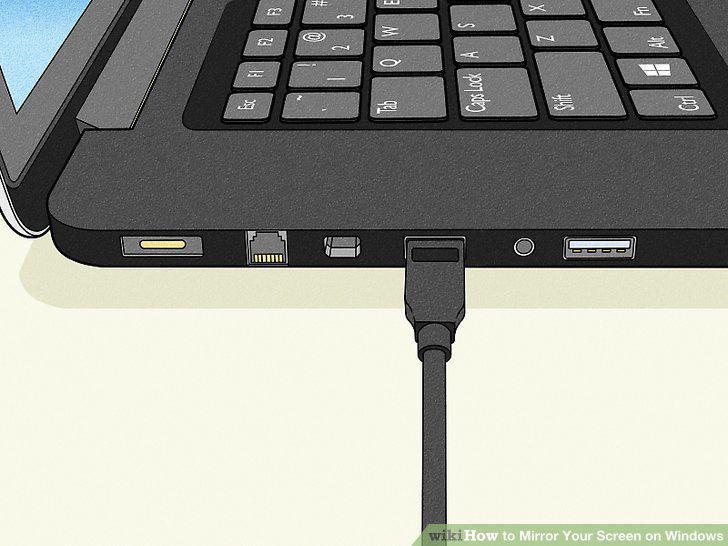
Plug one end of the cable into an HDMI port on your computer.
12
Plug the other end of the cable into your display.
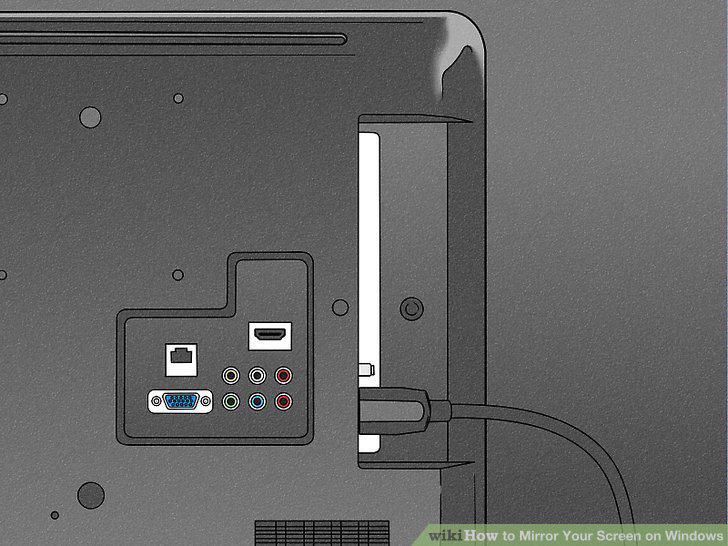
Plug the other end of the cable into your display.
13
Switch your TV or projector to the HDMI input.
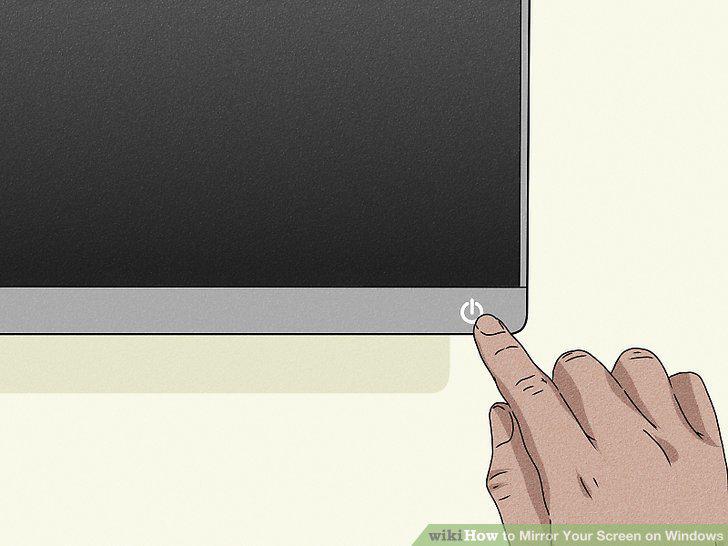
Switch your TV or projector to the HDMI input.
Comments (0)
No comments yet. Be the first to share your thoughts!