How to Stop Sharing Your Location on an iPhone
Tap the Messages app.. Tap the message that is currently sharing your location.. Tap the blue circle with an "i".
Steps
1
Tap the Messages app.
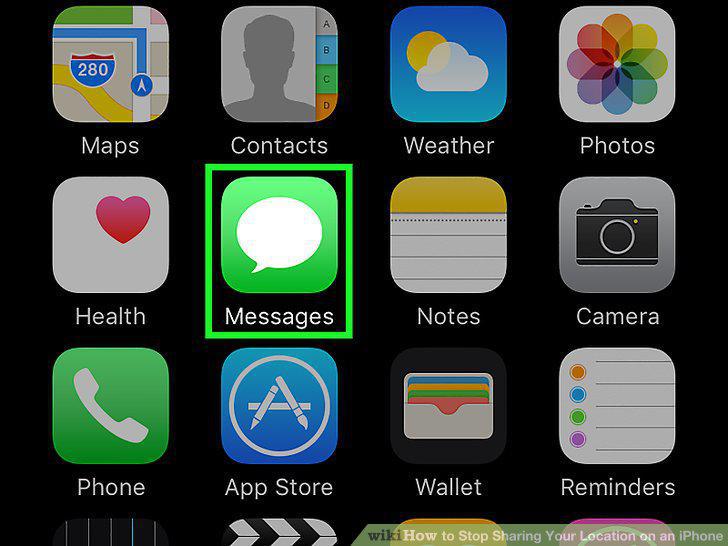
Tap the Messages app.
2
Tap the message that is currently sharing your location.
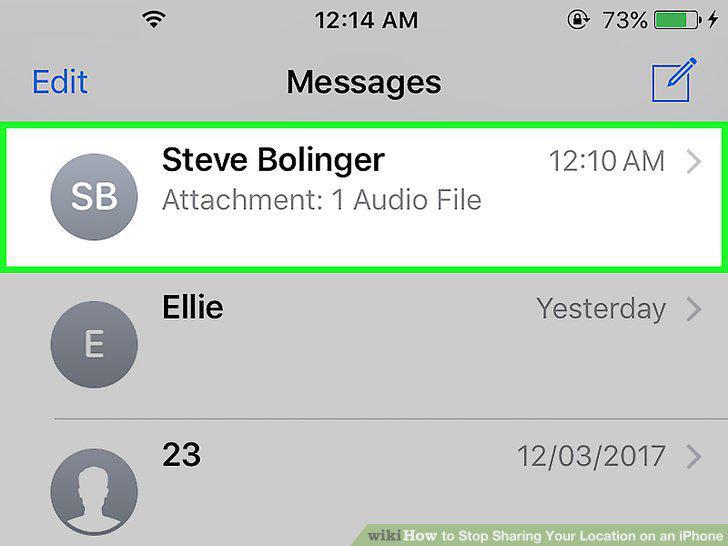
Tap the message that is currently sharing your location.
3
Tap the blue circle with an "i".
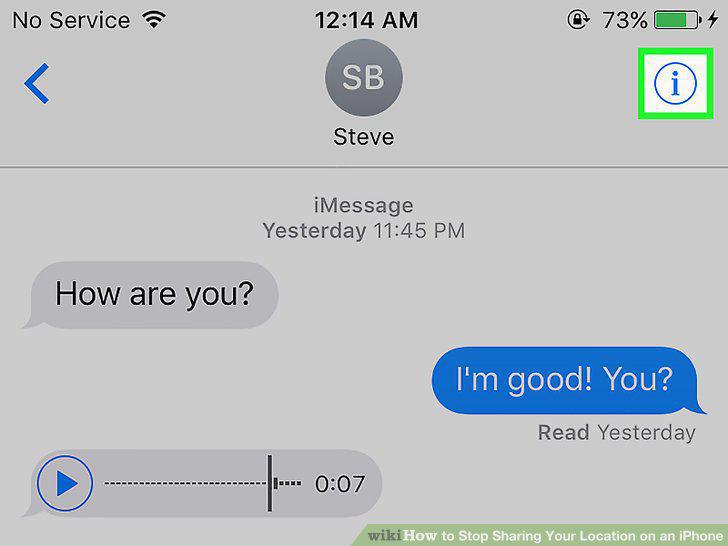
Tap the blue circle with an "i".
4
Tap Stop Sharing My Location.
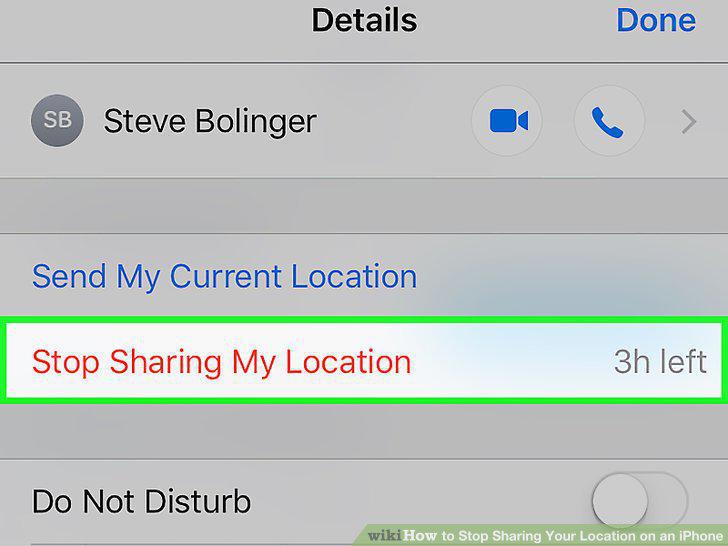
Tap Stop Sharing My Location.
5
Tap Stop Sharing My Location.
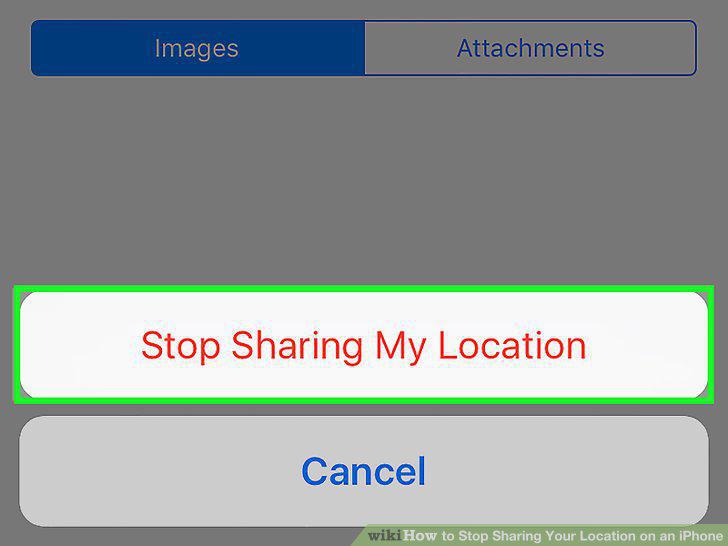
Tap Stop Sharing My Location.
6
Open your iPhone's Settings.
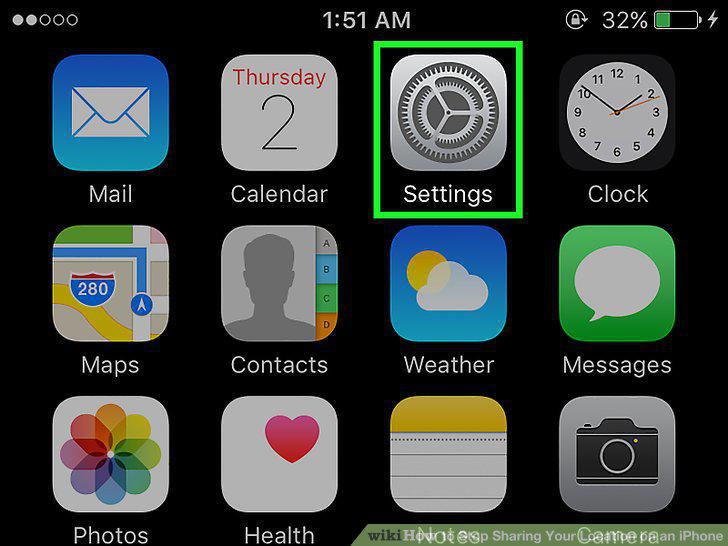
Open your iPhone's Settings.
7
Tap Privacy.
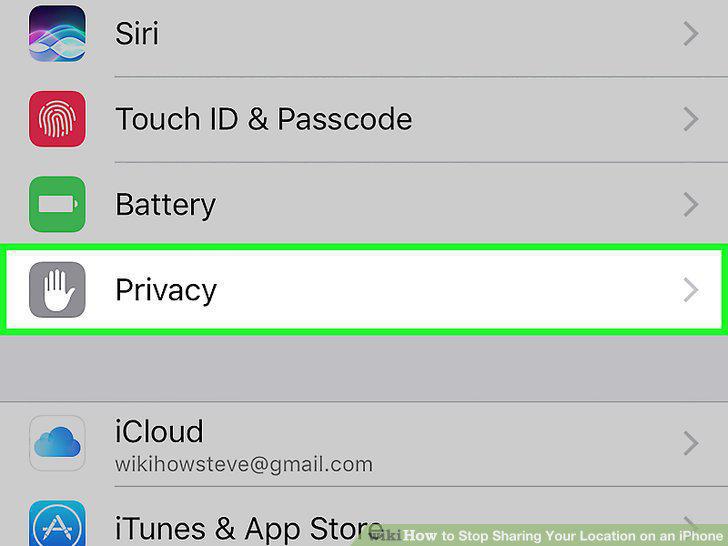
Tap Privacy.
8
Tap Location Services.
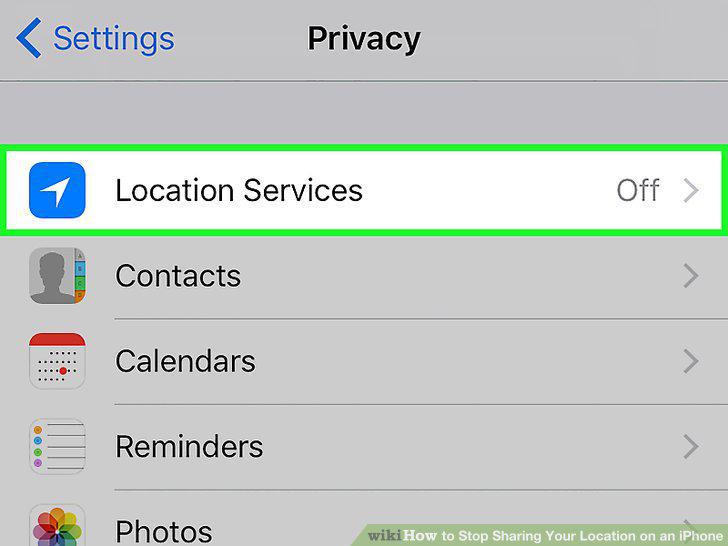
Tap Location Services.
9
Slide the button next to "Location Services" to the "Off" position.
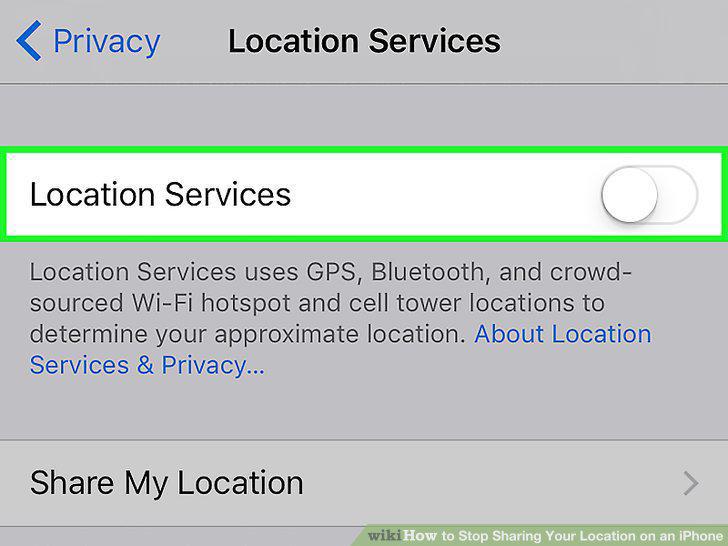
Slide the button next to "Location Services" to the "Off" position.
Comments (0)
No comments yet. Be the first to share your thoughts!