How to Create Contact Groups on an iPhone
Enable the iCloud contacts setting on your iPhone.. Open a browser on your Mac or PC and go to iCloud.com.. Go to Contacts.
Steps
1
Enable the iCloud contacts setting on your iPhone.
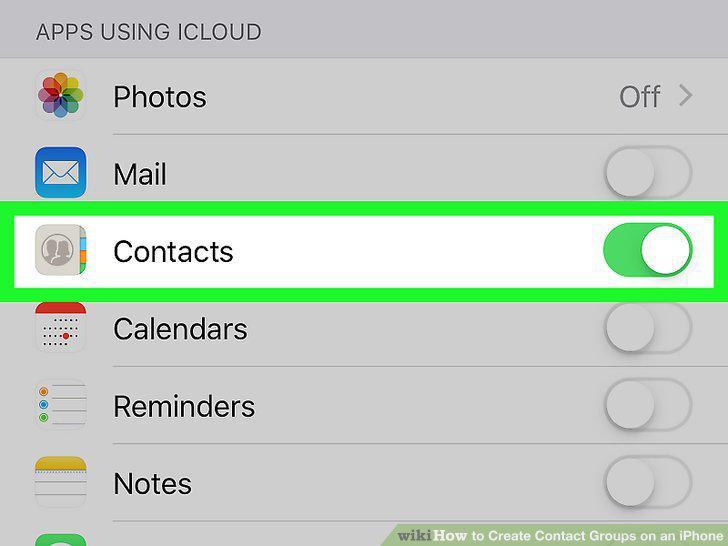
Enable the iCloud contacts setting on your iPhone.
2
Open a browser on your Mac or PC and go to iCloud.com.
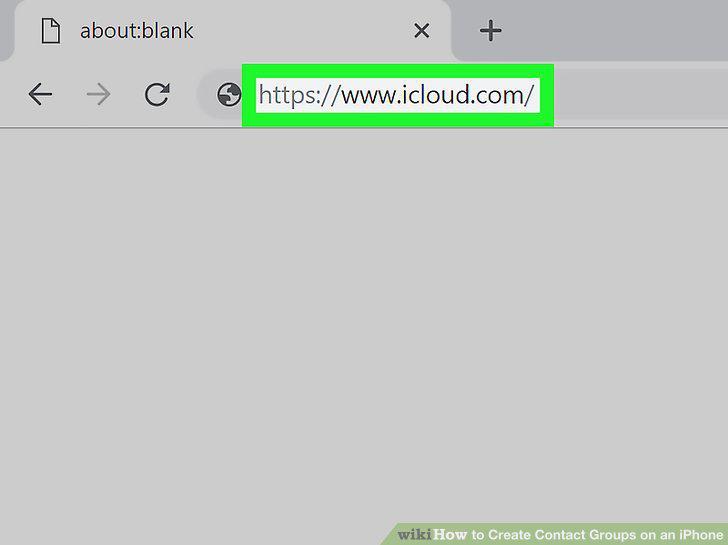
Open a browser on your Mac or PC and go to iCloud.com.
3
Go to Contacts.
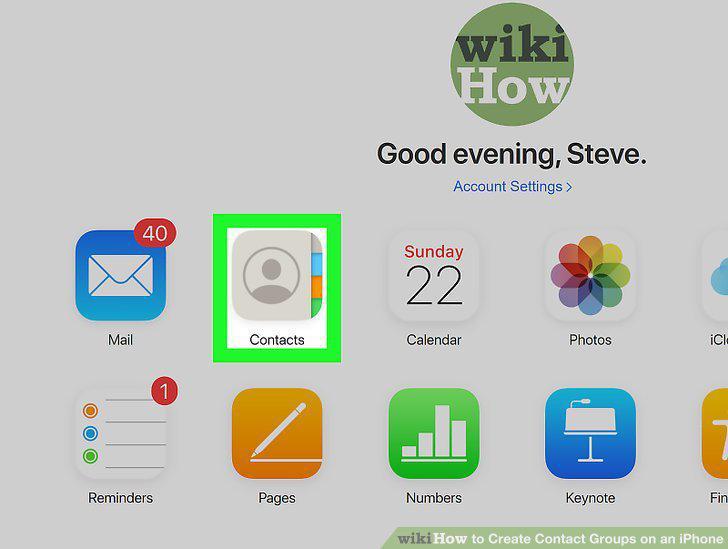
Go to Contacts.
4
Add contacts to the group.
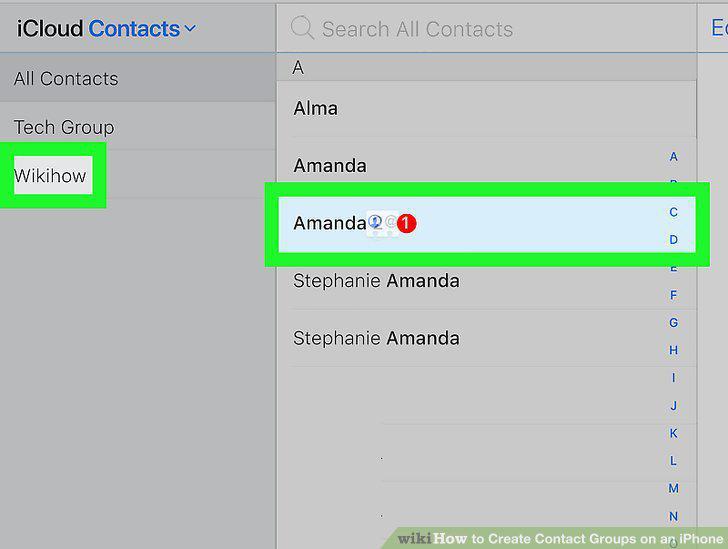
Add contacts to the group.
5
Make sure your new contact group shows up on your iPhone.
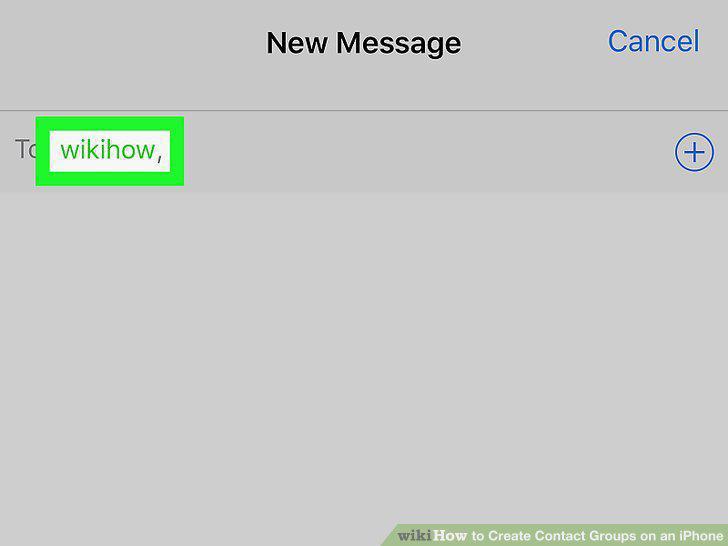
Make sure your new contact group shows up on your iPhone.
6
Open the Contacts app on your Mac.
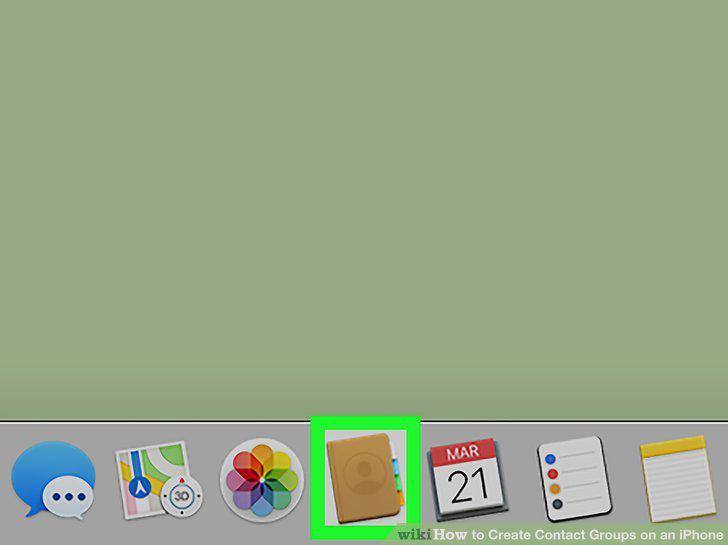
Open the Contacts app on your Mac.
7
Create a new group.
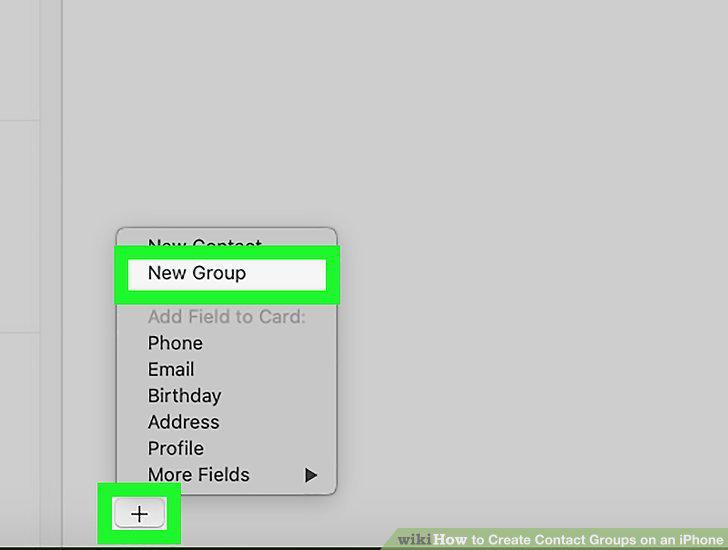
Create a new group.
8
Add contacts to the group.
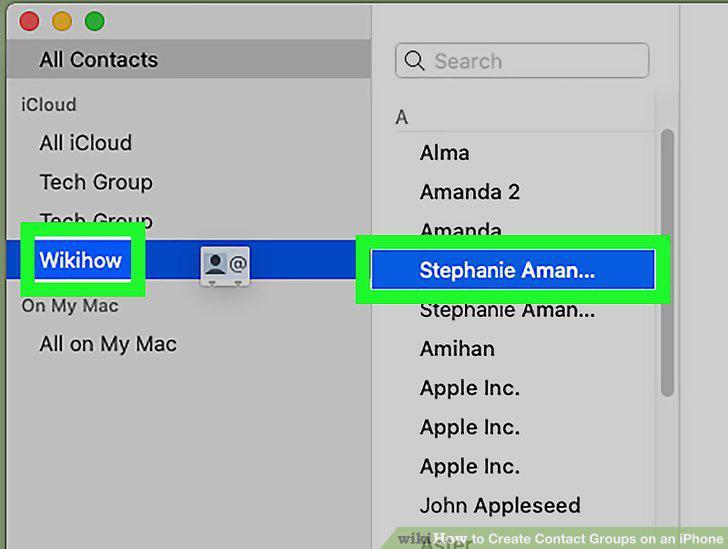
Add contacts to the group.
9
Make sure your new contact group shows up on your iPhone.
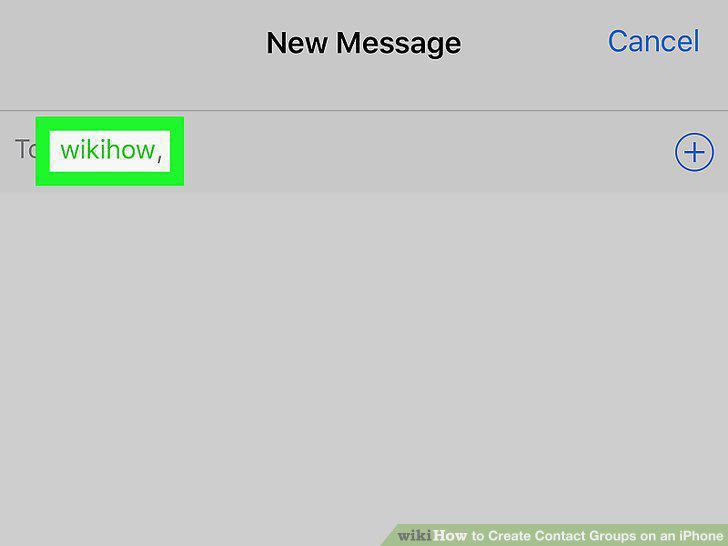
Make sure your new contact group shows up on your iPhone.
10
Find a third-party app on the app store.
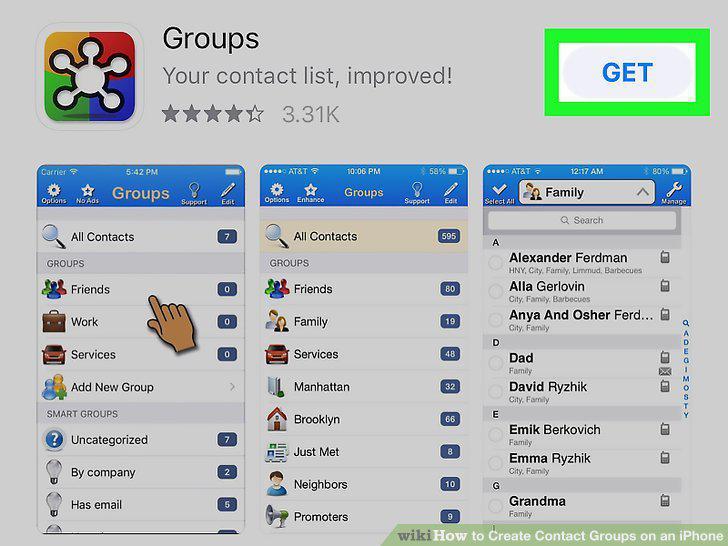
Find a third-party app on the app store.
11
Make a contact group on the third-party app.
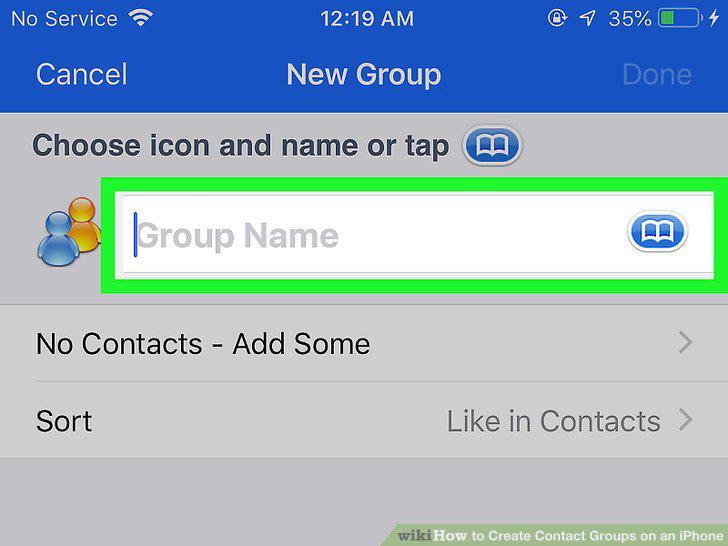
Make a contact group on the third-party app.
12
Make sure your new contact group shows up on your iPhone.
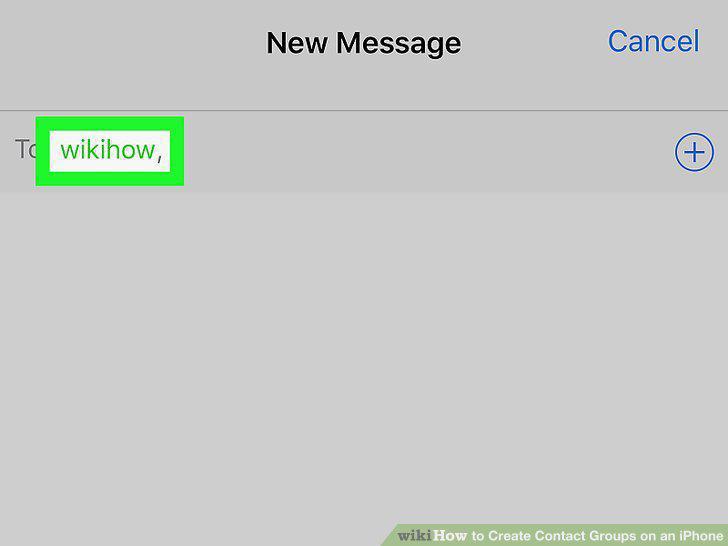
Make sure your new contact group shows up on your iPhone.
Comments (0)
No comments yet. Be the first to share your thoughts!