How to Transfer Files to SD Card on Android
Open your file manager app.. Tap Device Storage or Internal Storage.. Find the file you want to transfer.
Steps
1
Open your file manager app.
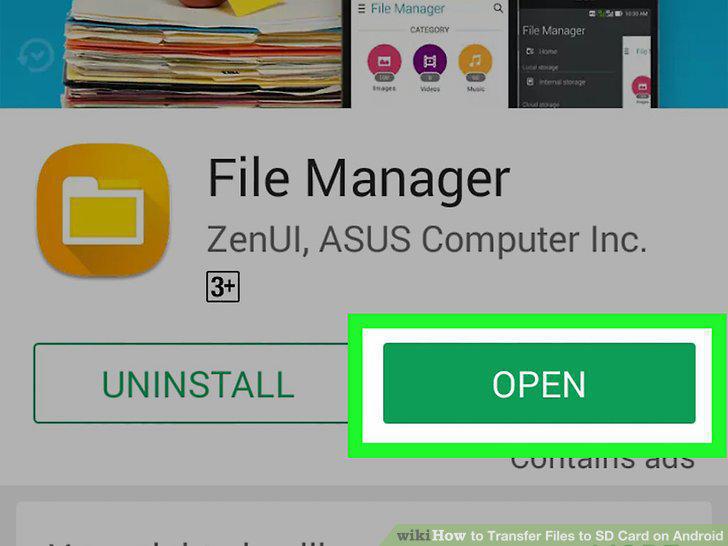
Open your file manager app.
2
Tap Device Storage or Internal Storage.
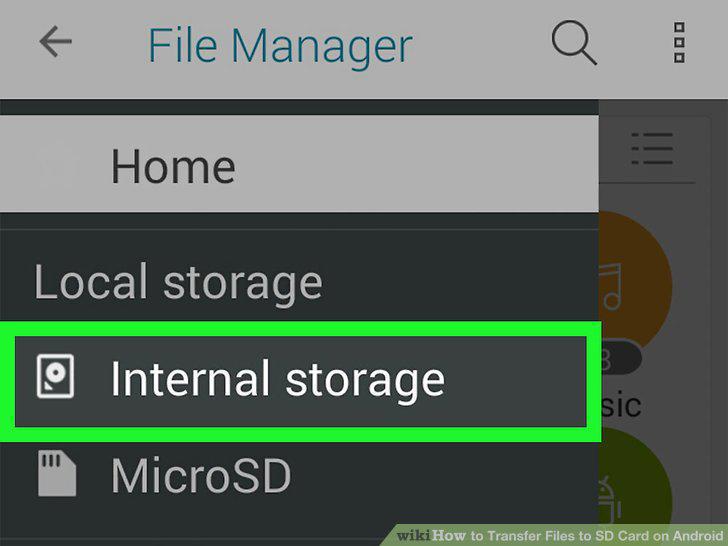
Tap Device Storage or Internal Storage.
3
Find the file you want to transfer.
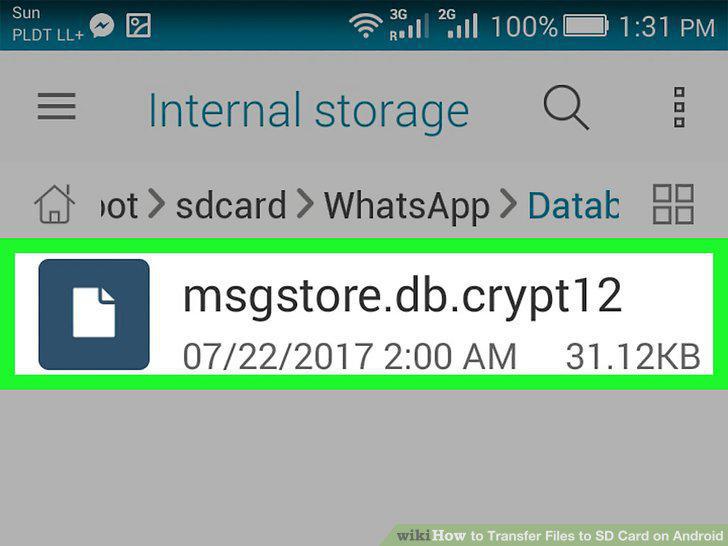
Find the file you want to transfer.
4
Tap and hold the file you want to transfer.
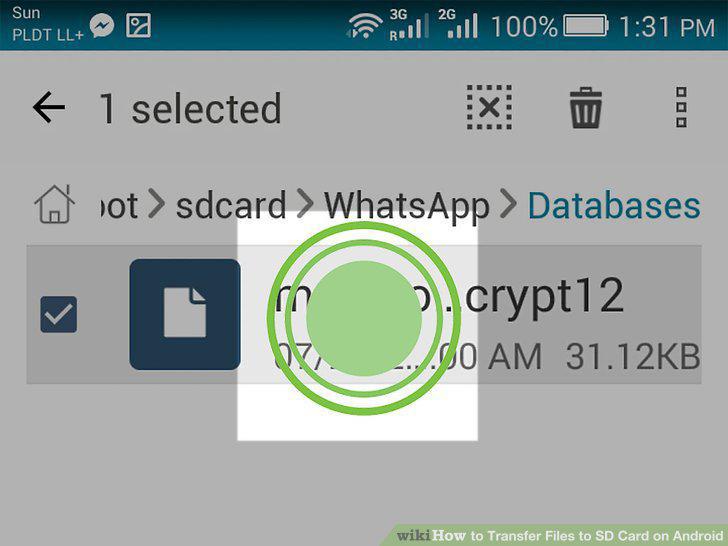
Tap and hold the file you want to transfer.
5
Tap the More button.
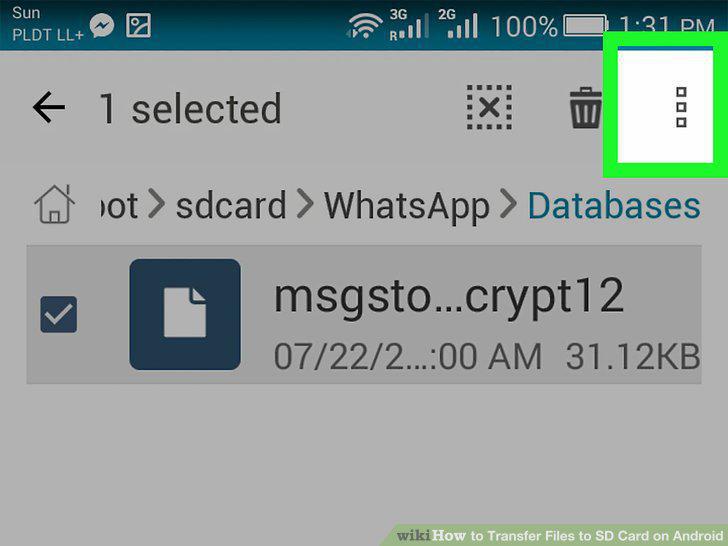
Tap the More button.
6
Select Move or Move to on the drop-down menu.
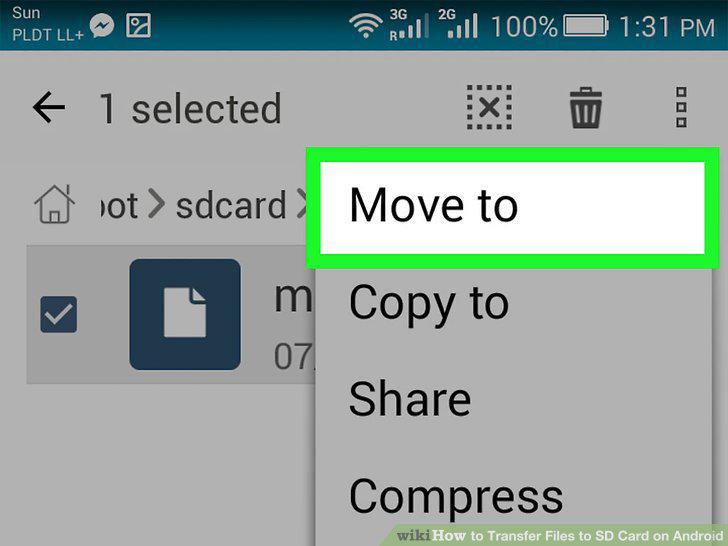
Select Move or Move to on the drop-down menu.
7
Select your SD card.
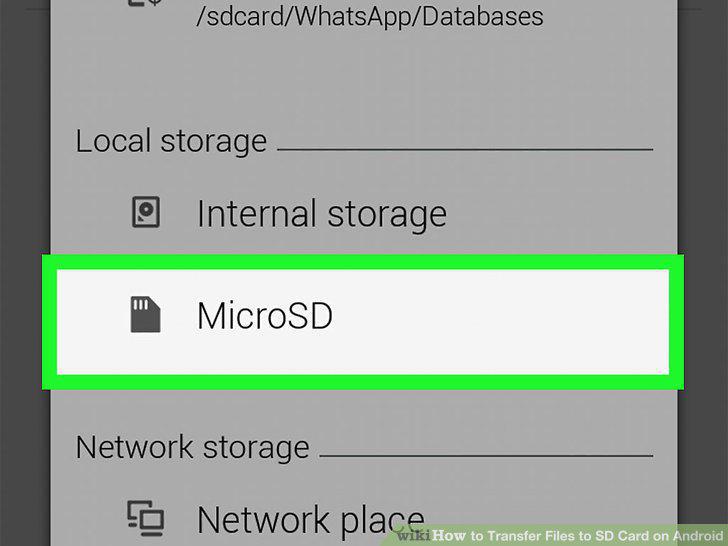
Select your SD card.
8
Select a folder in your SD card.
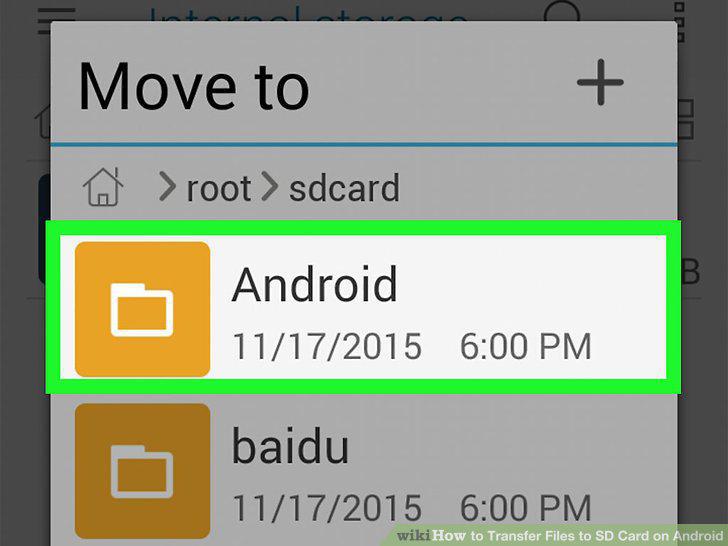
Select a folder in your SD card.
9
Tap Done or OK.
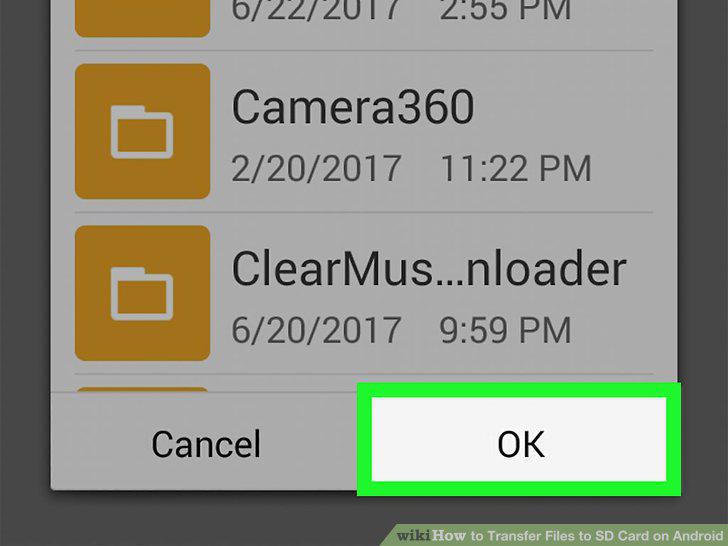
Tap Done or OK.
Comments (0)
No comments yet. Be the first to share your thoughts!