How to Uninstall a Program
Open the Control Panel. Select "Programs and Features" or "Uninstall a program".. Wait for the list of programs to load.
Steps
Open the Control Panel
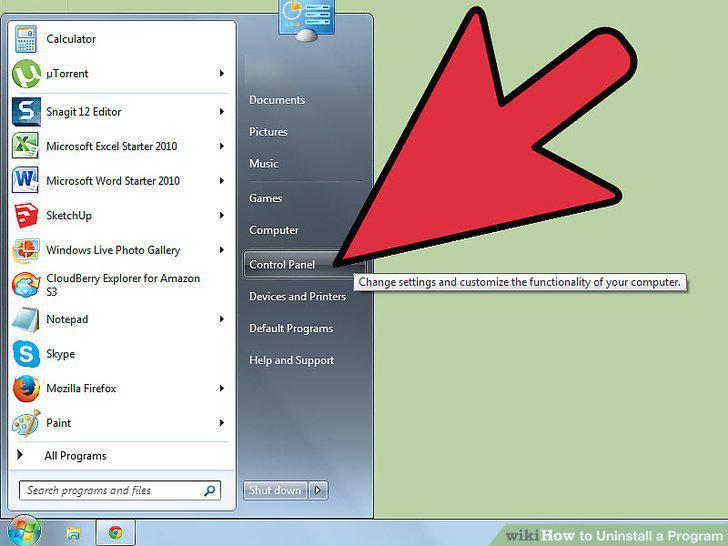
Open the Control Panel
Select "Programs and Features" or "Uninstall a program".
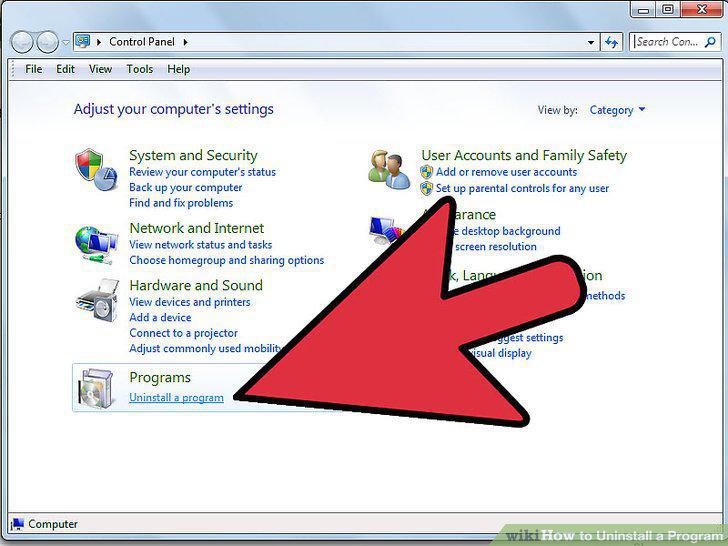
Select "Programs and Features" or "Uninstall a program".
Wait for the list of programs to load.
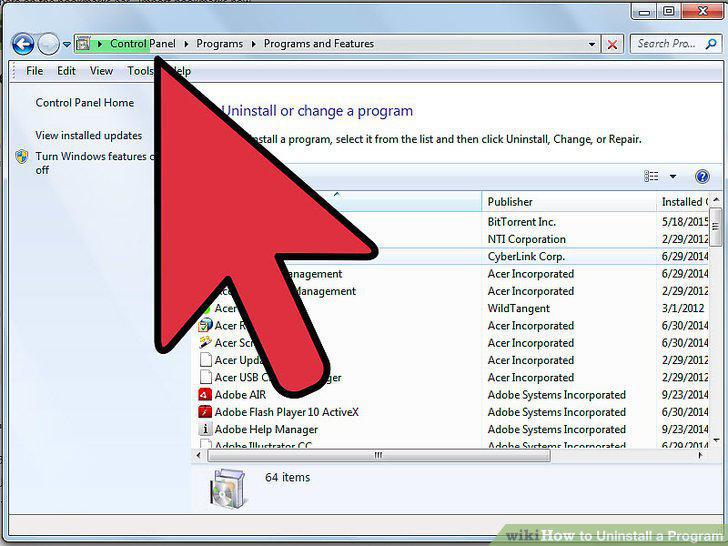
Wait for the list of programs to load.
Click the column headers to sort the list.
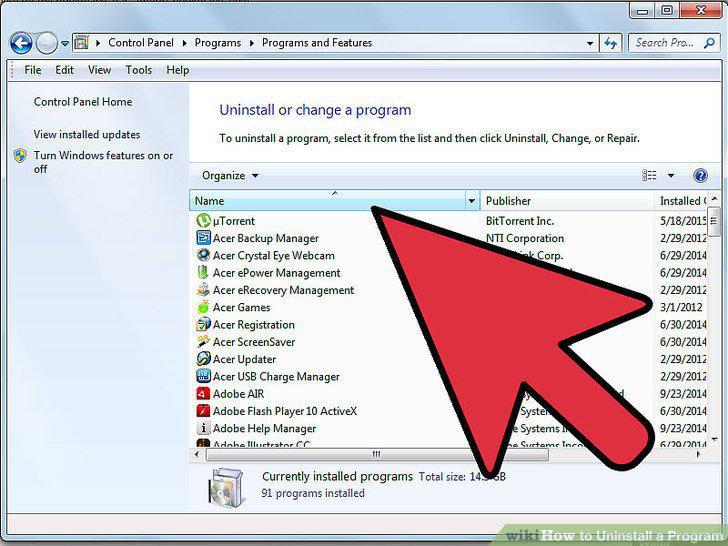
Click the column headers to sort the list.
Select the program that you want to uninstall.
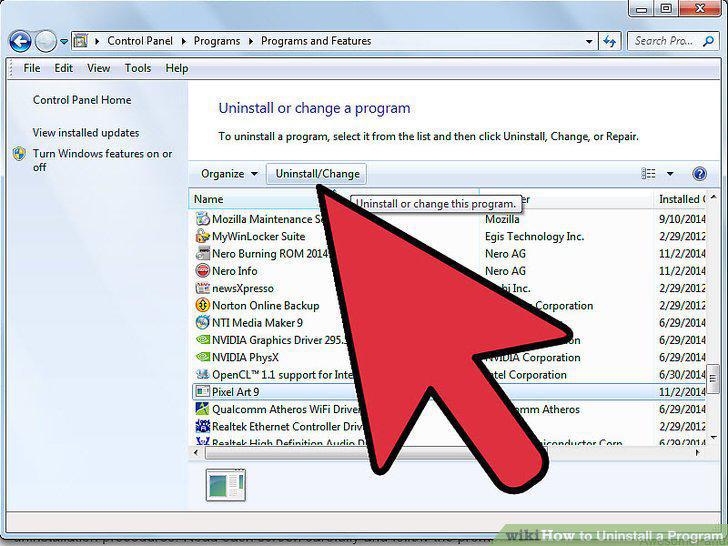
Select the program that you want to uninstall.
Follow the prompts to uninstall the program.
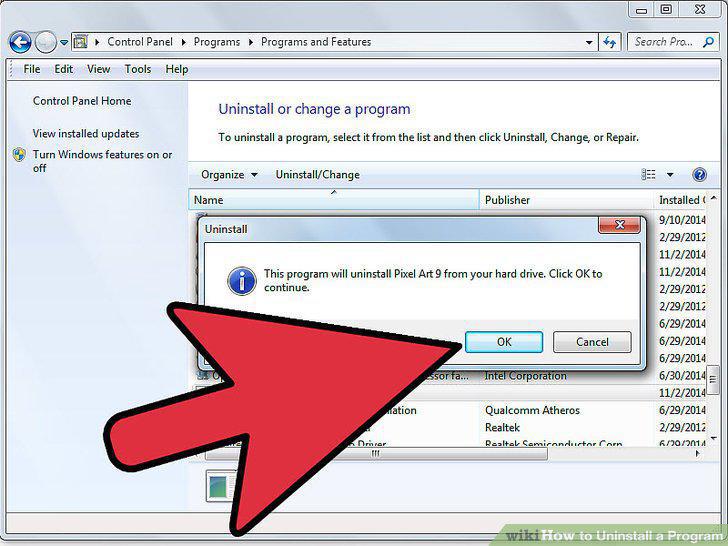
Follow the prompts to uninstall the program.
Reboot the computer (if necessary).
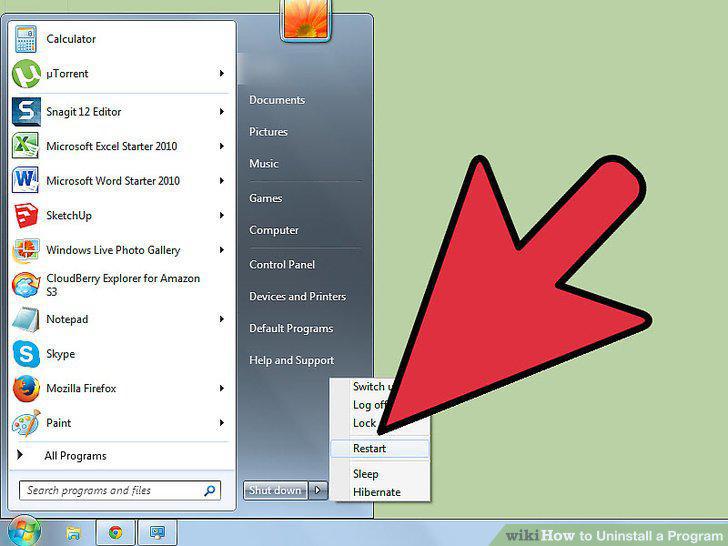
Reboot the computer (if necessary).
Uninstalling a program caused the system to become unstable.
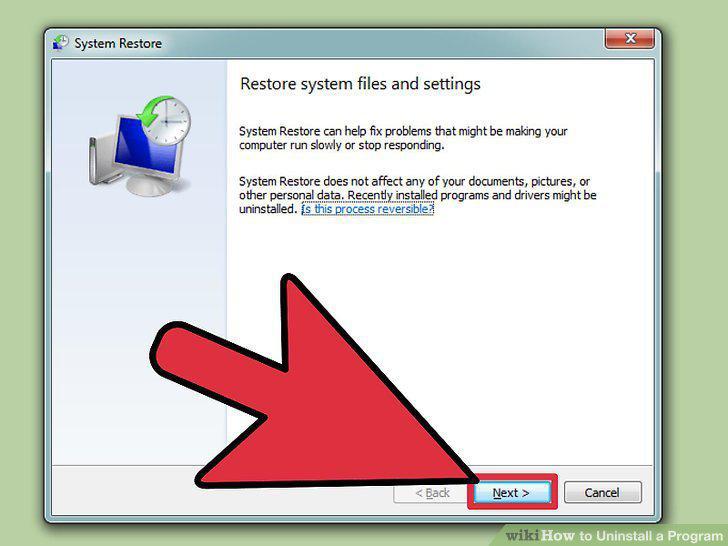
Uninstalling a program caused the system to become unstable.
Browser toolbars won't uninstall.
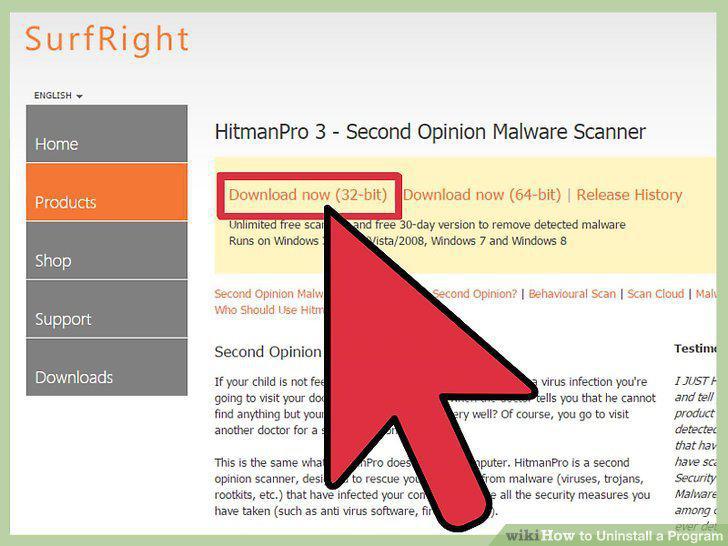
Browser toolbars won't uninstall.
Can't find Windows 8 apps in the list of programs.
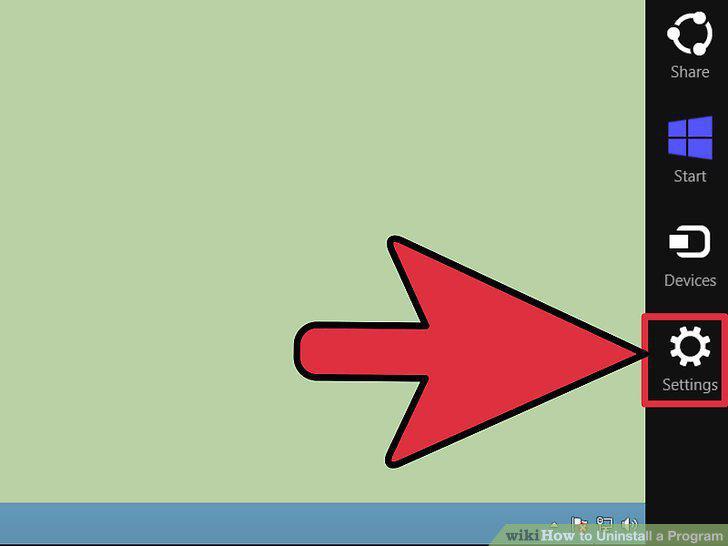
Can't find Windows 8 apps in the list of programs.
Open your Applications folder.
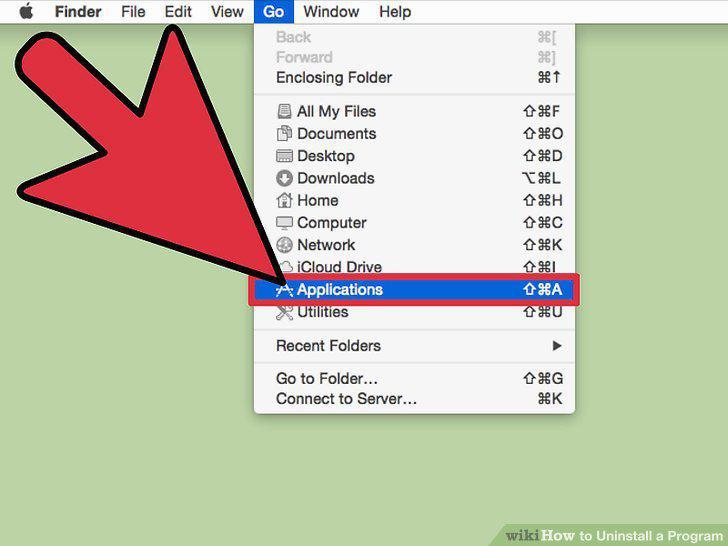
Open your Applications folder.
Drag the program or folder of programs into the Trash.
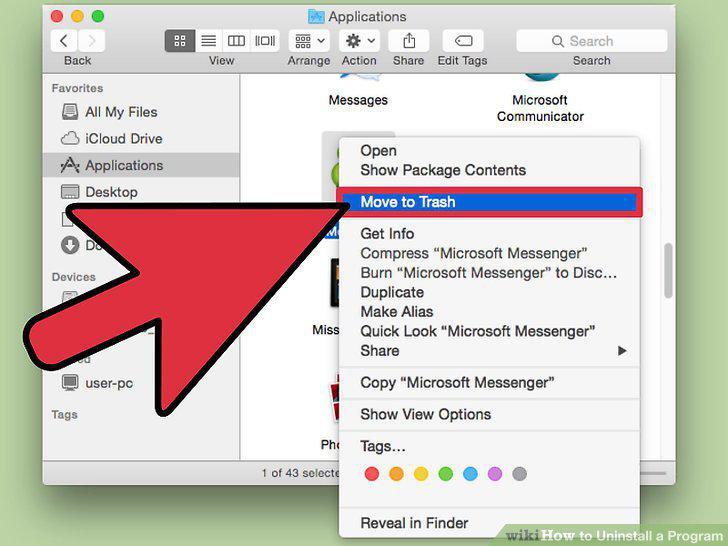
Drag the program or folder of programs into the Trash.
Empty your Trash when you are ready to completely delete the program(s).
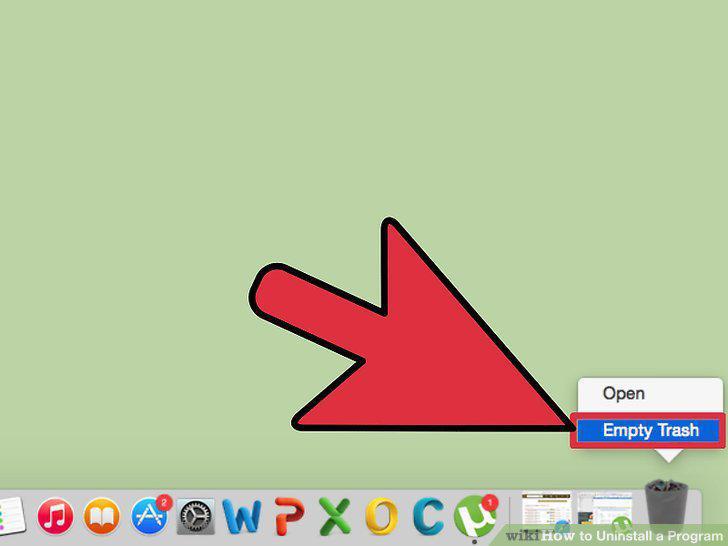
Empty your Trash when you are ready to completely delete the program(s).
The program has left files that still load.
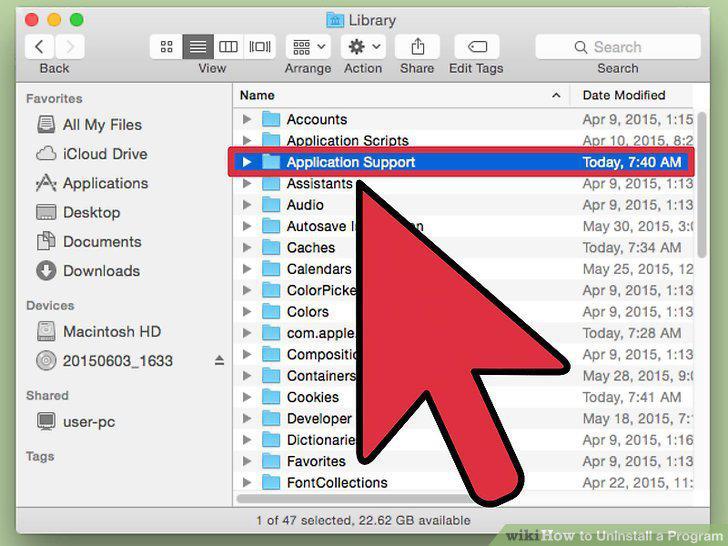
The program has left files that still load.
Can't delete programs from the Launchpad.
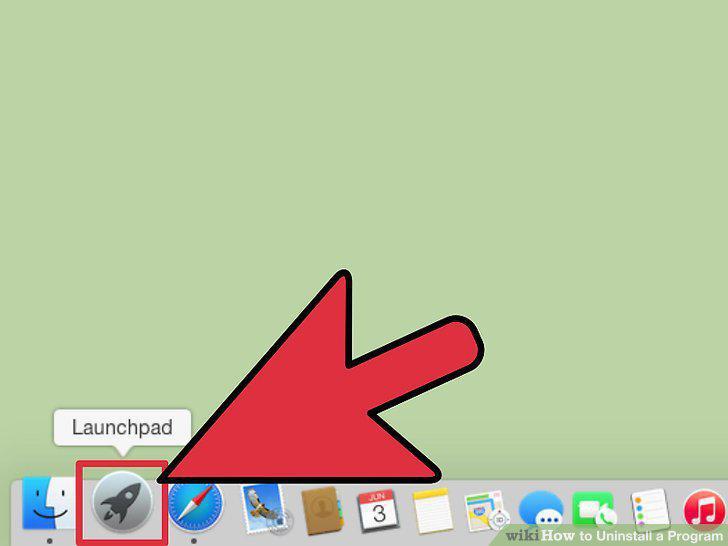
Can't delete programs from the Launchpad.
Programs refuse to uninstall.
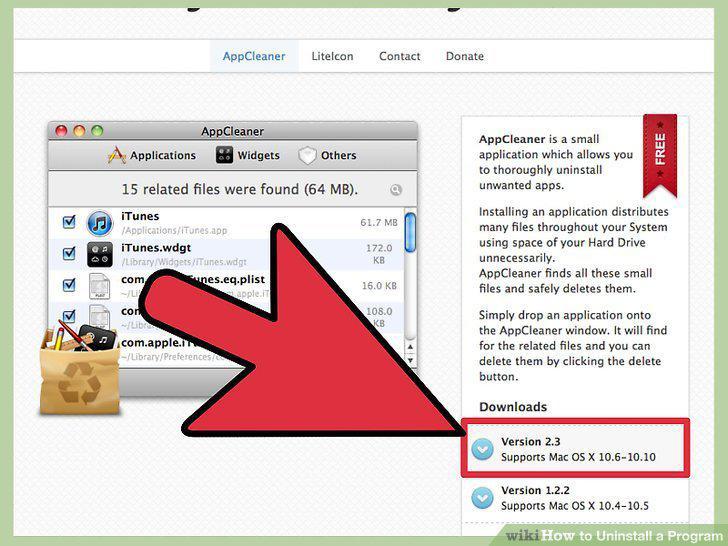
Programs refuse to uninstall.
Open the terminal.
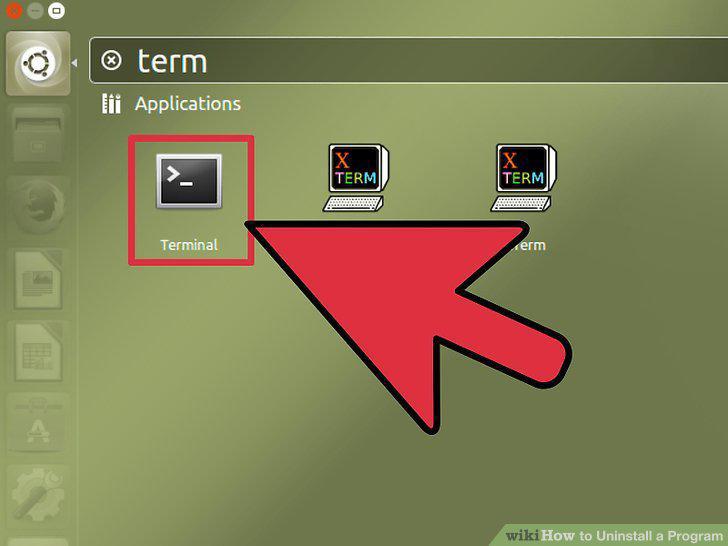
Open the terminal.
Display a list of all the installed programs.
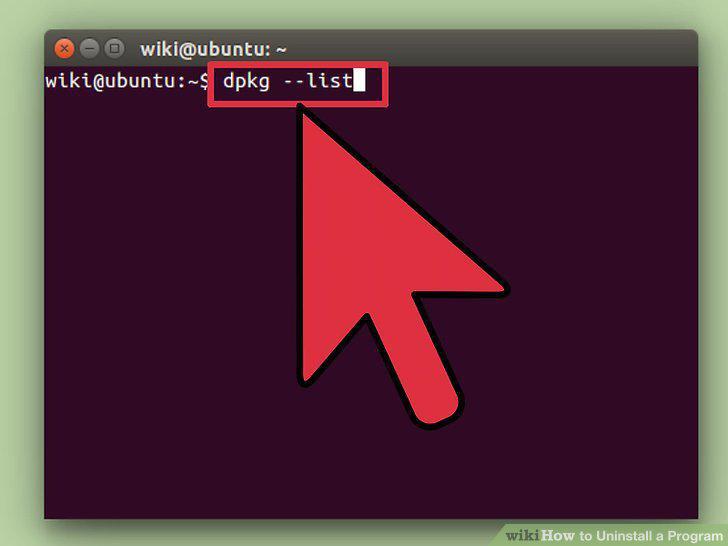
Display a list of all the installed programs.
Uninstall a program.
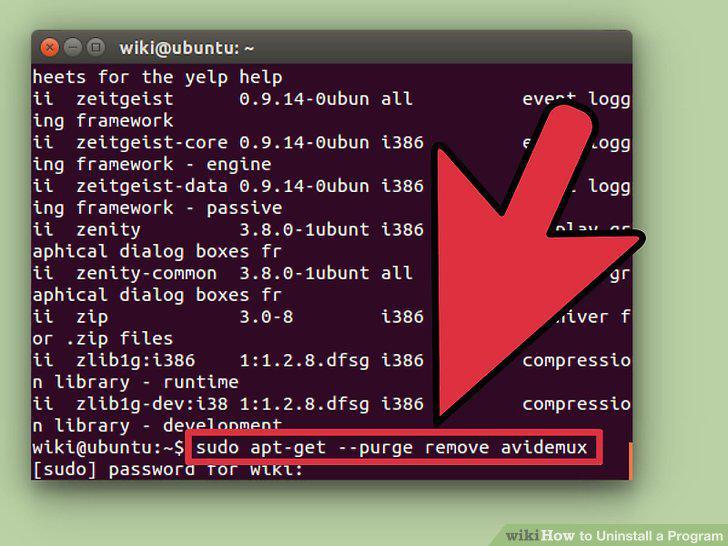
Uninstall a program.
Review what will be uninstalled.
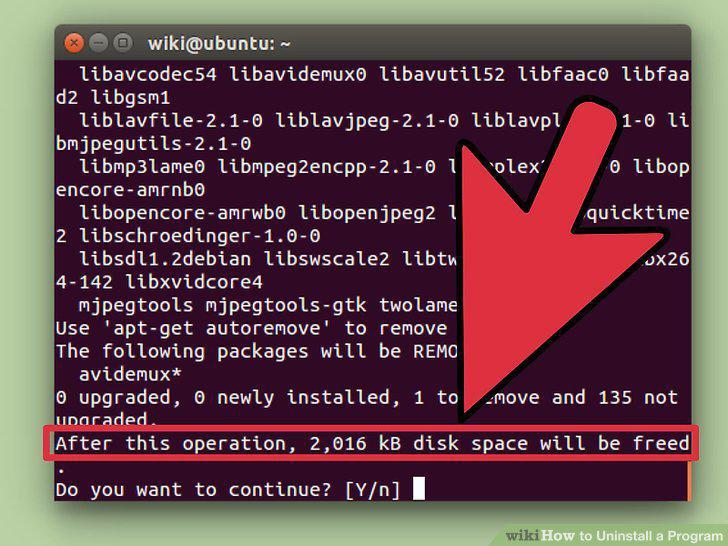
Review what will be uninstalled.
Old package installers are taking up too much space.
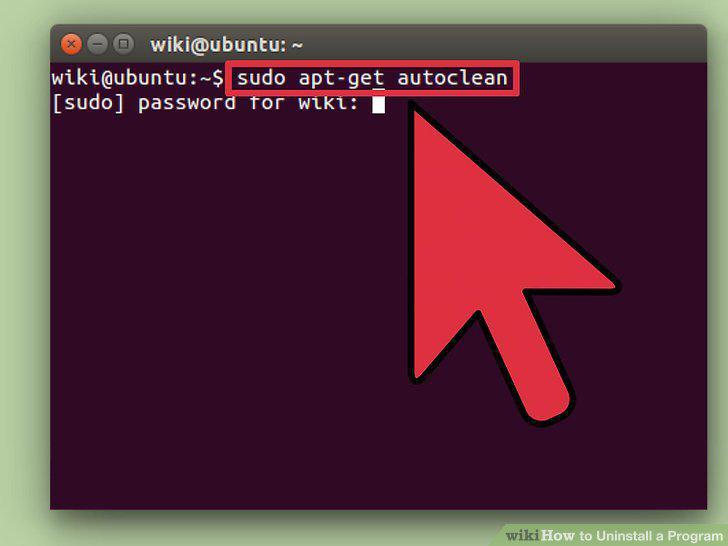
Old package installers are taking up too much space.
Tap and hold any of your app icons.
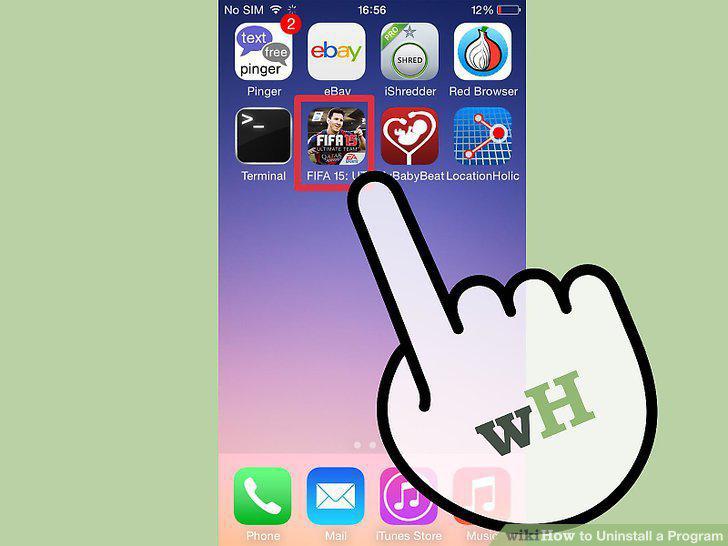
Tap and hold any of your app icons.
Tap the "X" in the corner of the app that you want to delete.
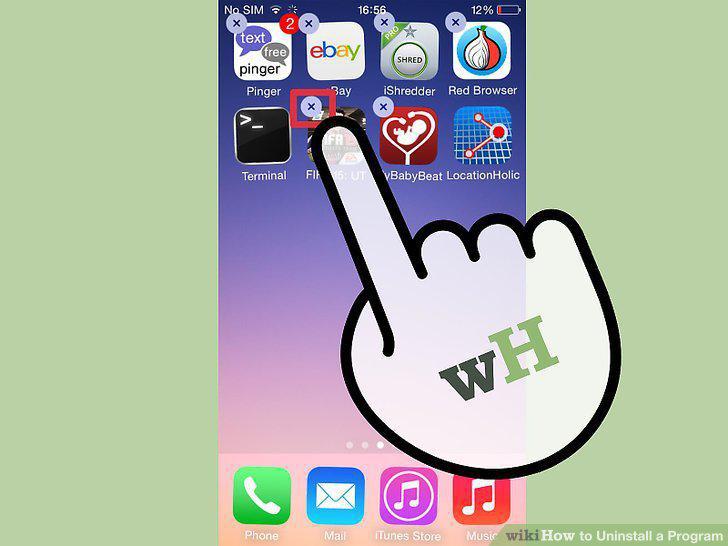
Tap the "X" in the corner of the app that you want to delete.
Tap "Delete" to confirm.
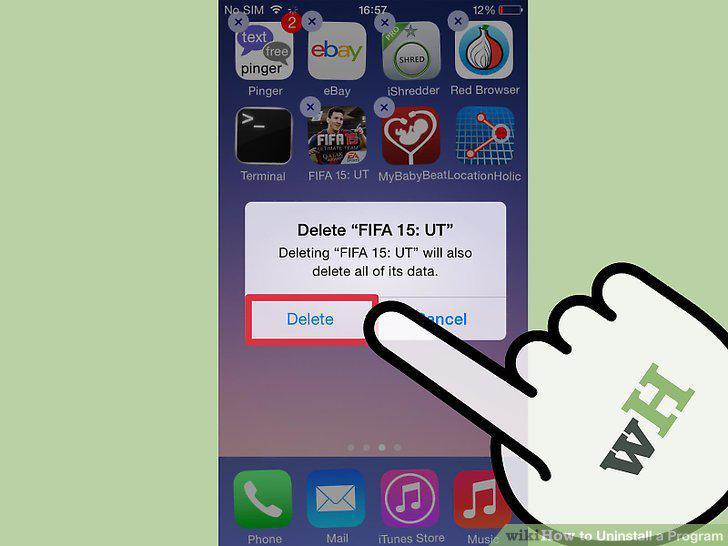
Tap "Delete" to confirm.
The "X" doesn't appear next to the app.
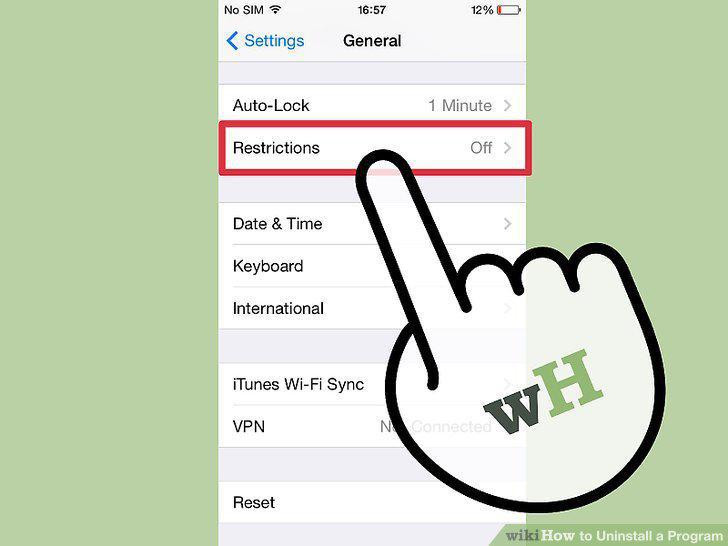
The "X" doesn't appear next to the app.
Open the Settings app.
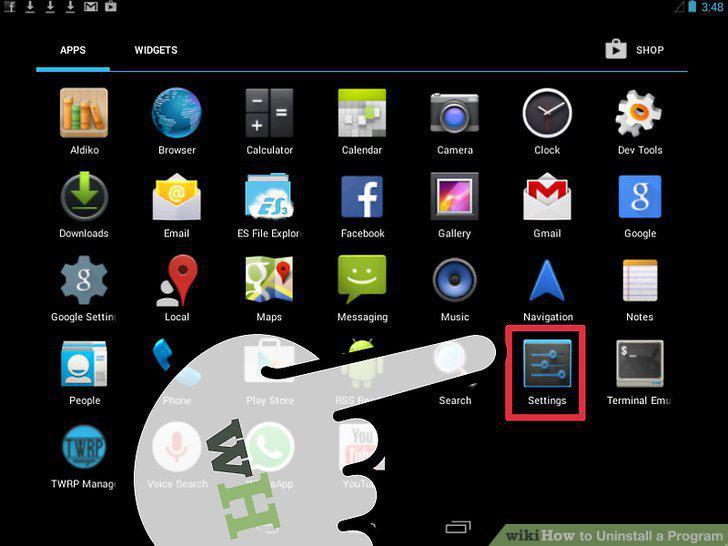
Open the Settings app.
Tap "Apps" or "Applications".
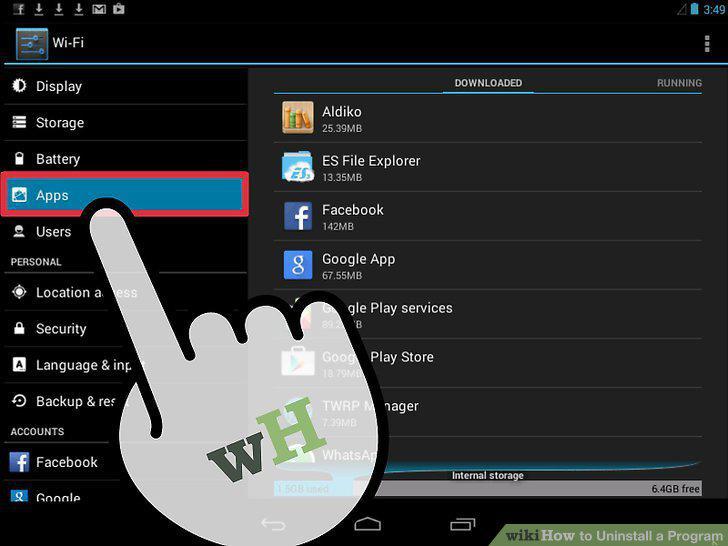
Tap "Apps" or "Applications".
Tap the app you want to uninstall.
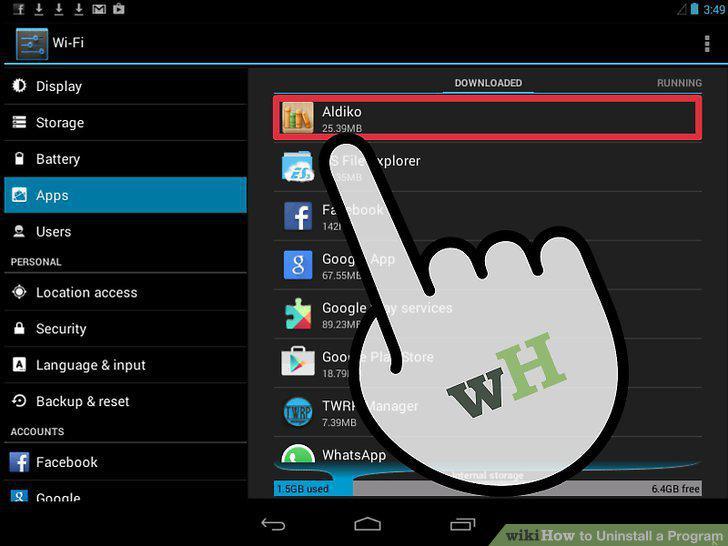
Tap the app you want to uninstall.
Tap the "Uninstall" button.
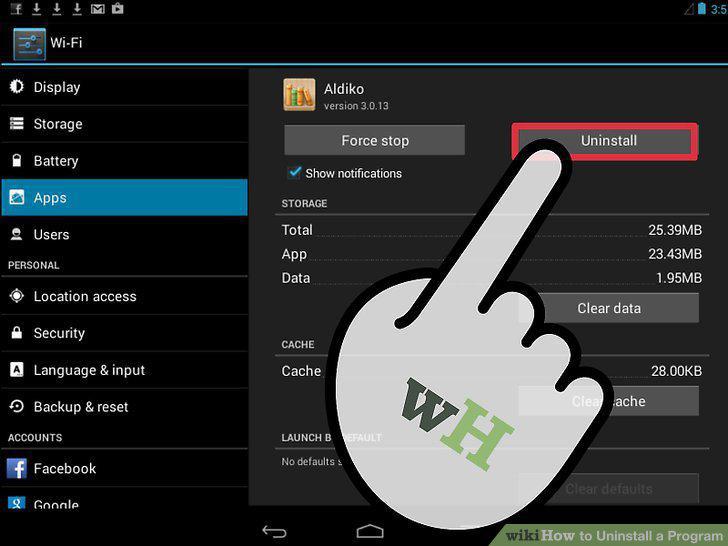
Tap the "Uninstall" button.
There is no "Uninstall" button.
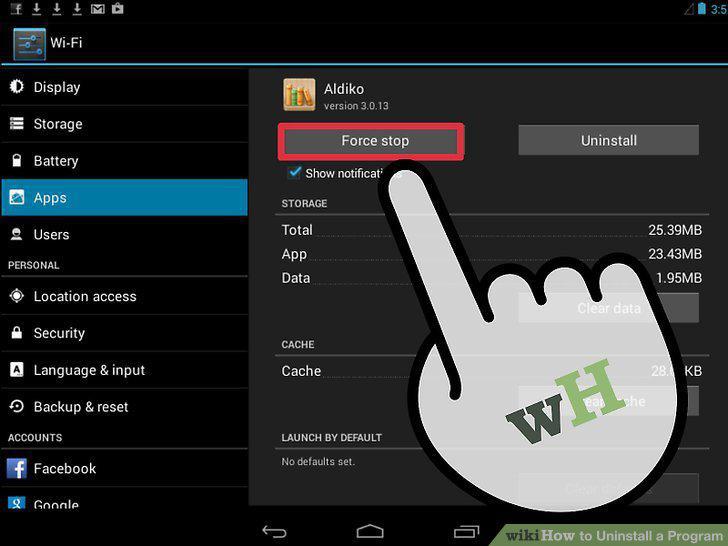
There is no "Uninstall" button.
Comments (0)
No comments yet. Be the first to share your thoughts!