Steps
1
Open Photos.
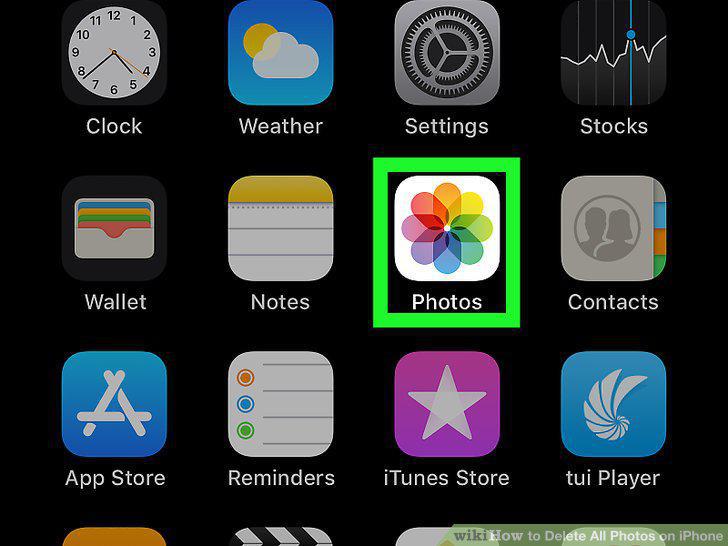
Open Photos.
2
Tap Albums.
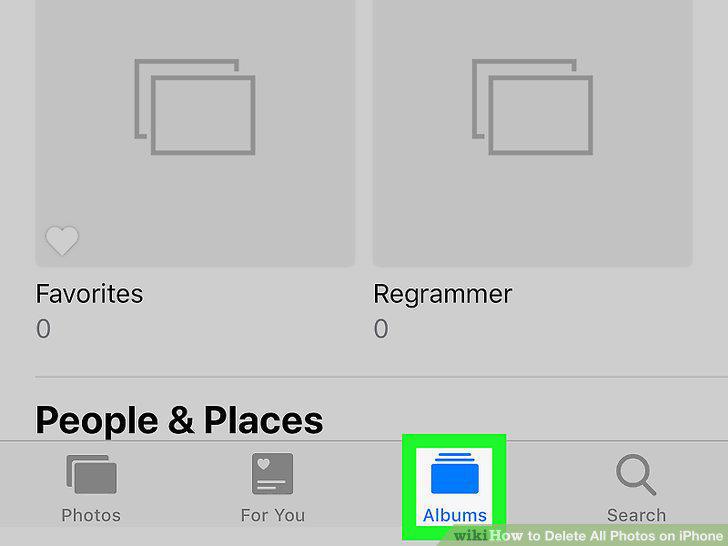
Tap Albums.
3
Tap All Photos.
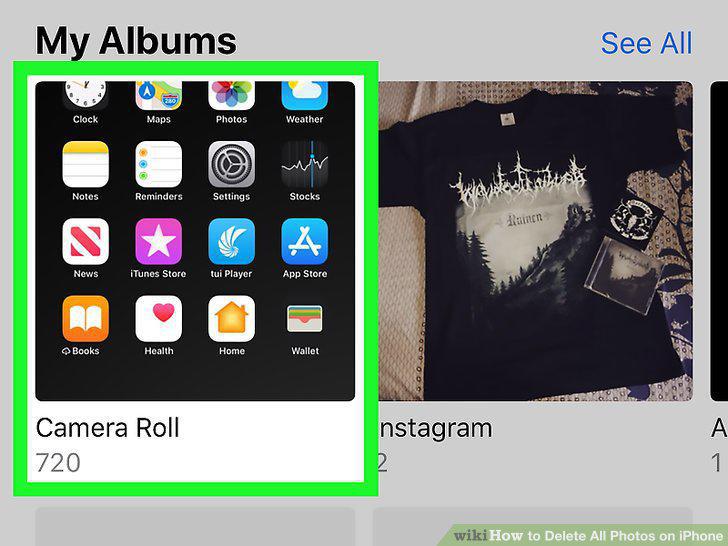
Tap All Photos.
4
Tap Select.
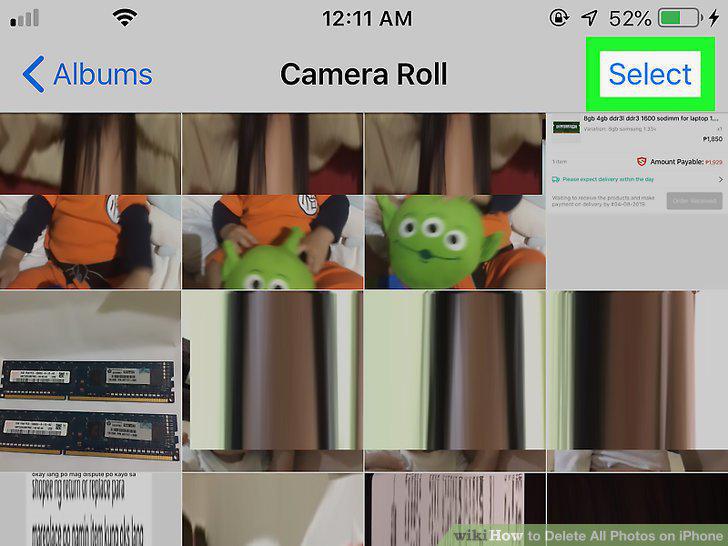
Tap Select.
5
Tap and drag your finger from the bottom right photo to the top left photo.
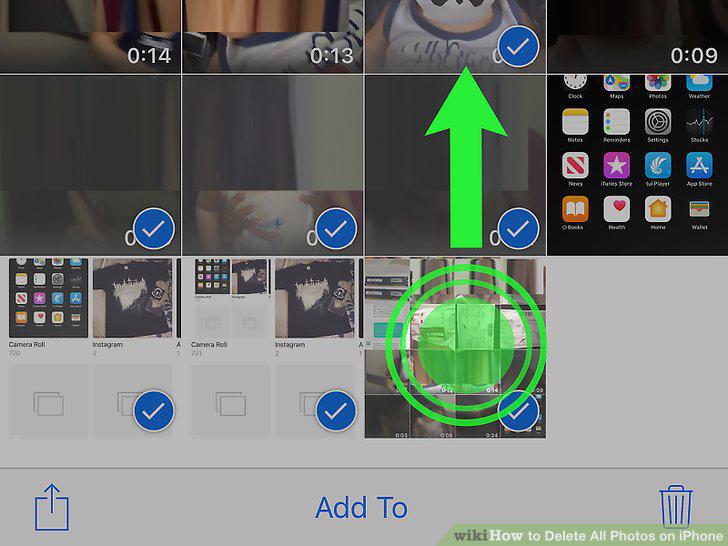
Tap and drag your finger from the bottom right photo to the top left photo.
6
Tap the trash can icon .
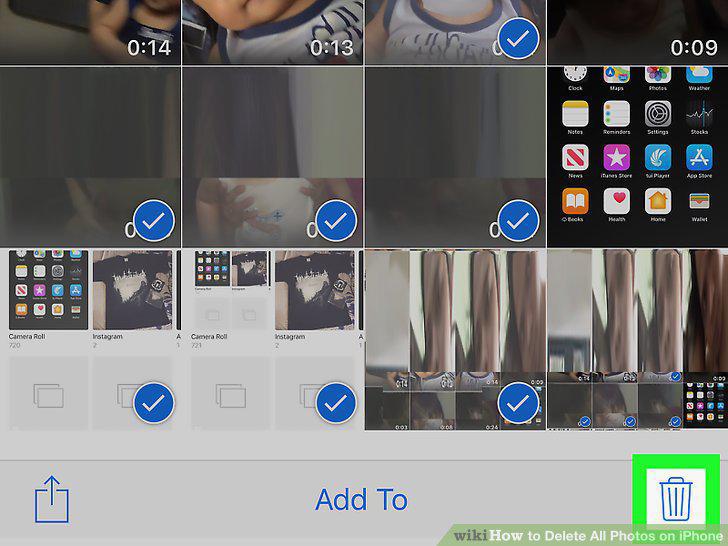
Tap the trash can icon .
7
Tap Delete _ Items.
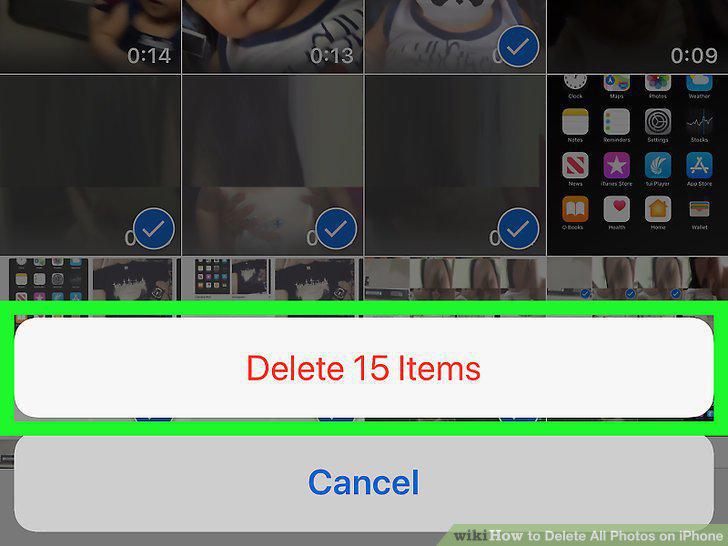
Tap Delete _ Items.
Comments (0)
No comments yet. Be the first to share your thoughts!