How to Block Senders in Gmail
Open Gmail.. Open the email from the sender you'd like to block.. Press "More" in the top right corner of the message.
Steps
1
Open Gmail.
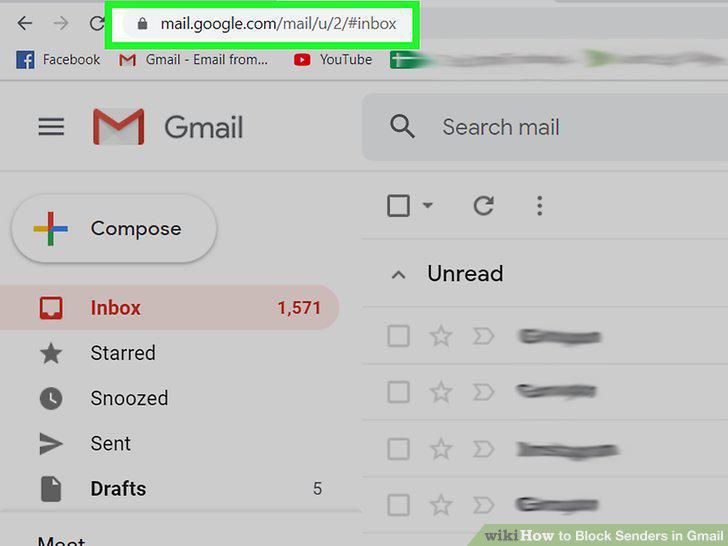
Open Gmail.
2
Open the email from the sender you'd like to block.
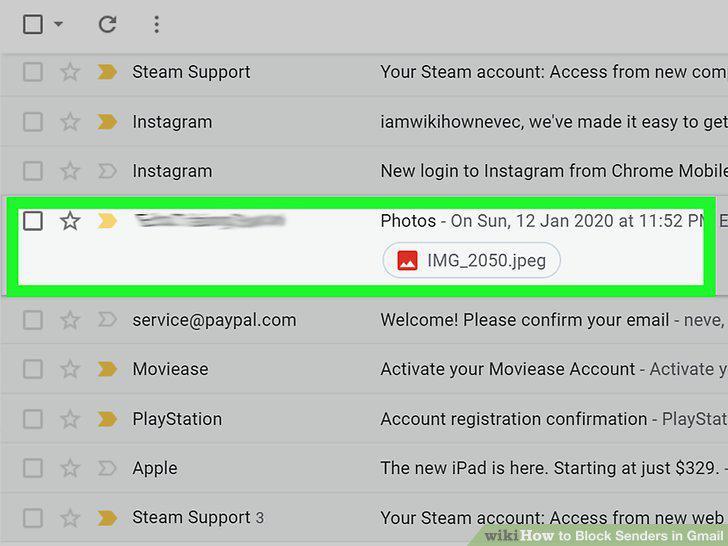
Open the email from the sender you'd like to block.
3
Press "More" in the top right corner of the message.
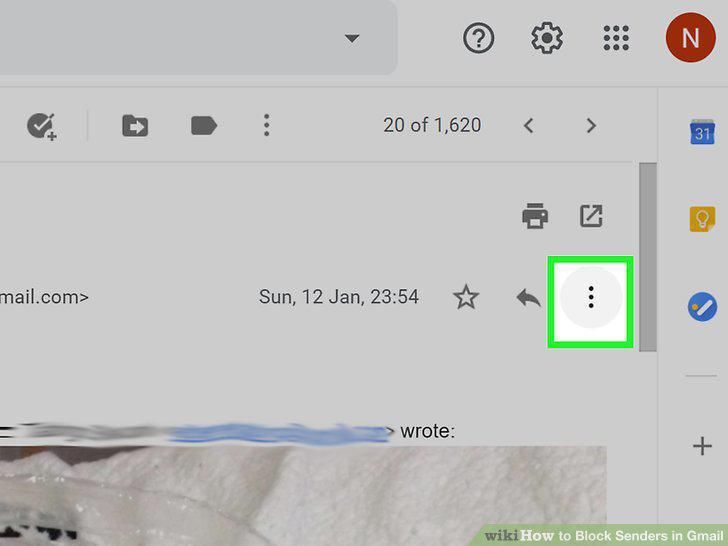
Press "More" in the top right corner of the message.
4
Click "Block (sender).
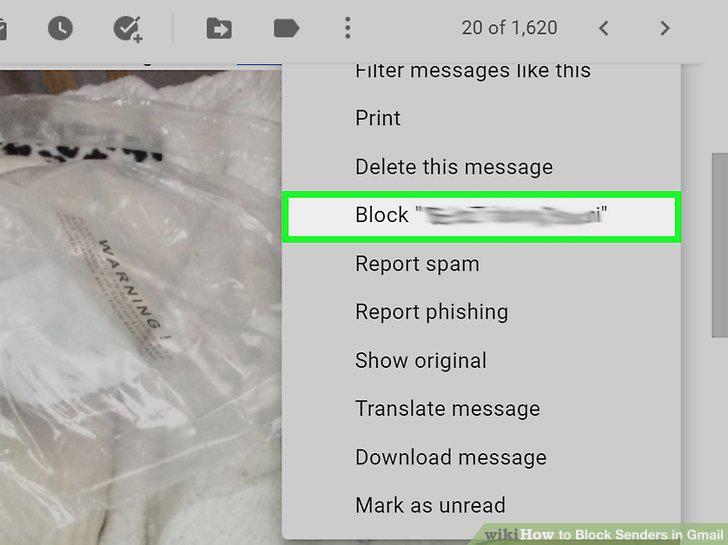
Click "Block (sender).
5
Open the Gmail app.
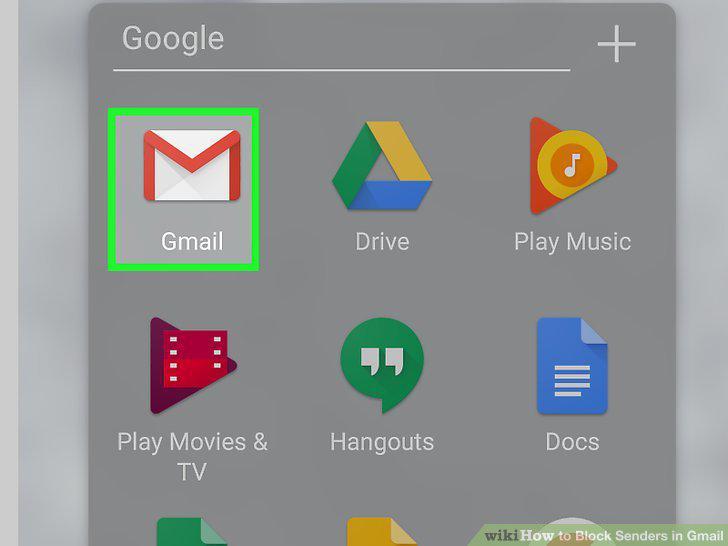
Open the Gmail app.
6
Click on the message from the sender.
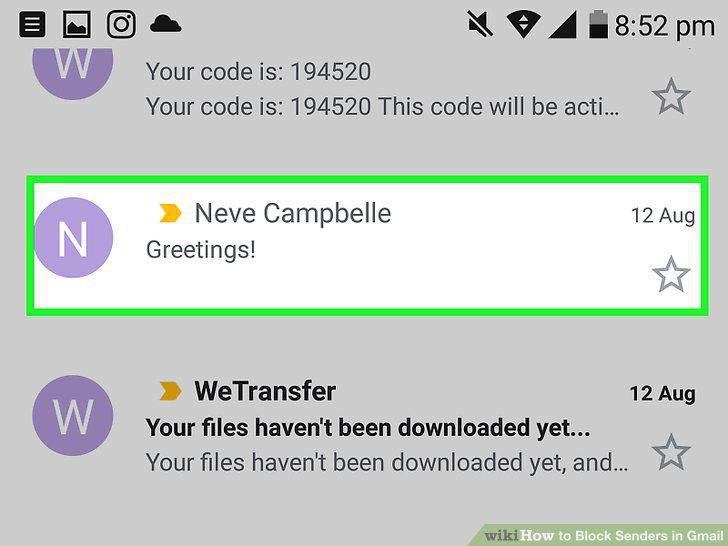
Click on the message from the sender.
7
Tap "More" in the top right corner of the message.
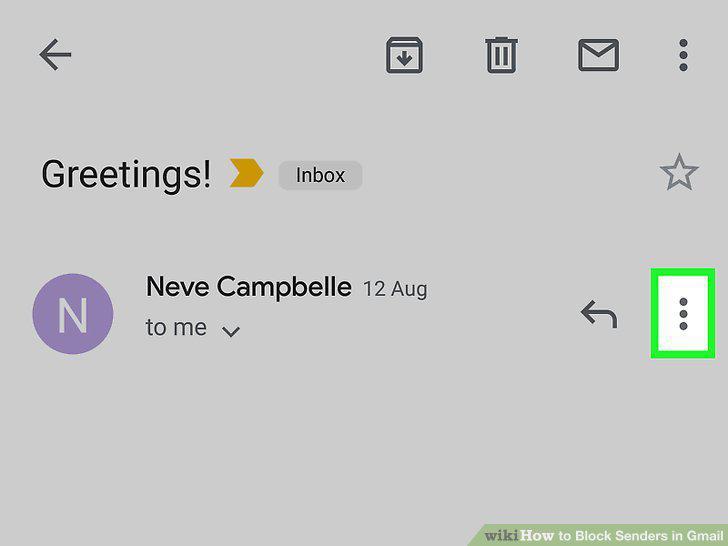
Tap "More" in the top right corner of the message.
8
Tap "Block (sender).
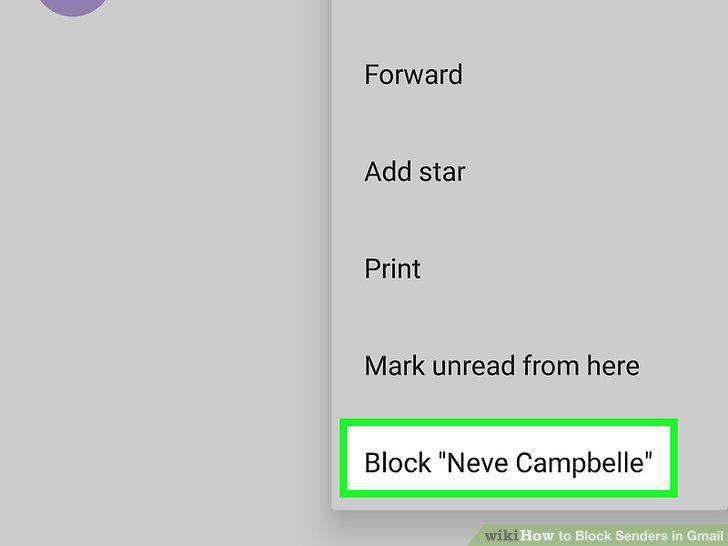
Tap "Block (sender).
9
Install the Block Sender Chrome Extension.
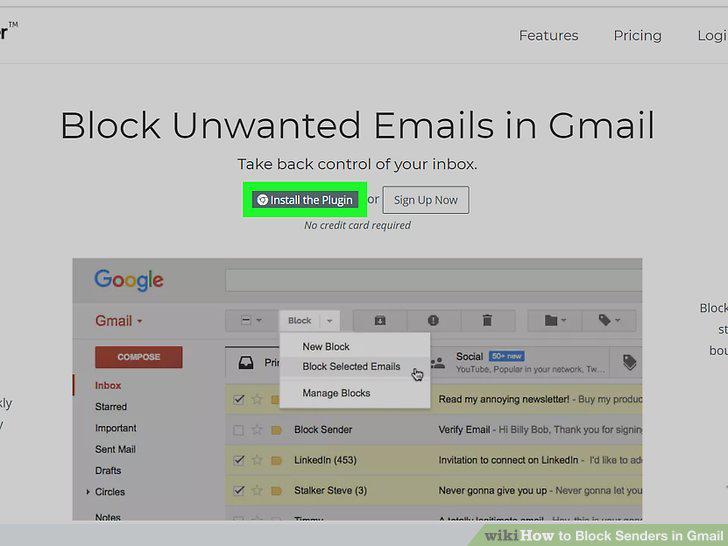
Install the Block Sender Chrome Extension.
10
Open your Gmail account.
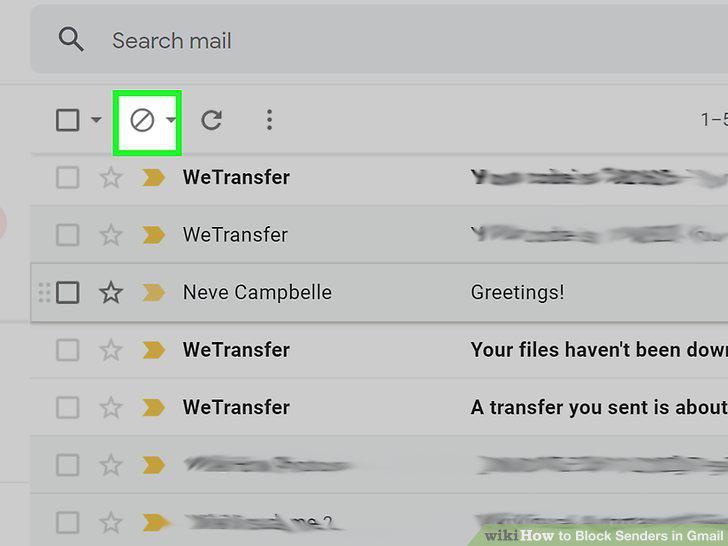
Open your Gmail account.
11
Select the messages from the sender you'd like to block.
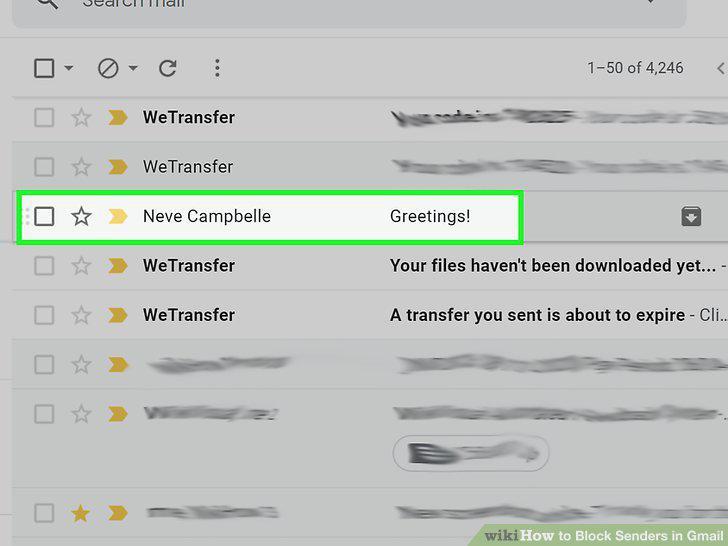
Select the messages from the sender you'd like to block.
12
Click "Block Selected Emails" in the "Block" box.
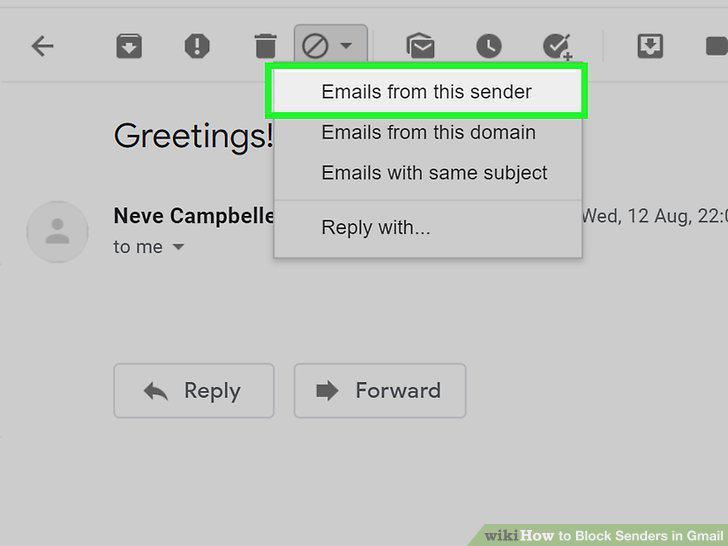
Click "Block Selected Emails" in the "Block" box.
Comments (0)
No comments yet. Be the first to share your thoughts!