How to Do a Group FaceTime
Make sure you and your friends are running iOS 12.1 and later or macOS Mojave with the latest updates.. Start a group chat in Messages.. Tap on the arrow by the newly formed group.
Steps
Make sure you and your friends are running iOS 12.1 and later or macOS Mojave wi
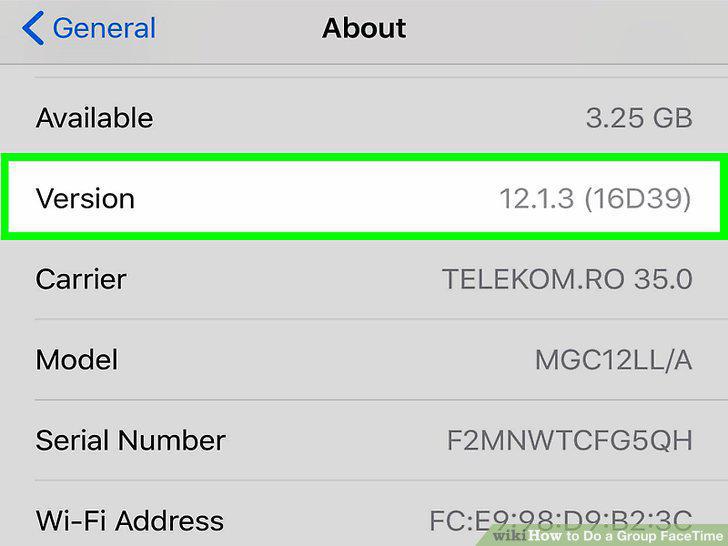
Make sure you and your friends are running iOS 12.1 and later or macOS Mojave with the latest updates.
Start a group chat in Messages.
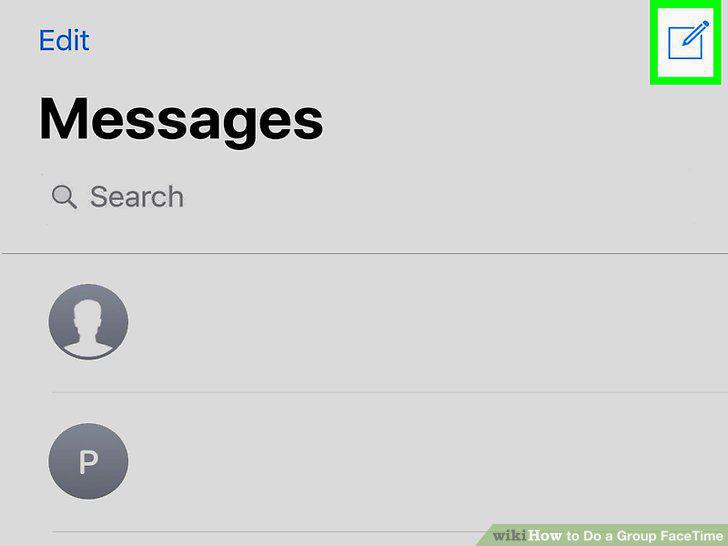
Start a group chat in Messages.
Tap on the arrow by the newly formed group.
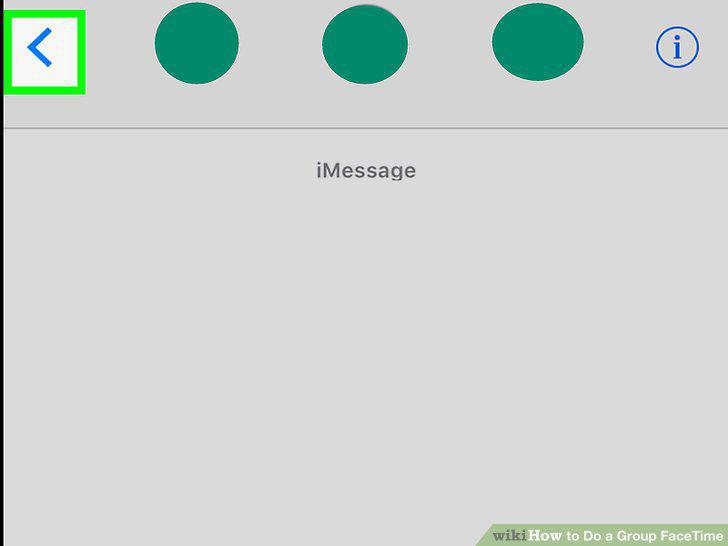
Tap on the arrow by the newly formed group.
Choose "FaceTime".
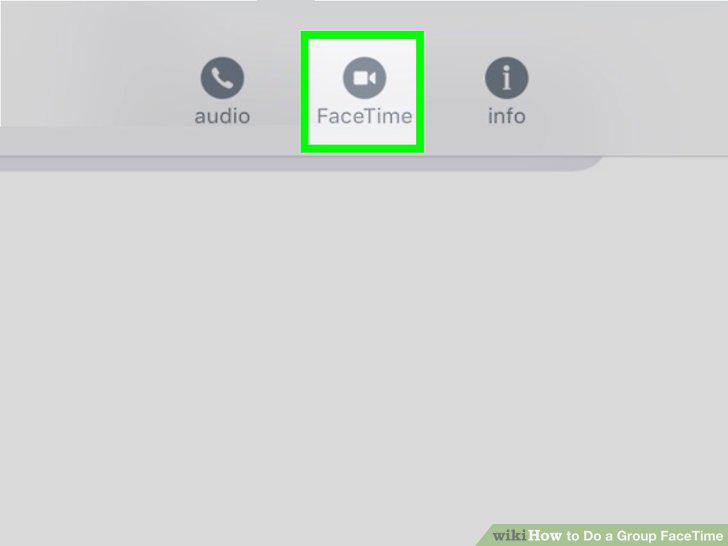
Choose "FaceTime".
Turn on your Memoji.
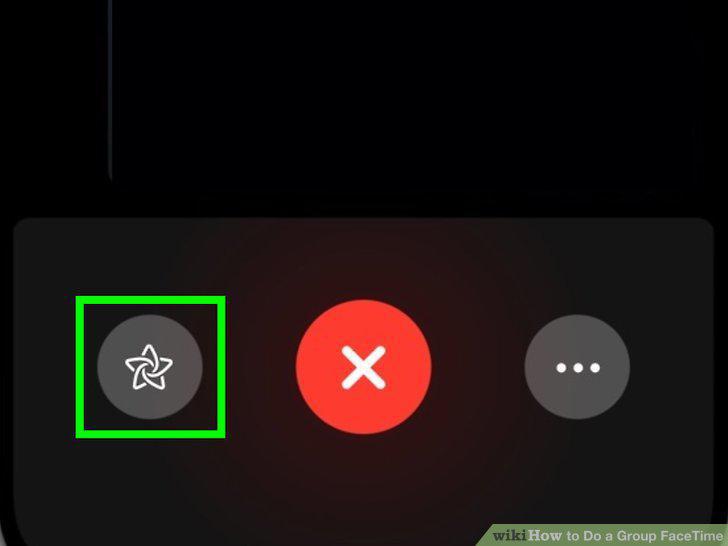
Turn on your Memoji.
Flip the camera, mute the mic, turn off your video, manage who is on the call, a
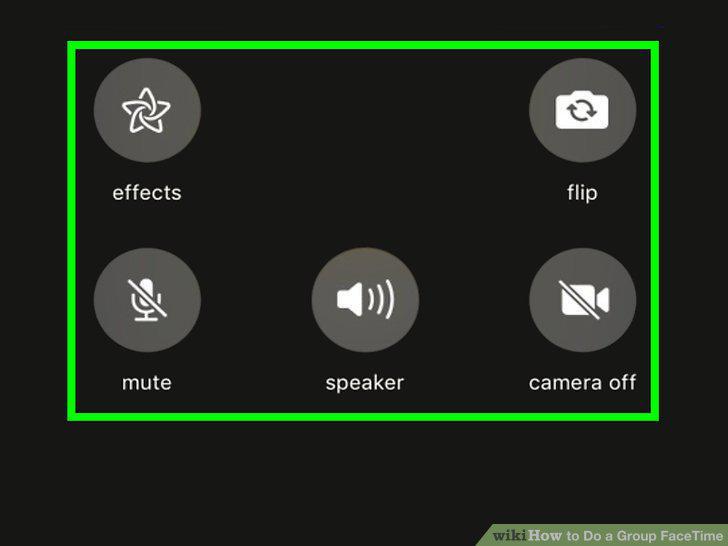
Flip the camera, mute the mic, turn off your video, manage who is on the call, and change the audio source.
Leave the FaceTime call.
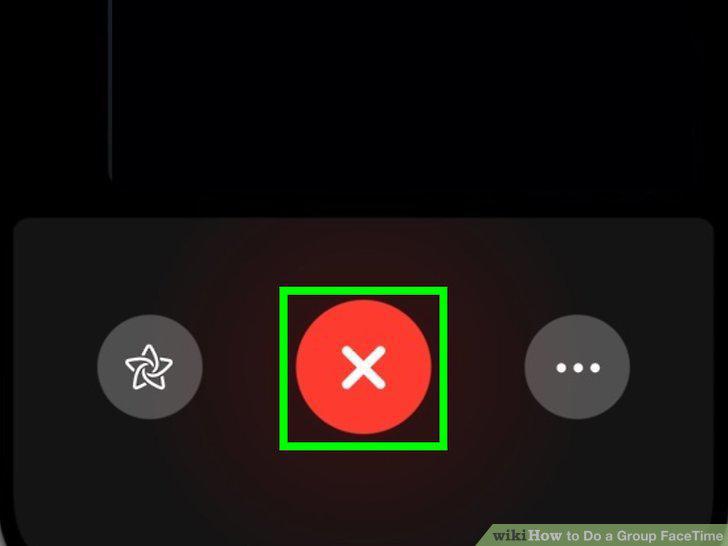
Leave the FaceTime call.
Make sure you and your friends are running iOS 12.1 and later or macOS Mojave wi
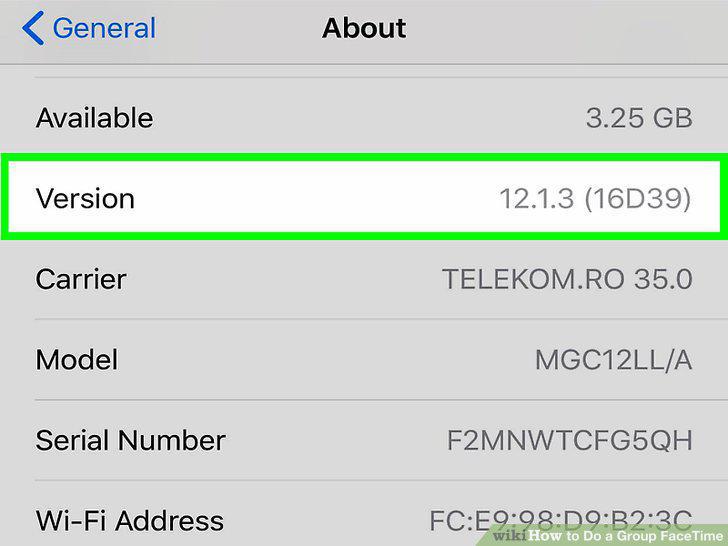
Make sure you and your friends are running iOS 12.1 and later or macOS Mojave with the latest updates.
Tap the + in the FaceTime app.
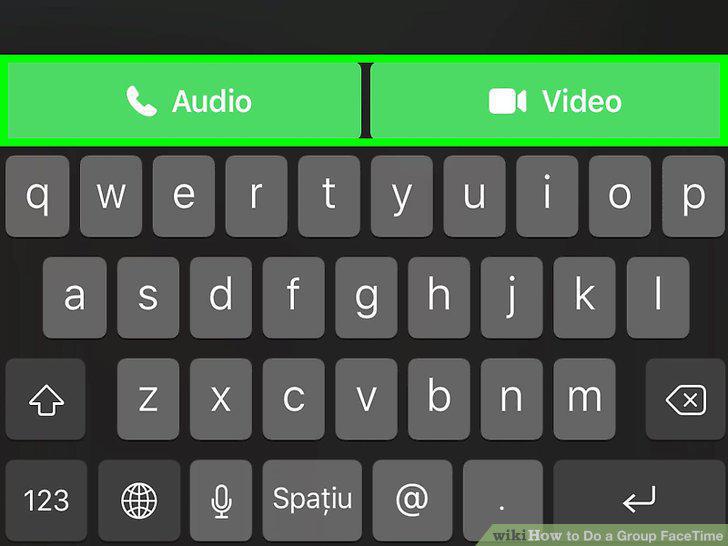
Tap the + in the FaceTime app.
Turn on your Memoji.
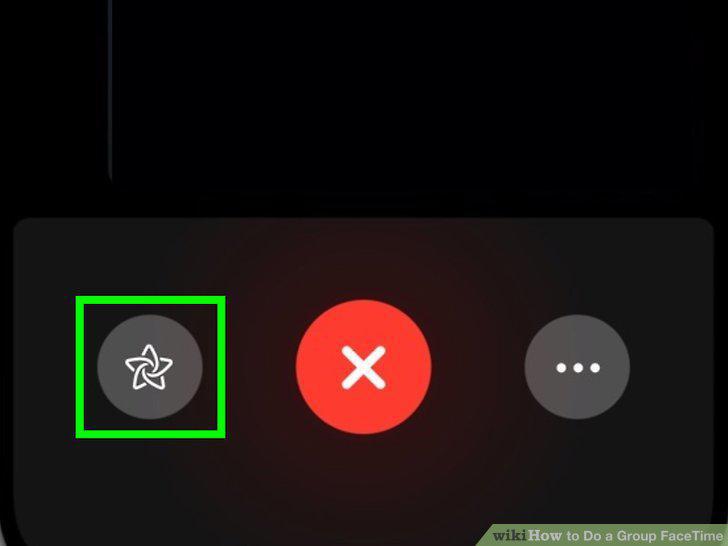
Turn on your Memoji.
Flip the camera, mute the mic, turn off your video, manage who is on the call, a
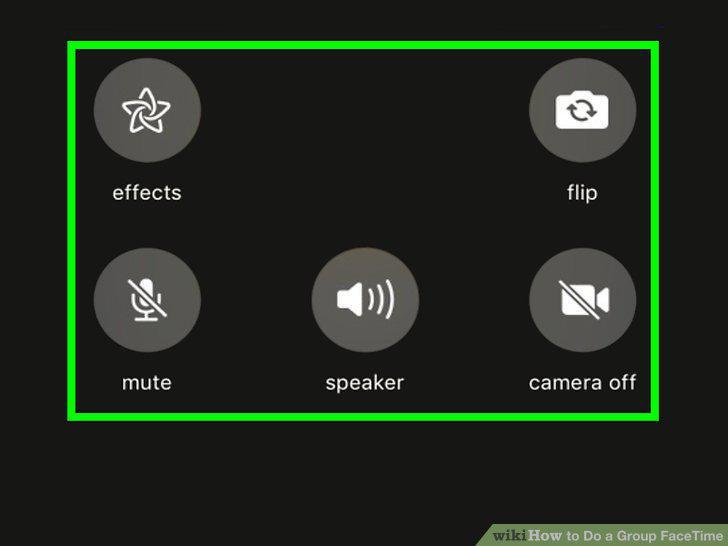
Flip the camera, mute the mic, turn off your video, manage who is on the call, and change the audio source.
Leave the FaceTime call.
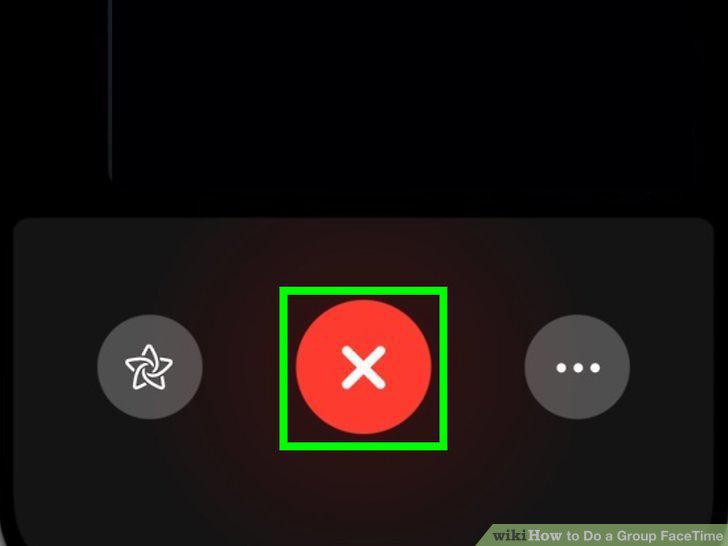
Leave the FaceTime call.
Comments (0)
No comments yet. Be the first to share your thoughts!