How to Change Application Permissions on a Mac
Click on the Apple icon.. Click System Preferences.. Click the "Security & Privacy" icon.
Steps
1
Click on the Apple icon.
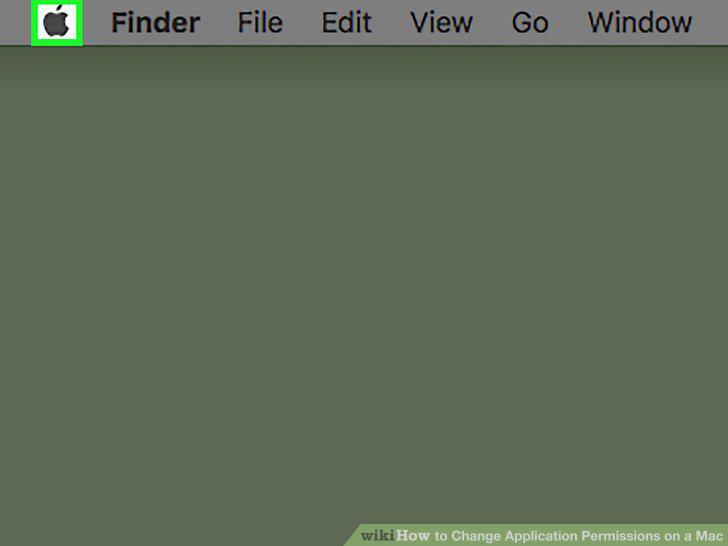
Click on the Apple icon.
2
Click System Preferences.
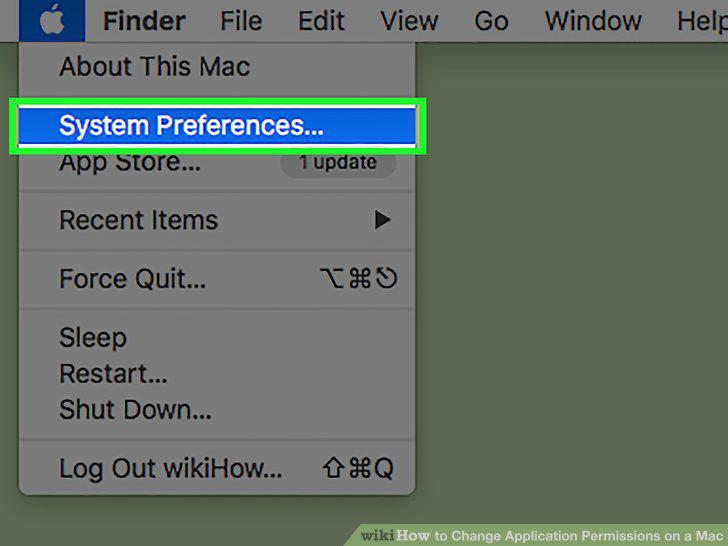
Click System Preferences.
3
Click the "Security & Privacy" icon.
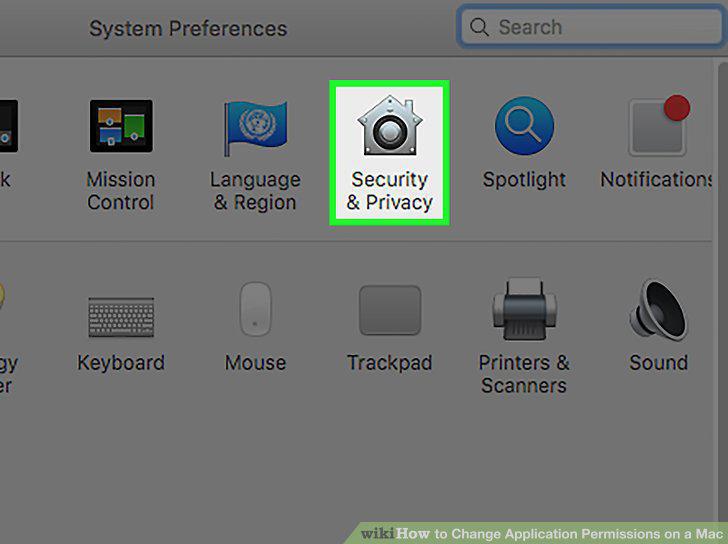
Click the "Security & Privacy" icon.
4
Click Privacy.
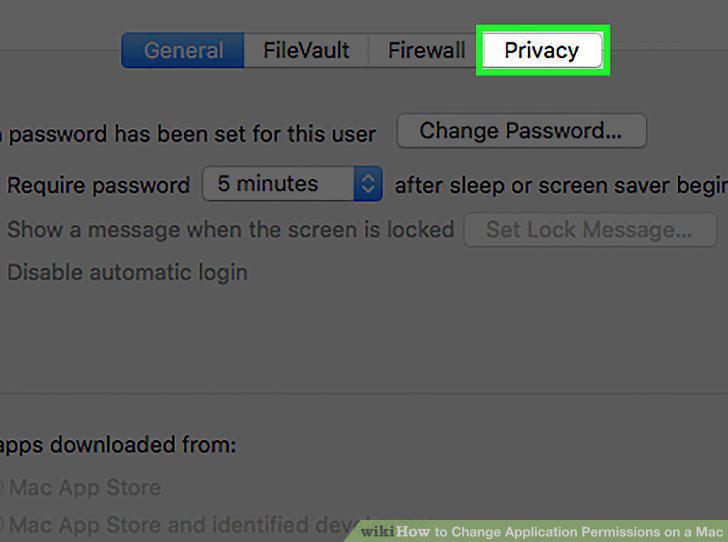
Click Privacy.
5
Click on a service in the left pane.
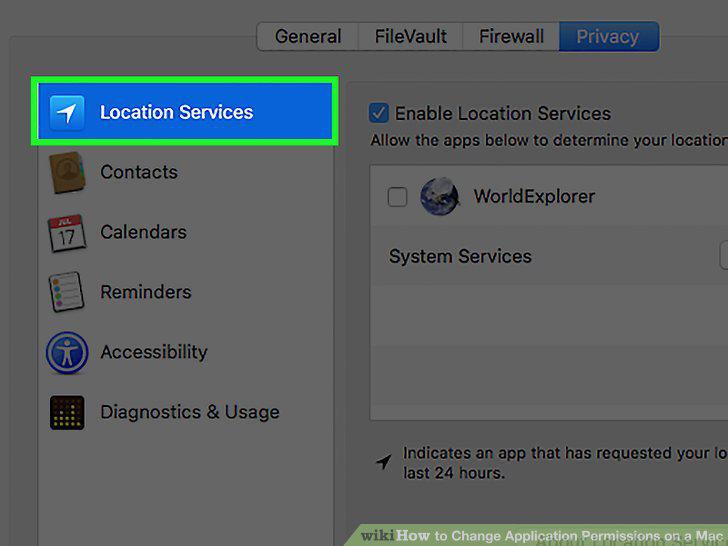
Click on a service in the left pane.
6
Click the check box next to an app to add or remove the permission.
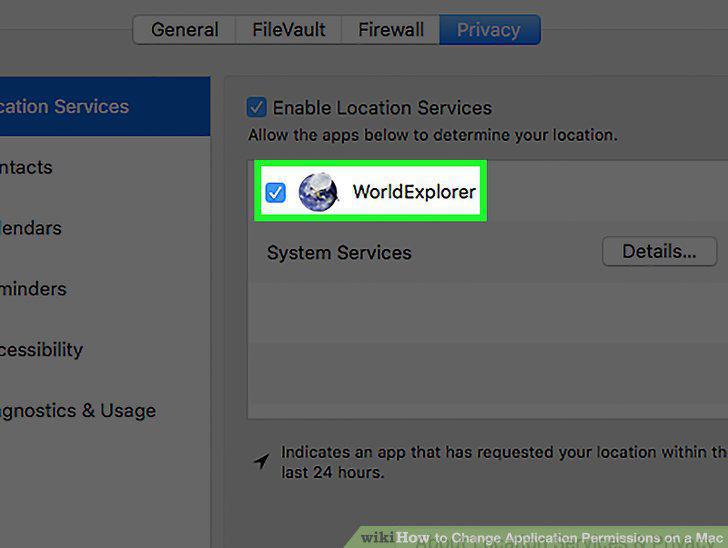
Click the check box next to an app to add or remove the permission.
7
Click the red "x" button.
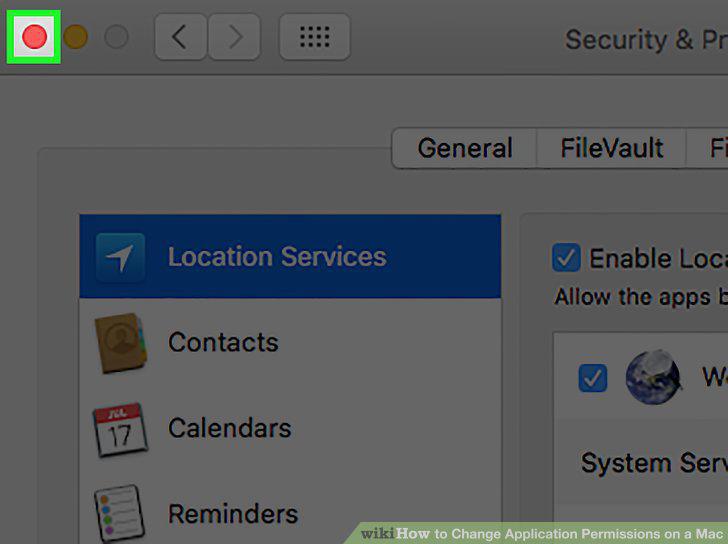
Click the red "x" button.
Comments (0)
No comments yet. Be the first to share your thoughts!