How to Change Your LinkedIn Background
Go to your LinkedIn.. Click the Me icon at the top of the page.. Click View Profile.
Steps
1
Go to your LinkedIn.
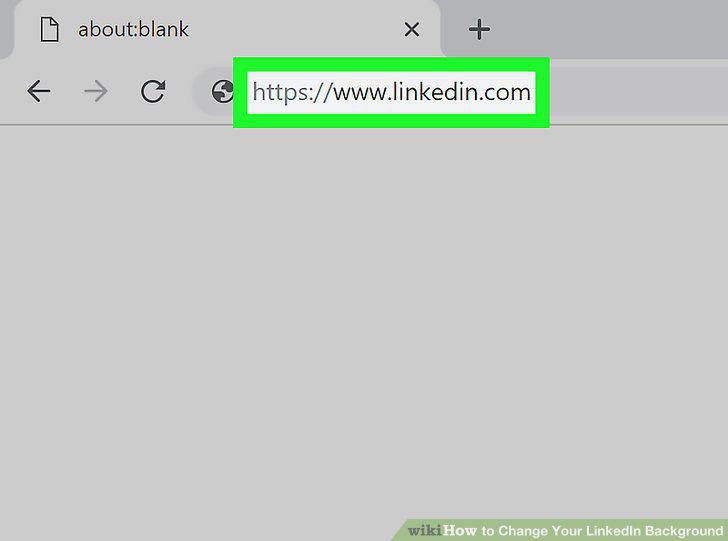
Go to your LinkedIn.
2
Click the Me icon at the top of the page.
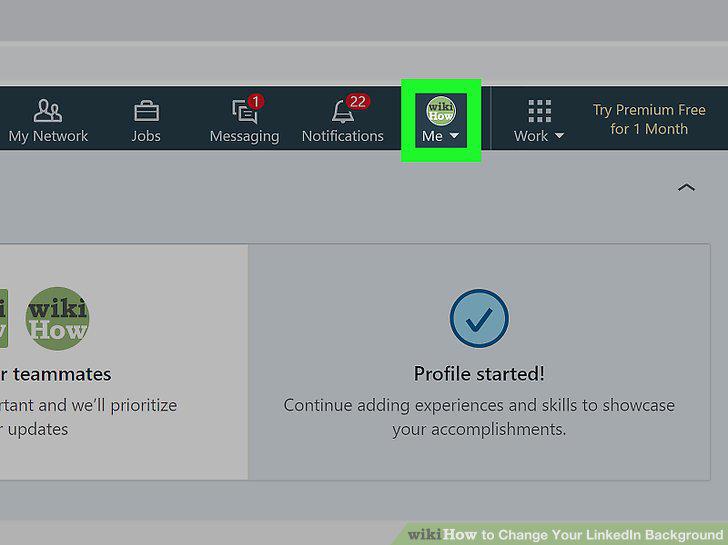
Click the Me icon at the top of the page.
3
Click View Profile.
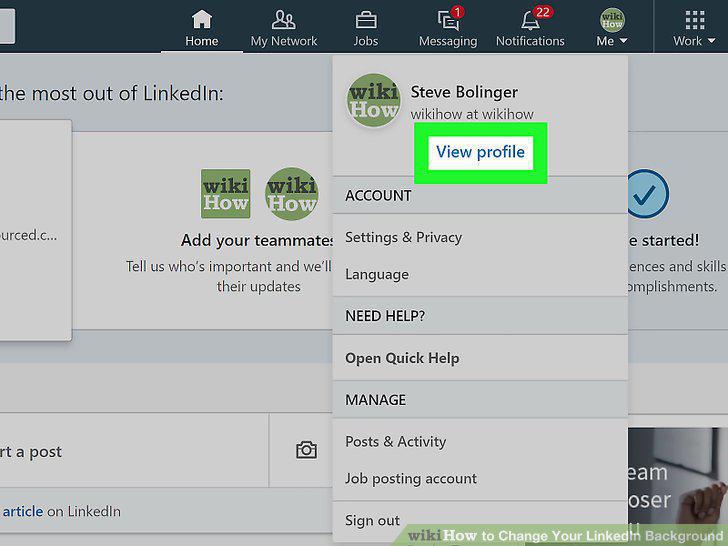
Click View Profile.
4
Click the edit icon of a pencil in the introduction card.
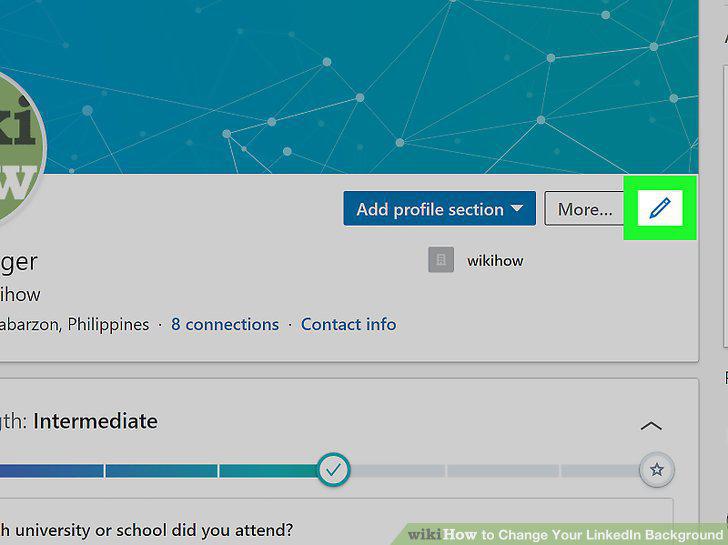
Click the edit icon of a pencil in the introduction card.
5
Click the edit icon of a pencil on the cover image.
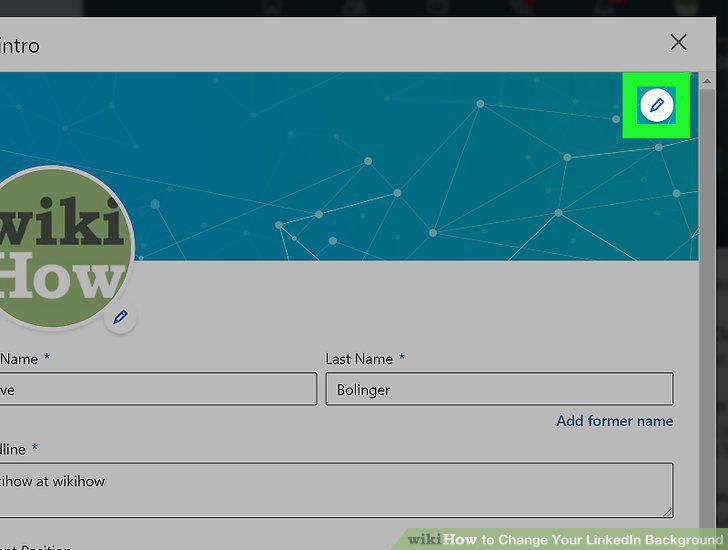
Click the edit icon of a pencil on the cover image.
6
Click Apply and Save.
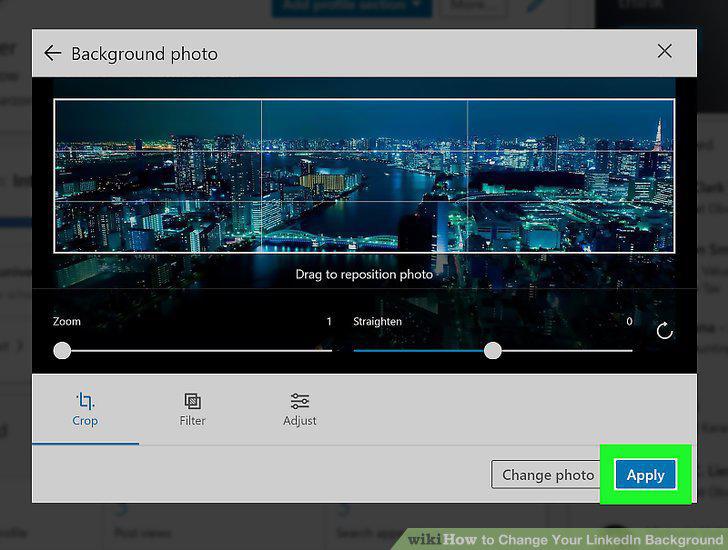
Click Apply and Save.
Comments (0)
No comments yet. Be the first to share your thoughts!