How to Use Twitter Spaces
Open the Twitter app on your Android, iPhone, or iPad.. Tap the Space you want to join.. Tap Join this space.
Steps
1
Open the Twitter app on your Android, iPhone, or iPad.
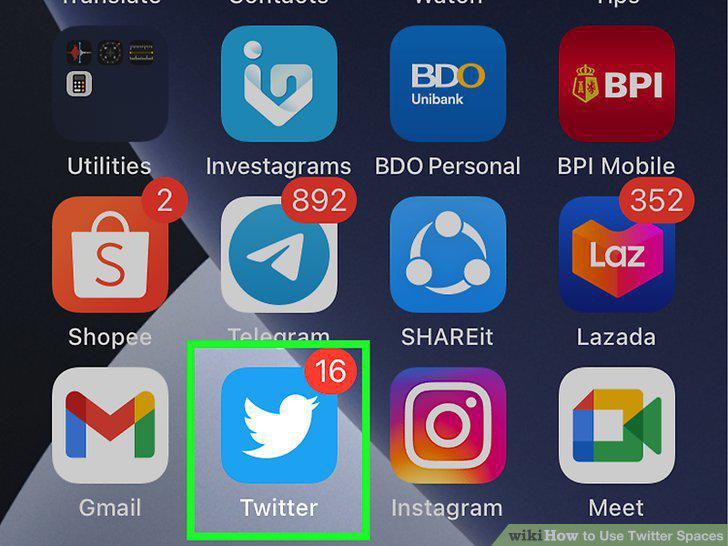
Open the Twitter app on your Android, iPhone, or iPad.
2
Tap the Space you want to join.

Tap the Space you want to join.
3
Tap Join this space.
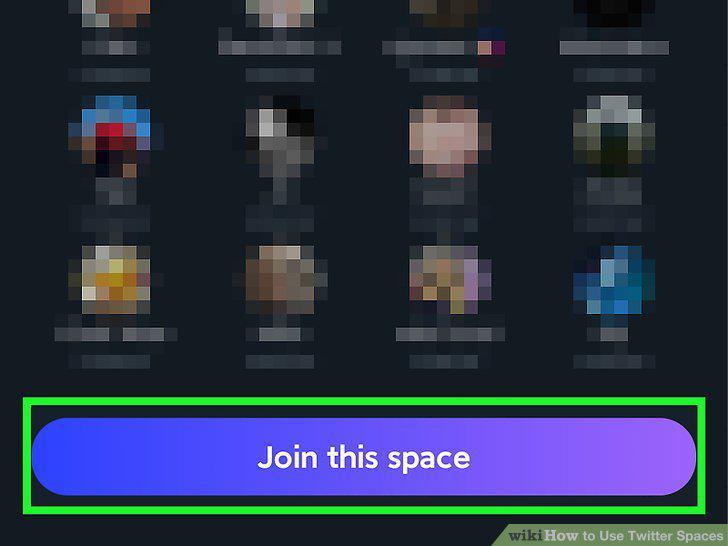
Tap Join this space.
4
Tap the react button to react to a speaker.
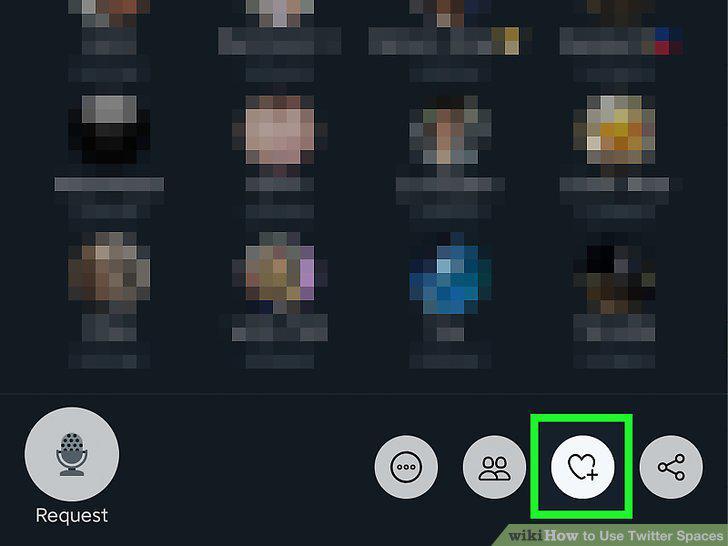
Tap the react button to react to a speaker.
5
Tap the Request icon to speak.
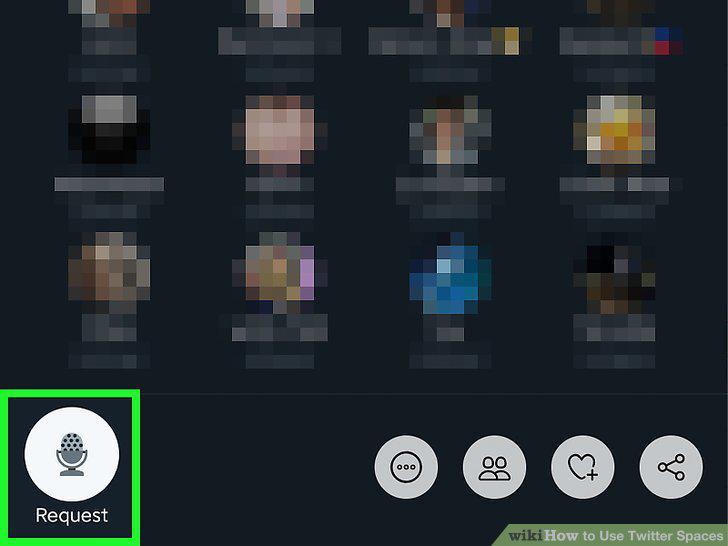
Tap the Request icon to speak.
6
Tap Leave to exit a space.
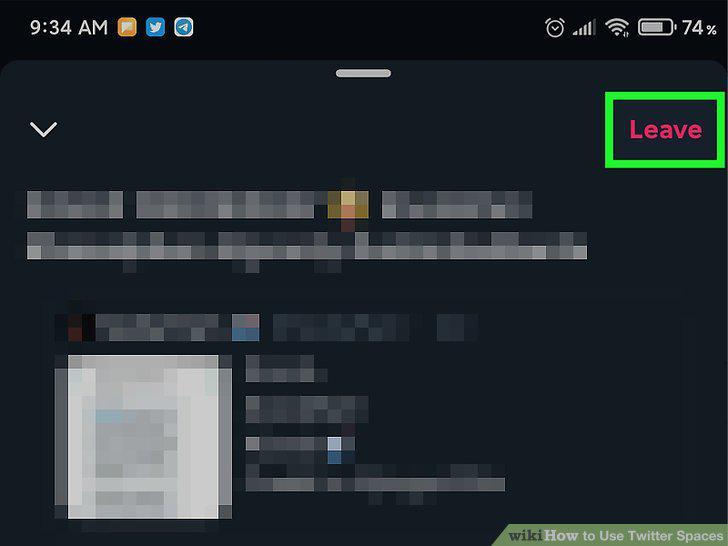
Tap Leave to exit a space.
7
Open the Twitter app on your iPhone or iPad.
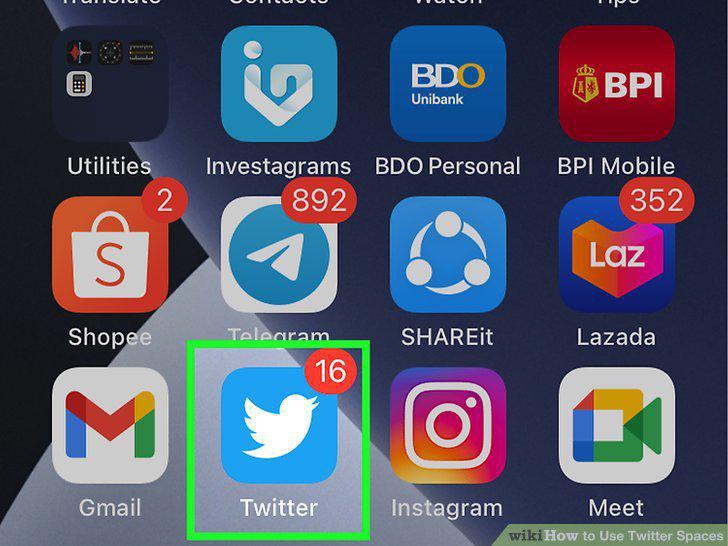
Open the Twitter app on your iPhone or iPad.
8
Tap and hold the New Tweet button.

Tap and hold the New Tweet button.
9
Tap the New Spaces icon.
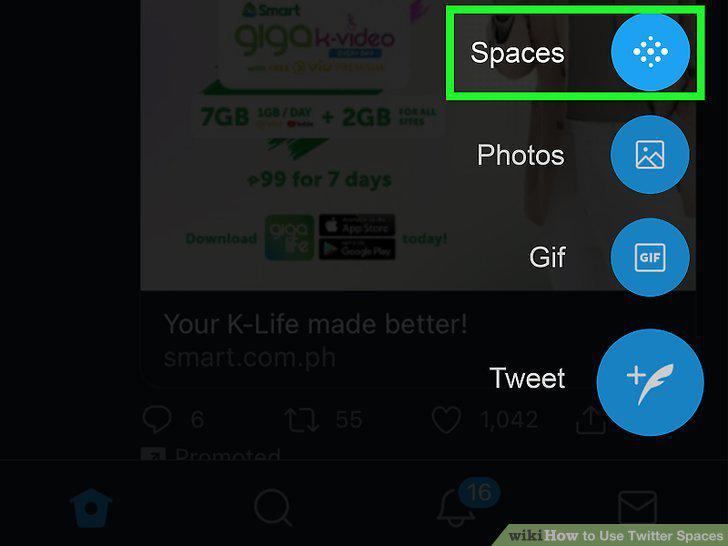
Tap the New Spaces icon.
10
Choose who can speak.
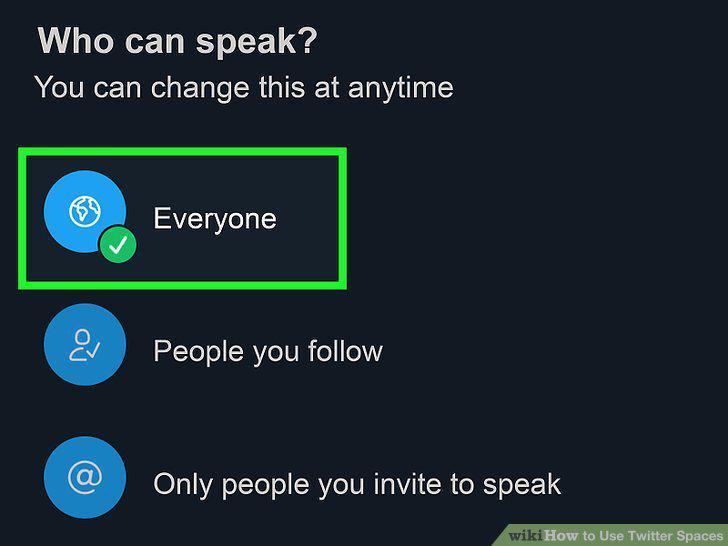
Choose who can speak.
11
Tap Start your Space.
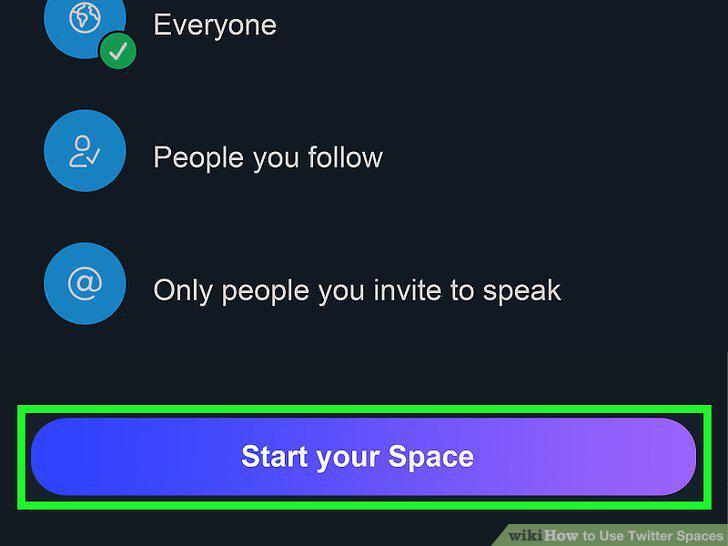
Tap Start your Space.
12
Share your Space with others.
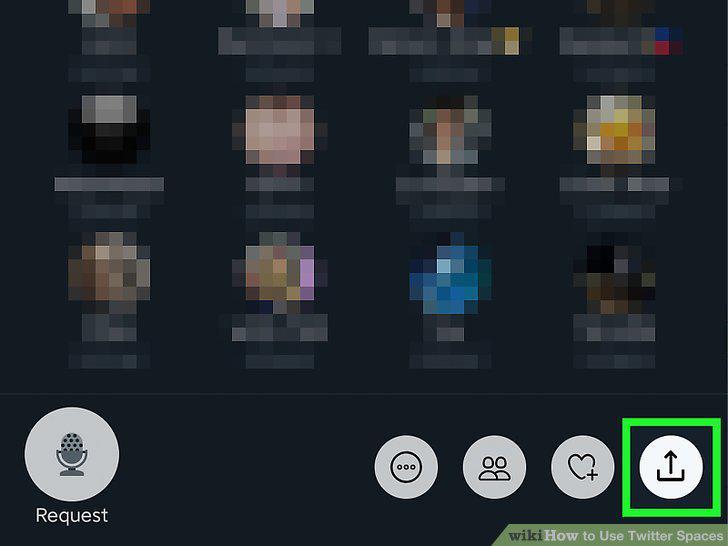
Share your Space with others.
13
Allow someone to speak.
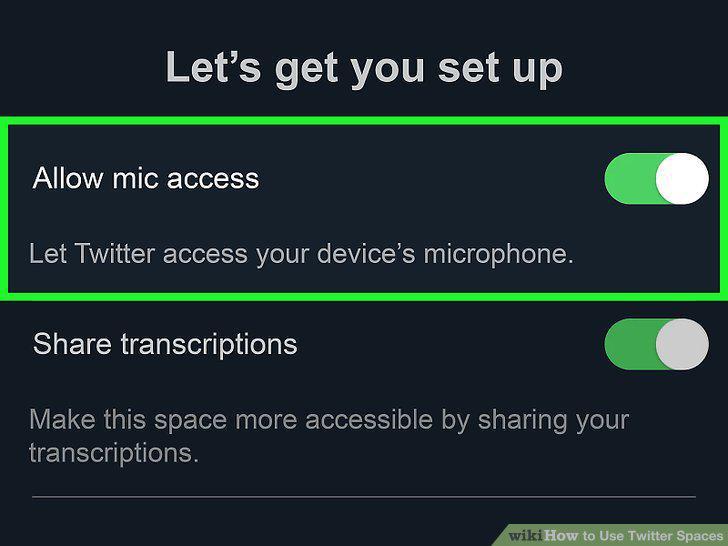
Allow someone to speak.
14
Accept a request to speak.
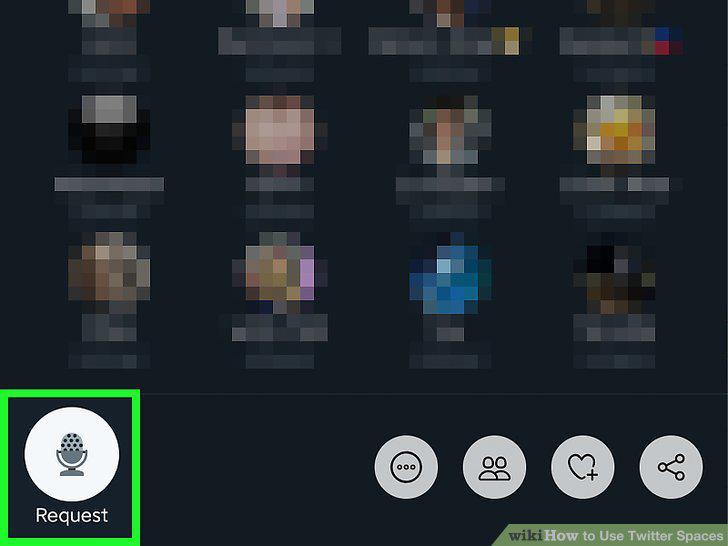
Accept a request to speak.
15
Tap End to close the Space.
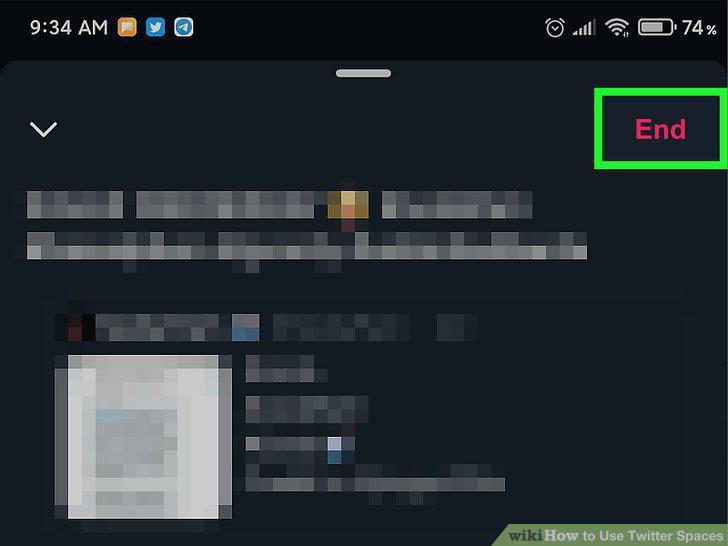
Tap End to close the Space.
Comments (0)
No comments yet. Be the first to share your thoughts!