How to Remove a Header from the Second Page
Open your Microsoft Office document.. Click Insert.. Click Header.
Steps
1
Open your Microsoft Office document.
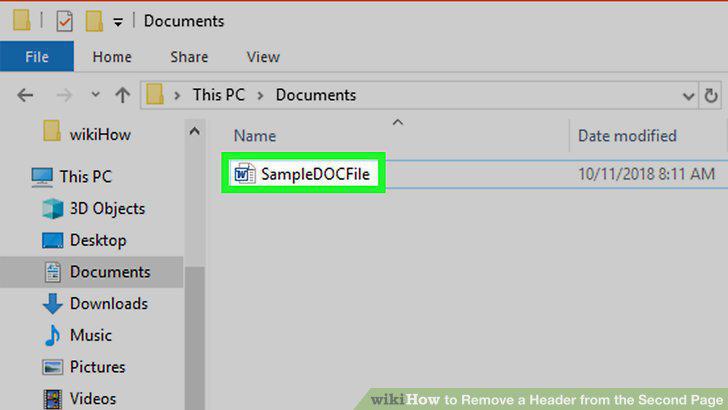
Open your Microsoft Office document.
2
Click Insert.
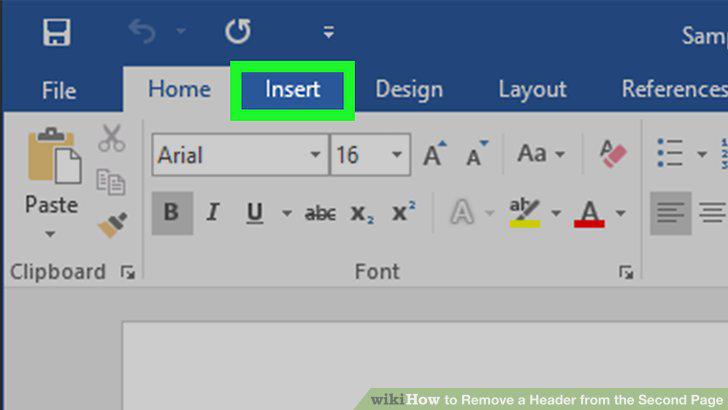
Click Insert.
3
Click Header.
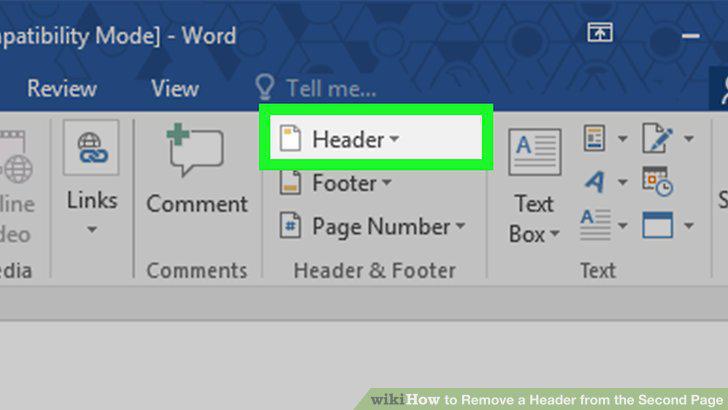
Click Header.
4
Click Edit header.
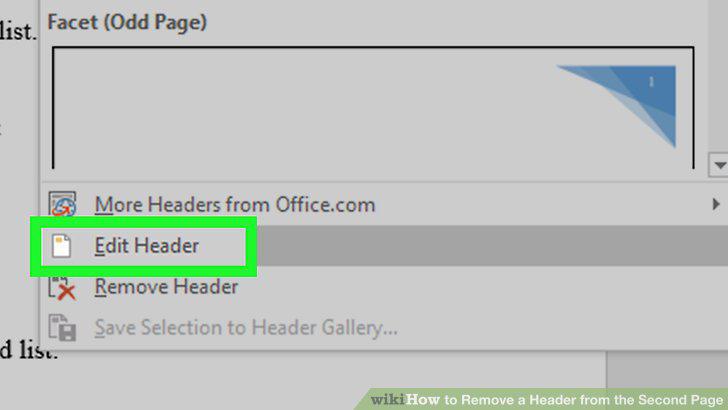
Click Edit header.
5
Check the "Different First Page" box.
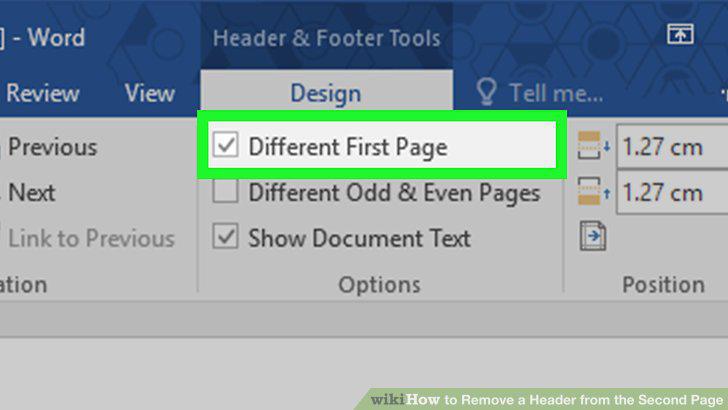
Check the "Different First Page" box.
6
Change your first page's header if necessary.
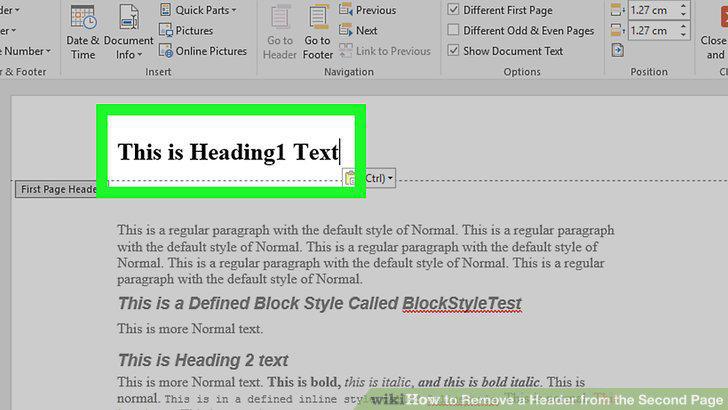
Change your first page's header if necessary.
7
Remove the header from the second page.
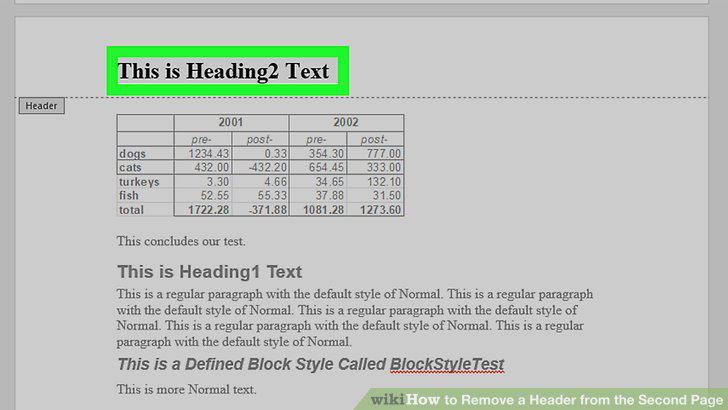
Remove the header from the second page.
8
Click Close Header and Footer.
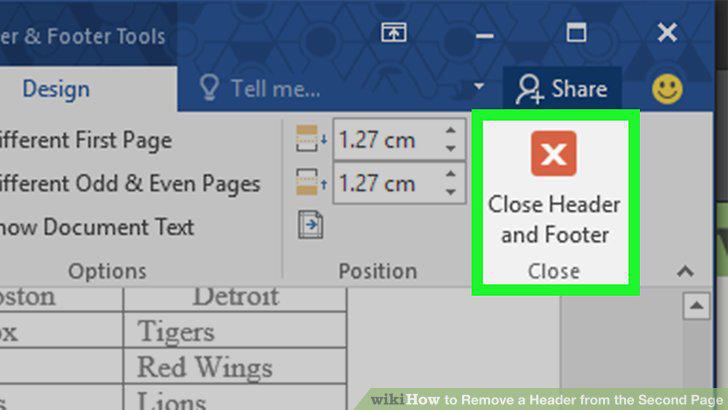
Click Close Header and Footer.
9
Save your document.
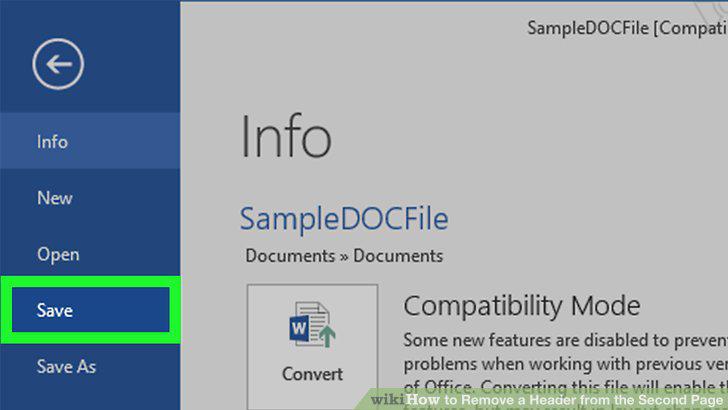
Save your document.
Comments (0)
No comments yet. Be the first to share your thoughts!