How to Browse Files on Android
Open your device's Apps Tray.. Tap File Manager.. Tap a folder to browse the files inside it.
Steps
1
Open your device's Apps Tray.
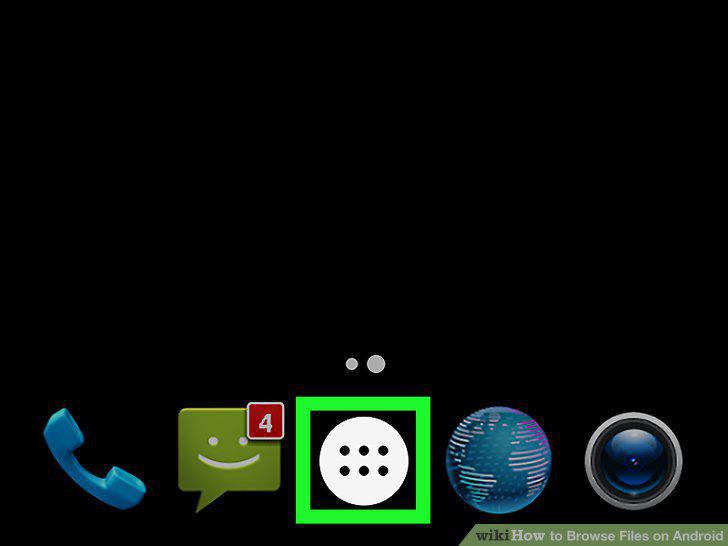
Open your device's Apps Tray.
2
Tap File Manager.
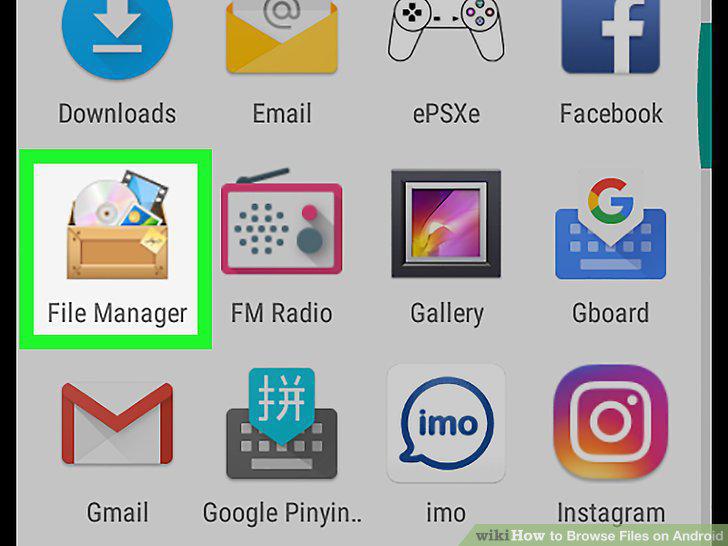
Tap File Manager.
3
Tap a folder to browse the files inside it.
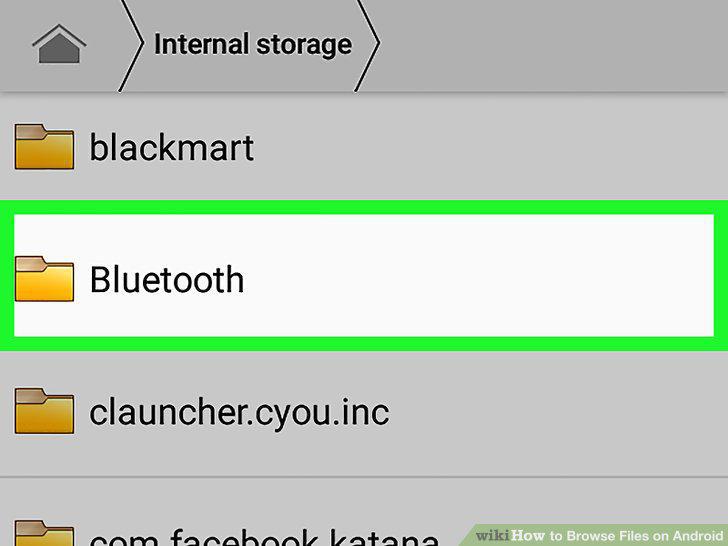
Tap a folder to browse the files inside it.
4
Tap the magnifying glass icon to search for a file.
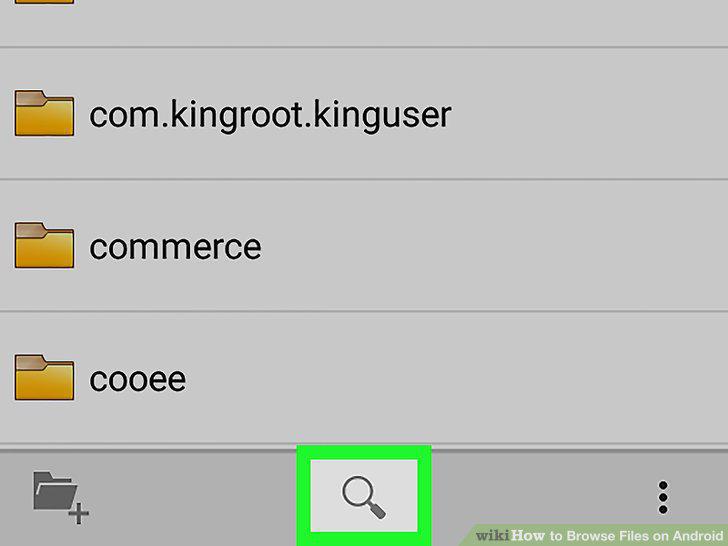
Tap the magnifying glass icon to search for a file.
5
Connect your Android device to a computer.
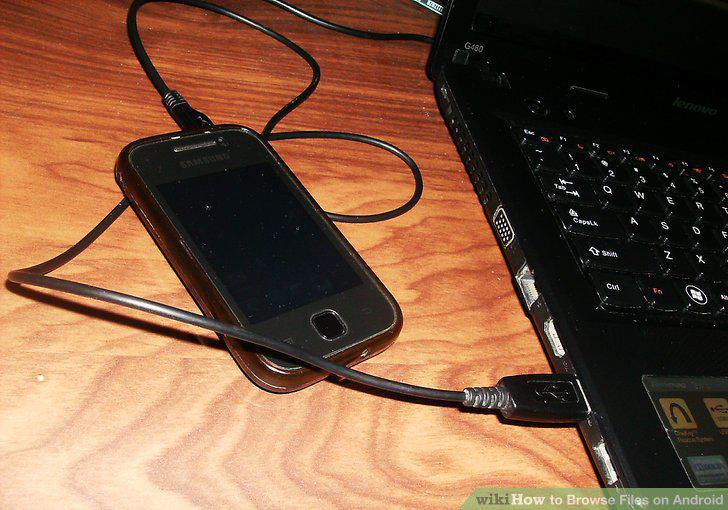
Connect your Android device to a computer.
6
Open the Notification Bar on your device.
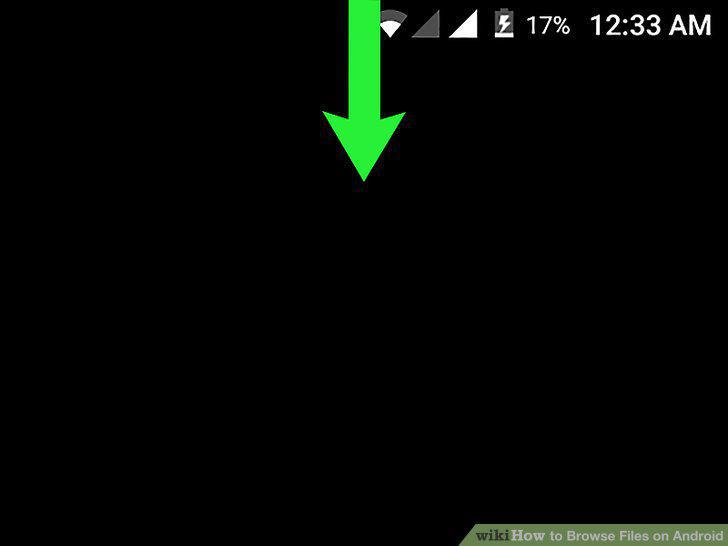
Open the Notification Bar on your device.
7
Tap the USB for [purpose] notification.
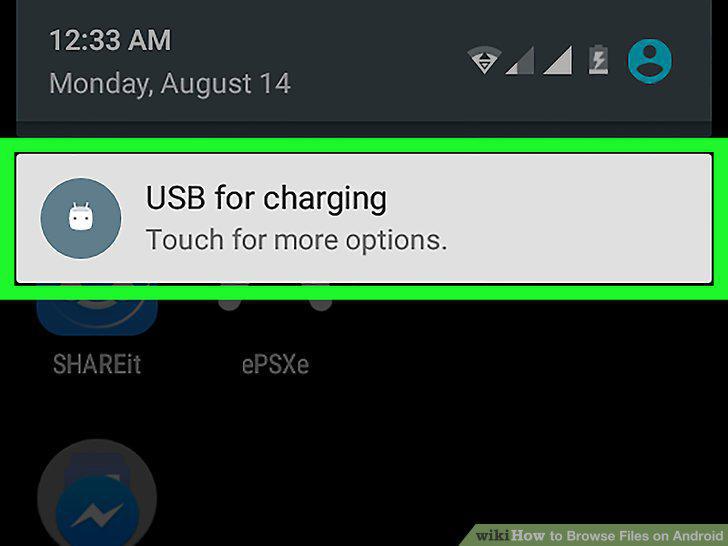
Tap the USB for [purpose] notification.
8
Tap Transfer files.
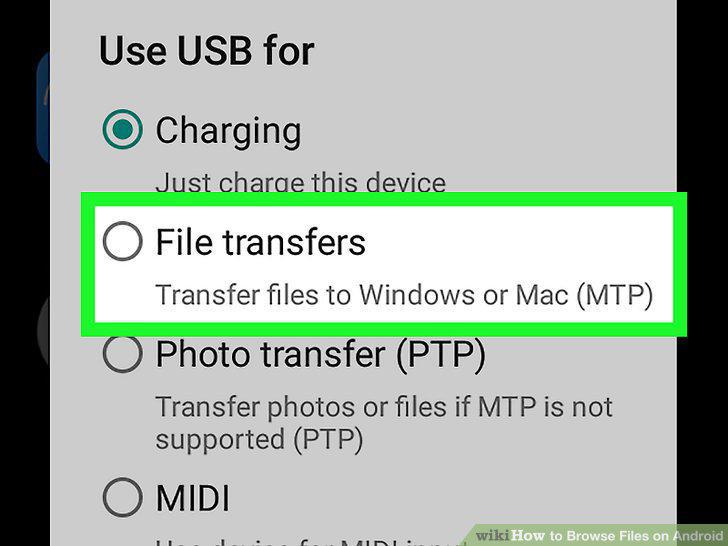
Tap Transfer files.
9
Open the device on your computer.
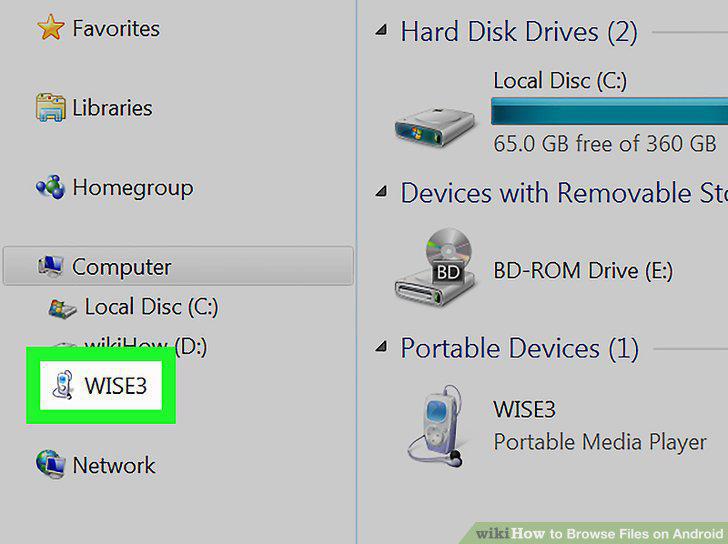
Open the device on your computer.
10
Double-click folders to browse the files inside them.
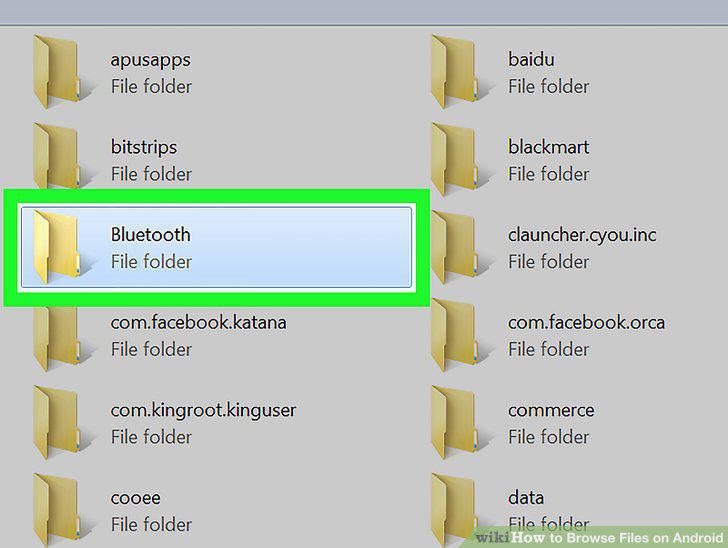
Double-click folders to browse the files inside them.
11
Click SD card to browse folders and files on a memory card.
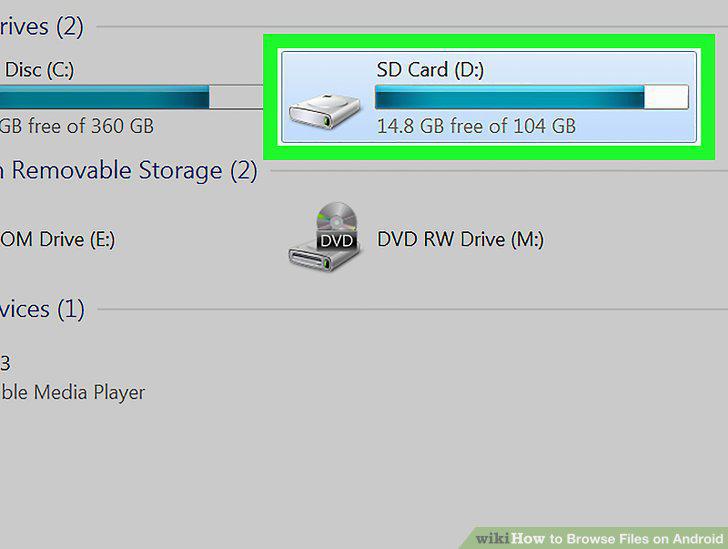
Click SD card to browse folders and files on a memory card.
Comments (0)
No comments yet. Be the first to share your thoughts!