How to Monitor Internet Speed over Time on PC or Mac
Navigate to the TestMy website.. Click on the circle next to Combined.. Select how long you want to test your internet by clicking on Every.
Steps
1
Navigate to the TestMy website.
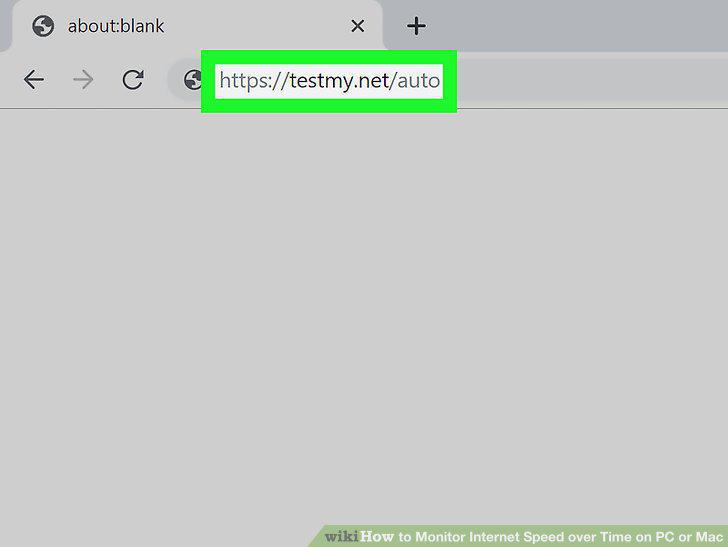
Navigate to the TestMy website.
2
Click on the circle next to Combined.
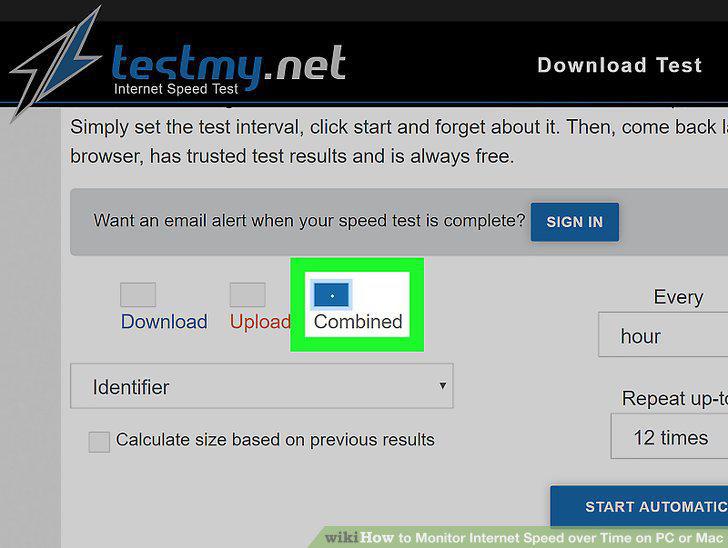
Click on the circle next to Combined.
3
Select how long you want to test your internet by clicking on Every.
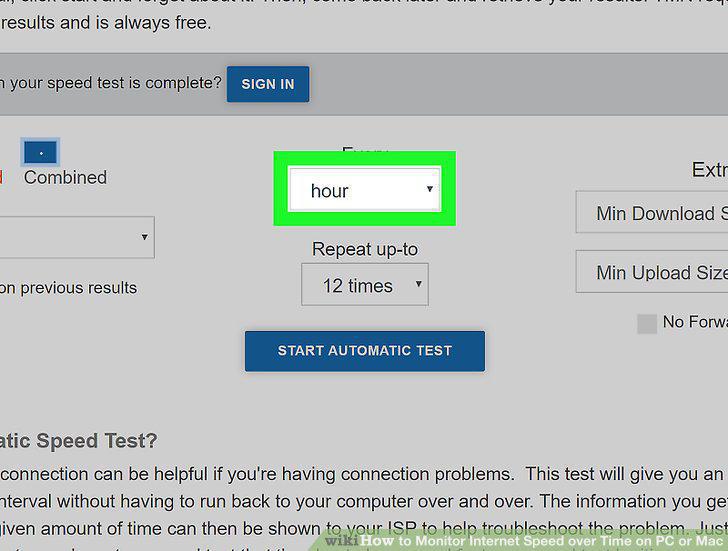
Select how long you want to test your internet by clicking on Every.
4
Select how often you want the test to repeat by clicking on 12 Times.
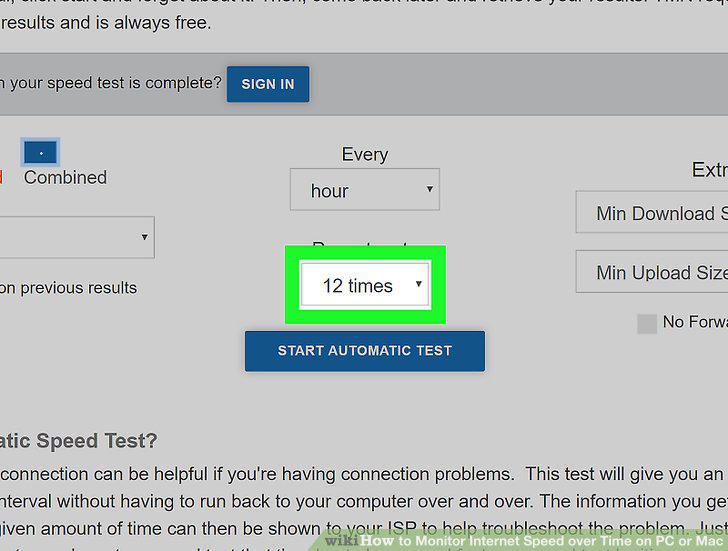
Select how often you want the test to repeat by clicking on 12 Times.
5
Click on the Start Automatic Test button to begin testing your speed.
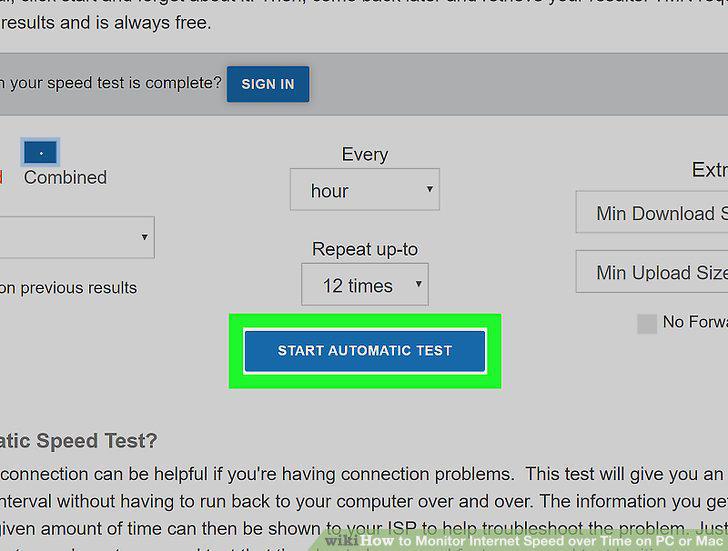
Click on the Start Automatic Test button to begin testing your speed.
6
Click on the View Results button to see how your internet speed changed.
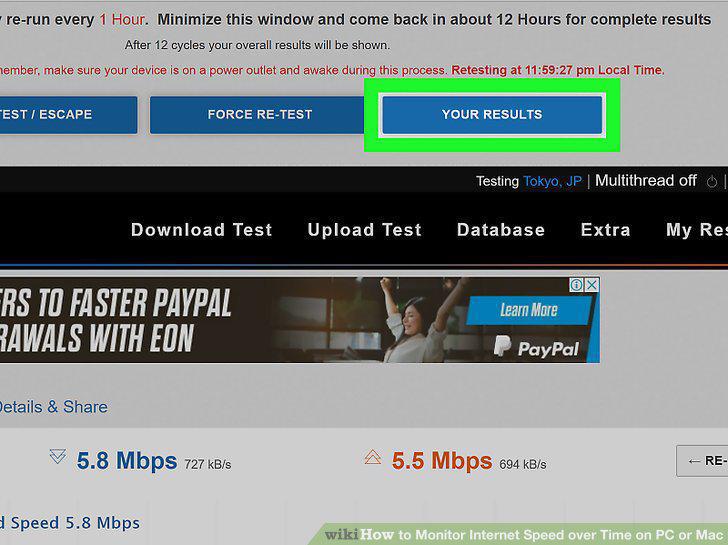
Click on the View Results button to see how your internet speed changed.
7
Visit the Speedcheck website.
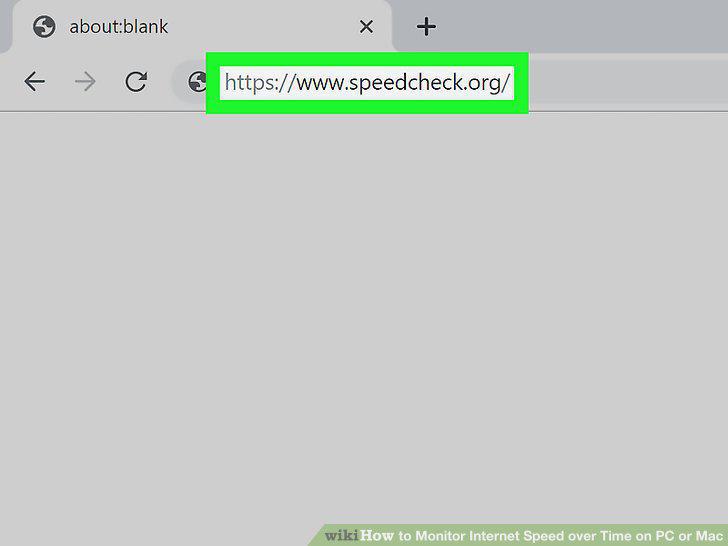
Visit the Speedcheck website.
8
Decide how long and how often you want to test your net.
Decide how long and how often you want to test your net.
9
Click Start Test to begin your internet speed test.
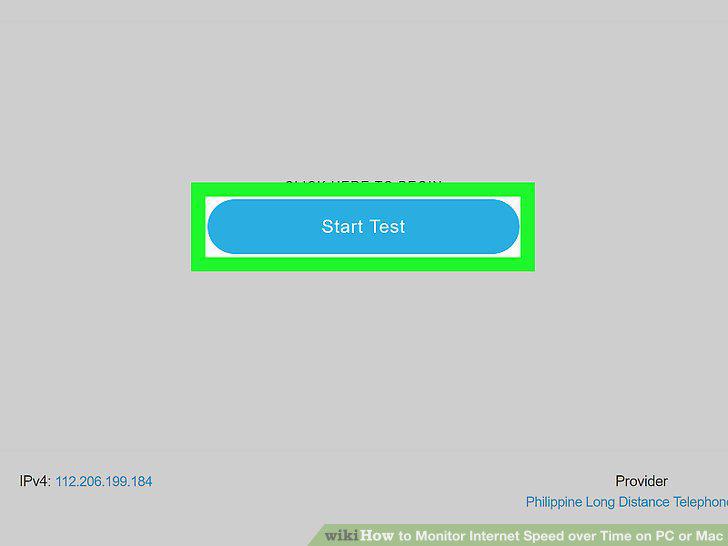
Click Start Test to begin your internet speed test.
10
Check your results by clicking the History tab.
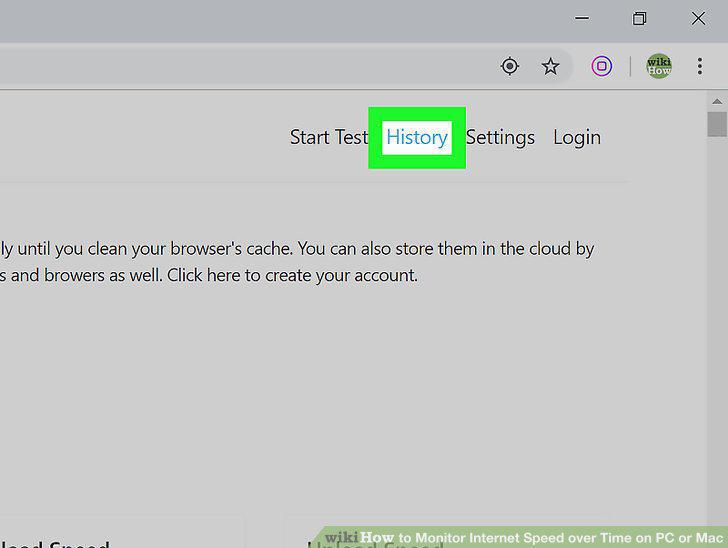
Check your results by clicking the History tab.
11
Run several tests throughout the day to calculate the average speed.
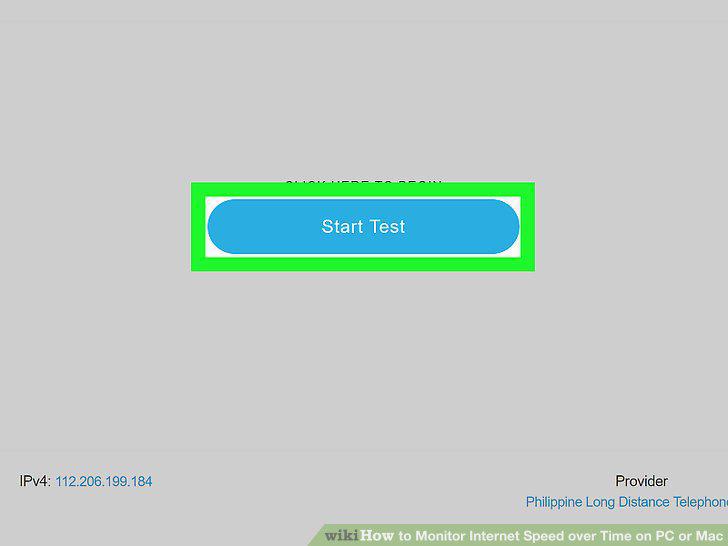
Run several tests throughout the day to calculate the average speed.
Comments (0)
No comments yet. Be the first to share your thoughts!