How to Record a GoToMeeting Session on iPhone or iPad
Open your iPhone or iPad's Settings .. Tap Control Center.. Tap Customize Controls.
Steps
1
Open your iPhone or iPad's Settings .
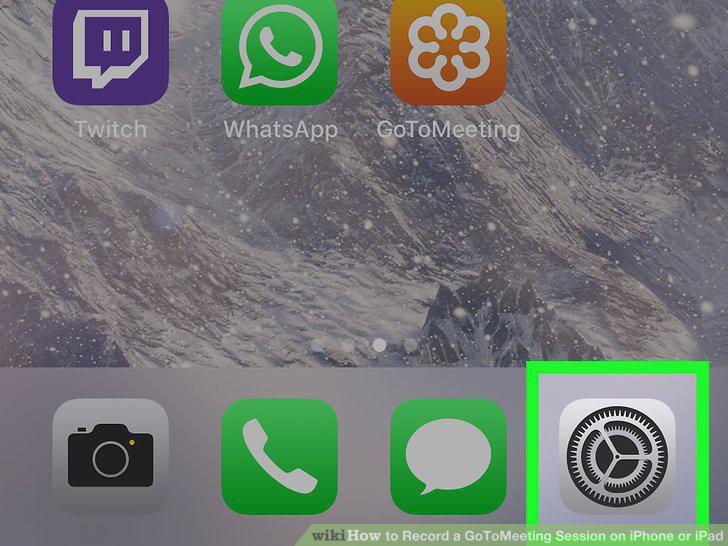
Open your iPhone or iPad's Settings .
2
Tap Control Center.
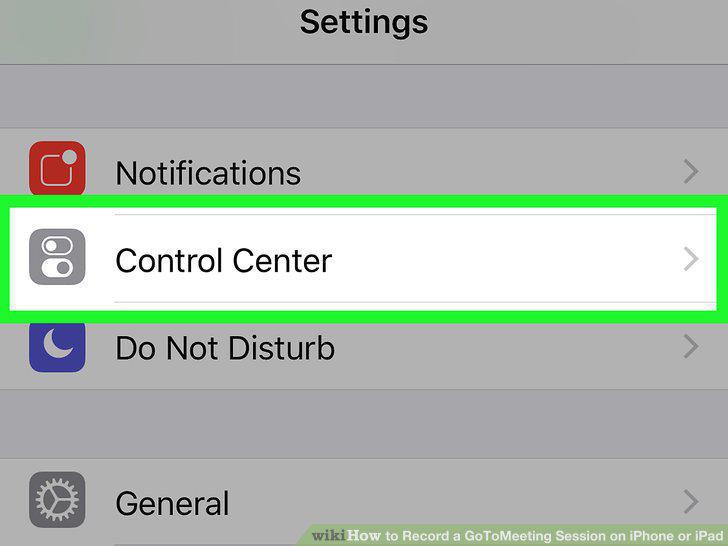
Tap Control Center.
3
Tap Customize Controls.
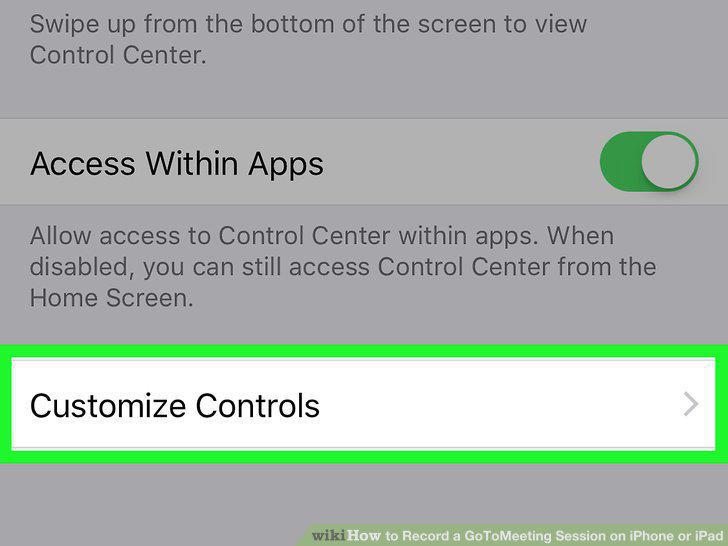
Tap Customize Controls.
4
Tap + next to "Screen Recording.
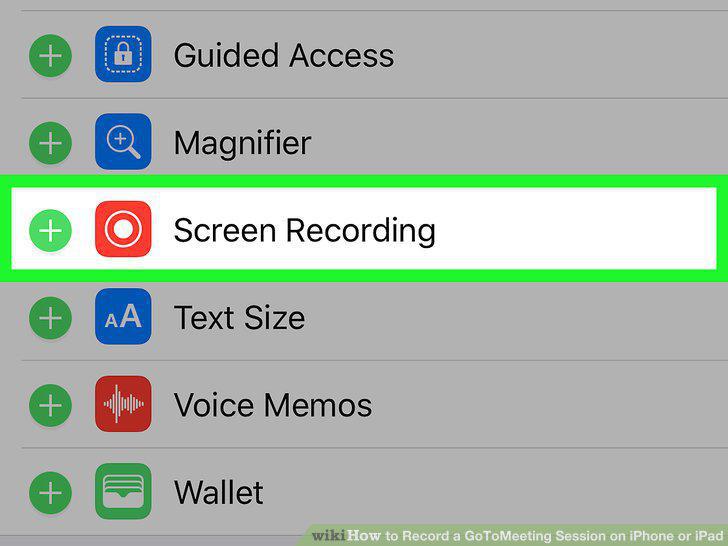
Tap + next to "Screen Recording.
5
Tap the back button.
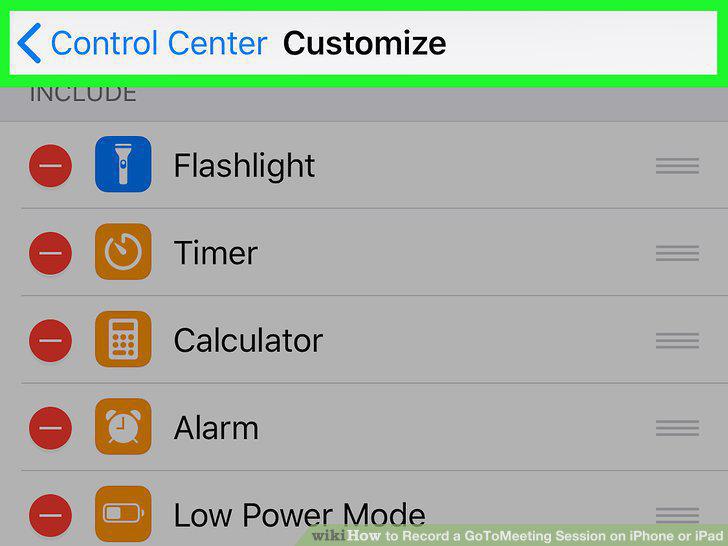
Tap the back button.
6
Slide the "Access Within Apps" switch to the ON position.
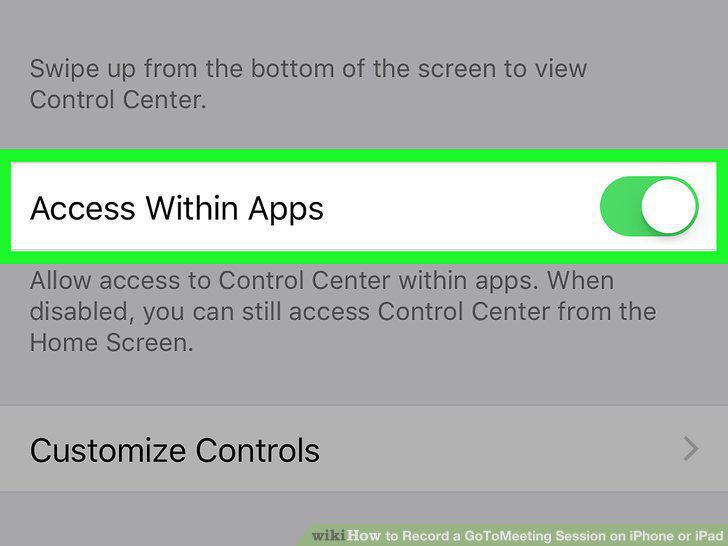
Slide the "Access Within Apps" switch to the ON position.
7
Open GoToMeeting on your iPhone or iPad.
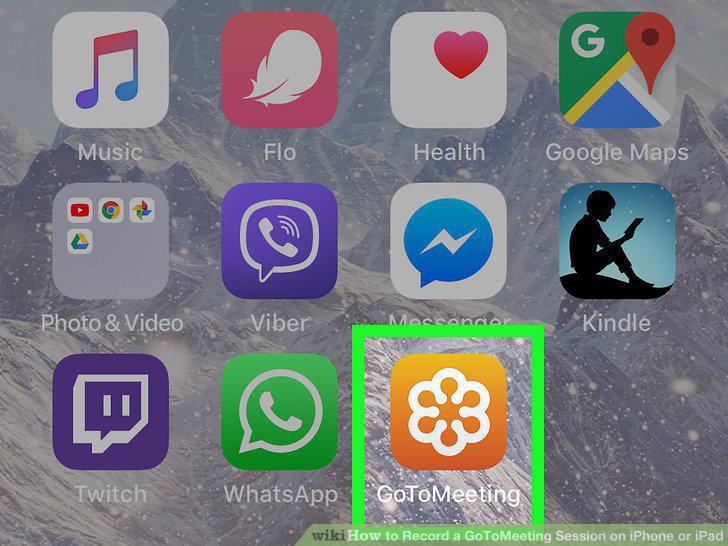
Open GoToMeeting on your iPhone or iPad.
8
Tap Join a Meeting.
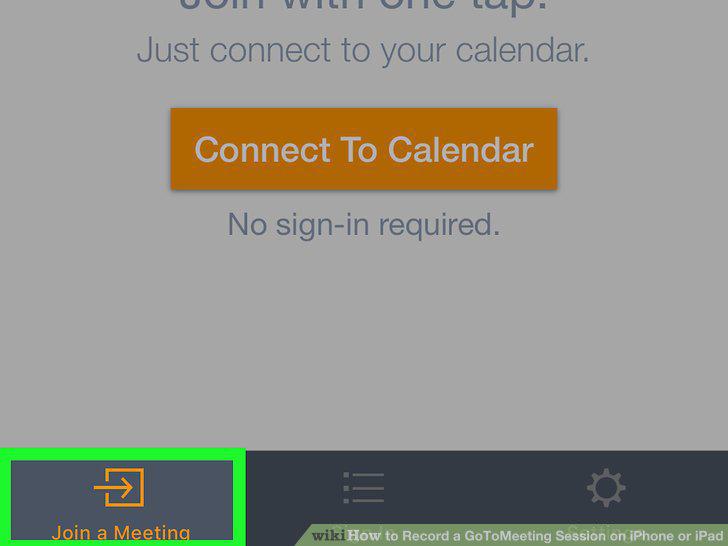
Tap Join a Meeting.
9
Enter the meeting ID and tap Join.
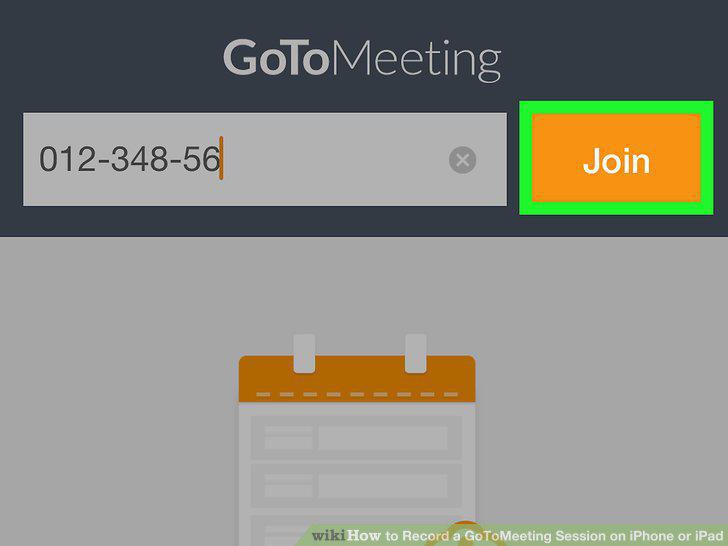
Enter the meeting ID and tap Join.
10
Swipe up from the bottom of the screen.
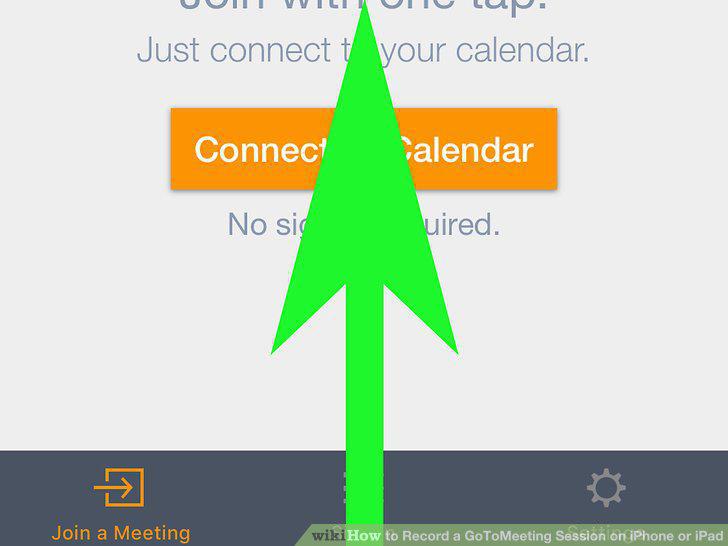
Swipe up from the bottom of the screen.
11
Tap the record icon.
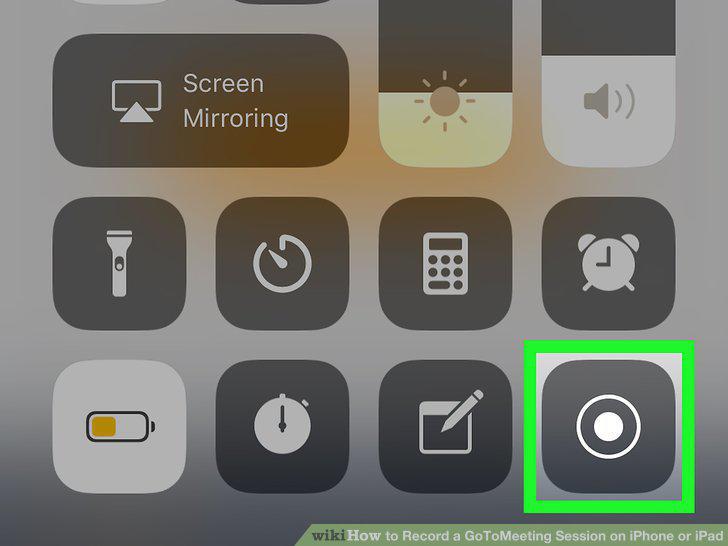
Tap the record icon.
12
Return to the meeting.
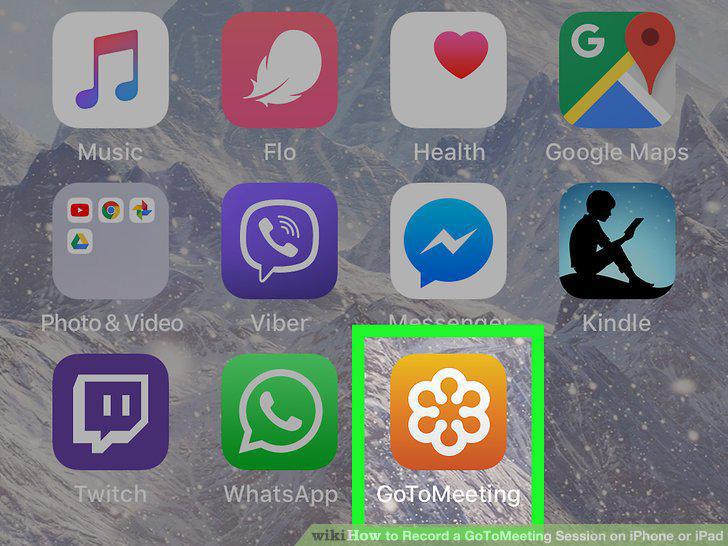
Return to the meeting.
13
Swipe up from the bottom of the screen.
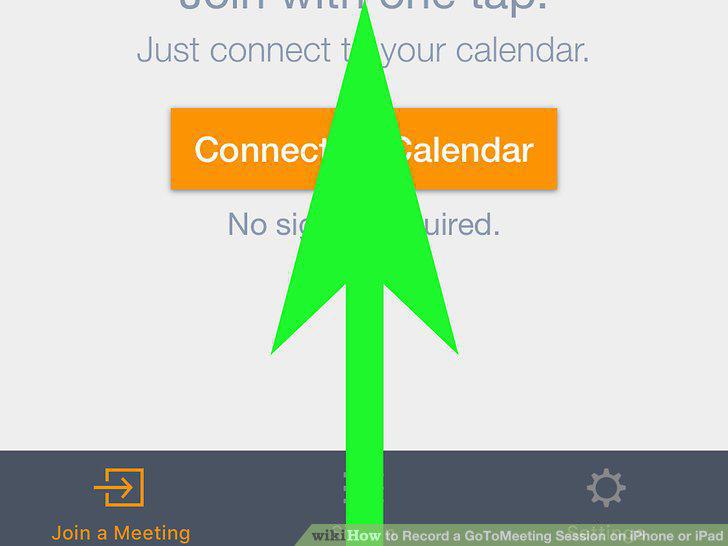
Swipe up from the bottom of the screen.
14
Tap the red recording button.
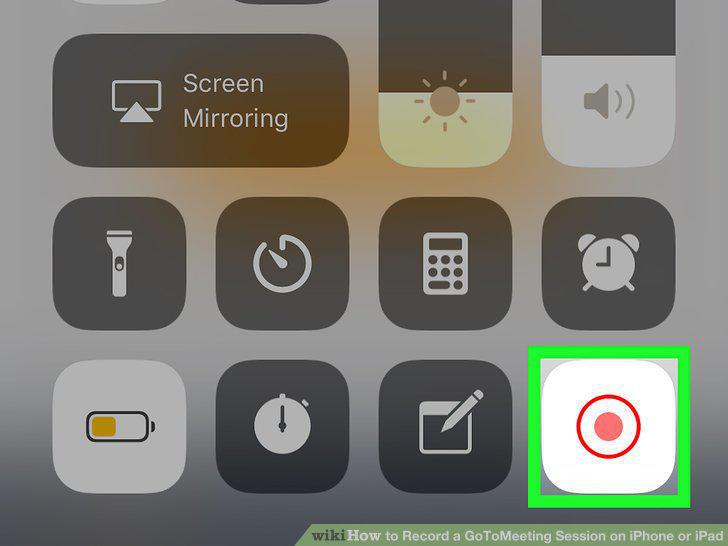
Tap the red recording button.
Comments (0)
No comments yet. Be the first to share your thoughts!