How to Center Text in Photoshop
Write your text using the "Text tool" (T).. Separate everything you want centered into it's own layer.. Switch to the "Rectangle Marquee Tool" (M) and select the entire canvas.
Steps
1
Write your text using the "Text tool" (T).
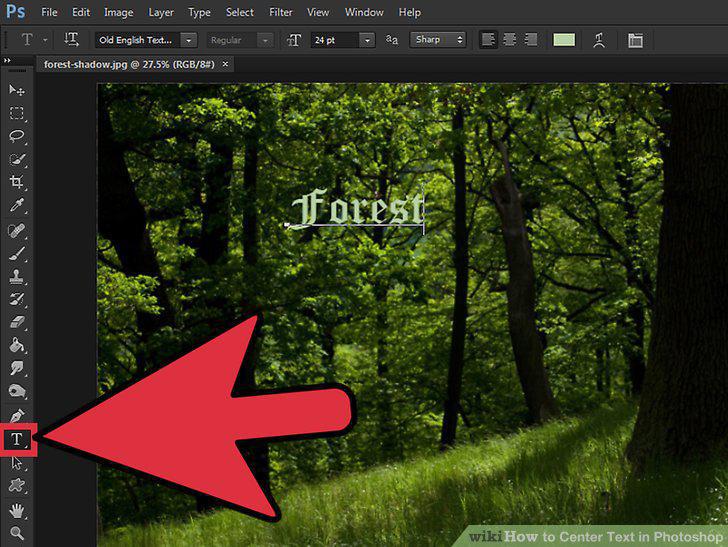
Write your text using the "Text tool" (T).
2
Separate everything you want centered into it's own layer.
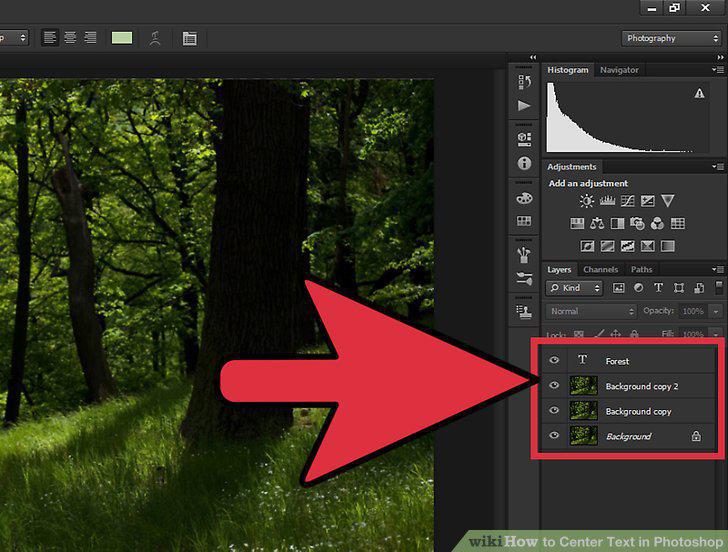
Separate everything you want centered into it's own layer.
3
Switch to the "Rectangle Marquee Tool" (M) and select the entire canvas.
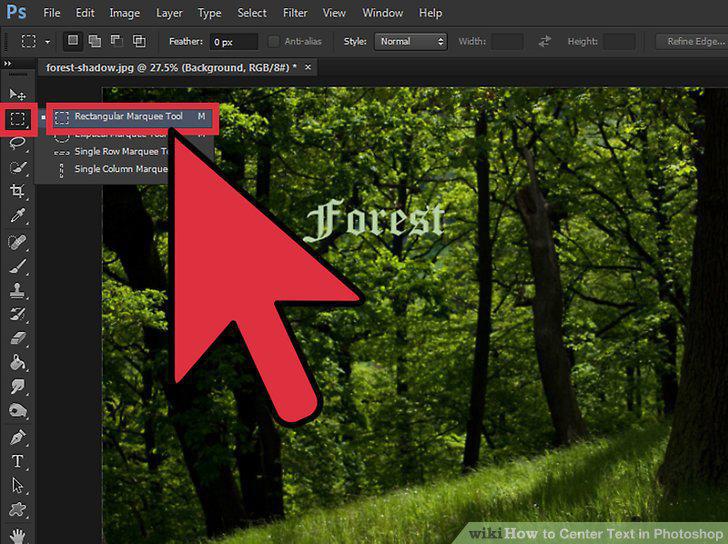
Switch to the "Rectangle Marquee Tool" (M) and select the entire canvas.
4
Switch back to the "Move Tool" (V).
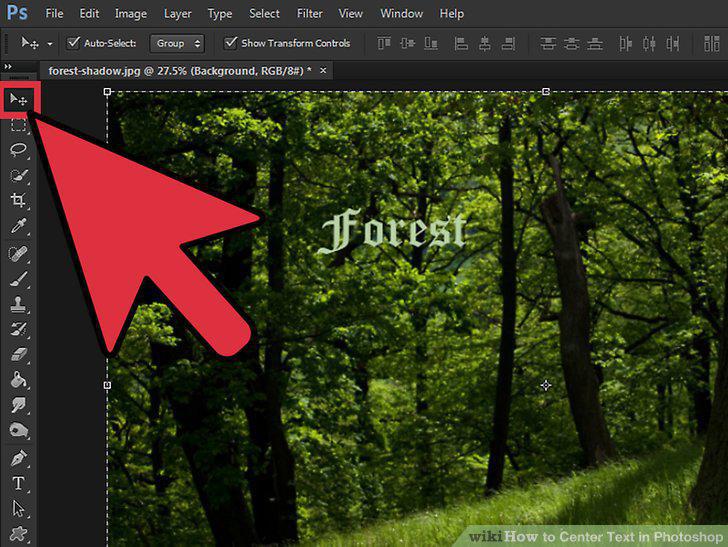
Switch back to the "Move Tool" (V).
5
Use the "aligning" buttons on the top of the screen to center the text however y
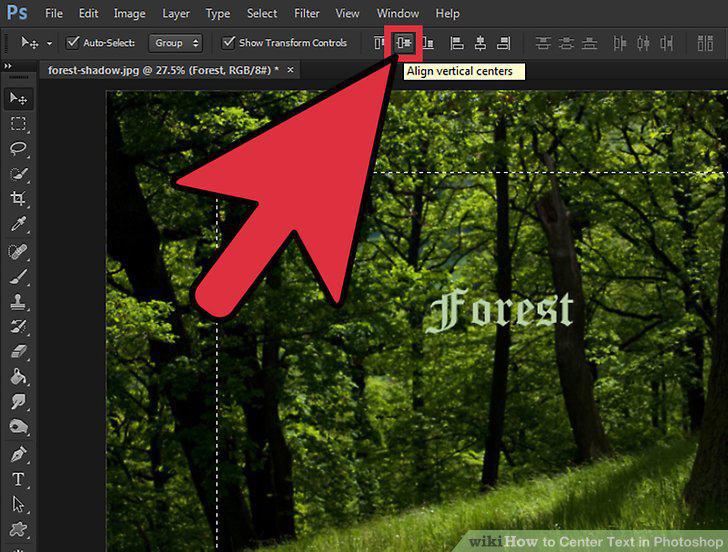
Use the "aligning" buttons on the top of the screen to center the text however you please.
6
Use the arrow keys to move text along straight lines, preserving your centering.
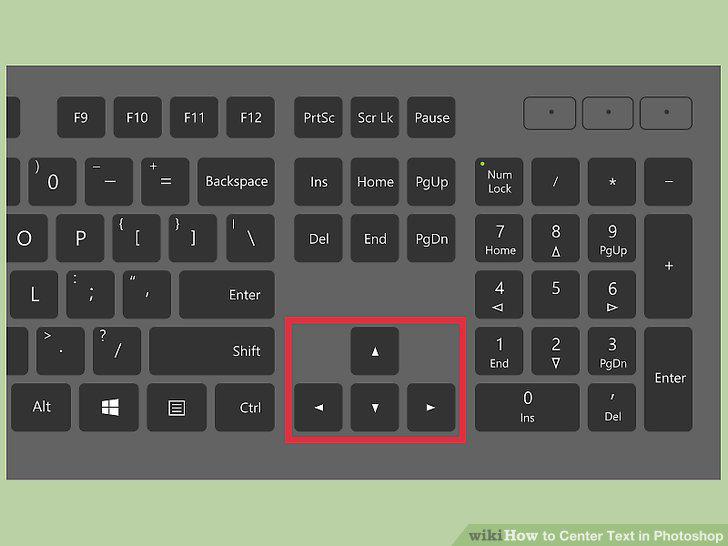
Use the arrow keys to move text along straight lines, preserving your centering.
7
Open the desired image in Photoshop.
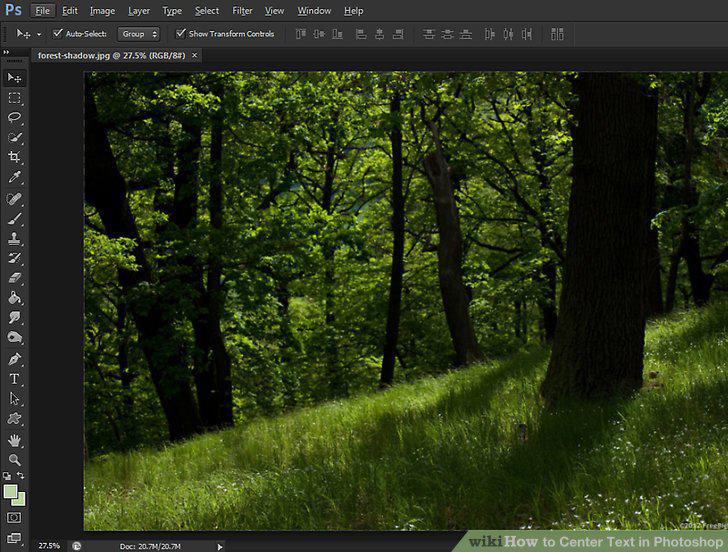
Open the desired image in Photoshop.
8
Click the "T" in the leftmost tool bar.
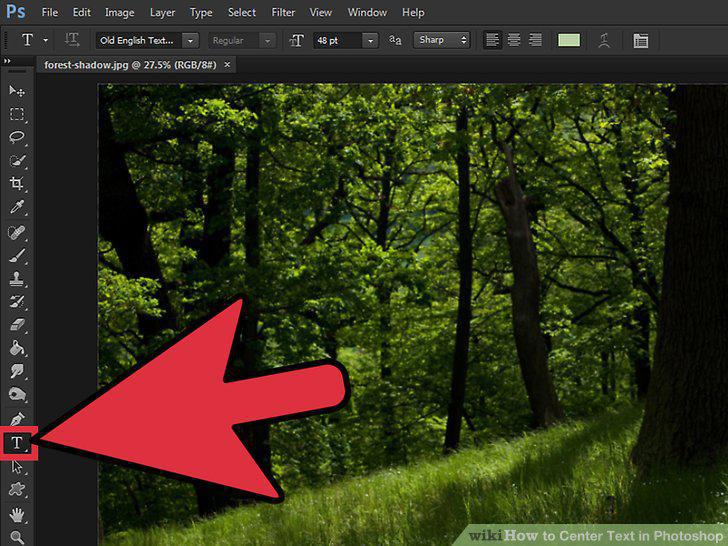
Click the "T" in the leftmost tool bar.
9
Press the "center text" button to center-justify the text.
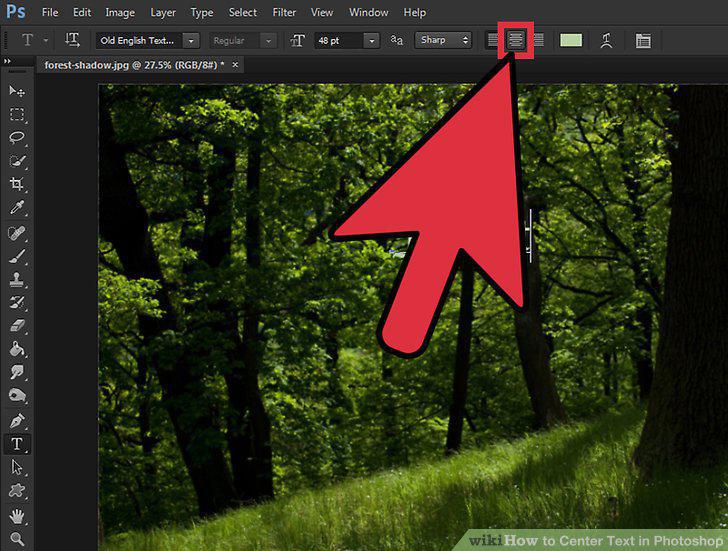
Press the "center text" button to center-justify the text.
Comments (0)
No comments yet. Be the first to share your thoughts!