How to Use Your iPad As a Second Monitor
Download Duet Display from the App Store.. Navigate to https://www.duetdisplay.com on your Mac or PC.. Click Download Mac or Download PC.
Steps
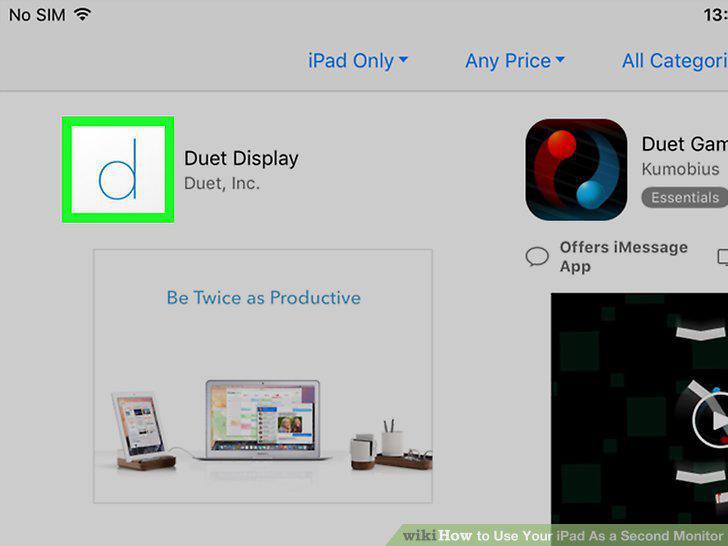
Download Duet Display from the App Store.
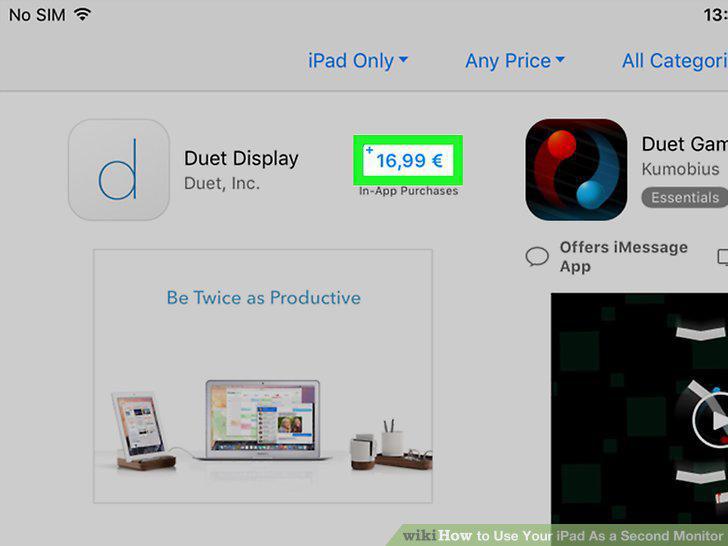
Download Duet Display from the App Store.
Navigate to https://www.duetdisplay.com on your Mac or PC.
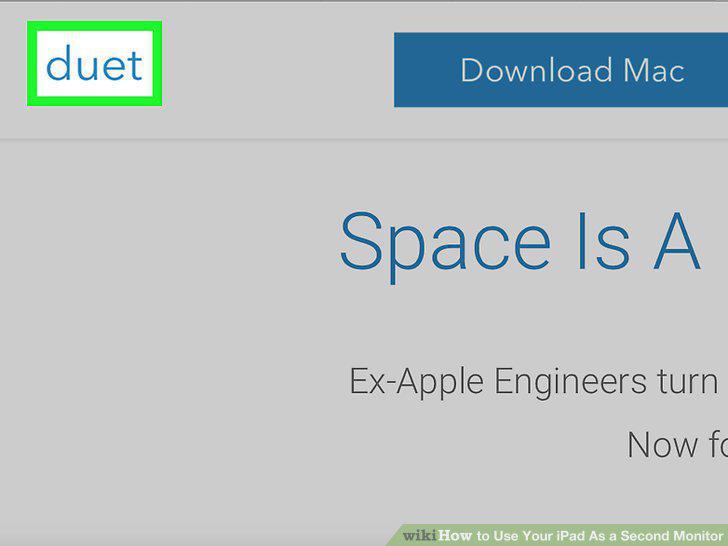
Navigate to https://www.duetdisplay.com on your Mac or PC.
Click Download Mac or Download PC.
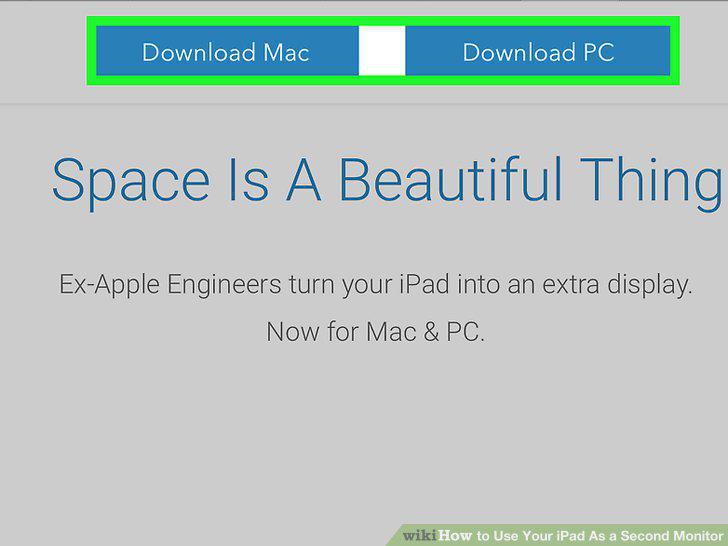
Click Download Mac or Download PC.
Run the installer file.
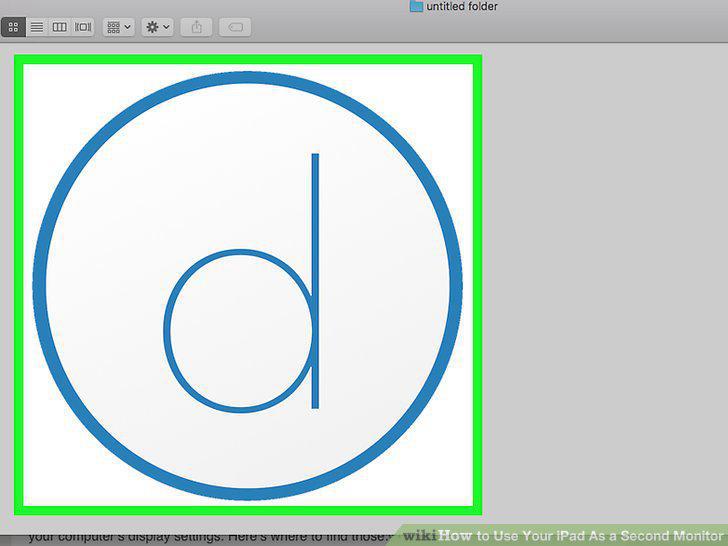
Run the installer file.
Open Duet Display on your iPad.
Open Duet Display on your iPad.
Connect the iPad to the computer with a USB to 30 pin or lightning cable.
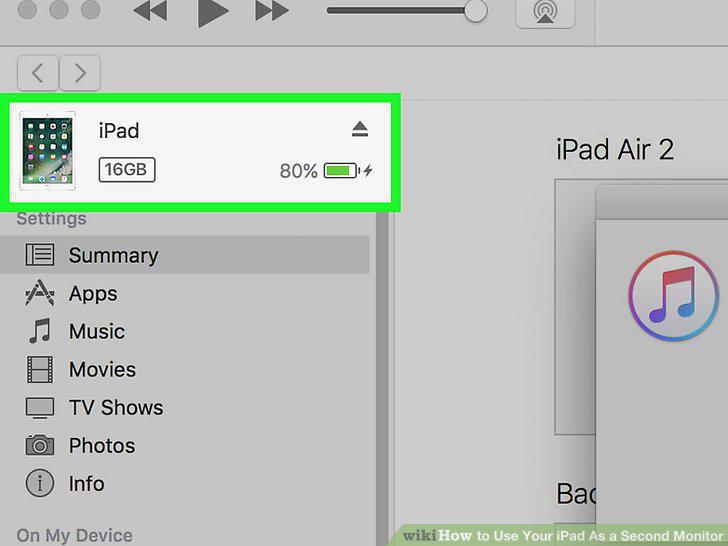
Connect the iPad to the computer with a USB to 30 pin or lightning cable.
Adjust your display settings.
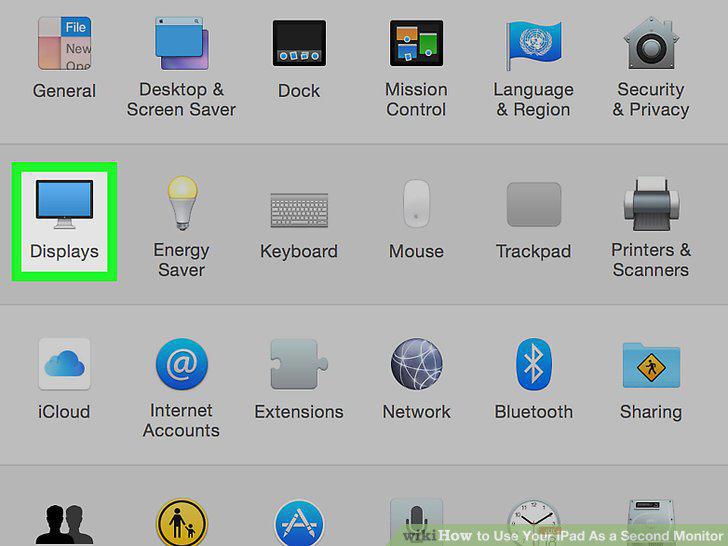
Adjust your display settings.
Download Air Display 3 from the App Store.
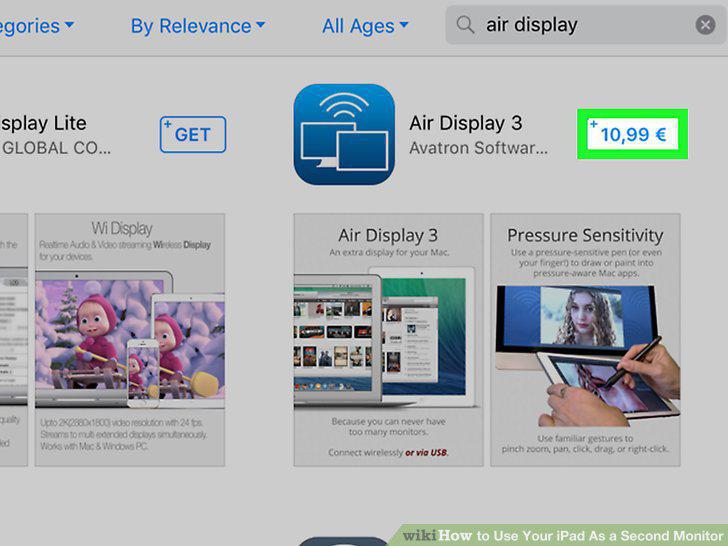
Download Air Display 3 from the App Store.
Navigate to https://avatron.com/air-display-hosts/ on your PC or Mac.
Navigate to https://avatron.com/air-display-hosts/ on your PC or Mac.
Fill out the form and click Download Now.
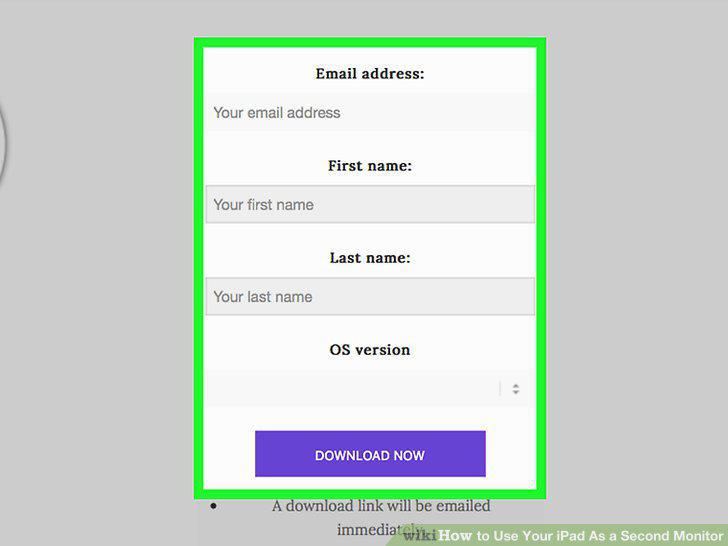
Fill out the form and click Download Now.
Click the link in the email to download the installer.
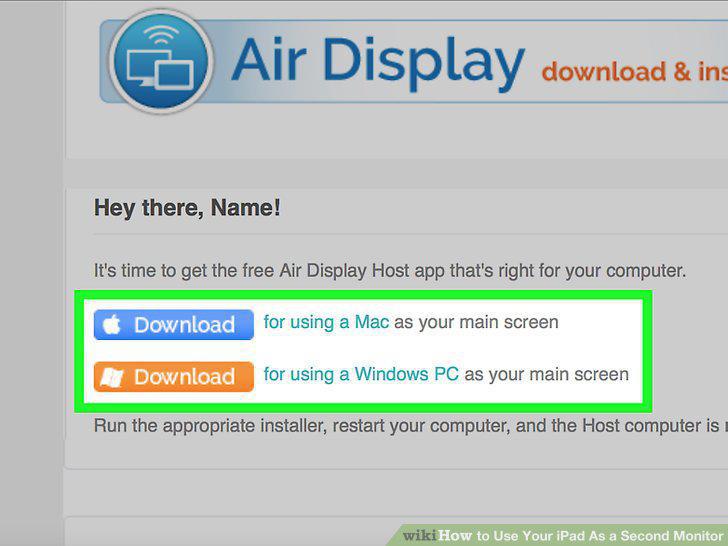
Click the link in the email to download the installer.
Run the installer file.
Run the installer file.
Click the Air Display icon on the computer.
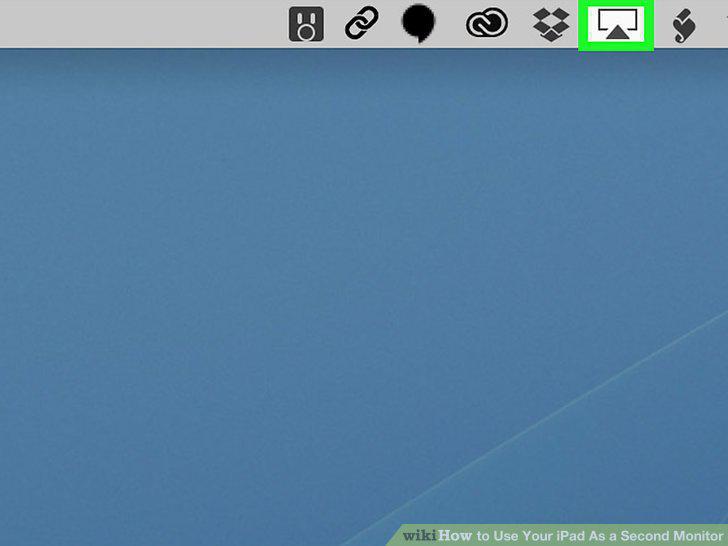
Click the Air Display icon on the computer.
Tap the Air Display icon on your iPad.
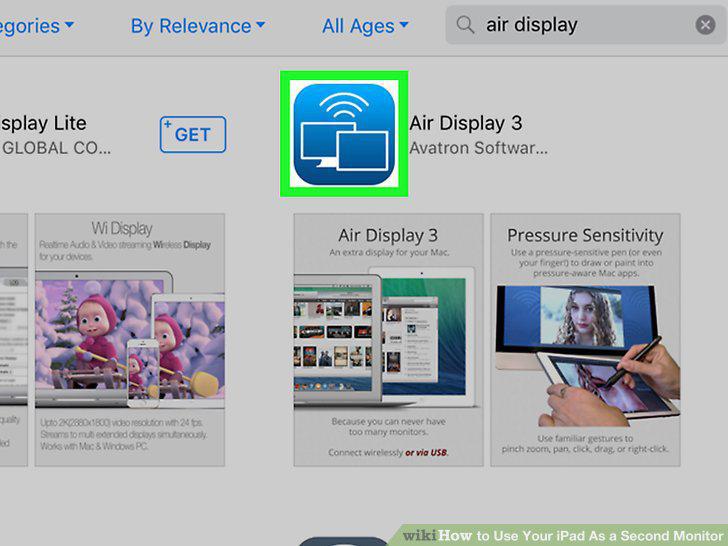
Tap the Air Display icon on your iPad.
Select your iPad in Air Display on your computer.
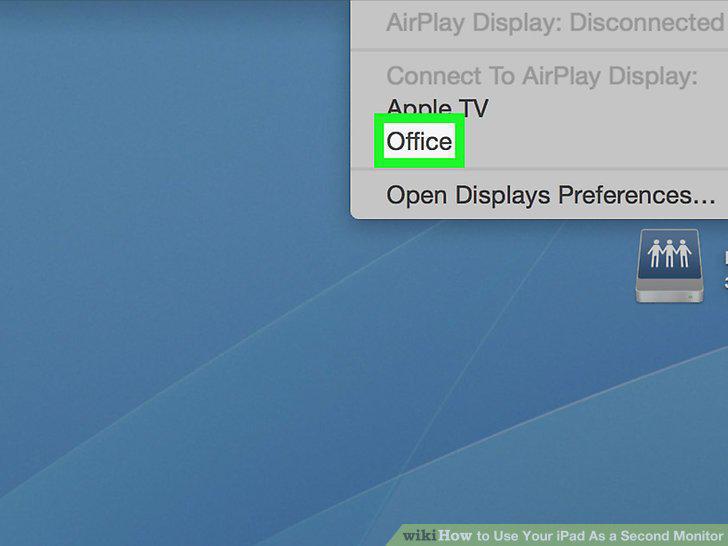
Select your iPad in Air Display on your computer.
Adjust your display settings.
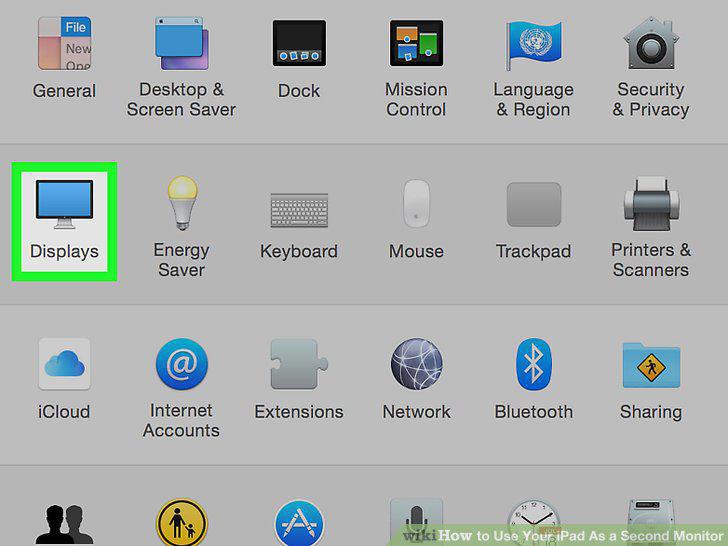
Adjust your display settings.
Comments (0)
No comments yet. Be the first to share your thoughts!