How to Check In on Facebook
Open the Facebook app.. Tap Want to share an update?.. Tap Check In.
Steps
1
Open the Facebook app.
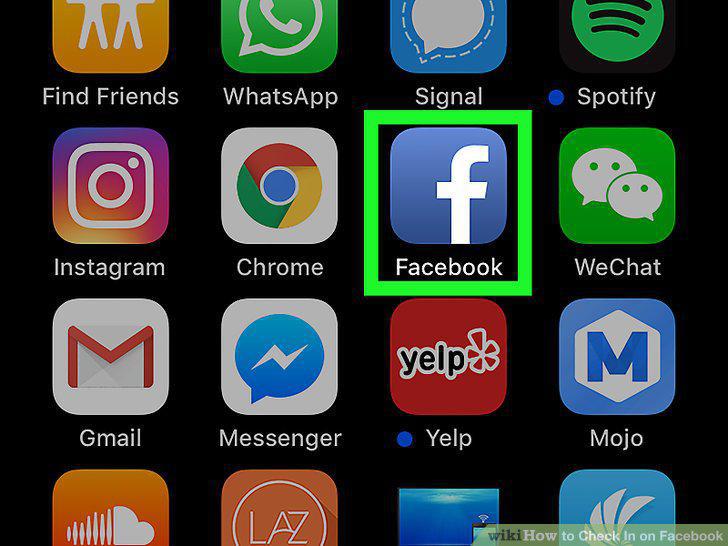
Open the Facebook app.
2
Tap Want to share an update?.
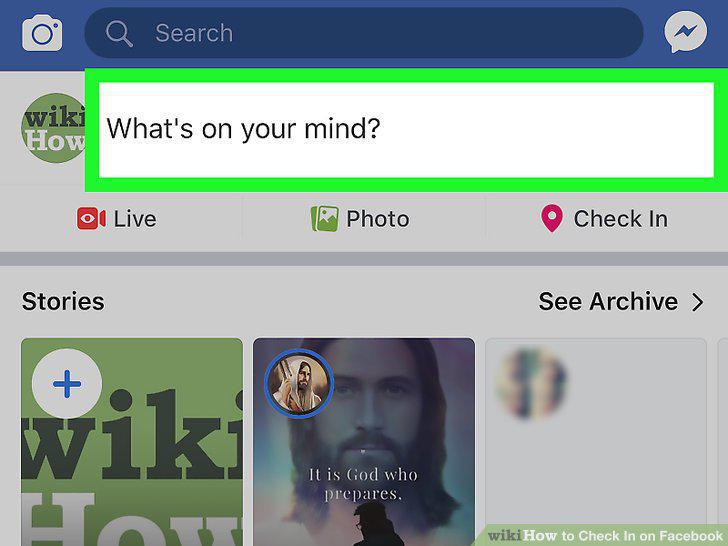
Tap Want to share an update?.
3
Tap Check In.
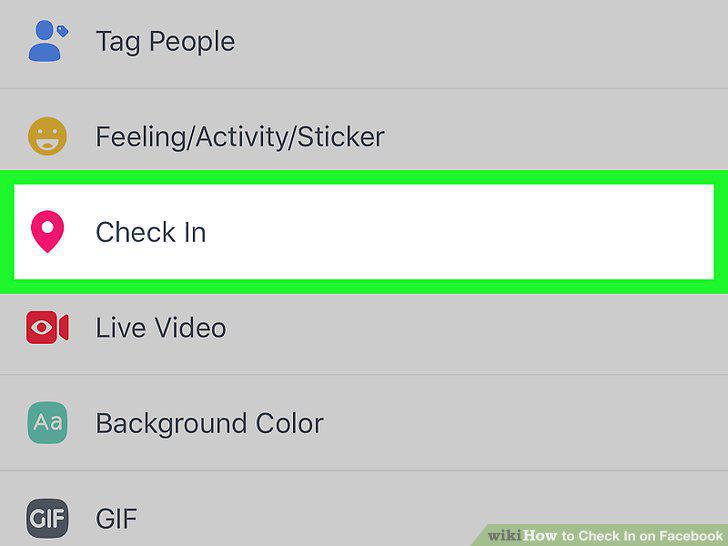
Tap Check In.
4
Tap a location.
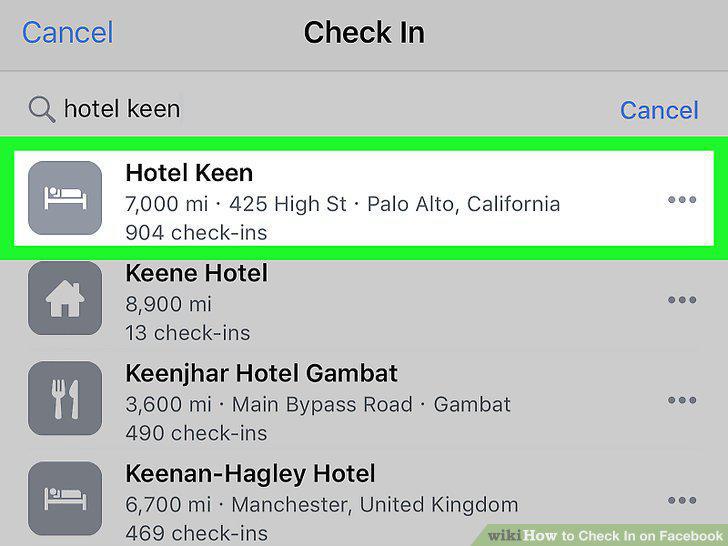
Tap a location.
5
Tap below your profile picture.
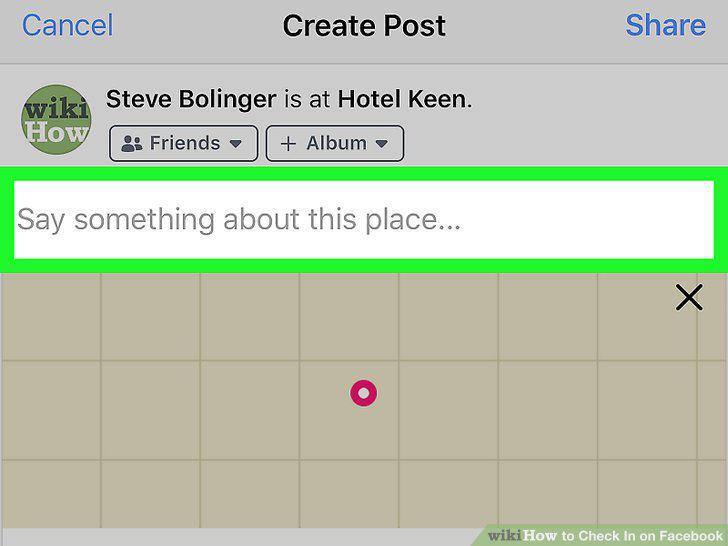
Tap below your profile picture.
6
Type a comment.
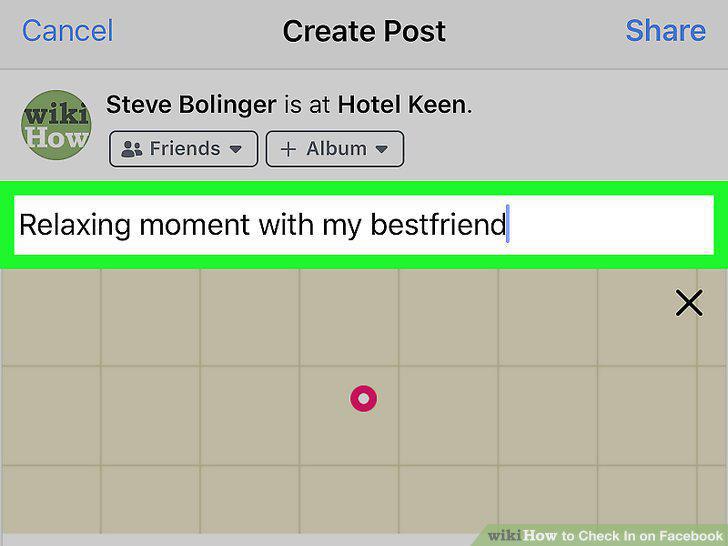
Type a comment.
7
Tap Post in the upper-right.
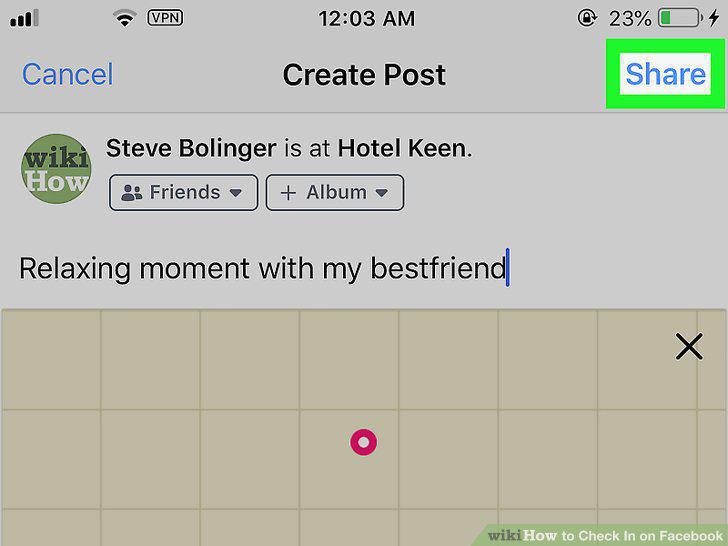
Tap Post in the upper-right.
8
Go to https://www.facebook.com in a Web browser.
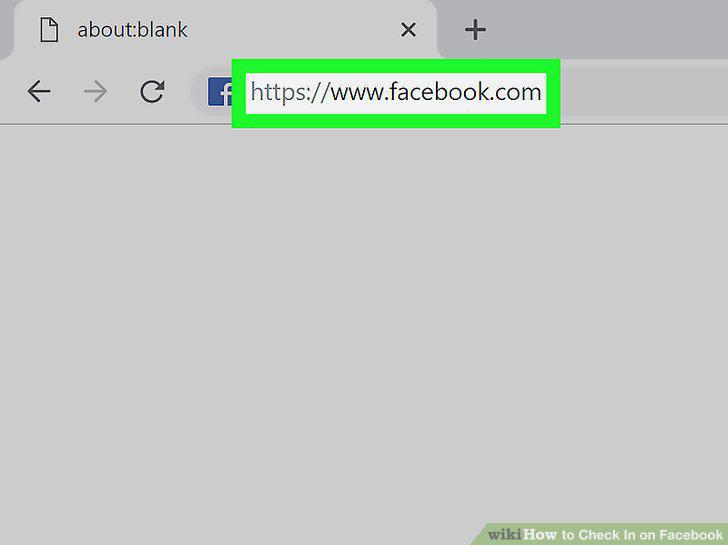
Go to https://www.facebook.com in a Web browser.
9
Click What's on your mind? near the top of the window.

Click What's on your mind? near the top of the window.
10
Click the "Check In" icon.
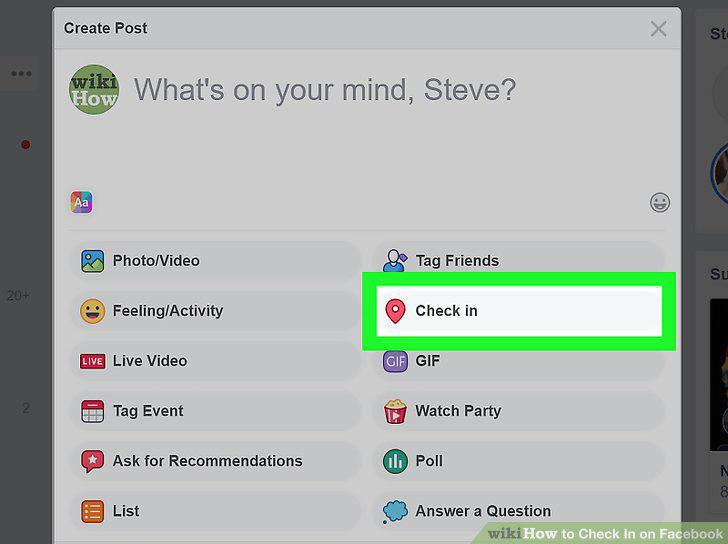
Click the "Check In" icon.
11
Click Where are you?.
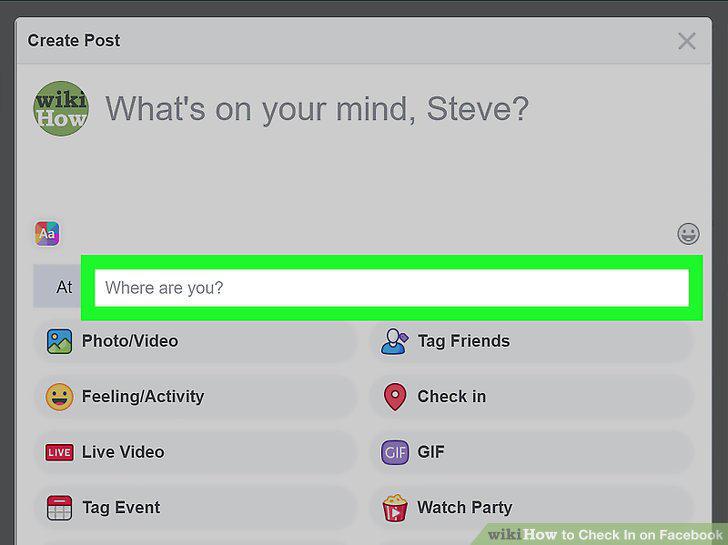
Click Where are you?.
12
Start typing a place name.
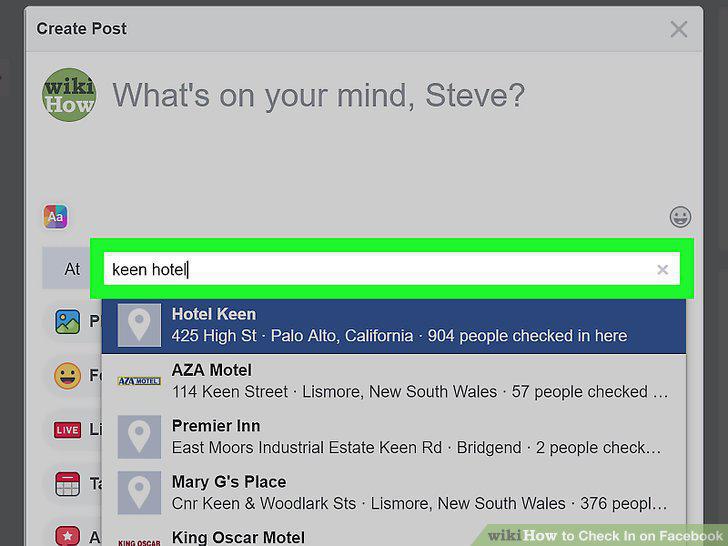
Start typing a place name.
13
Click your location when it appears.
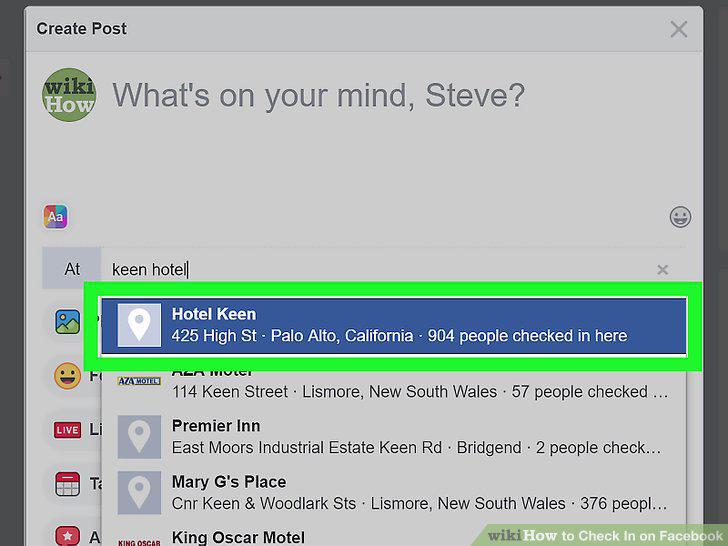
Click your location when it appears.
14
Click What's on your mind?.
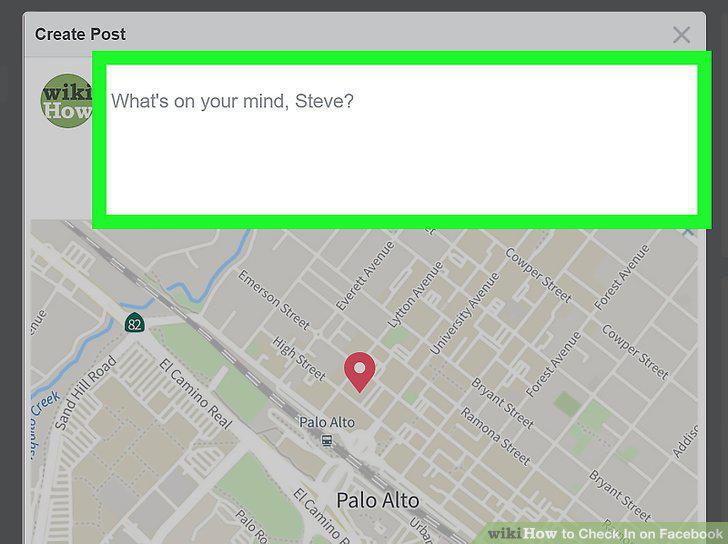
Click What's on your mind?.
15
Type a comment.
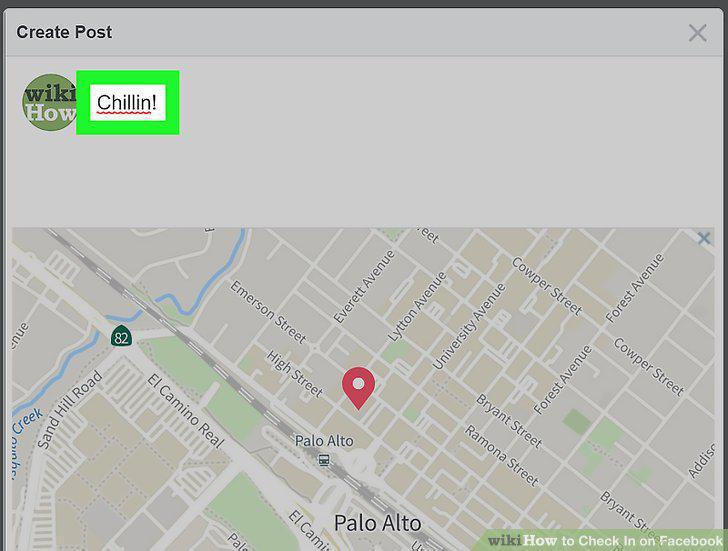
Type a comment.
16
Click Post in the dialog box.
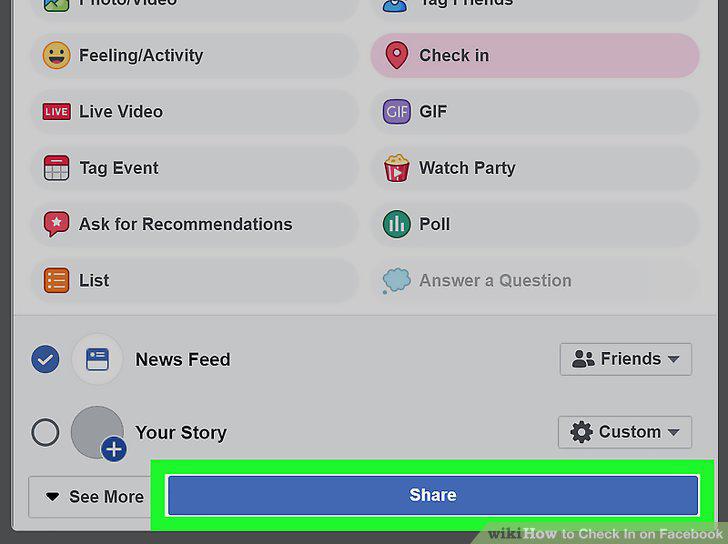
Click Post in the dialog box.
Comments (0)
No comments yet. Be the first to share your thoughts!