How to Hide Tagged Photos on Facebook on PC or Mac
Go to https://www.facebook.com in a web browser.. Click the down-arrow.. Click Settings.
Steps
1
Go to https://www.facebook.com in a web browser.
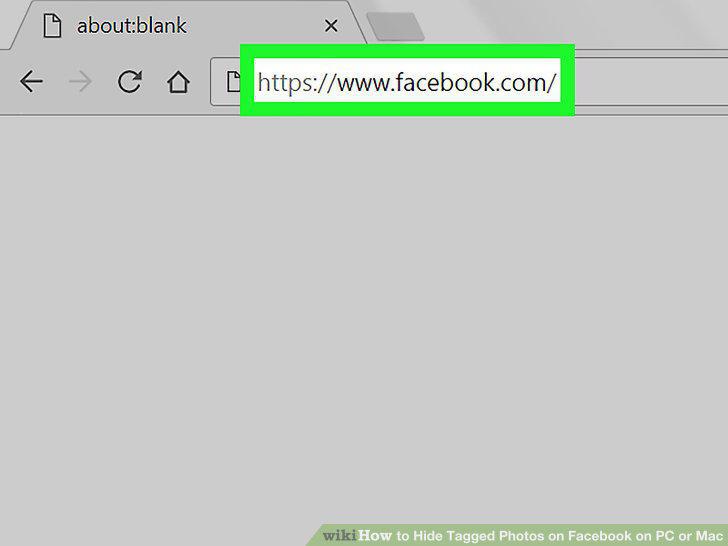
Go to https://www.facebook.com in a web browser.
2
Click the down-arrow.
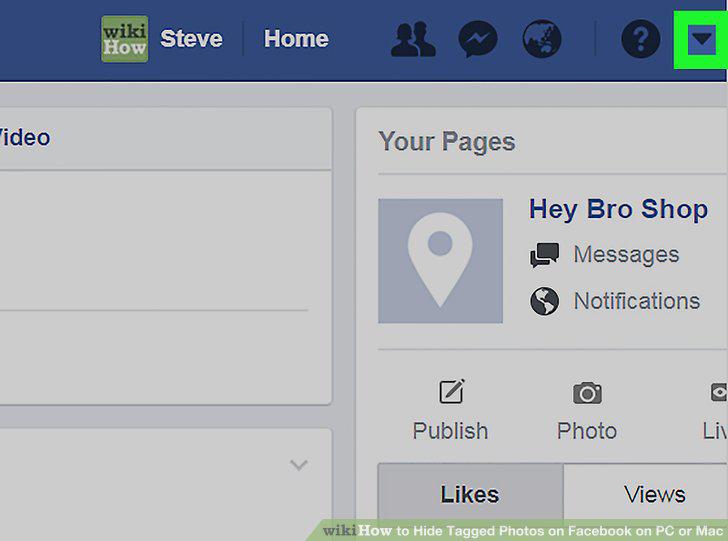
Click the down-arrow.
3
Click Settings.
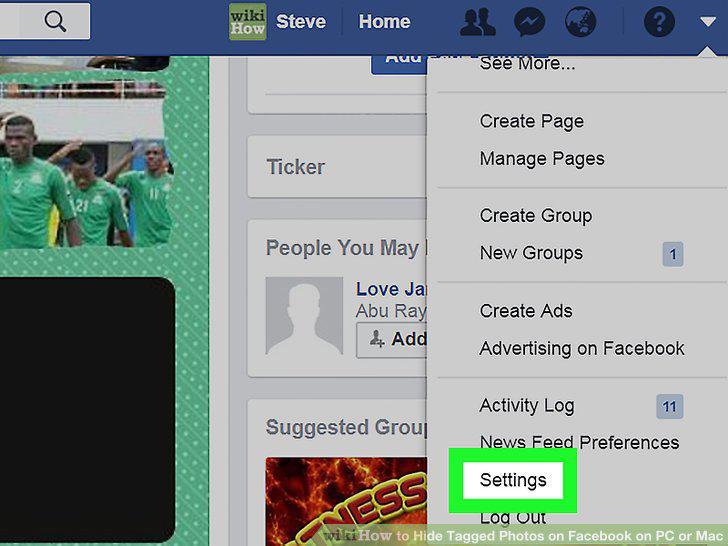
Click Settings.
4
Click Timeline and Tagging.
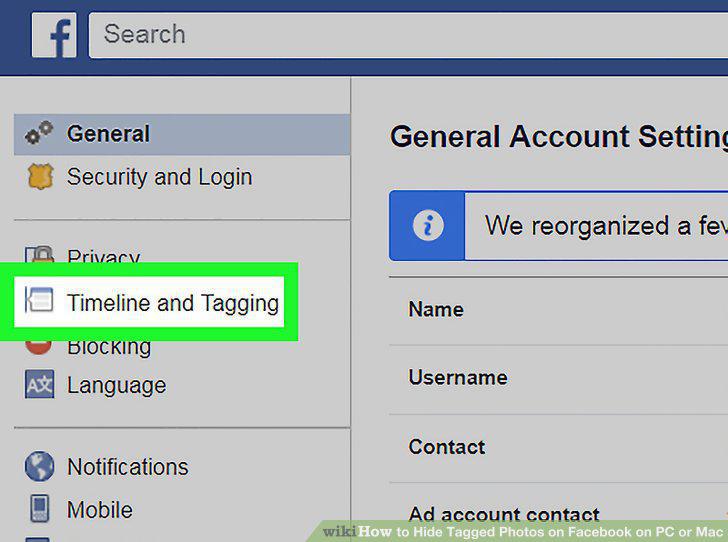
Click Timeline and Tagging.
5
Click Edit next to "Who can see what others post on your timeline?
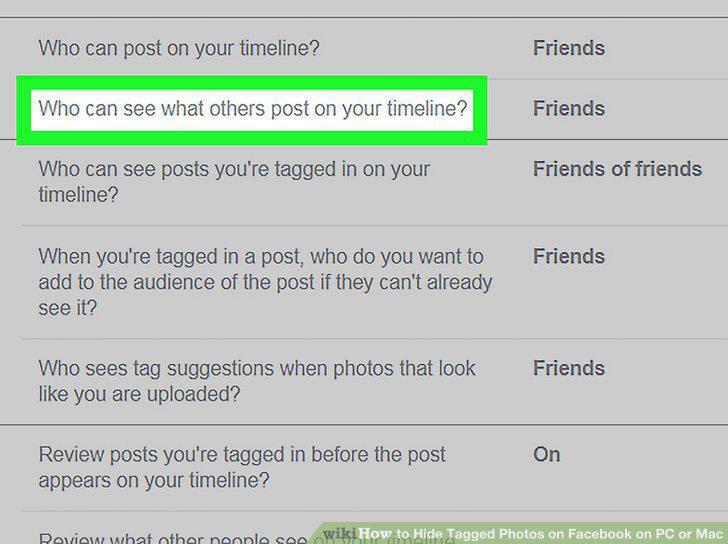
Click Edit next to "Who can see what others post on your timeline?
6
Select Only me from the drop-down menu.
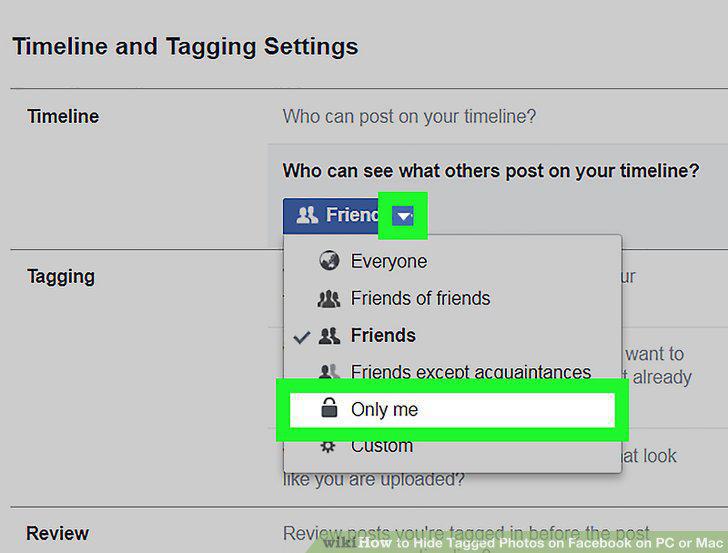
Select Only me from the drop-down menu.
7
Click Edit next to "Who can see posts you're tagged in on your timeline?
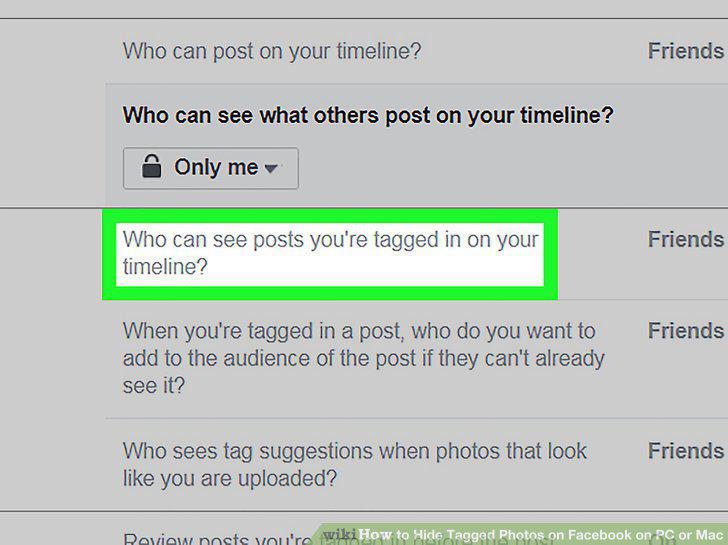
Click Edit next to "Who can see posts you're tagged in on your timeline?
8
Select Only me from the drop-down menu.
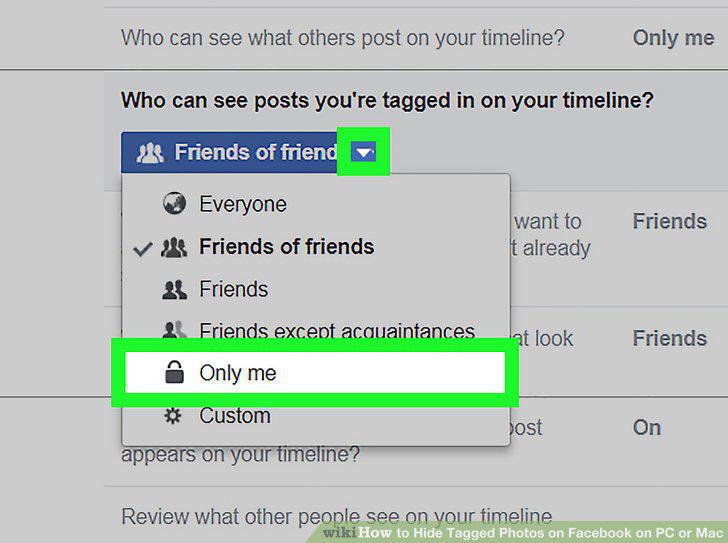
Select Only me from the drop-down menu.
9
Click Edit next to "When you're tagged in a post, who do you want to add to the
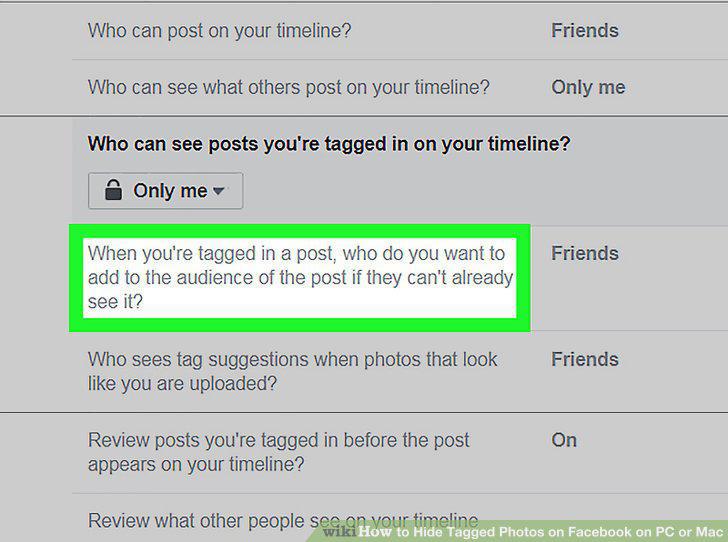
Click Edit next to "When you're tagged in a post, who do you want to add to the audience of the post if they can't already see it?
10
Select Only me from the drop-down menu.
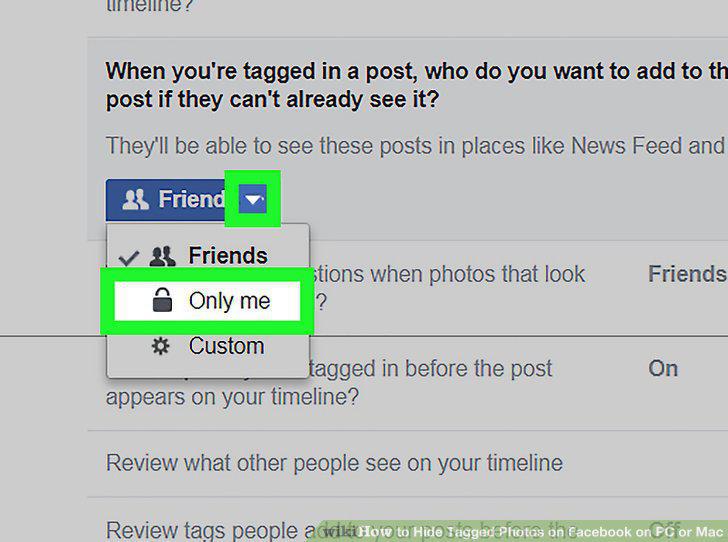
Select Only me from the drop-down menu.
Comments (0)
No comments yet. Be the first to share your thoughts!