How to Get the Most Out of Google
Add the modifiers (-) and (" ") to make your searches more specific.. Specify your search by site, title, text, URL, or file type.. Type (*) as a placeholder if you forget part of a quote or lyric.
Steps
Add the modifiers (-) and (" ") to make your searches more specific.
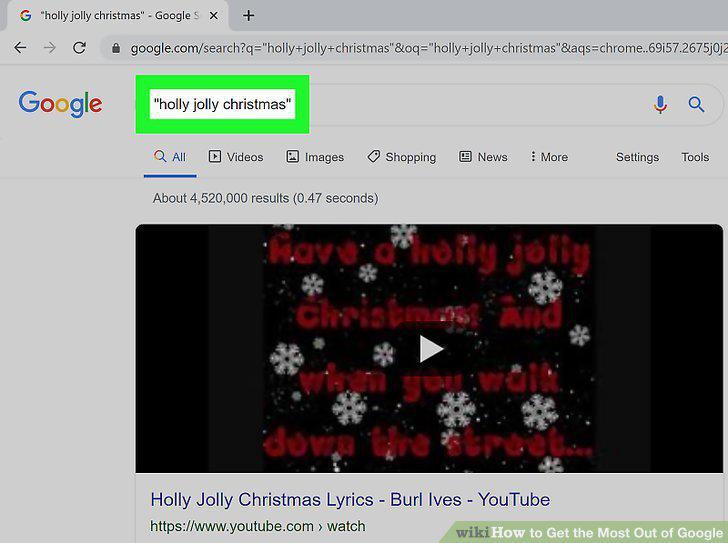
Add the modifiers (-) and (" ") to make your searches more specific.
Specify your search by site, title, text, URL, or file type.
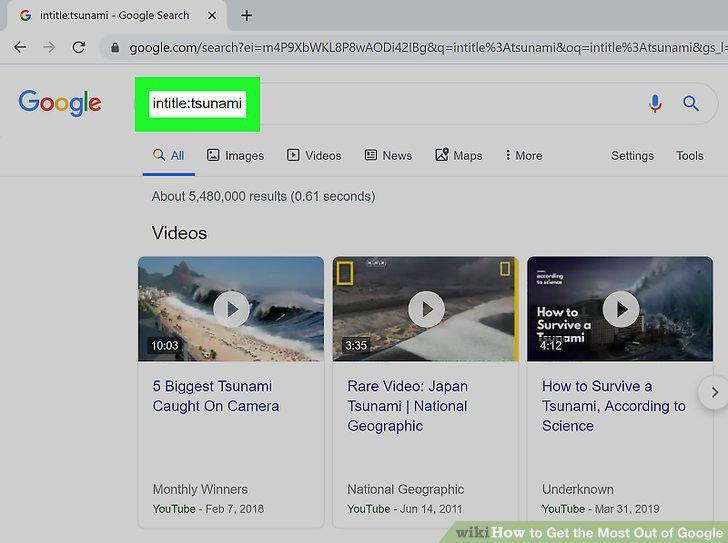
Specify your search by site, title, text, URL, or file type.
Type (*) as a placeholder if you forget part of a quote or lyric.
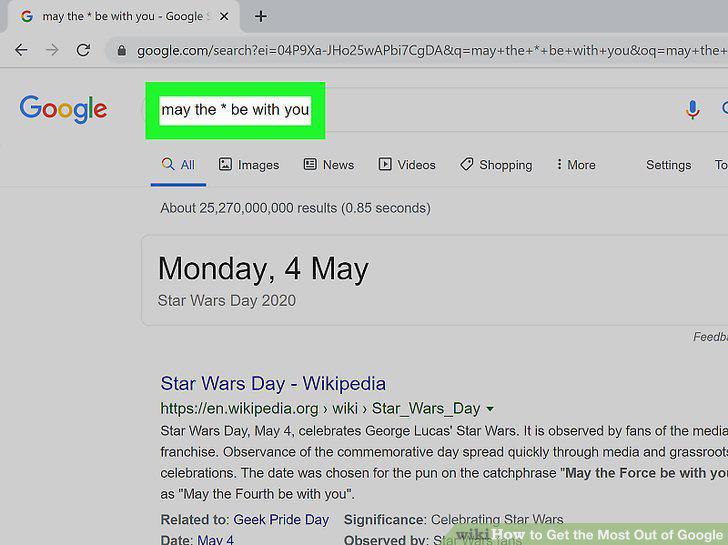
Type (*) as a placeholder if you forget part of a quote or lyric.
Use Search to do math, make conversions, and more.
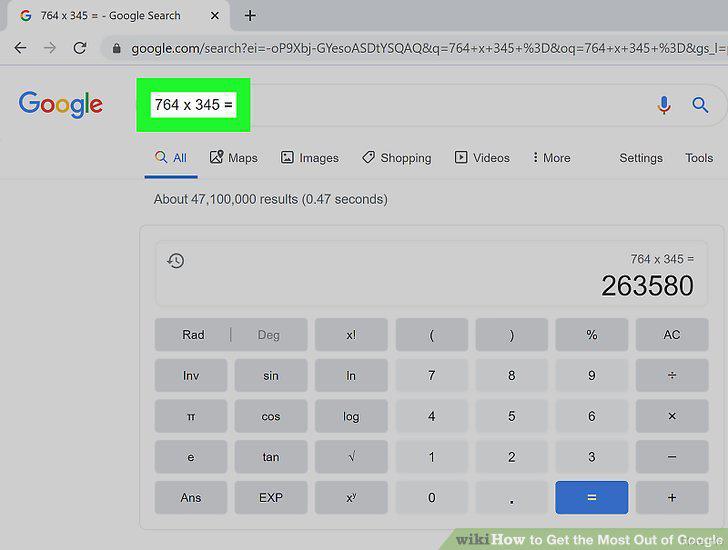
Use Search to do math, make conversions, and more.
Use the omnibar (address bar) to do Google searches.
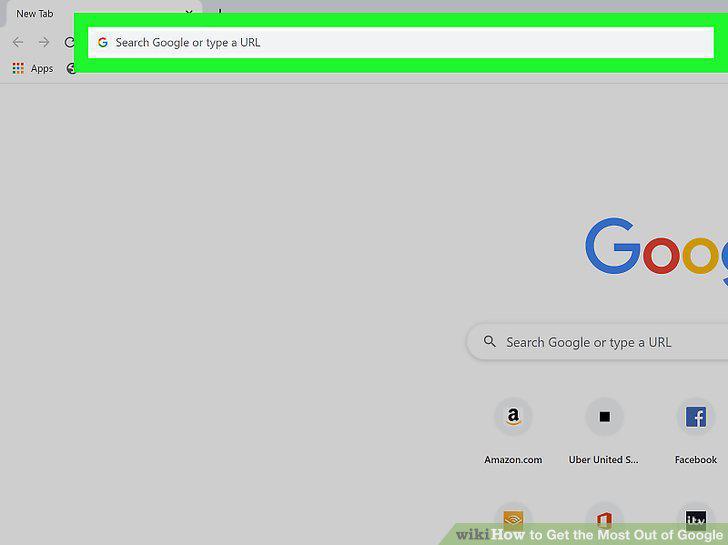
Use the omnibar (address bar) to do Google searches.
Browse in incognito mode to conceal your history and cookies.
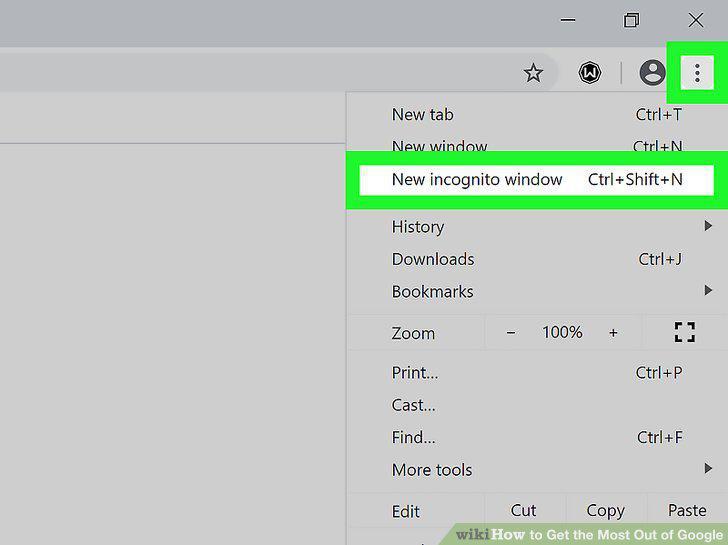
Browse in incognito mode to conceal your history and cookies.
Pin tabs to prioritize them and restore tabs you accidentally close.
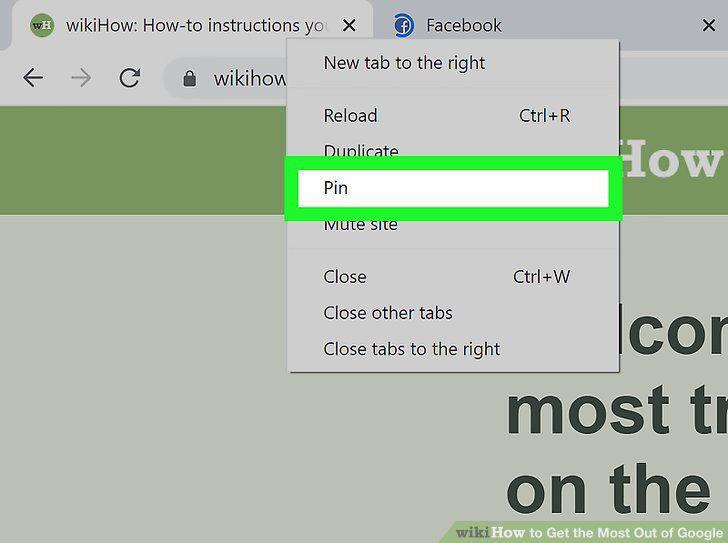
Pin tabs to prioritize them and restore tabs you accidentally close.
Set the startup tabs for each time you open Chrome.
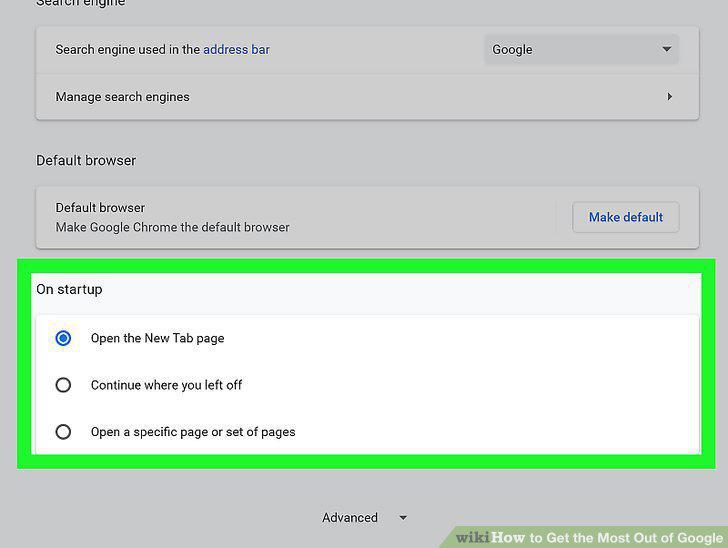
Set the startup tabs for each time you open Chrome.
Get a Google account (required) and use Google Chrome (recommended).
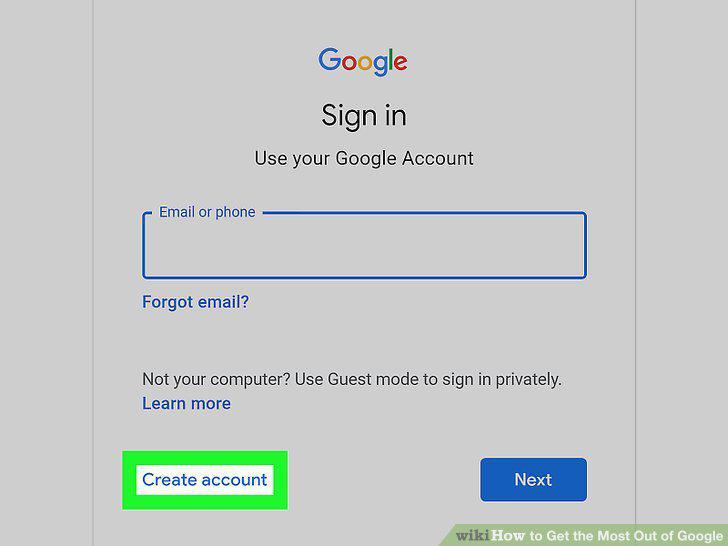
Get a Google account (required) and use Google Chrome (recommended).
Use the "Search Drive" bar to find files in your Drive.
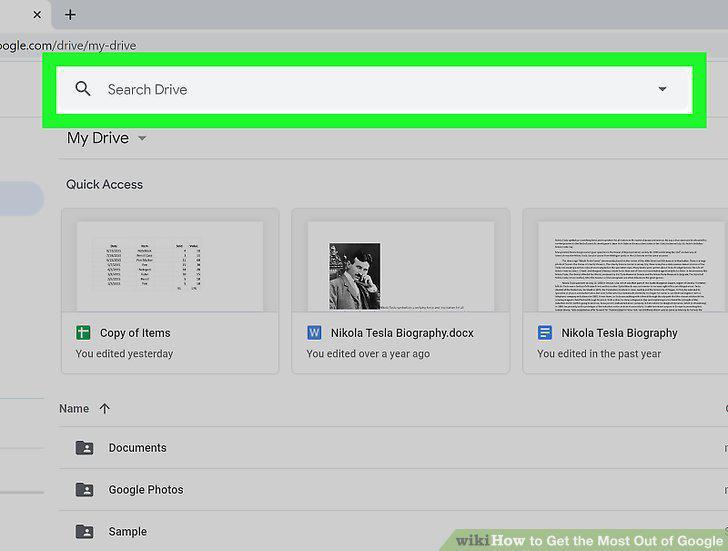
Use the "Search Drive" bar to find files in your Drive.
Click the Share tab to collaborate on documents with others.
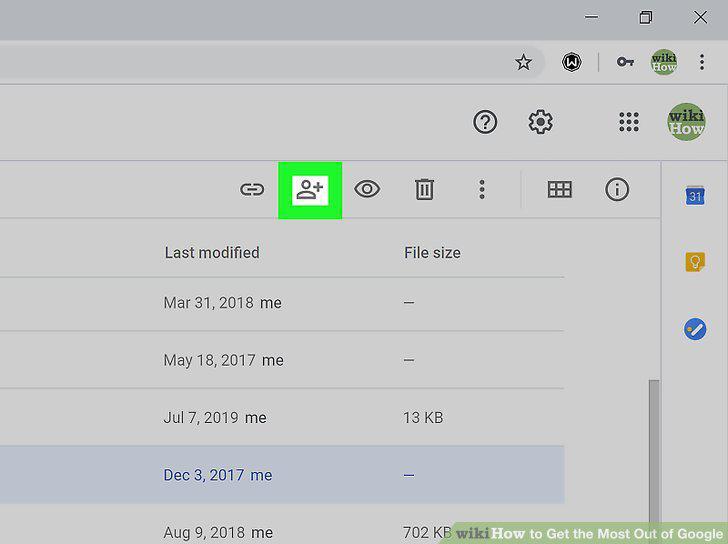
Click the Share tab to collaborate on documents with others.
Scan, convert, or translate files with a few clicks.
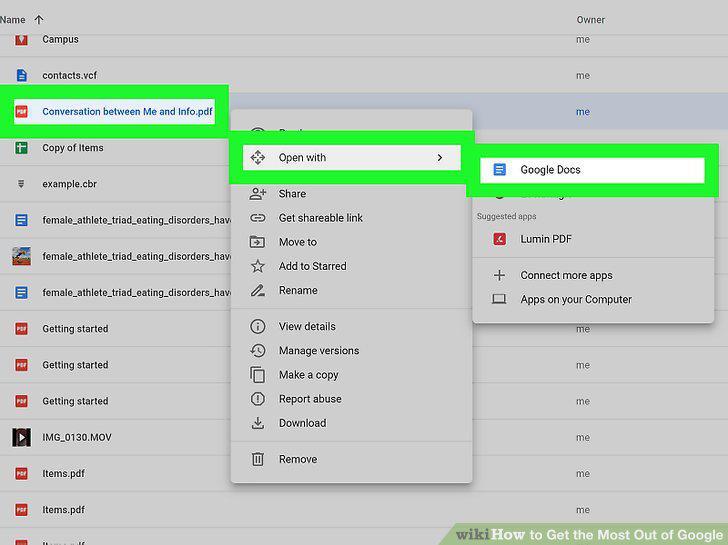
Scan, convert, or translate files with a few clicks.
Use the Snooze feature to deal with Gmail messages on your schedule.
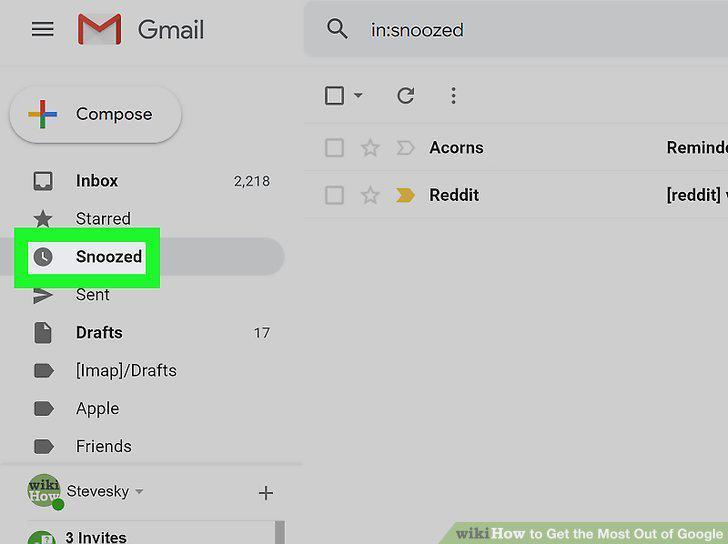
Use the Snooze feature to deal with Gmail messages on your schedule.
Remember where you parked your car with Google Maps.
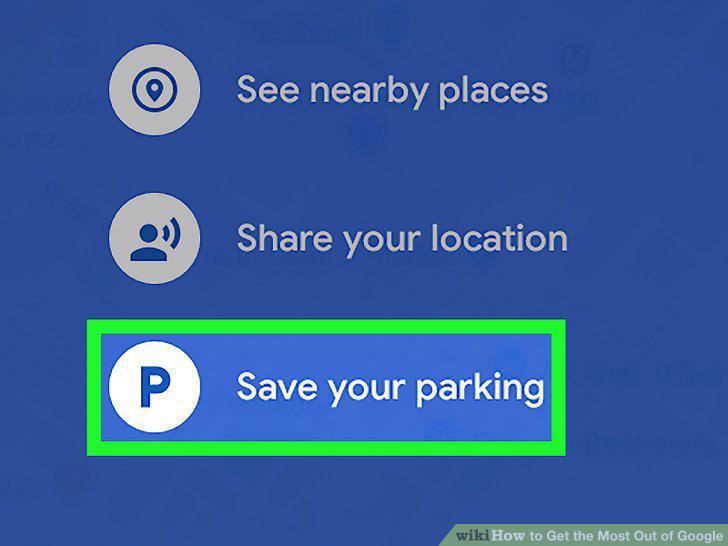
Remember where you parked your car with Google Maps.
Search through all your Google Photos images and videos by person.
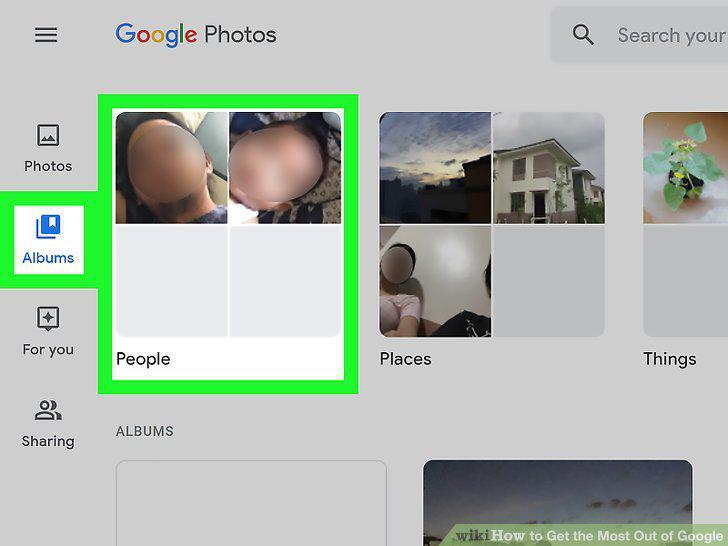
Search through all your Google Photos images and videos by person.
Use the Full Coverage feature in Google News to get a broader view of a topic.
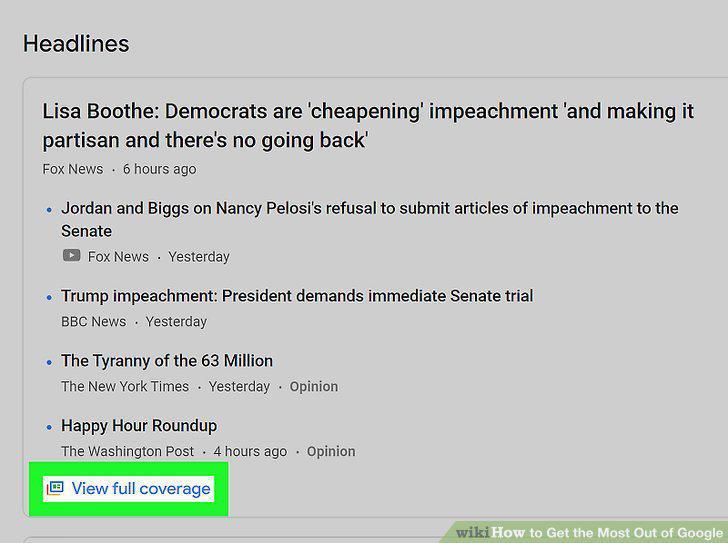
Use the Full Coverage feature in Google News to get a broader view of a topic.
Comments (0)
No comments yet. Be the first to share your thoughts!