How to Check an IIS Event Log on Windows
Click the search button on your computer's taskbar.. Enter Event Viewer into the search.. Click Event Viewer in the search results.
Steps
1
Click the search button on your computer's taskbar.

Click the search button on your computer's taskbar.
2
Enter Event Viewer into the search.
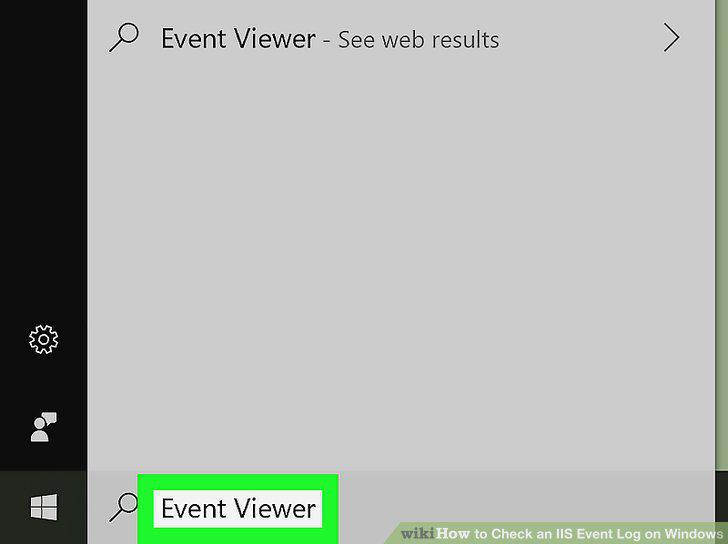
Enter Event Viewer into the search.
3
Click Event Viewer in the search results.
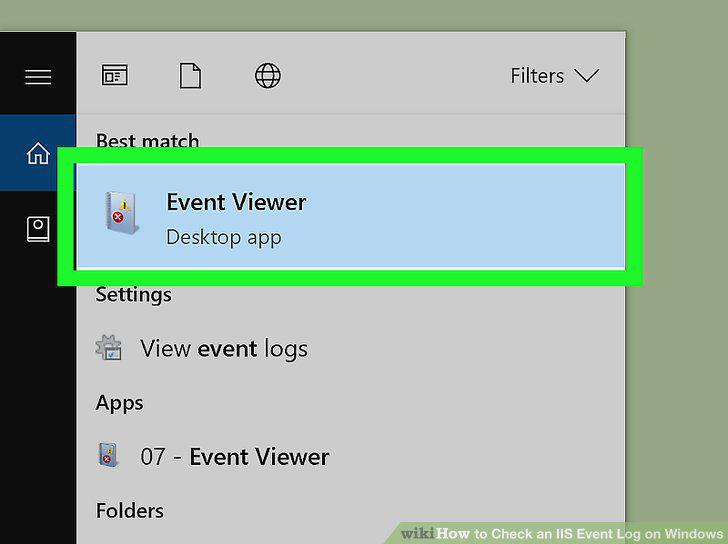
Click Event Viewer in the search results.
4
Click the icon next to the Windows Logs folder.
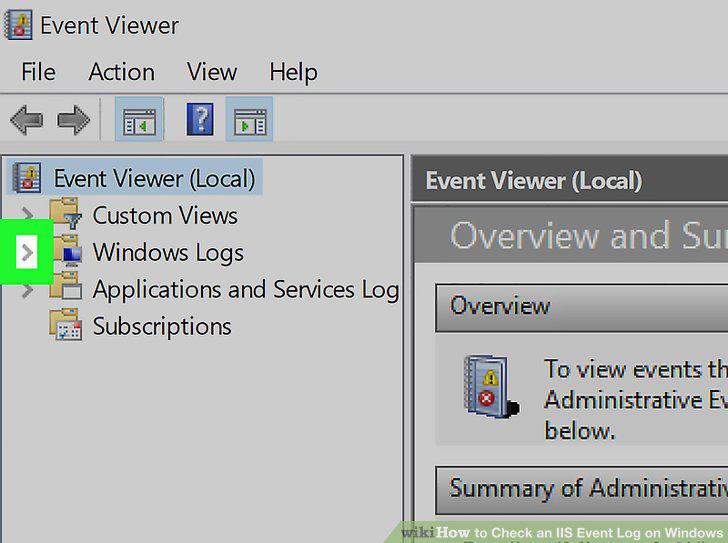
Click the icon next to the Windows Logs folder.
5
Click Application below Windows Logs on the sidebar.
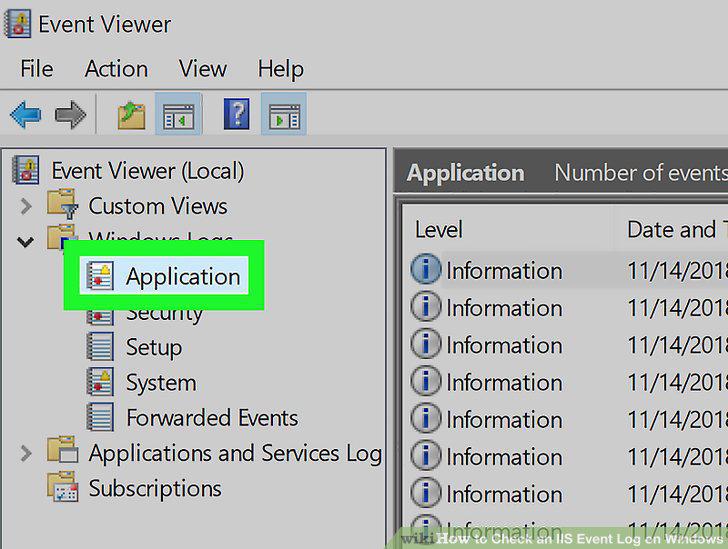
Click Application below Windows Logs on the sidebar.
6
Click the Source heading at the top of the list.
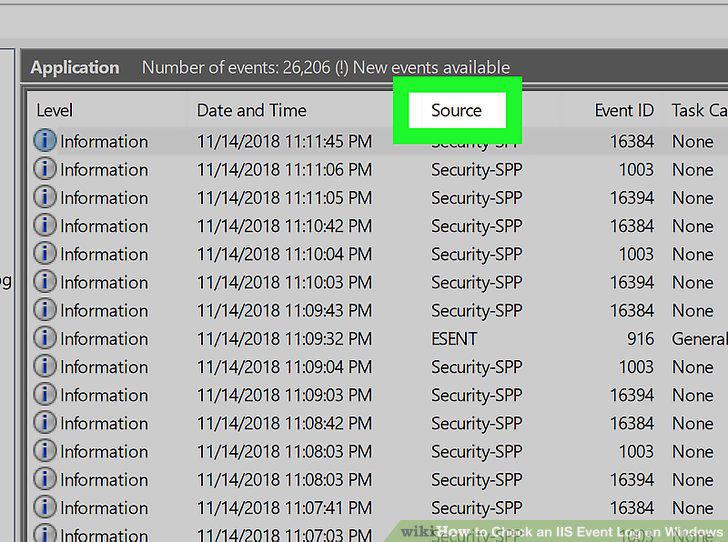
Click the Source heading at the top of the list.
7
Double-click an IIS event log on the list.
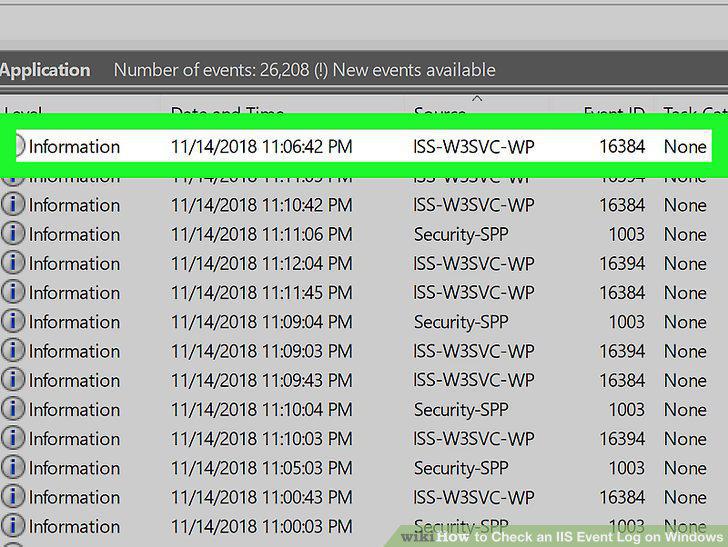
Double-click an IIS event log on the list.
Comments (0)
No comments yet. Be the first to share your thoughts!