How to Fix Black Screen on Windows 7 After Resume from Hibernate or Resume from Sleep
Turn off or reboot your computer.. Open the BIOS Settings.. Identify the CPU Fan Speed.
Steps
1
Turn off or reboot your computer.
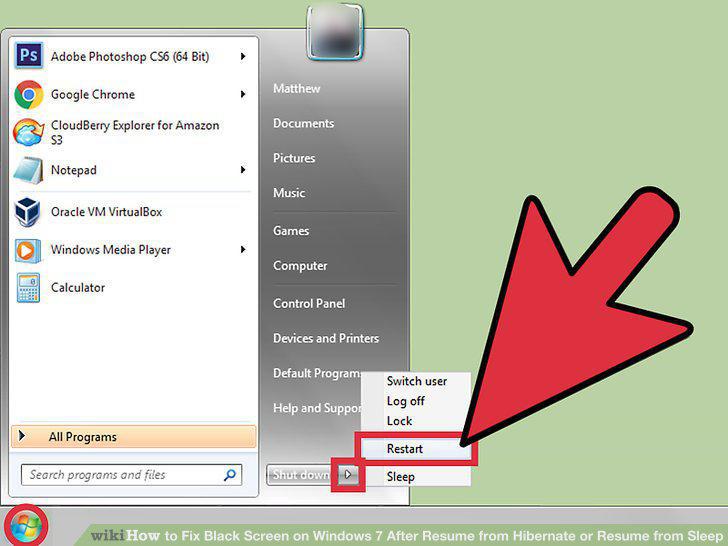
Turn off or reboot your computer.
2
Open the BIOS Settings.
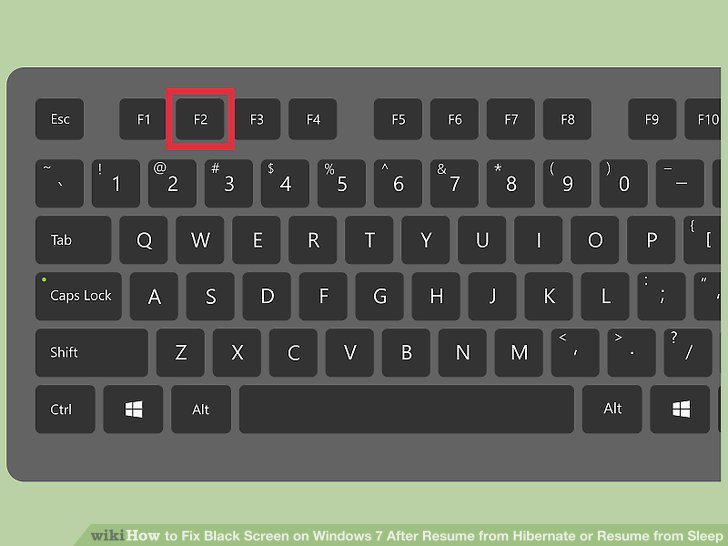
Open the BIOS Settings.
3
Identify the CPU Fan Speed.
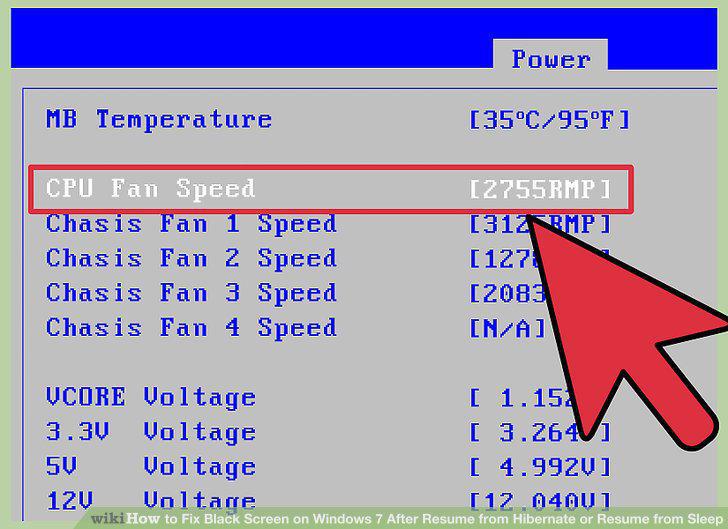
Identify the CPU Fan Speed.
4
Change the CPU Fan Speed.
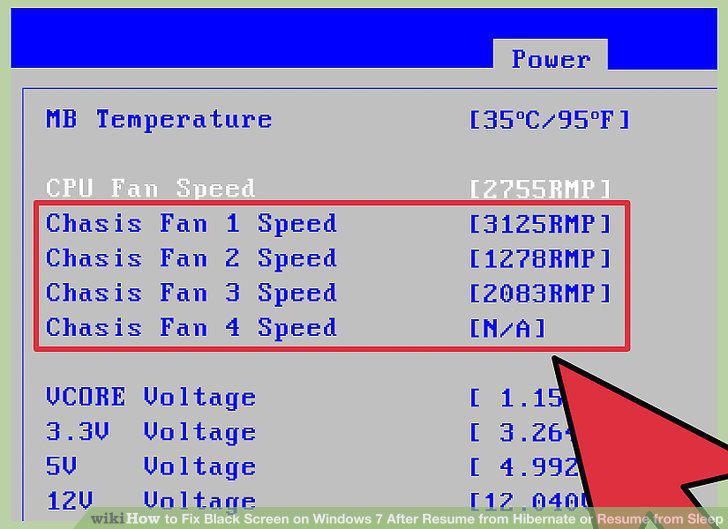
Change the CPU Fan Speed.
5
Download and install fan-controlling software.
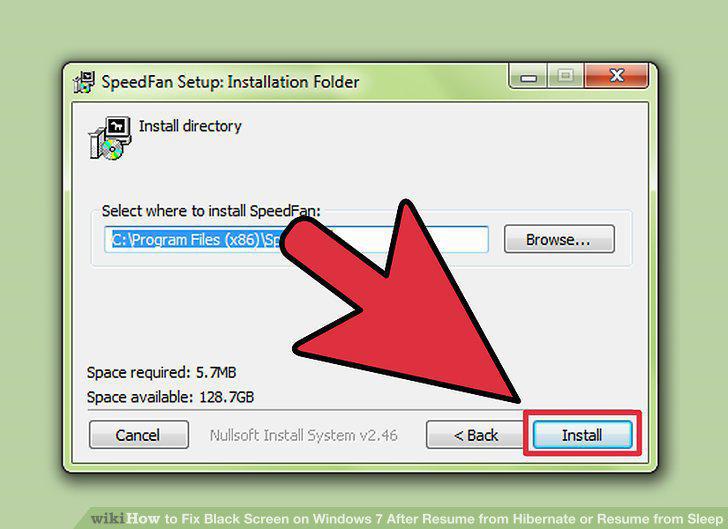
Download and install fan-controlling software.
6
Repair or replace the CPU fan on your computer.
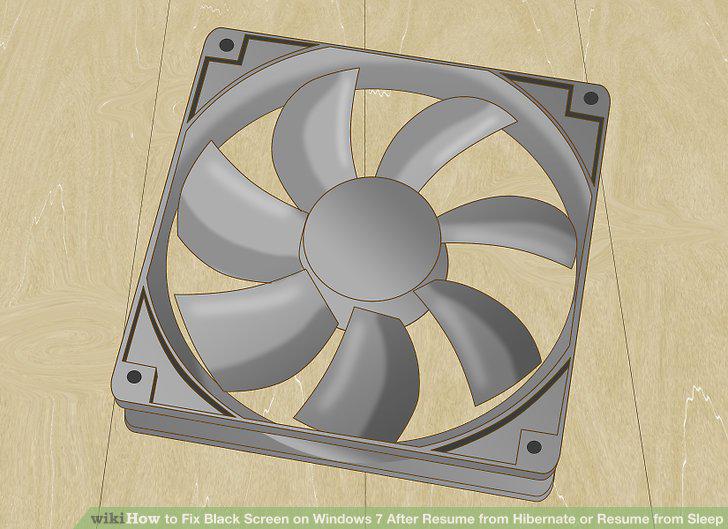
Repair or replace the CPU fan on your computer.
7
Update the graphics drivers or system BIOS.
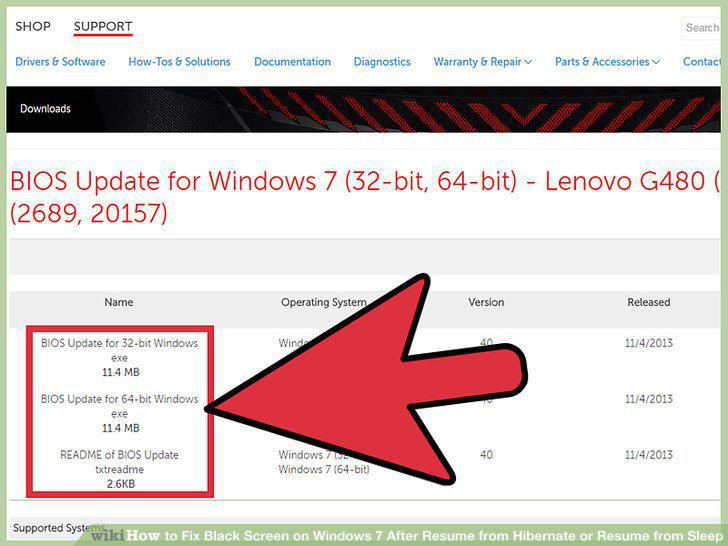
Update the graphics drivers or system BIOS.
8
Turn off or reboot your computer.
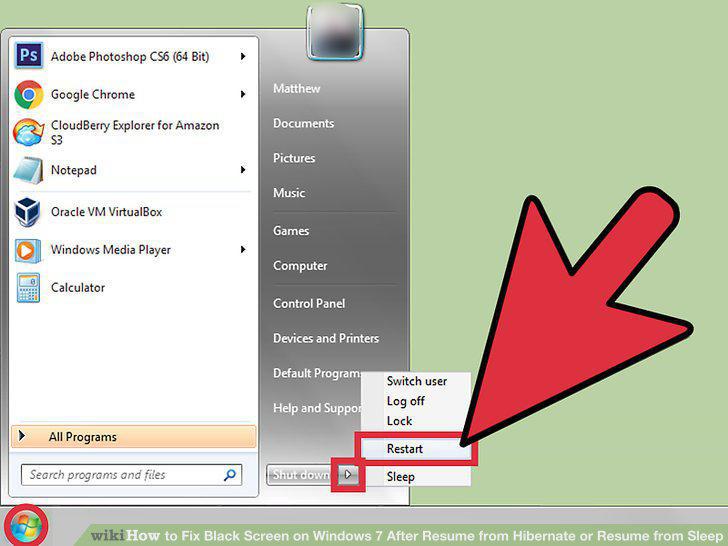
Turn off or reboot your computer.
9
Turn on your computer and boot Windows 7 into safe mode.
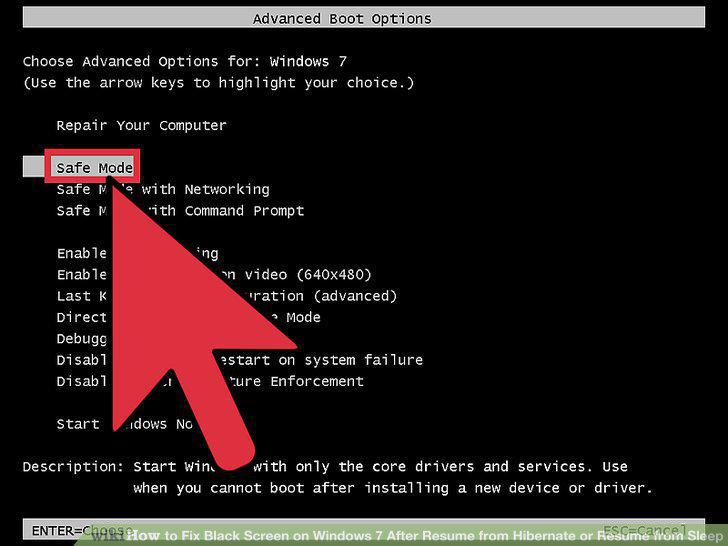
Turn on your computer and boot Windows 7 into safe mode.
10
Log in to your desktop and set the computer into sleep or hibernation mode.
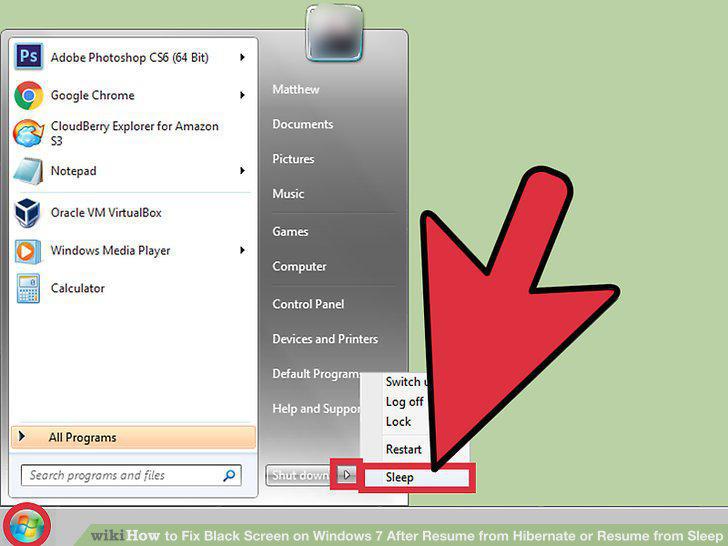
Log in to your desktop and set the computer into sleep or hibernation mode.
11
Resume from the Sleep or Hibernate Mode.
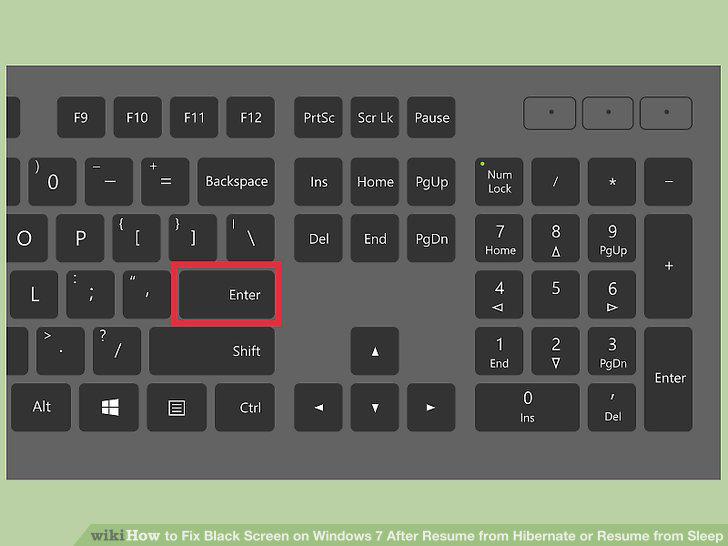
Resume from the Sleep or Hibernate Mode.
12
Close programs that use high amounts of RAM.
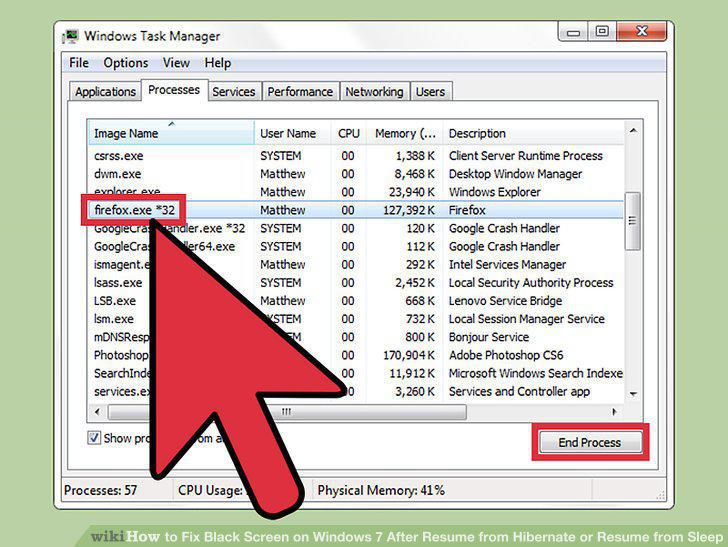
Close programs that use high amounts of RAM.
13
Investigate the physical RAM usage.
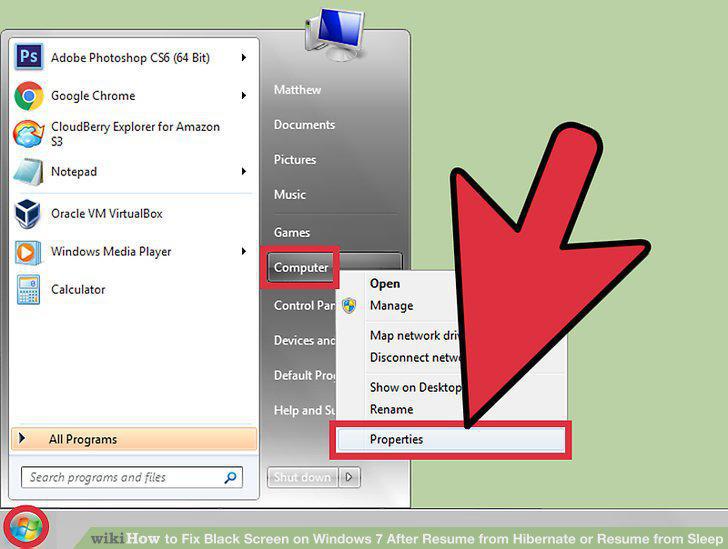
Investigate the physical RAM usage.
14
Navigate to Advanced system settings.
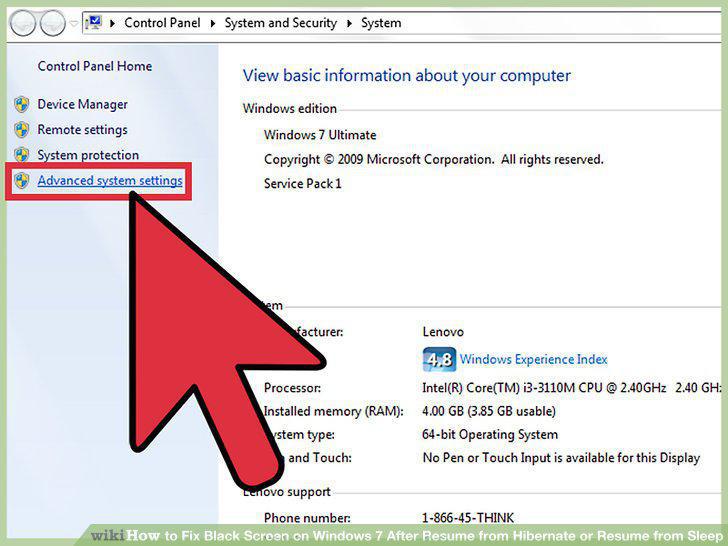
Navigate to Advanced system settings.
15
Navigate to the Performance settings.
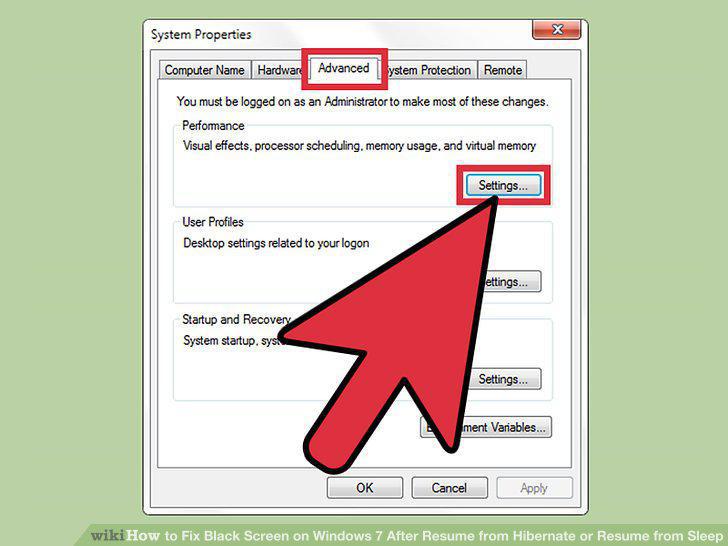
Navigate to the Performance settings.
16
Change the Virtual Memory settings.
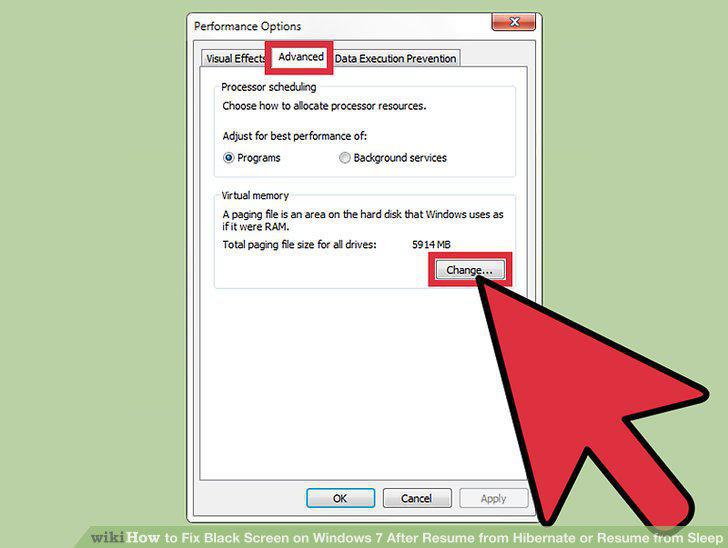
Change the Virtual Memory settings.
17
Set the page file size.
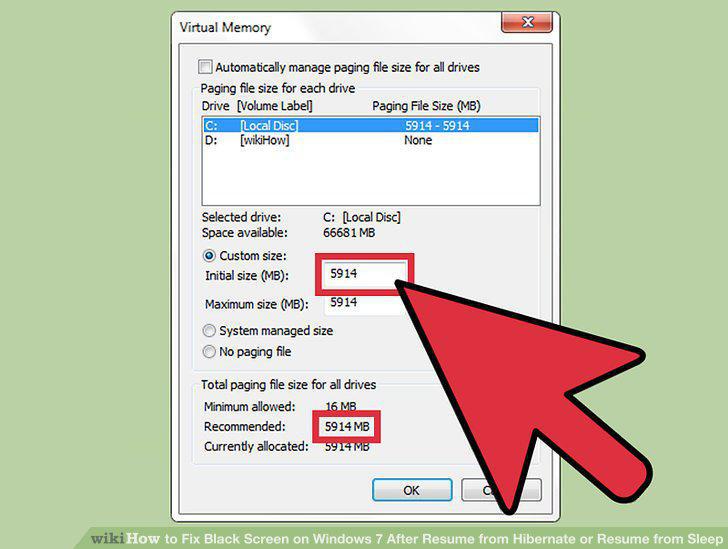
Set the page file size.
Comments (0)
No comments yet. Be the first to share your thoughts!