How to Change the Ink Cartridge in an HP Envy 5000
Make sure your printer is powered on.. Lift the ink cartridge access door.. Remove the ink cartridge from the printer.
Steps
1
Make sure your printer is powered on.
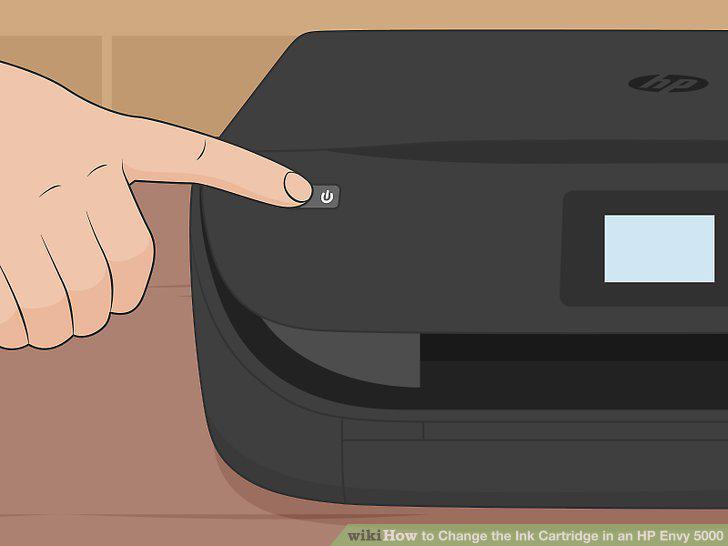
Make sure your printer is powered on.
2
Lift the ink cartridge access door.
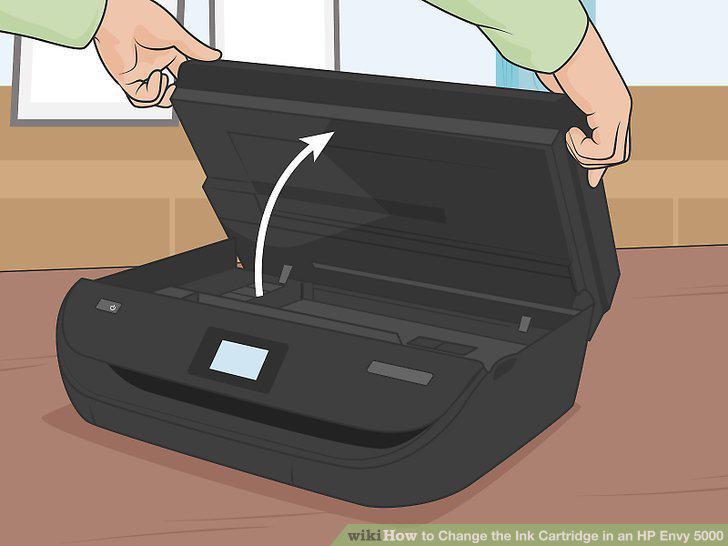
Lift the ink cartridge access door.
3
Remove the ink cartridge from the printer.
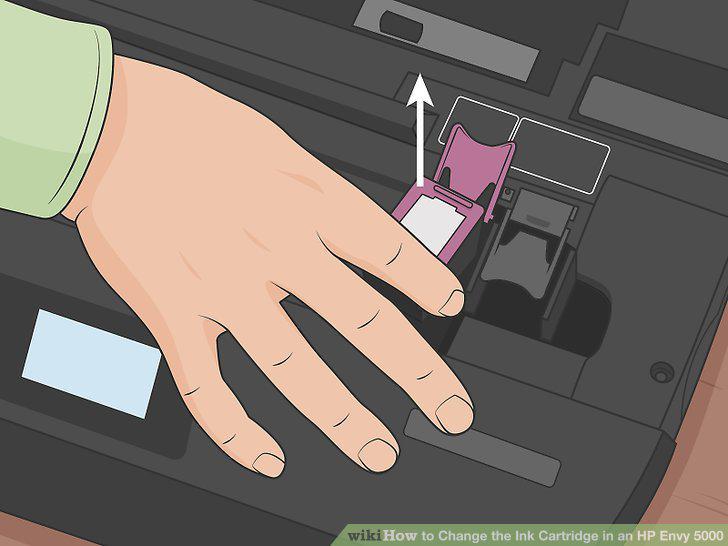
Remove the ink cartridge from the printer.
4
Remove the new ink from its packaging.
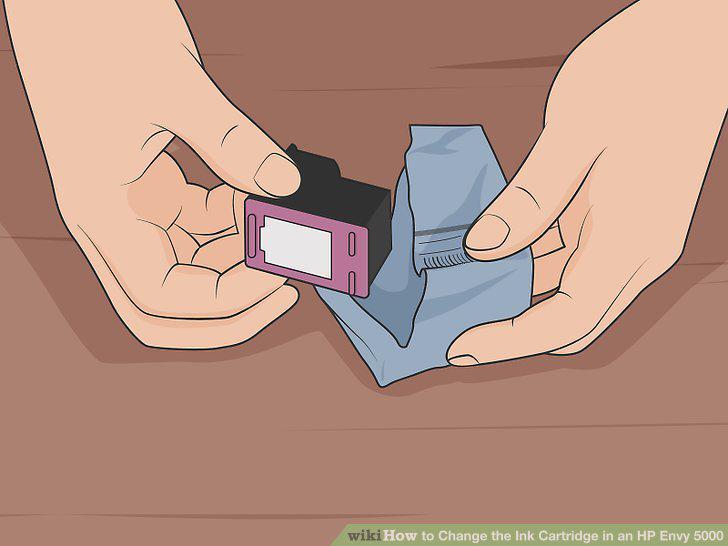
Remove the new ink from its packaging.
5
Hold the new cartridge by its sides and remove the orange sticker.
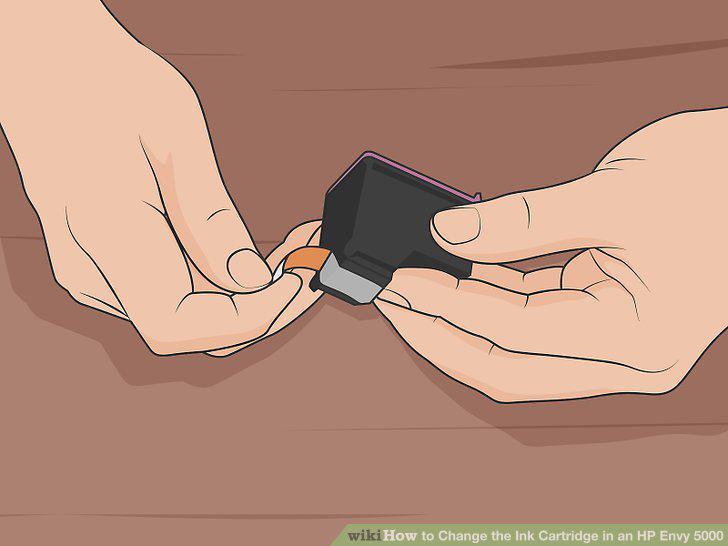
Hold the new cartridge by its sides and remove the orange sticker.
6
Insert the cartridge in its appropriate slot.
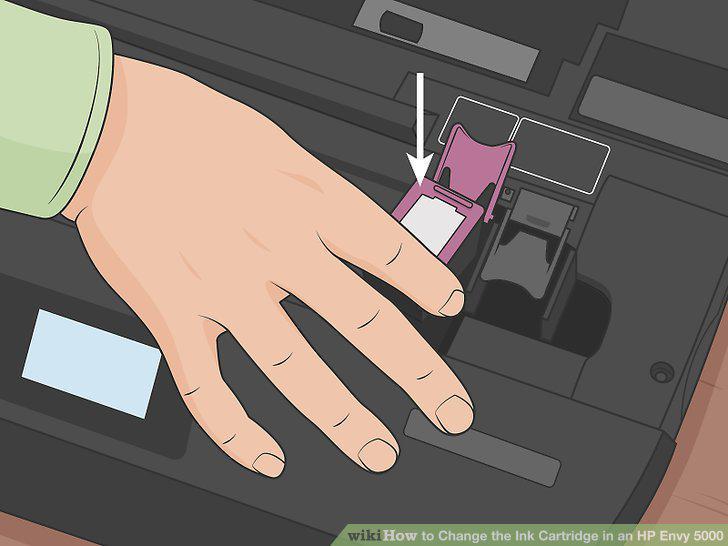
Insert the cartridge in its appropriate slot.
7
Close the ink cartridge access door.
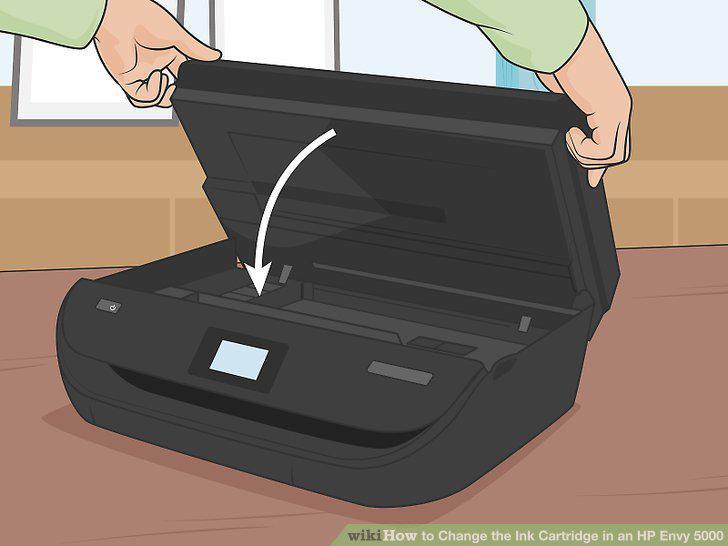
Close the ink cartridge access door.
8
Touch OK on the printer's control panel.
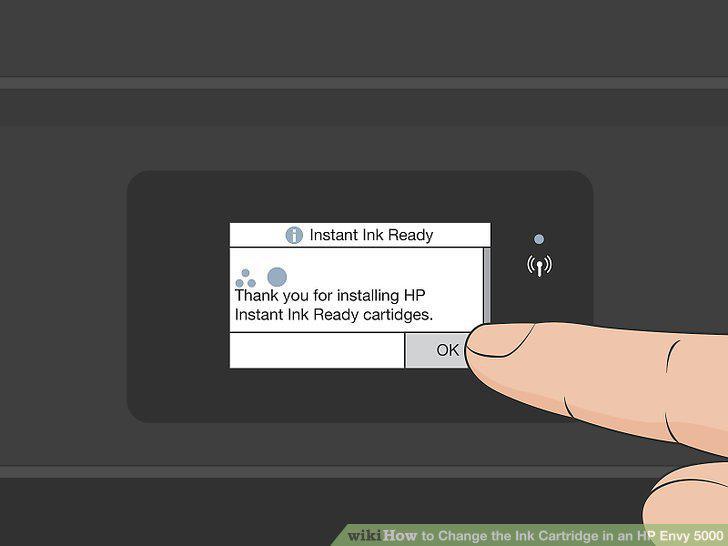
Touch OK on the printer's control panel.
Comments (0)
No comments yet. Be the first to share your thoughts!