How to Change Password on Line App on Android
Open the LINE app on your Android.. Tap the icon.. Tap Account on the Settings menu.
Steps
1
Open the LINE app on your Android.
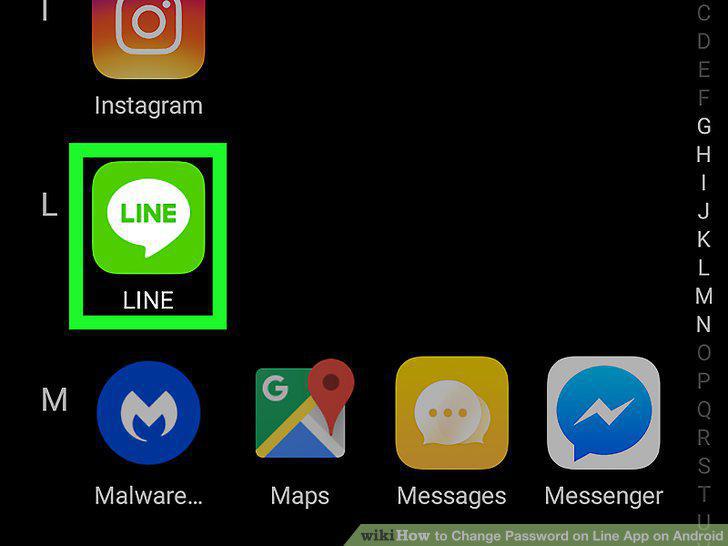
Open the LINE app on your Android.
2
Tap the icon.
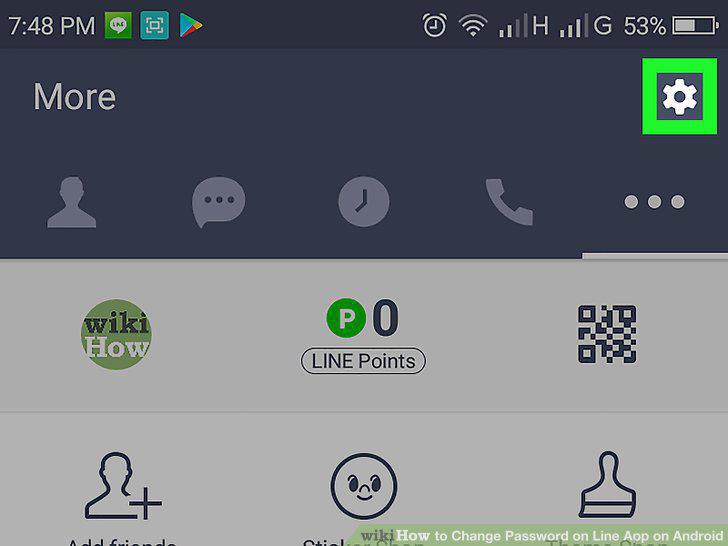
Tap the icon.
3
Tap Account on the Settings menu.
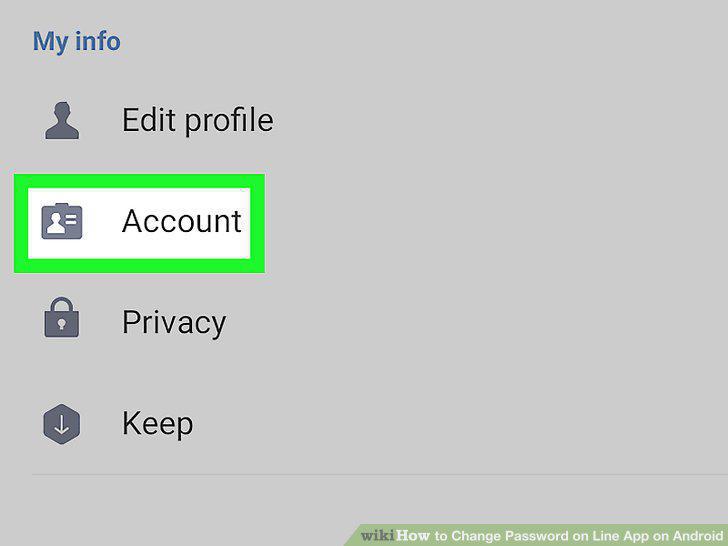
Tap Account on the Settings menu.
4
Tap Password on the Account menu.
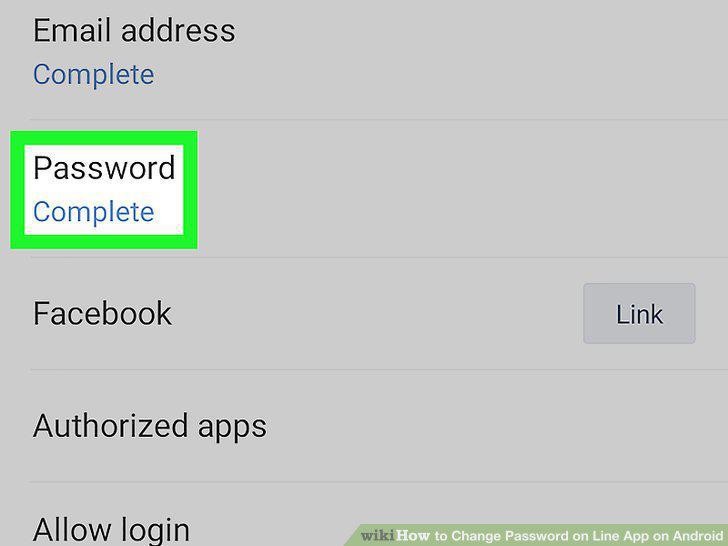
Tap Password on the Account menu.
5
Enter your new password into the "New password" field.
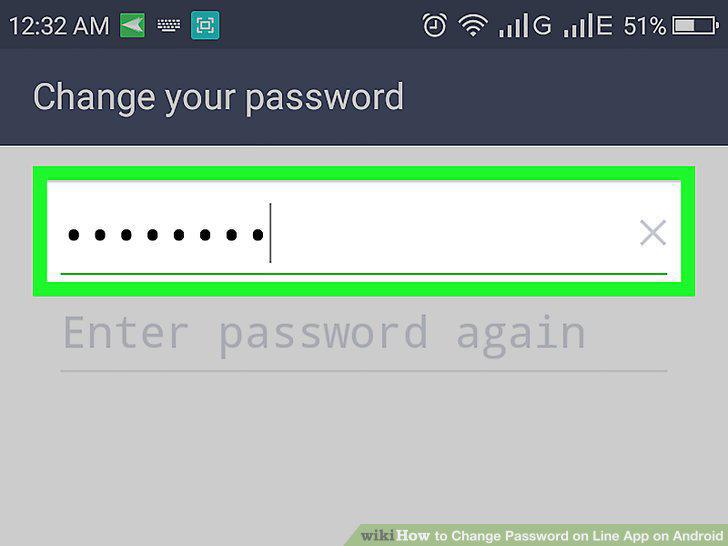
Enter your new password into the "New password" field.
6
Enter your new password again in the "Enter password again" field.
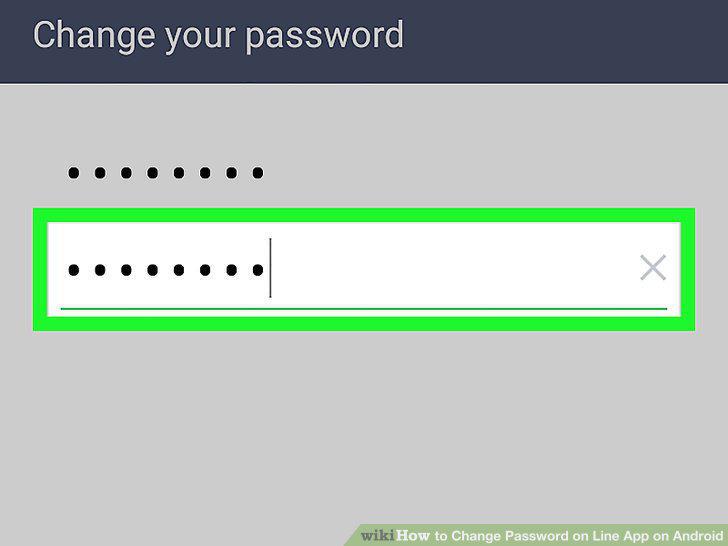
Enter your new password again in the "Enter password again" field.
7
Tap the green OK button at the bottom.
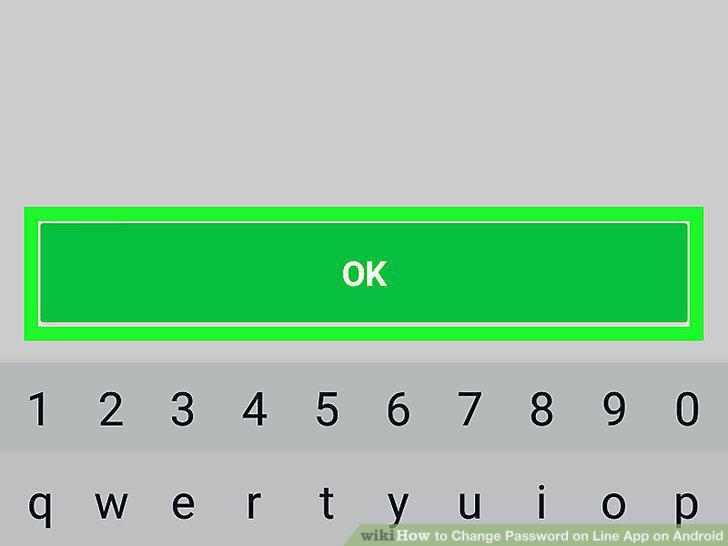
Tap the green OK button at the bottom.
Comments (1)