How to Send Attachments on Kik Messenger
Launch Kik and select your desired chat from the main chat list.. Tap your contact's name to open a chat.. Tap the + to the left of the text box.
Steps
Launch Kik and select your desired chat from the main chat list.
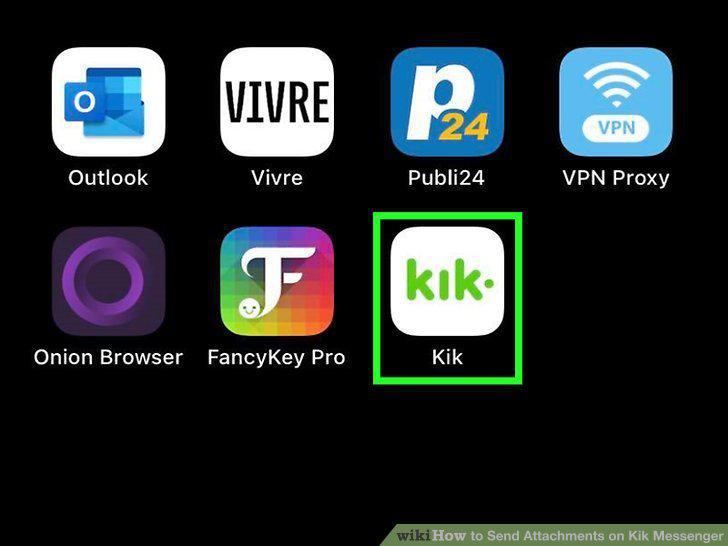
Launch Kik and select your desired chat from the main chat list.
Tap your contact's name to open a chat.
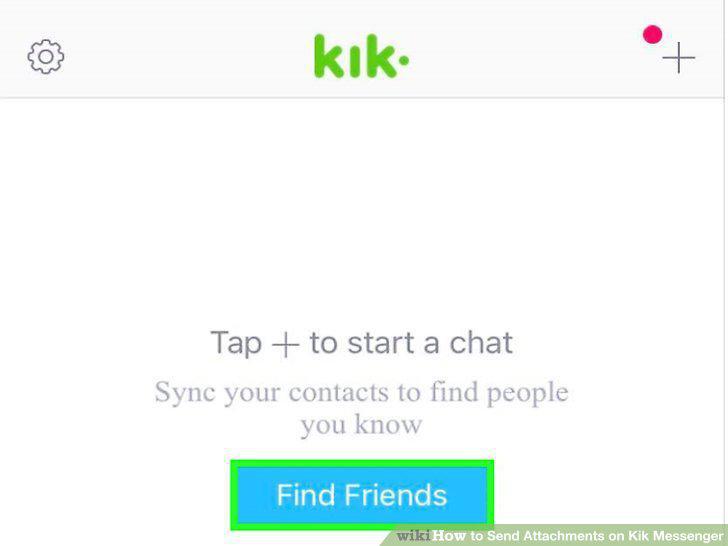
Tap your contact's name to open a chat.
Tap the + to the left of the text box.
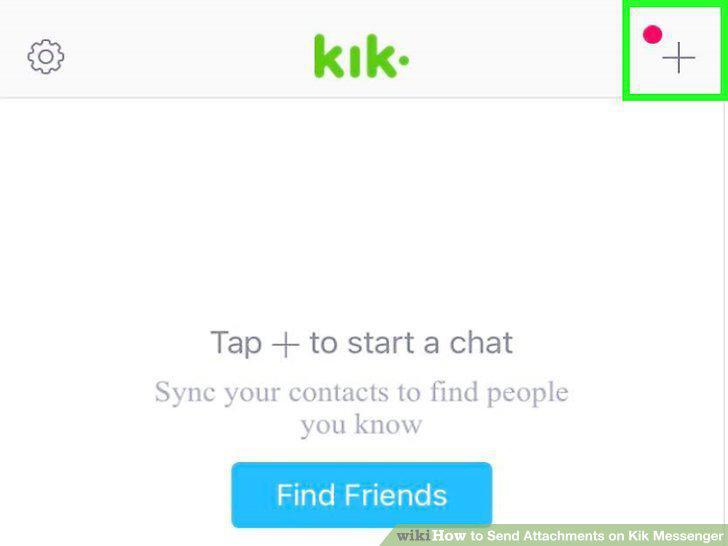
Tap the + to the left of the text box.
Tap the Expand icon at the top right side of the gallery to show the rest of you
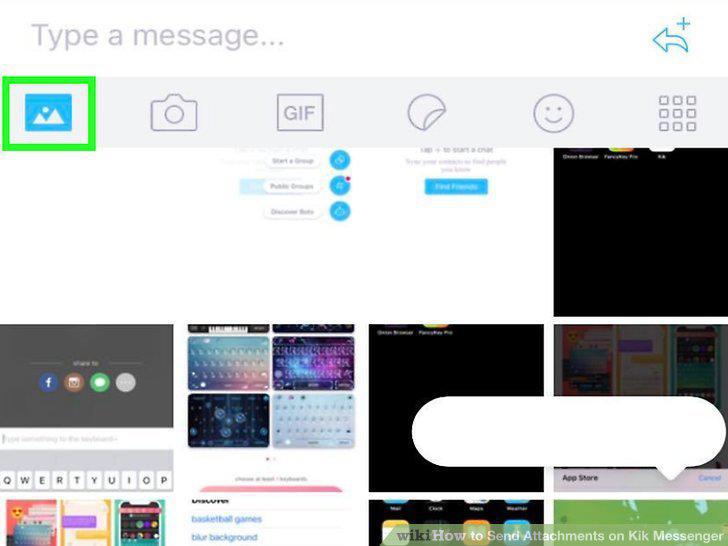
Tap the Expand icon at the top right side of the gallery to show the rest of your photos.
Tap the photo or video you want to send.
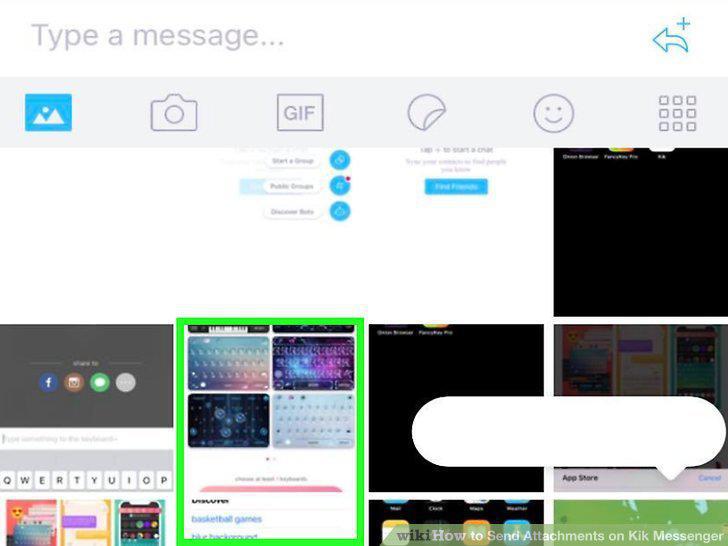
Tap the photo or video you want to send.
Type a message to accompany the photo or video if desired.
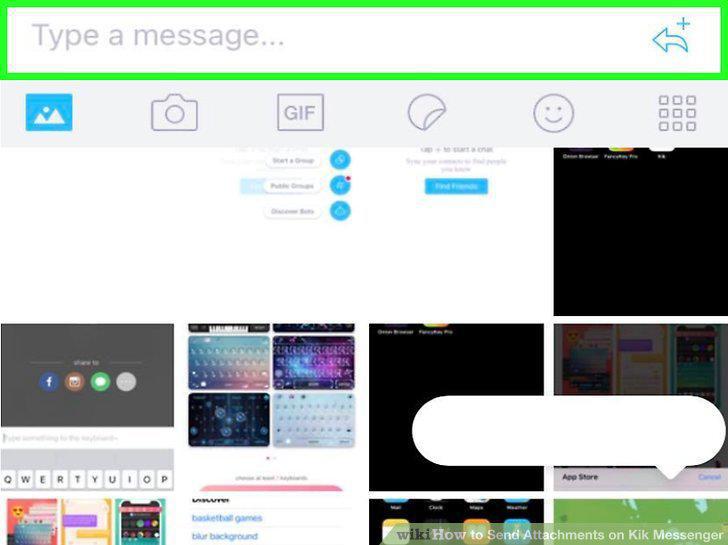
Type a message to accompany the photo or video if desired.
Tap the blue chat bubble button to send the file.
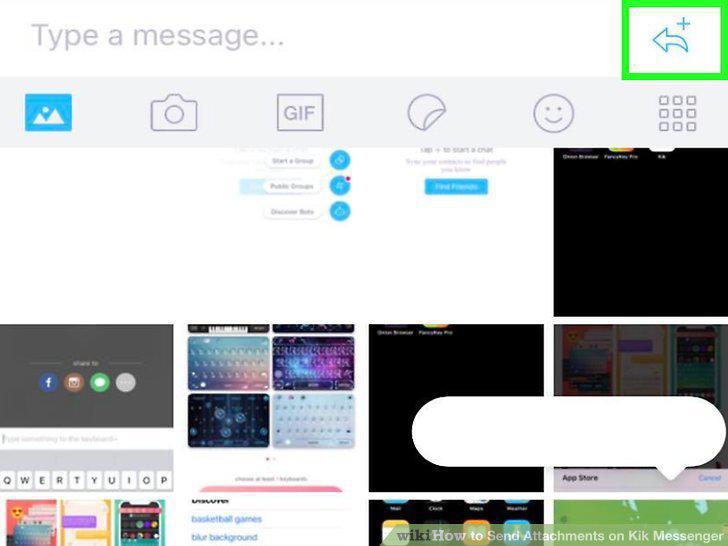
Tap the blue chat bubble button to send the file.
Launch Kik and tap your chat contact's name on the main screen.
Launch Kik and tap your chat contact's name on the main screen.
Open a chat with the person you want to send a GIF to by tapping their name.
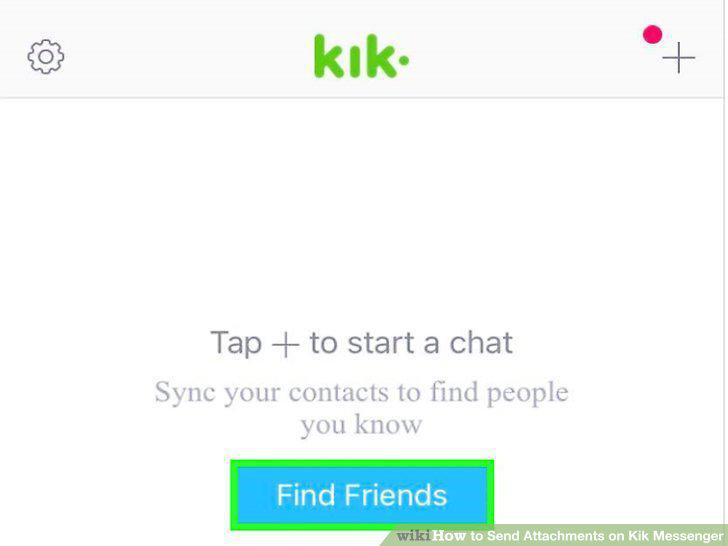
Open a chat with the person you want to send a GIF to by tapping their name.
Tap the + to the left of the text box.
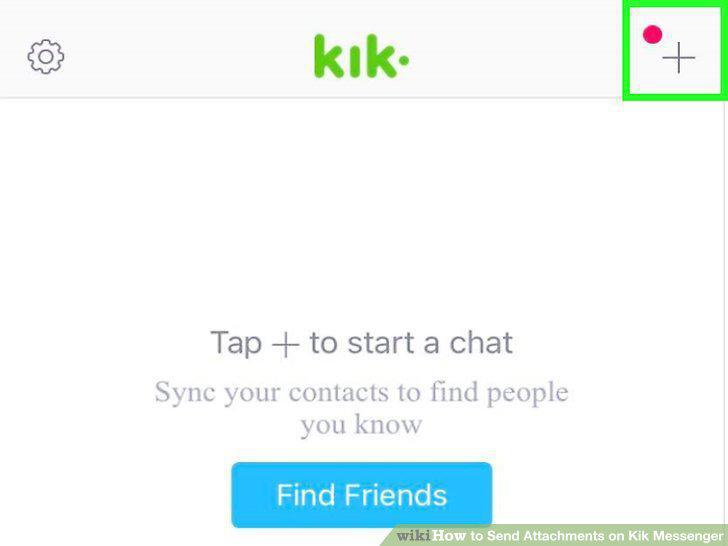
Tap the + to the left of the text box.
Tap "GIF" in the icon bar.
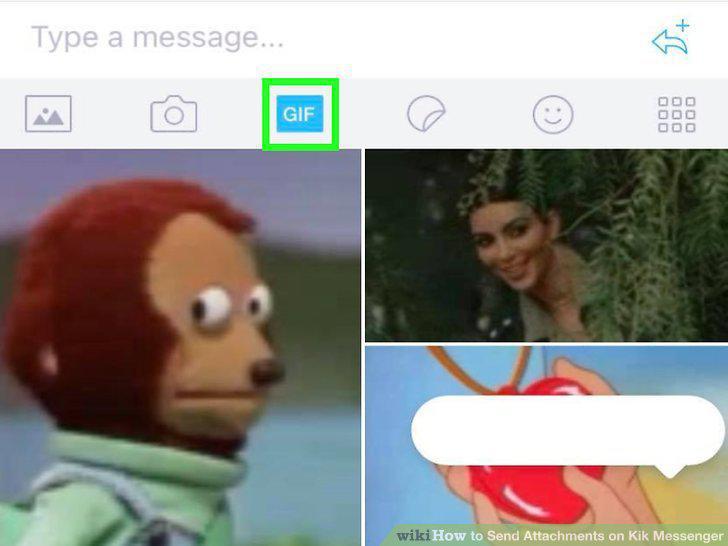
Tap "GIF" in the icon bar.
Type a keyword to search for a GIF (or tap an emoji).
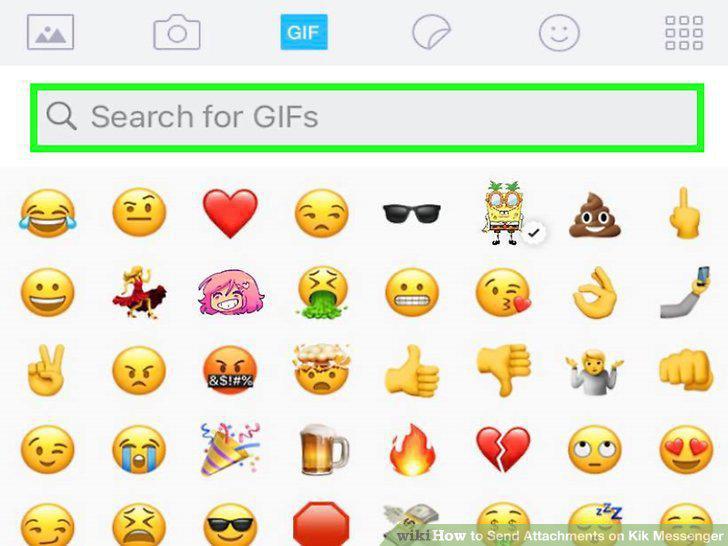
Type a keyword to search for a GIF (or tap an emoji).
Tap any GIF in the gallery to see it larger.
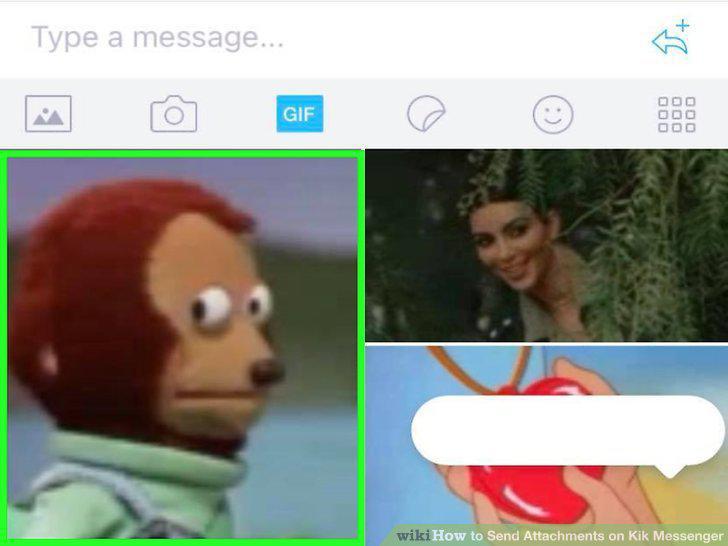
Tap any GIF in the gallery to see it larger.
Tap the send button (the chat bubble).
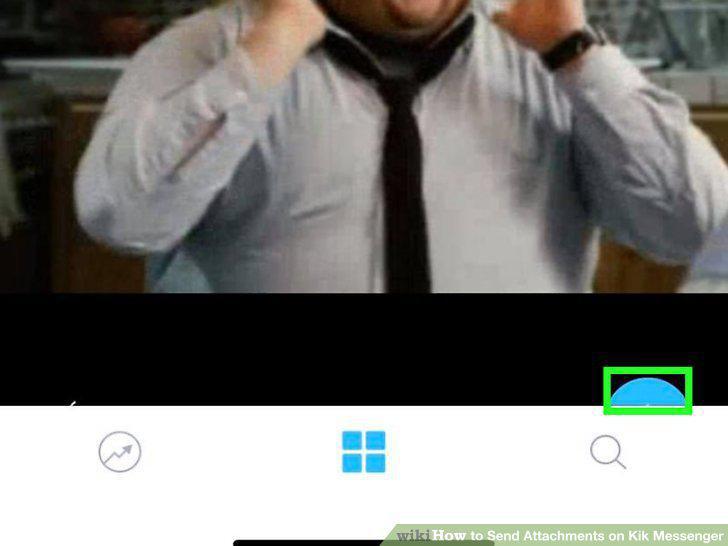
Tap the send button (the chat bubble).
Type a message.
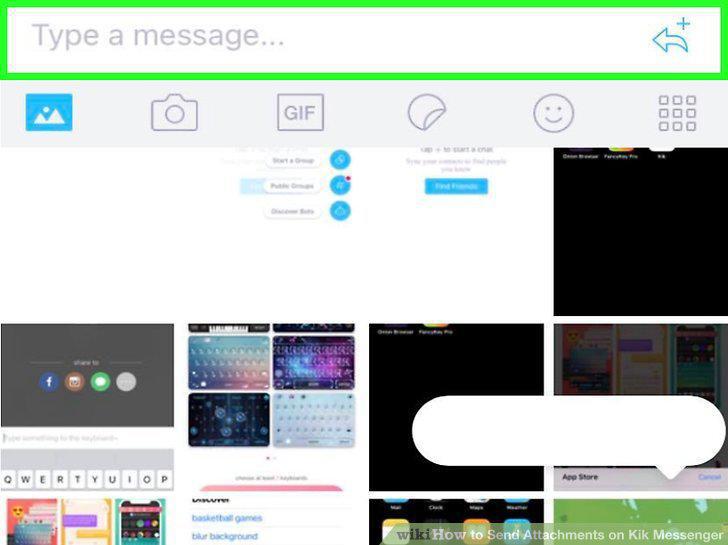
Type a message.
Tap the chat bubble at the far right to send the GIF.
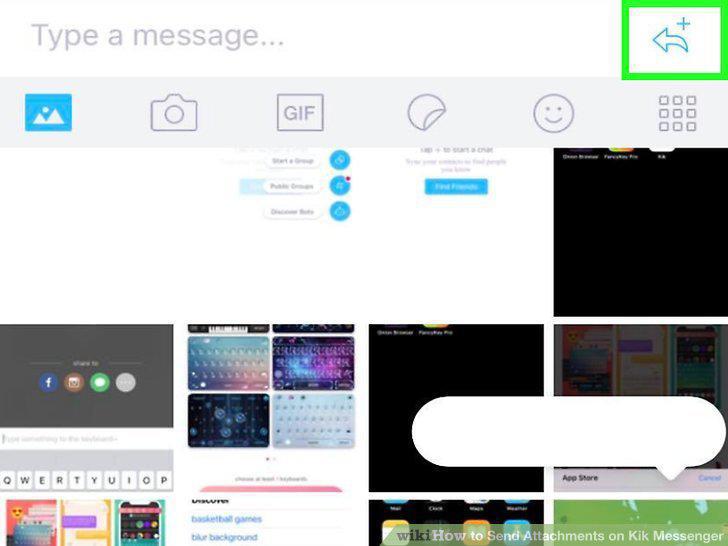
Tap the chat bubble at the far right to send the GIF.
Open Kik and tap your contact's name on the main screen.
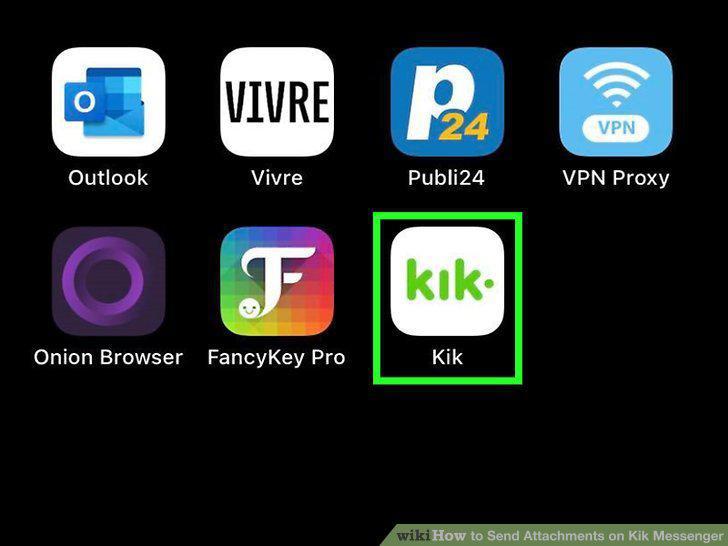
Open Kik and tap your contact's name on the main screen.
Tap the + to the left of the text box.
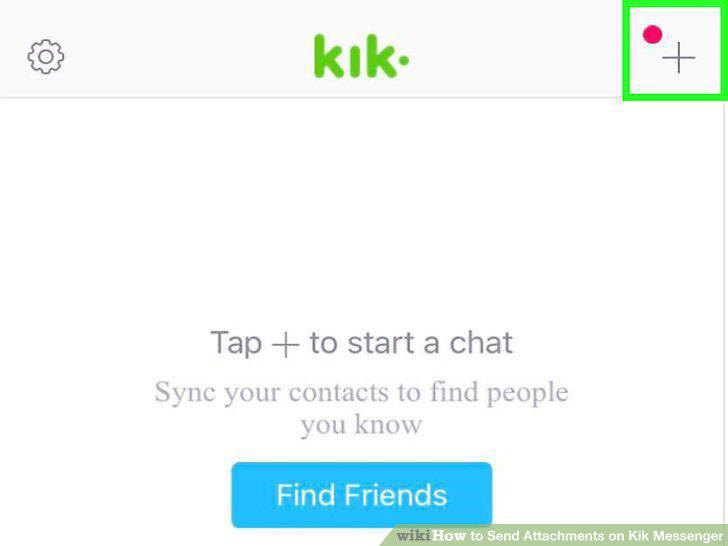
Tap the + to the left of the text box.
Tap the icon that looks like a square made of 6 dots.
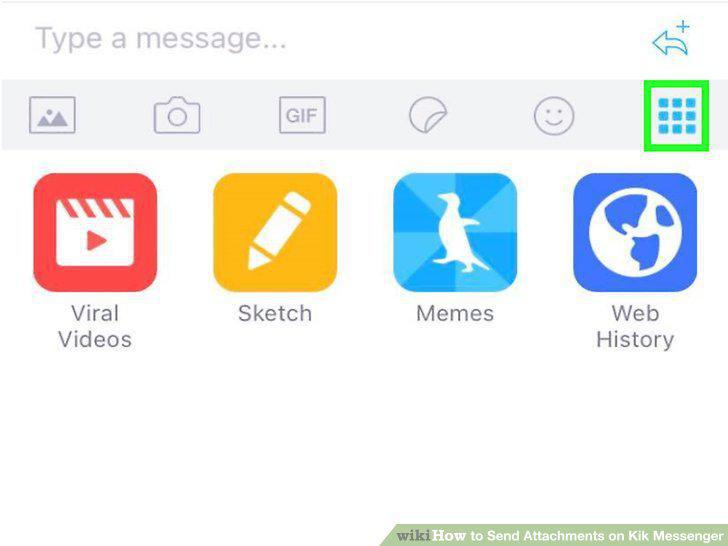
Tap the icon that looks like a square made of 6 dots.
Select "Viral Videos" to send a popular video from the web.
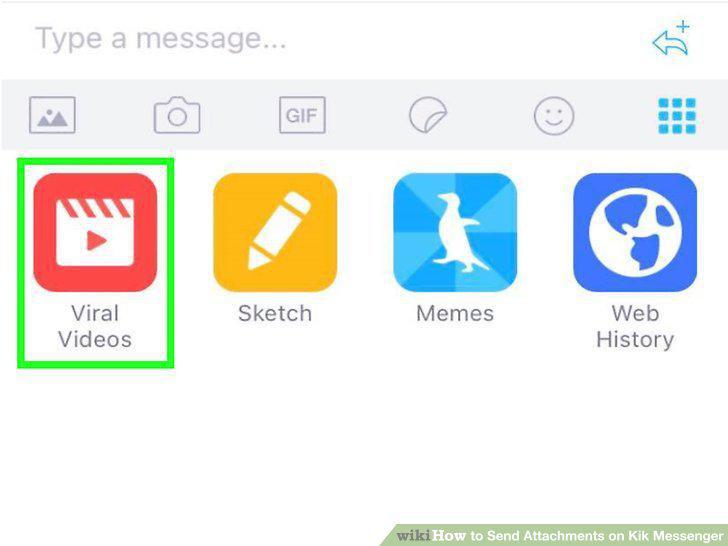
Select "Viral Videos" to send a popular video from the web.
Select "Memes" from the 6-dot square menu if you would rather add some text to a
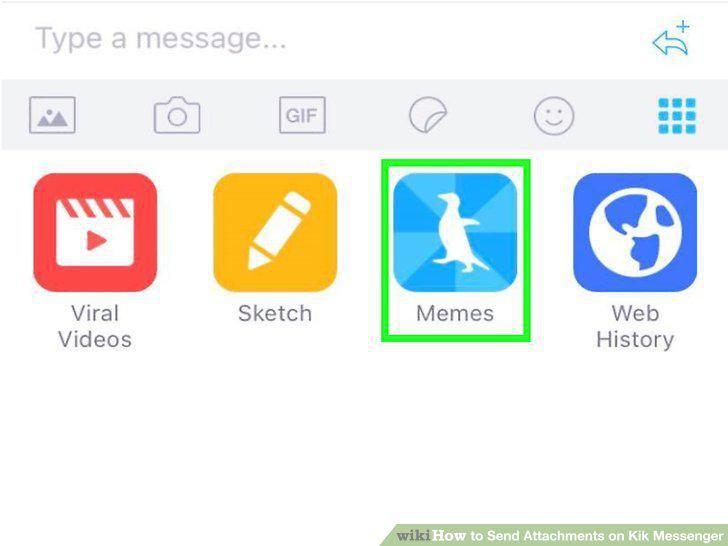
Select "Memes" from the 6-dot square menu if you would rather add some text to a funny image.
Type some text to send along with your video or meme.
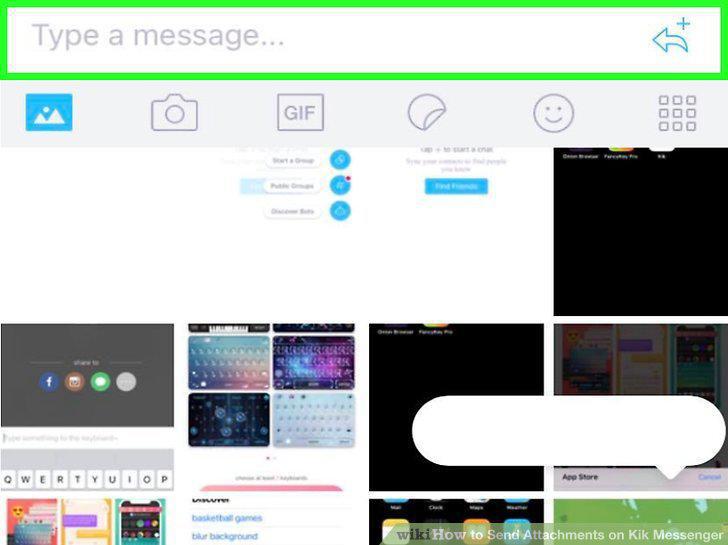
Type some text to send along with your video or meme.
Tap the chat bubble to send your video or meme.
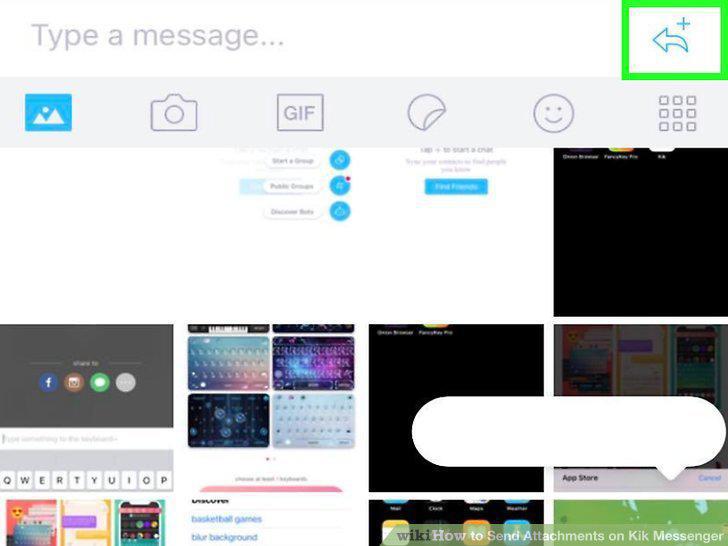
Tap the chat bubble to send your video or meme.
Comments (0)
No comments yet. Be the first to share your thoughts!