Steps
1
Open Messenger.
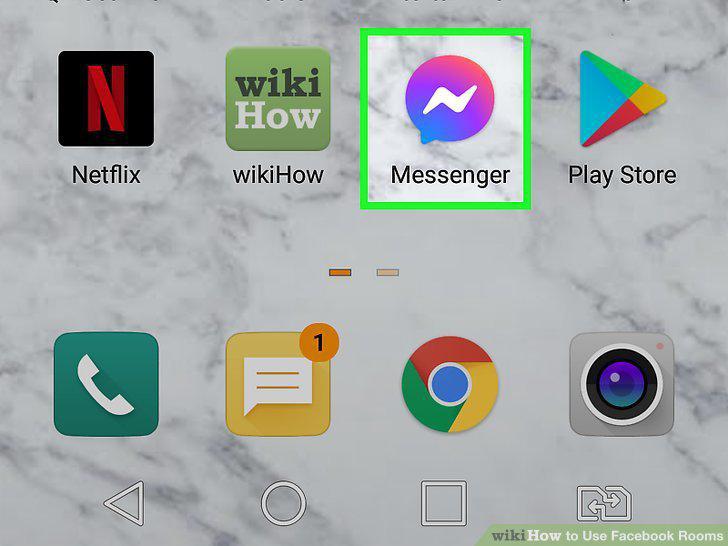
Open Messenger.
2
Tap the People tab.
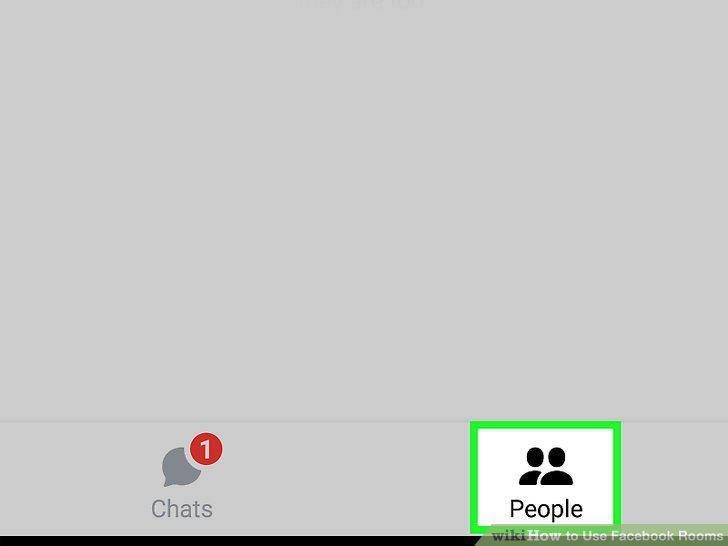
Tap the People tab.
3
Tap Create a Room.
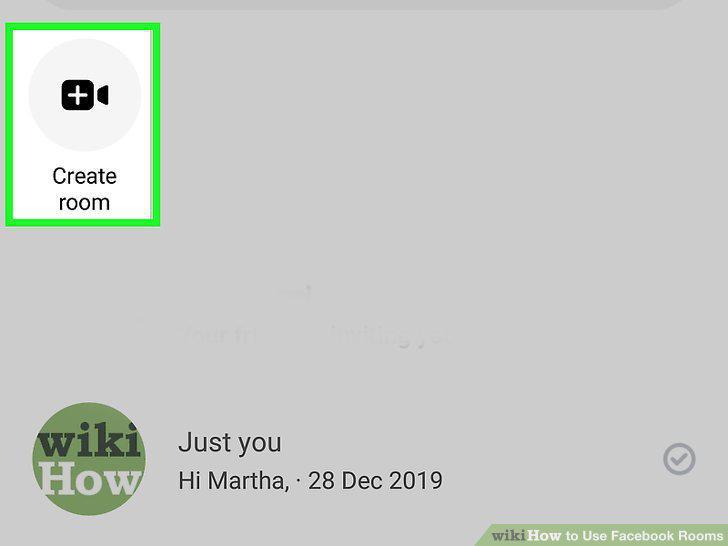
Tap Create a Room.
4
Tap Edit.
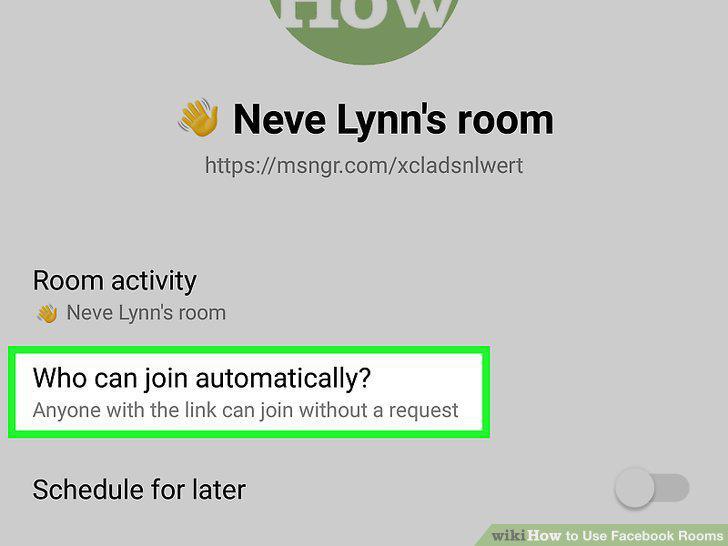
Tap Edit.
5
Tap Only people on Facebook (if you want to change the setting).
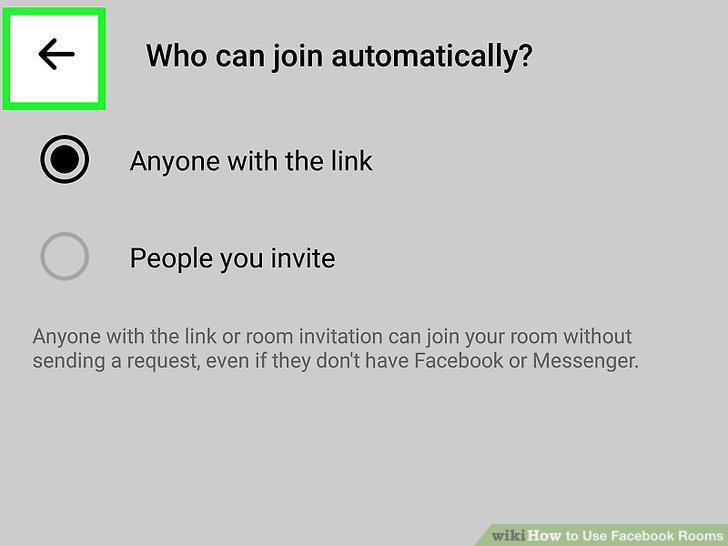
Tap Only people on Facebook (if you want to change the setting).
6
Tap Share Link.
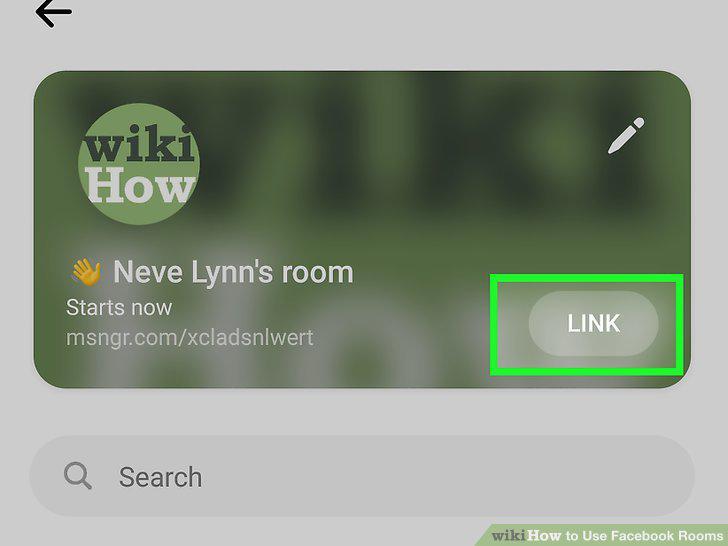
Tap Share Link.
7
Go to https://facebook.com and log in.
Go to https://facebook.com and log in.
8
Click Create Room.
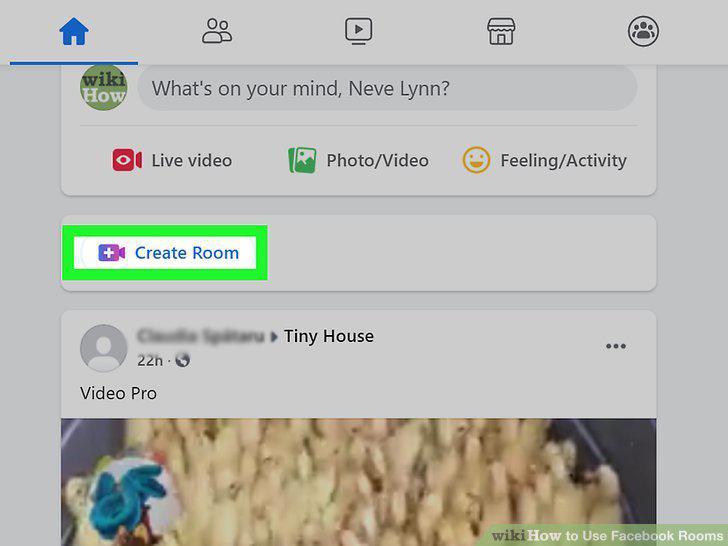
Click Create Room.
9
Customize your room.
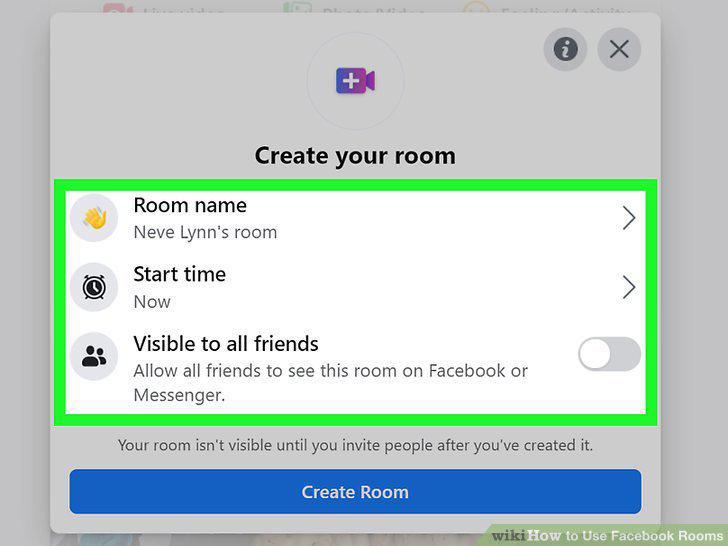
Customize your room.
10
Click Create Room.
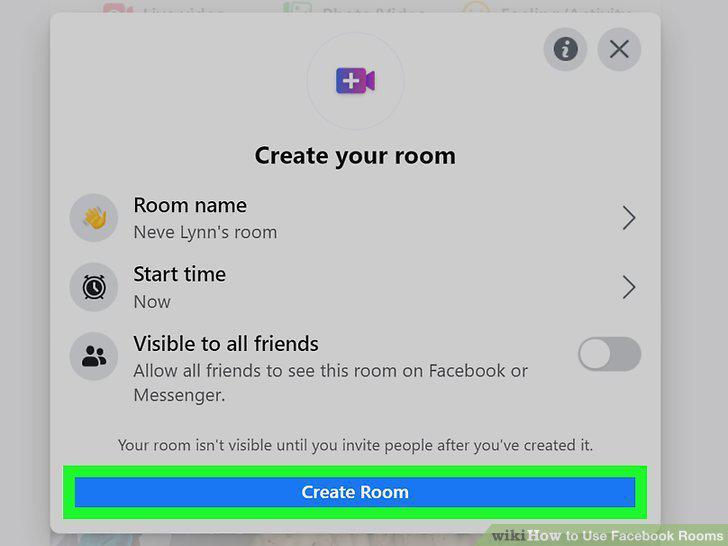
Click Create Room.
11
Click Join Room.
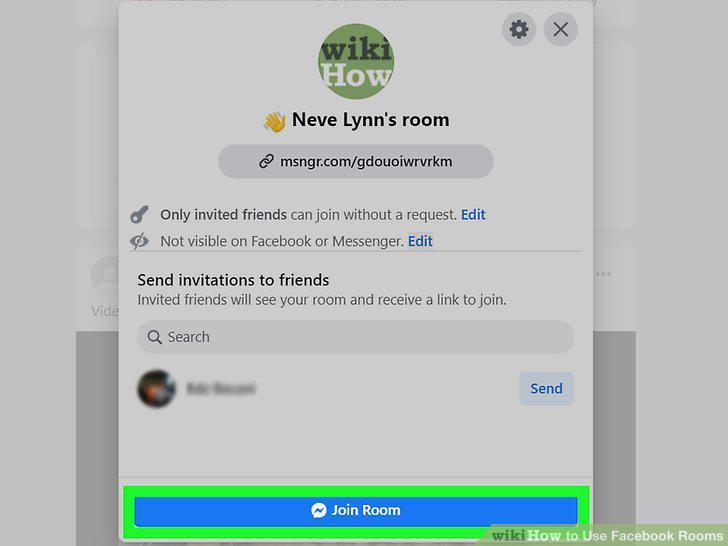
Click Join Room.
12
Send a message in chat.
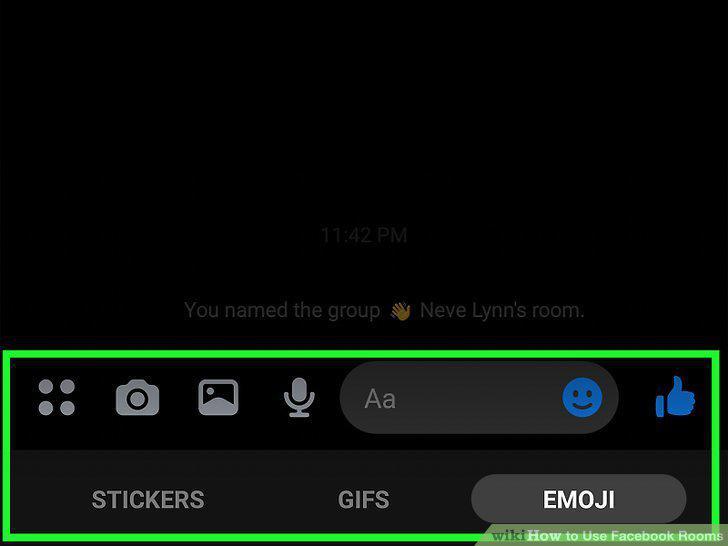
Send a message in chat.
13
Apply special effects.
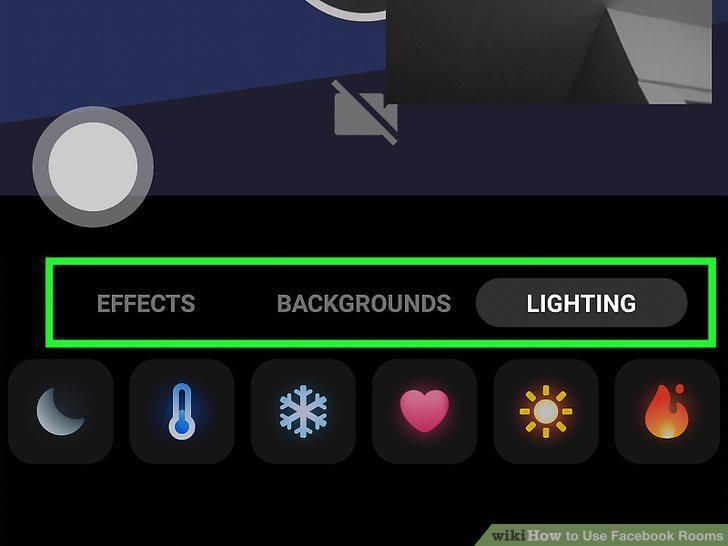
Apply special effects.
14
Share your screen.
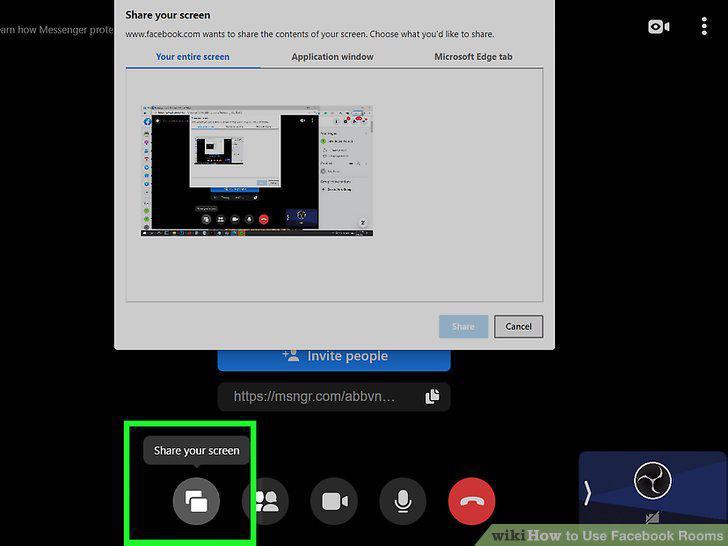
Share your screen.
15
Play games (only available on mobile).
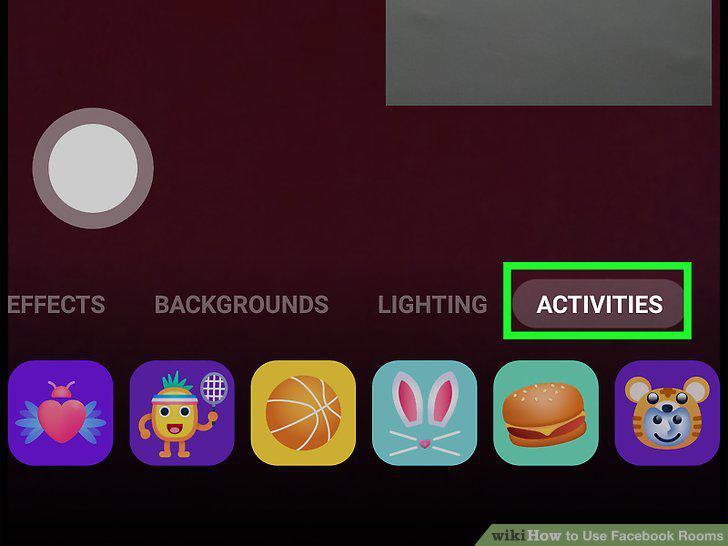
Play games (only available on mobile).
16
Remove a participant.
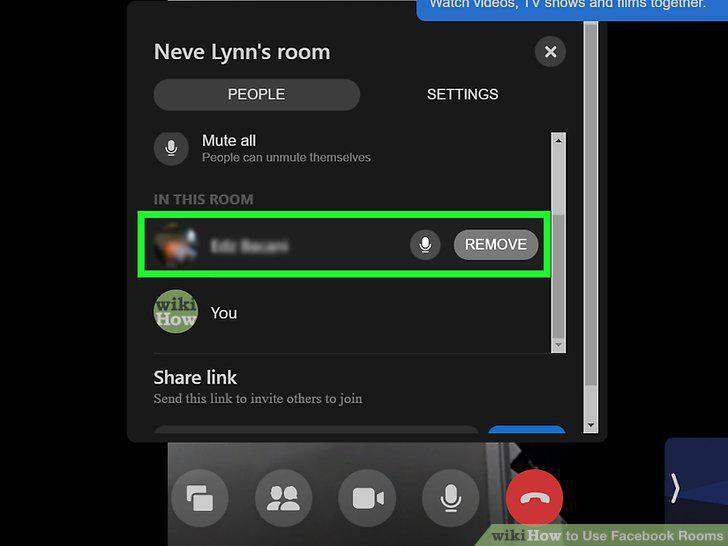
Remove a participant.
Comments (1)