How to See How Many Apps Are on Your iPhone
Open your iPhone's Settings.. Tap General.. Tap About.
Steps
1
Open your iPhone's Settings.
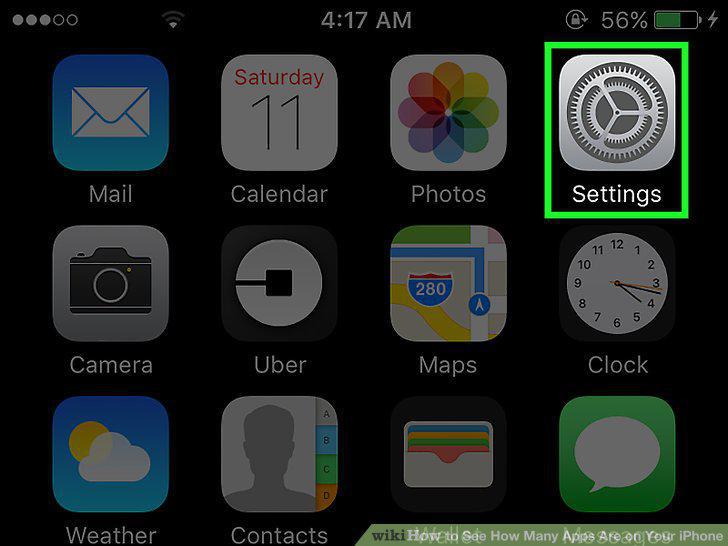
Open your iPhone's Settings.
2
Tap General.
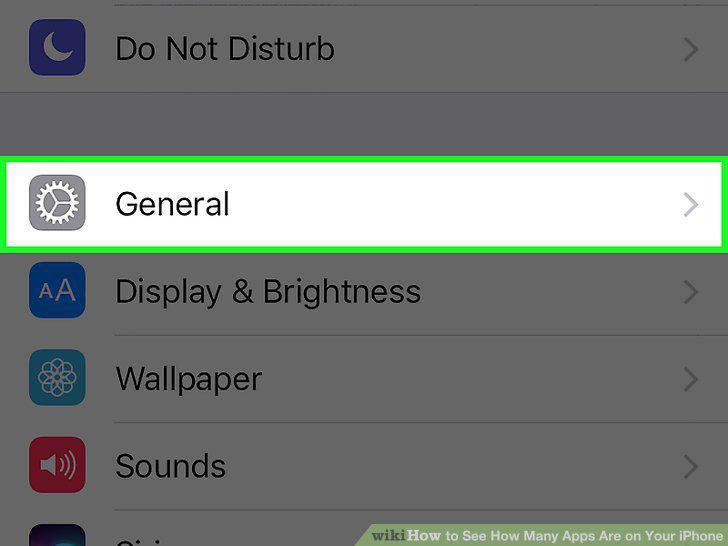
Tap General.
3
Tap About.
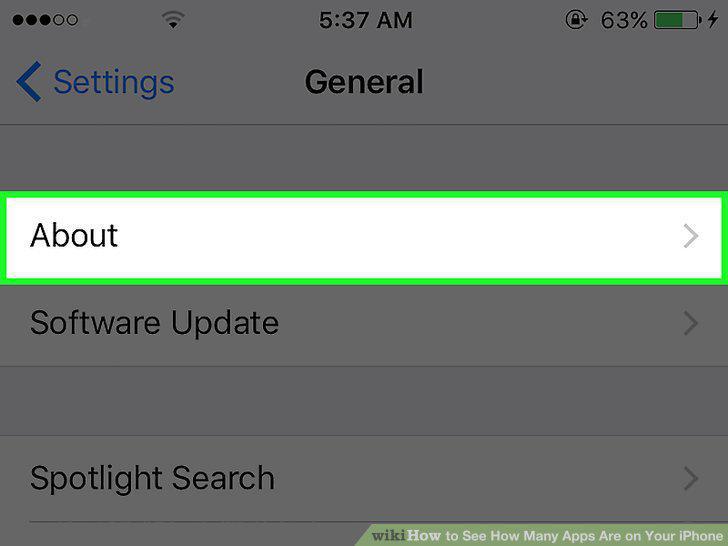
Tap About.
4
Find "Applications" in the table.
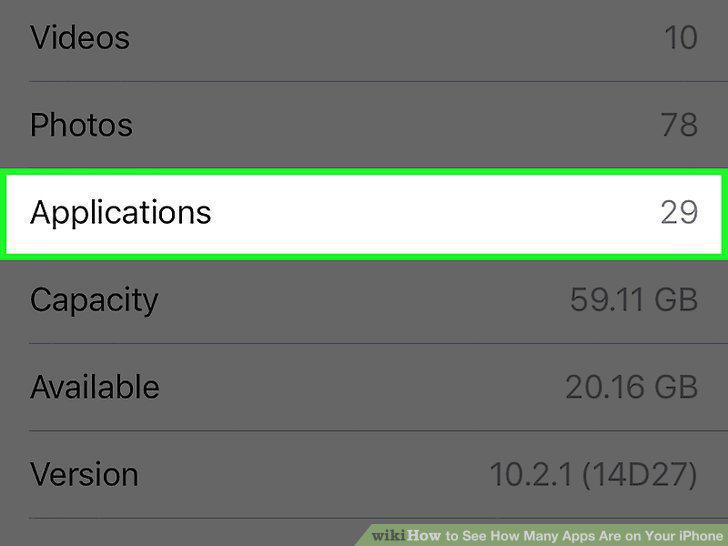
Find "Applications" in the table.
5
Open your iPhone's Settings.
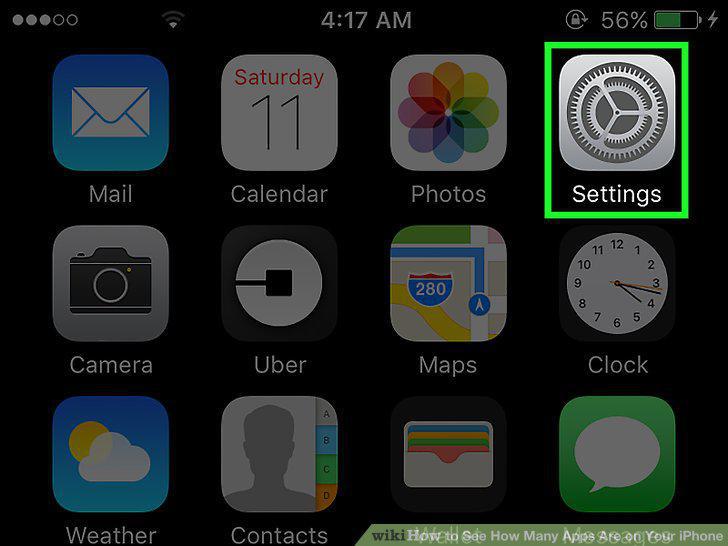
Open your iPhone's Settings.
6
Scroll down and tap General.
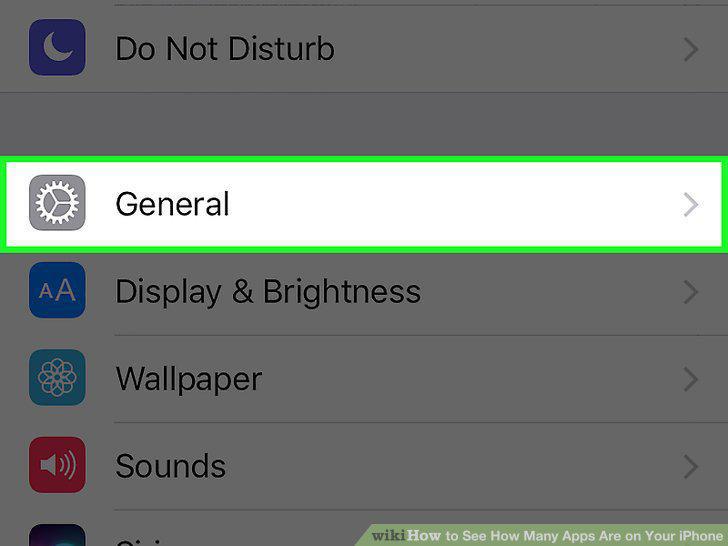
Scroll down and tap General.
7
Tap Storage and iCloud Usage.
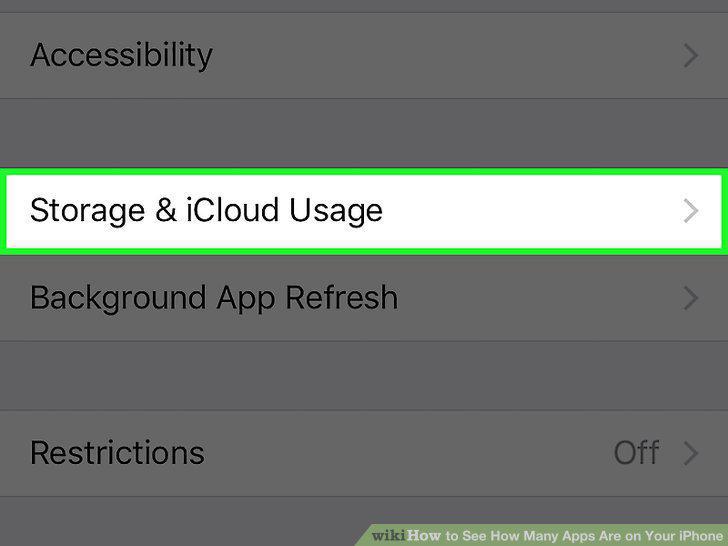
Tap Storage and iCloud Usage.
8
Tap Manage Storage in the first set of options.
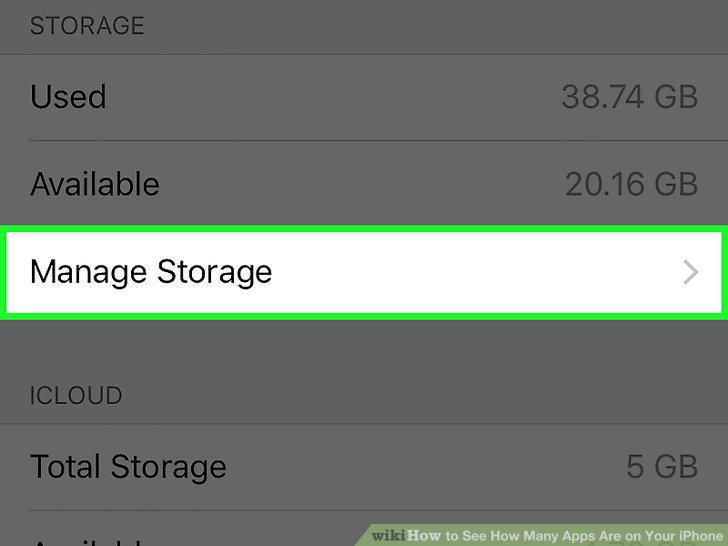
Tap Manage Storage in the first set of options.
9
Tap on an app.
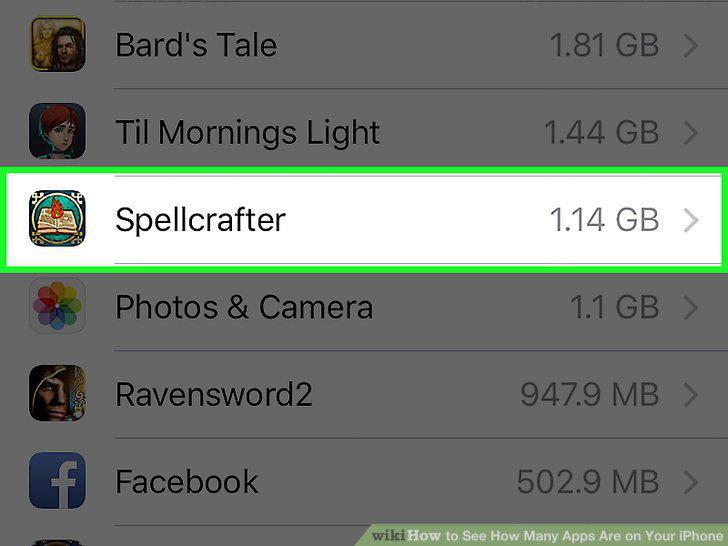
Tap on an app.
10
Tap Delete App to remove the app from your phone.
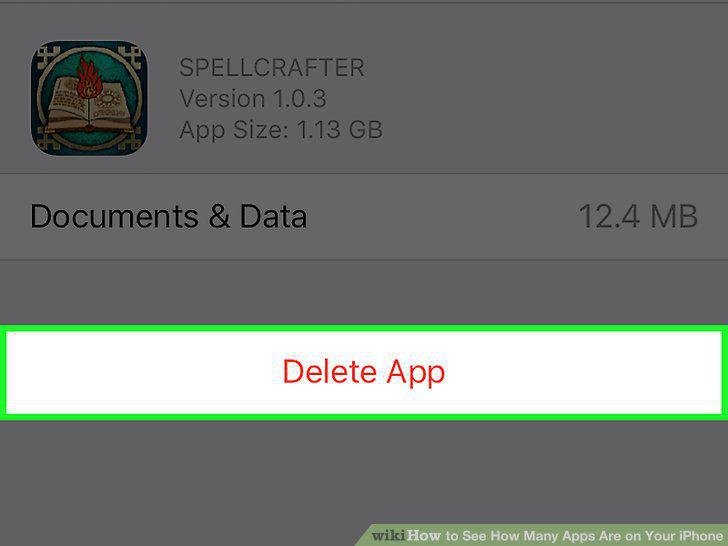
Tap Delete App to remove the app from your phone.
11
Tap Delete App again to confirm.
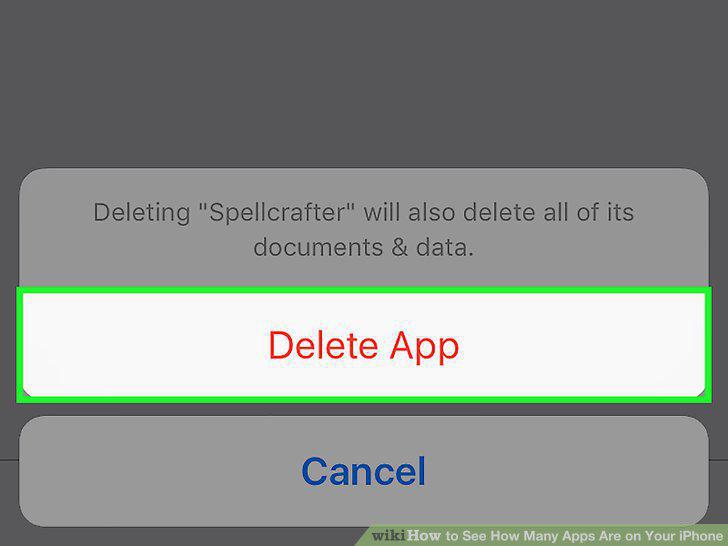
Tap Delete App again to confirm.
Comments (0)
No comments yet. Be the first to share your thoughts!