How to Remove Previous Names or Addresses Before Forwarding Email
Access your mail on mobile.. Tap the forward button in an open email.. Select the desired text to remove.
Steps
1
Access your mail on mobile.
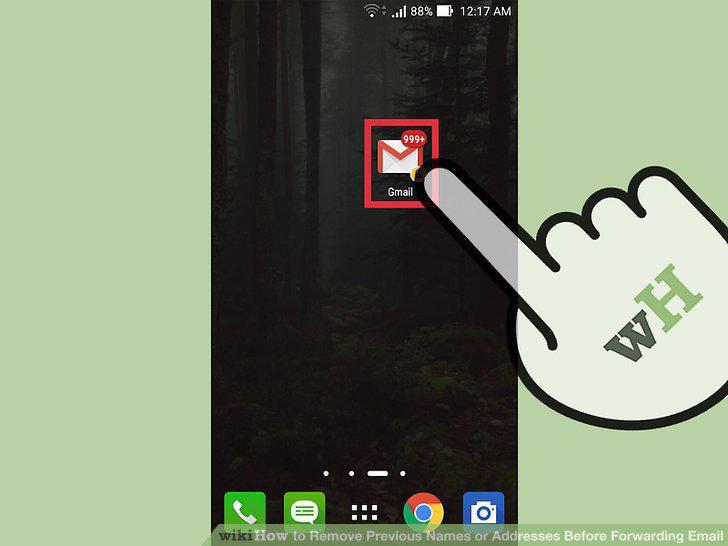
Access your mail on mobile.
2
Tap the forward button in an open email.
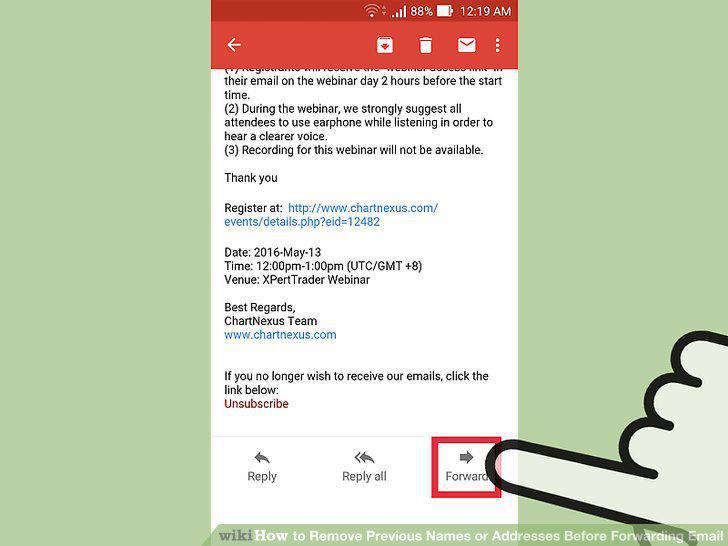
Tap the forward button in an open email.
3
Select the desired text to remove.
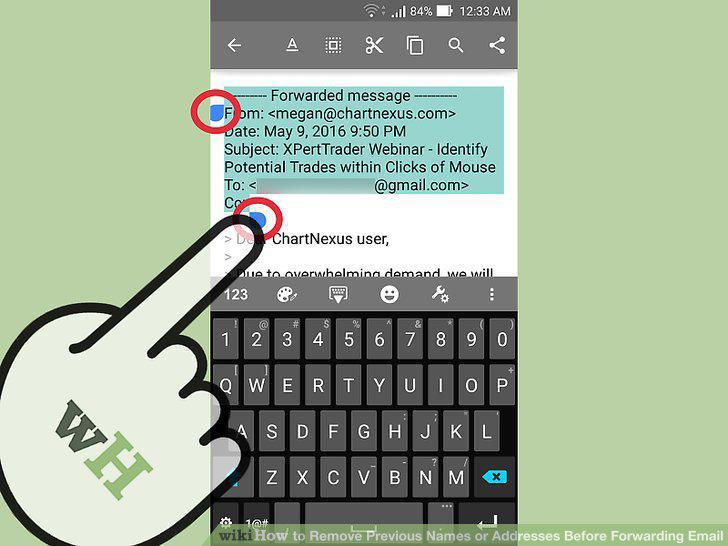
Select the desired text to remove.
4
Delete the undesired names and emails.
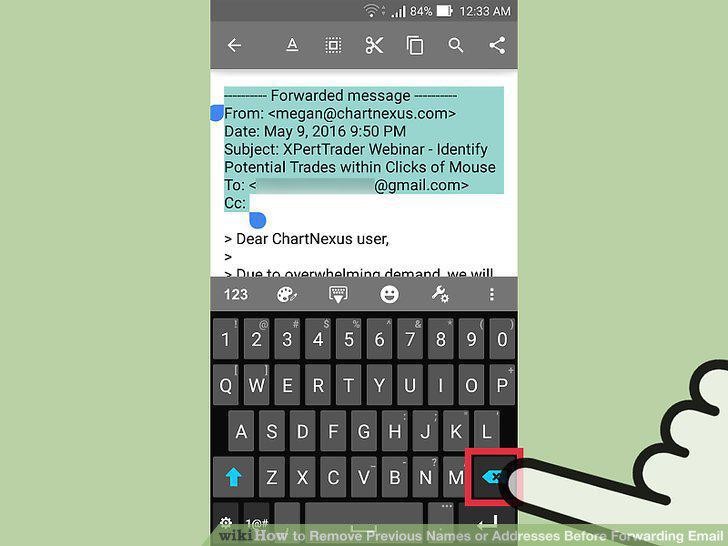
Delete the undesired names and emails.
5
Forward your email.
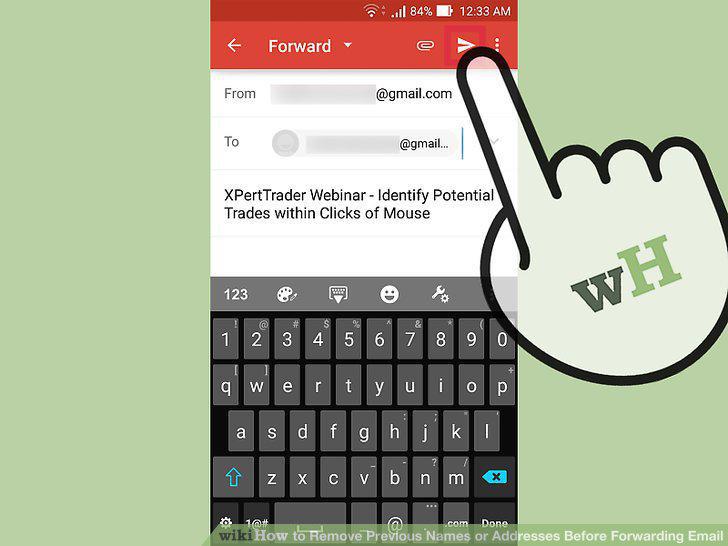
Forward your email.
6
Click the "Forward" button in the email.
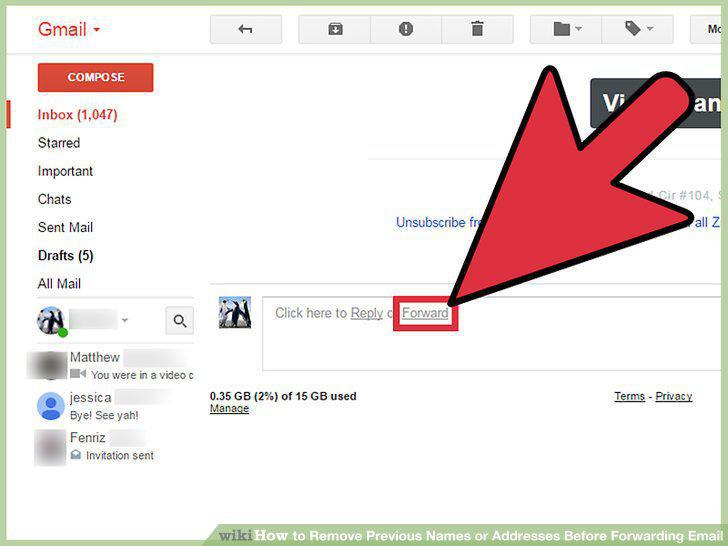
Click the "Forward" button in the email.
7
Select the text you want to remove.
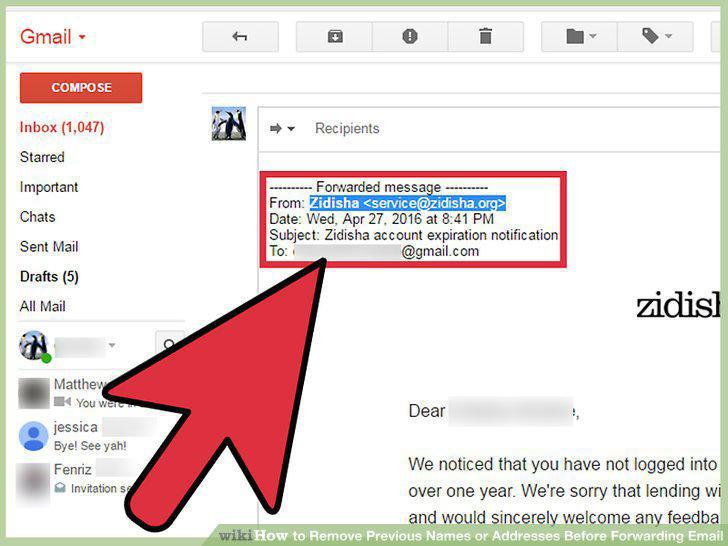
Select the text you want to remove.
8
Remove the undesired text.
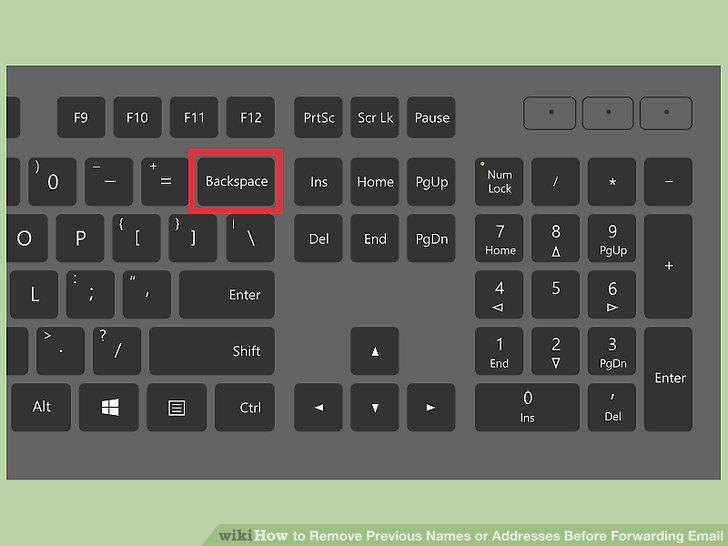
Remove the undesired text.
9
Personalize and send the email.
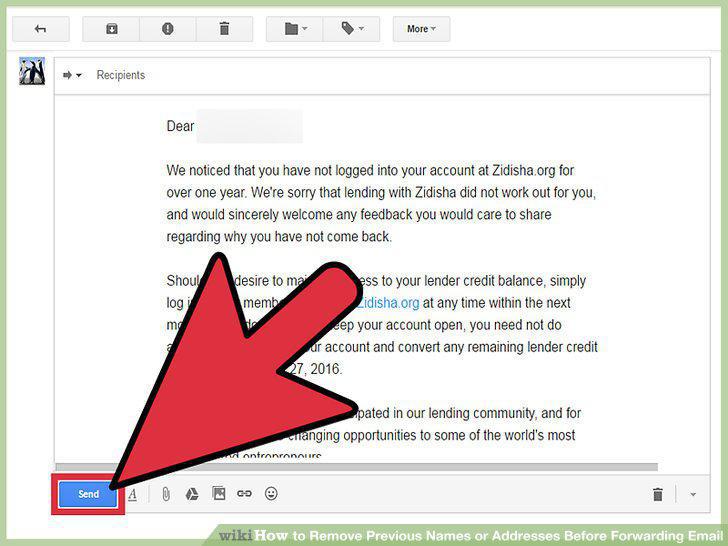
Personalize and send the email.
Comments (0)
No comments yet. Be the first to share your thoughts!