How to Make Your Laptop Work Faster
Quit programs and apps you're not currently using.. Close unnecessary browser tabs.. Restart your laptop.
Steps
Quit programs and apps you're not currently using.
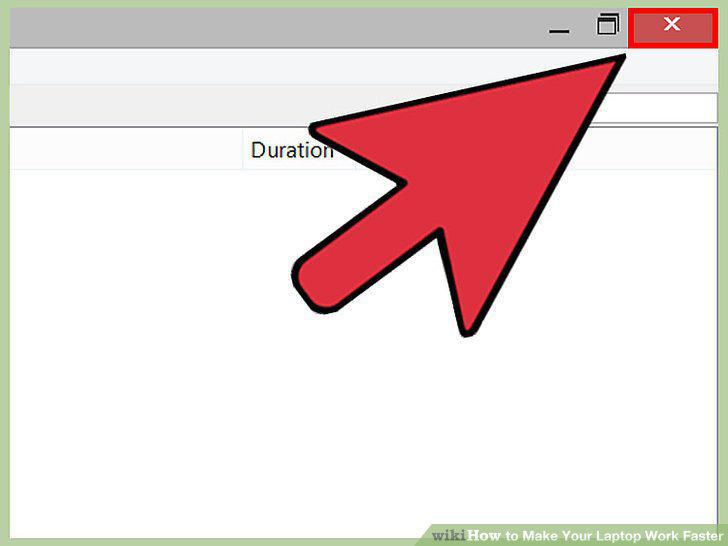
Quit programs and apps you're not currently using.
Close unnecessary browser tabs.
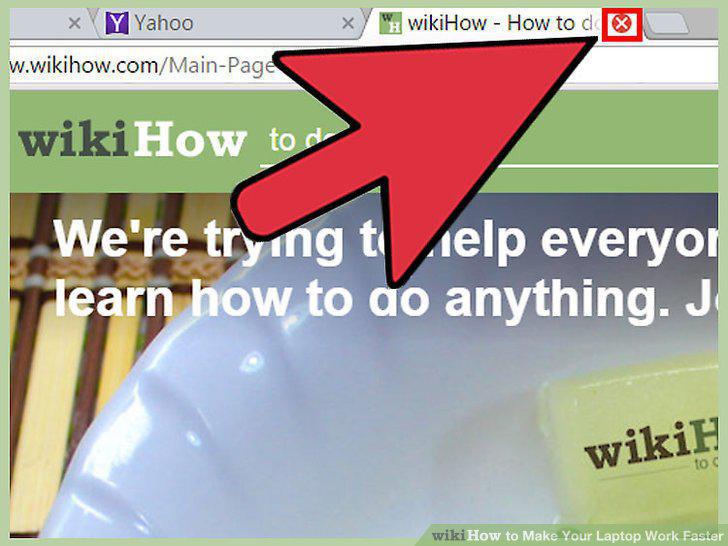
Close unnecessary browser tabs.
Restart your laptop.
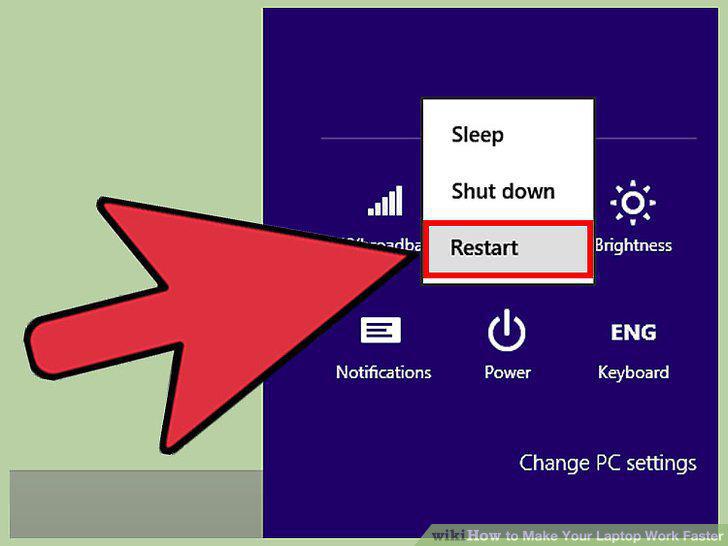
Restart your laptop.
Delete unnecessary programs, apps, and files.
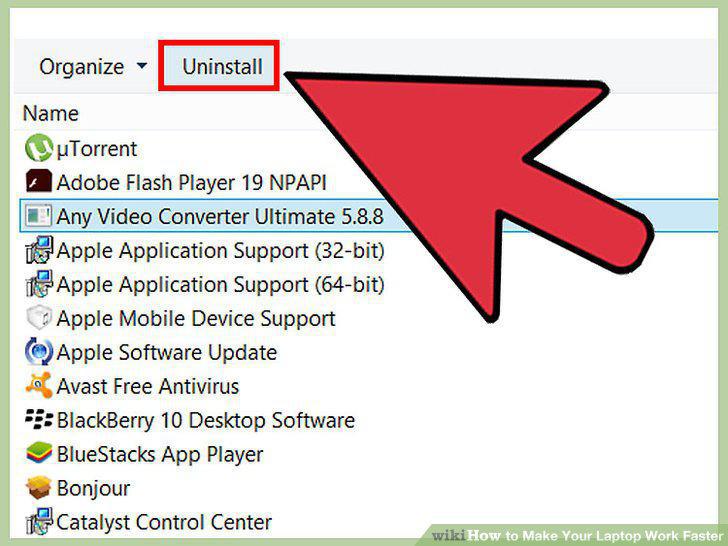
Delete unnecessary programs, apps, and files.
Click the Apple menu to check for software updates.
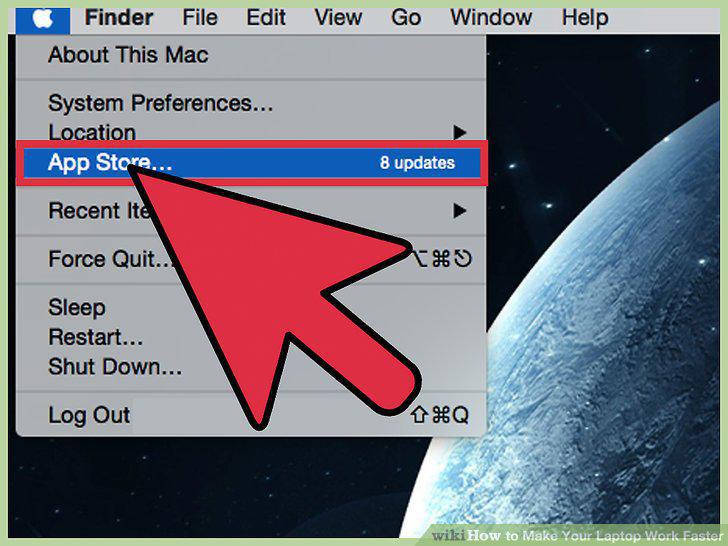
Click the Apple menu to check for software updates.
Limit the number of programs that open automatically under "System Preferences".
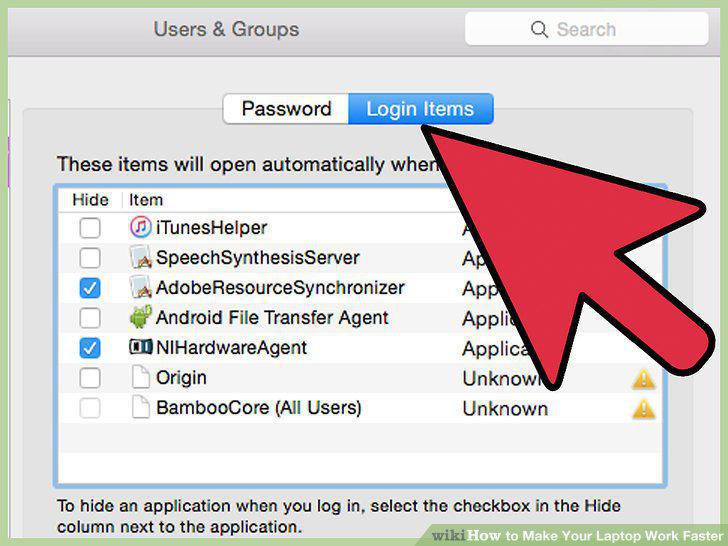
Limit the number of programs that open automatically under "System Preferences".
End unnecessary background processes with the "Activity Monitor".
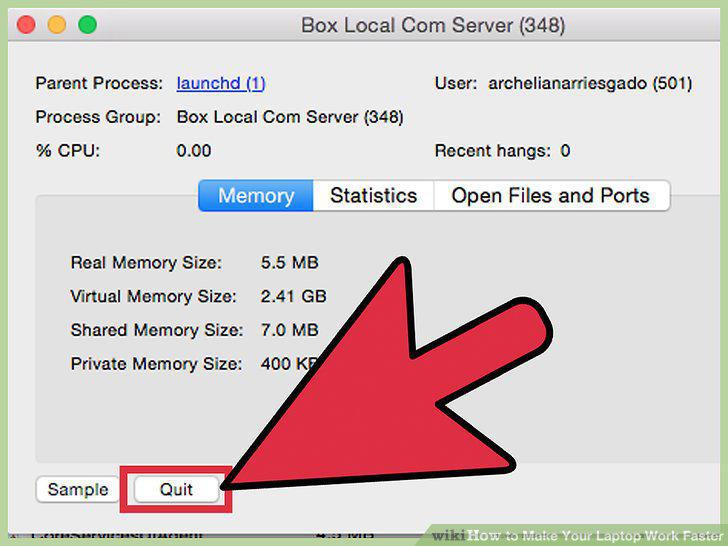
End unnecessary background processes with the "Activity Monitor".
Disable your laptop's visual effects through the "System Preferences".
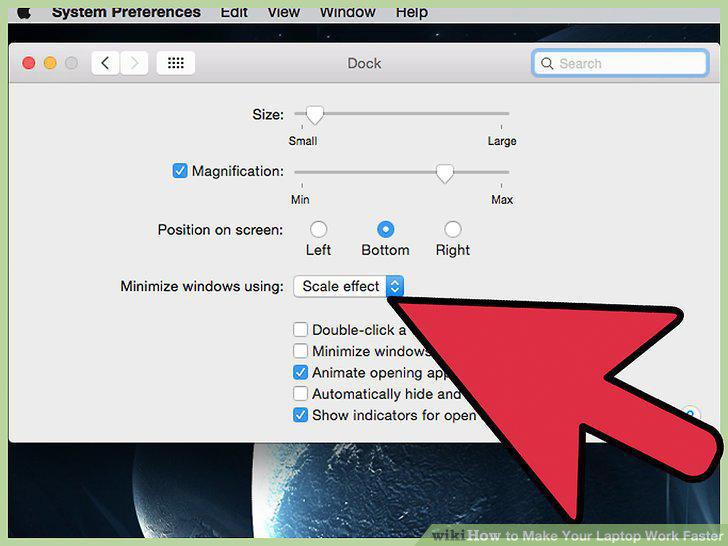
Disable your laptop's visual effects through the "System Preferences".
Check for updates.
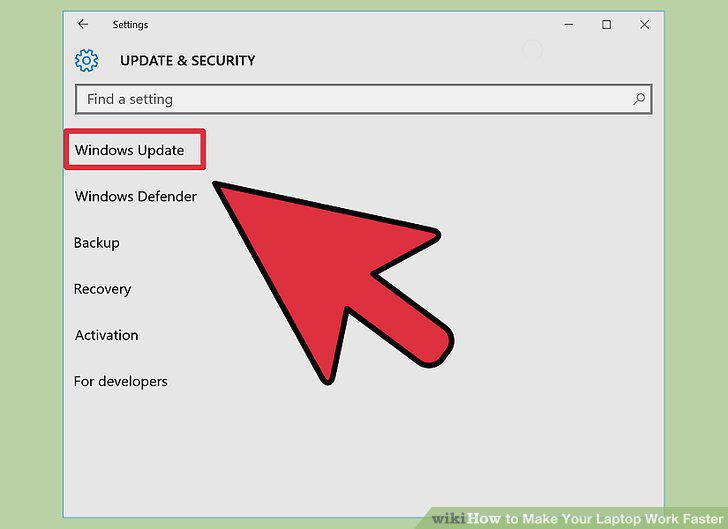
Check for updates.
Limit the number of programs that open at startup with the "Task Manager".
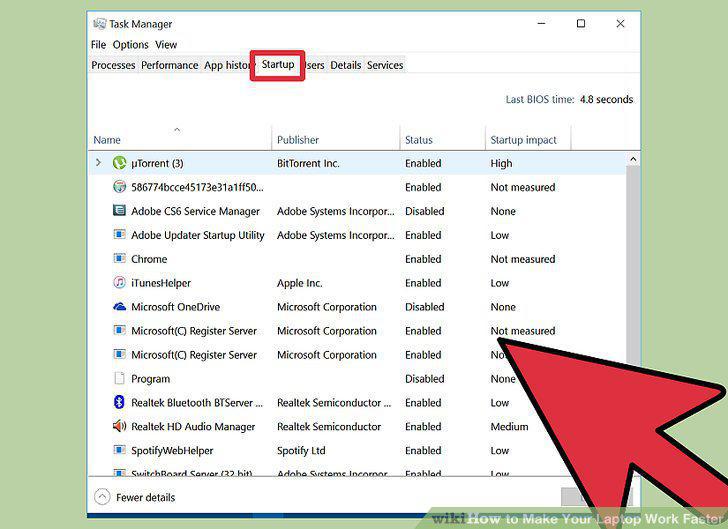
Limit the number of programs that open at startup with the "Task Manager".
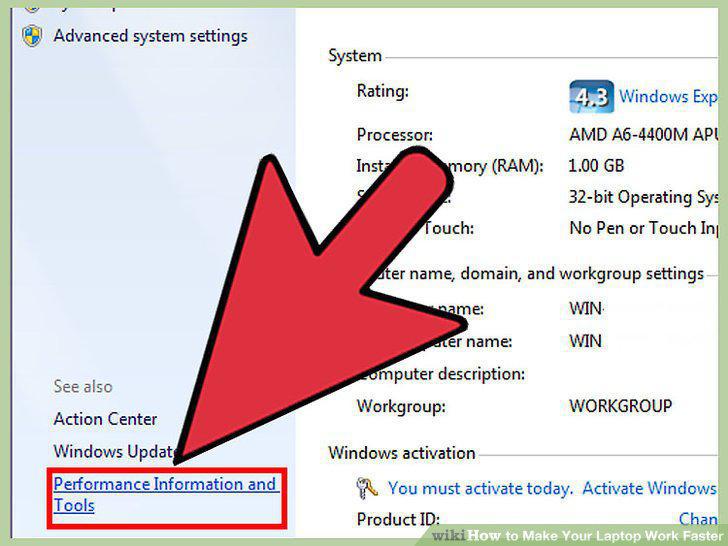
Run a Performance Report.
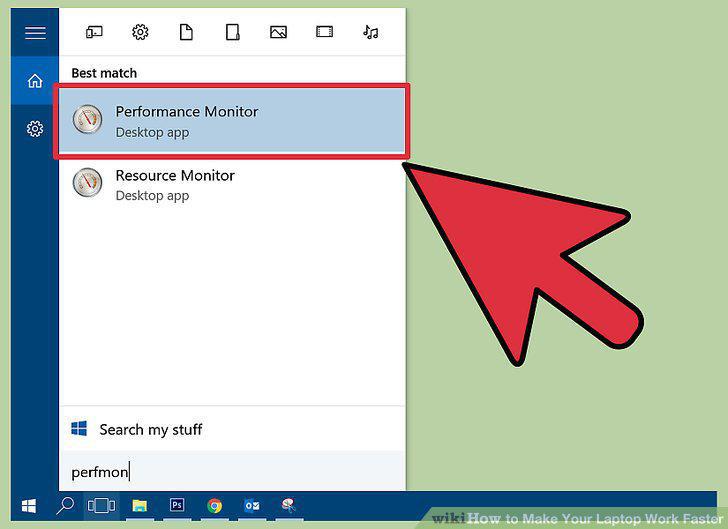
Run a Performance Report.
Turn off background apps.
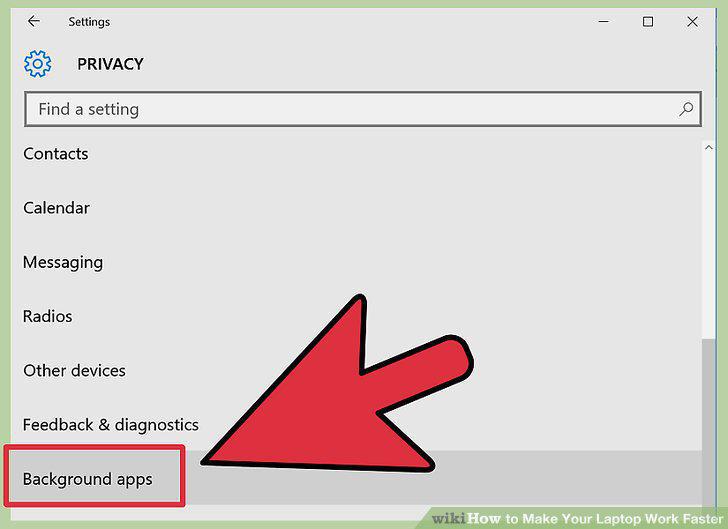
Turn off background apps.
Defragment your hard drive.
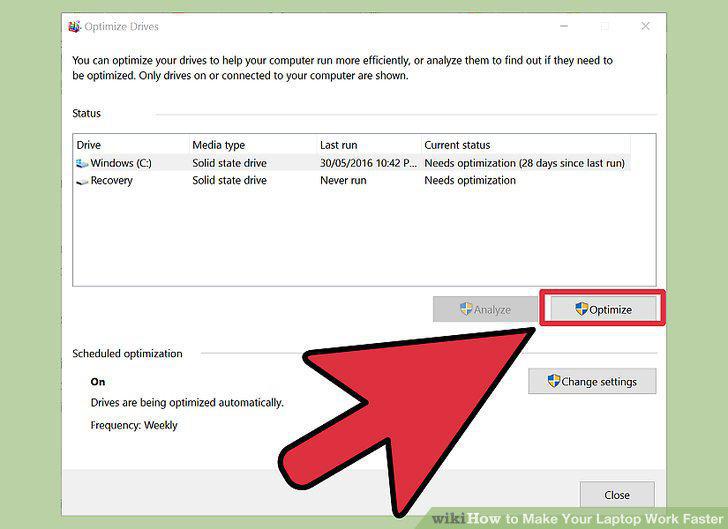
Defragment your hard drive.
Clean your disks.
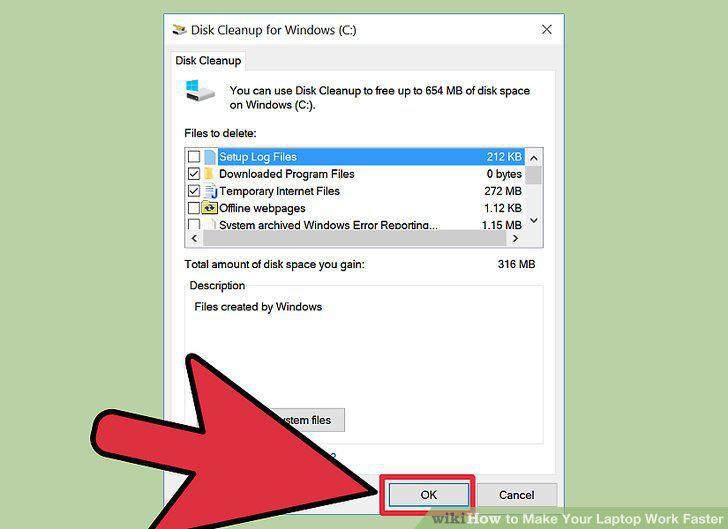
Clean your disks.
Disable visual effects.
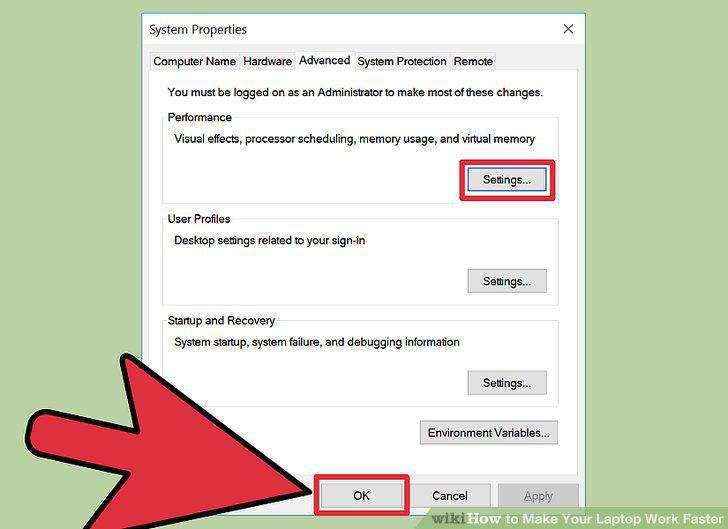
Disable visual effects.
Check for updates.
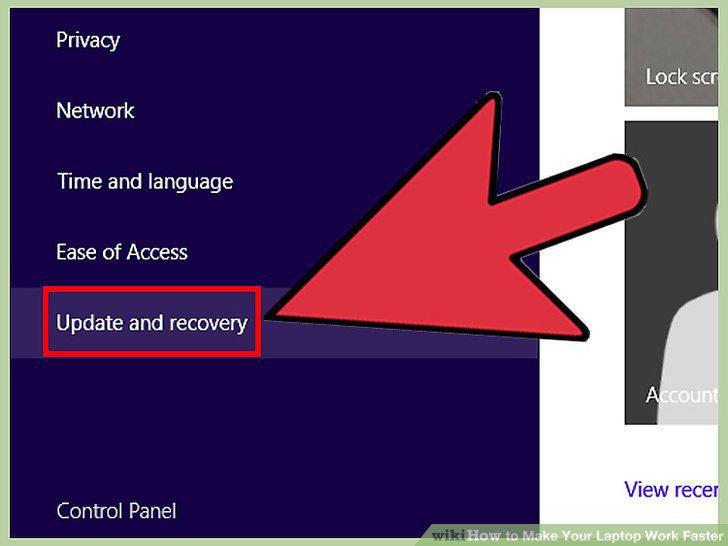
Check for updates.
Limit the number of programs that open upon upon startup.
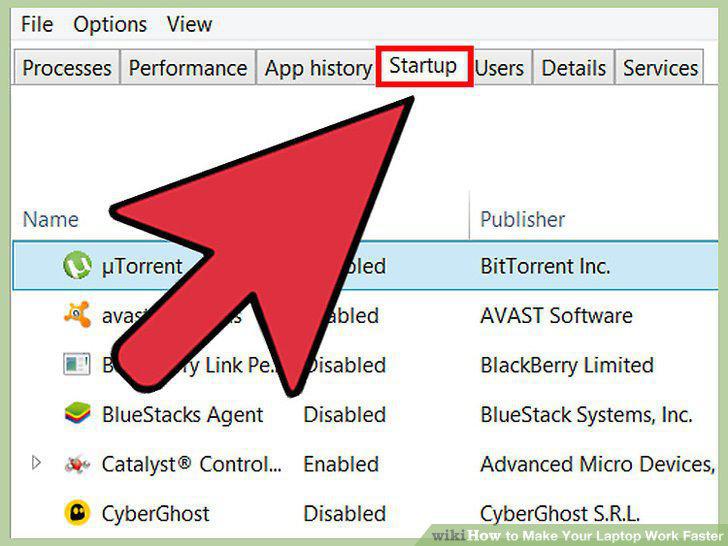
Limit the number of programs that open upon upon startup.
End unnecessary background processes.
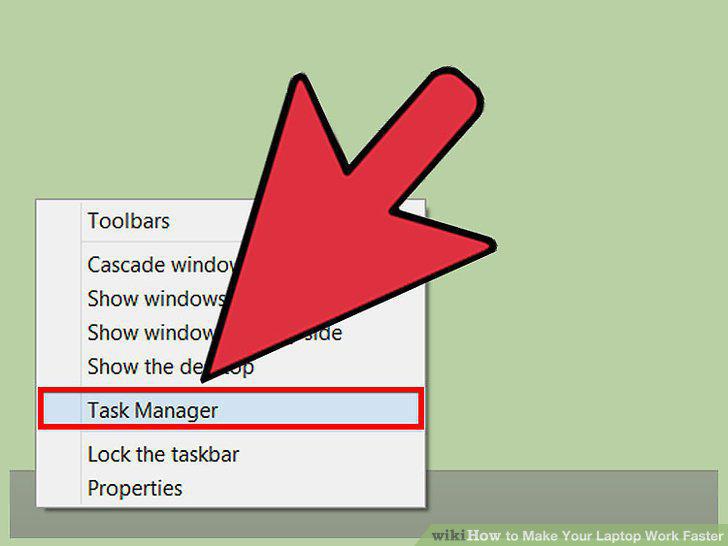
End unnecessary background processes.
Defragment your hard drive.
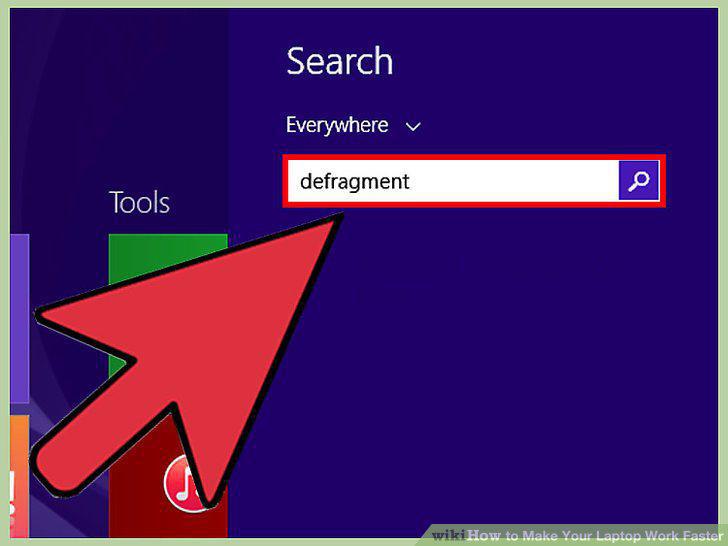
Defragment your hard drive.
Clean up your disks.
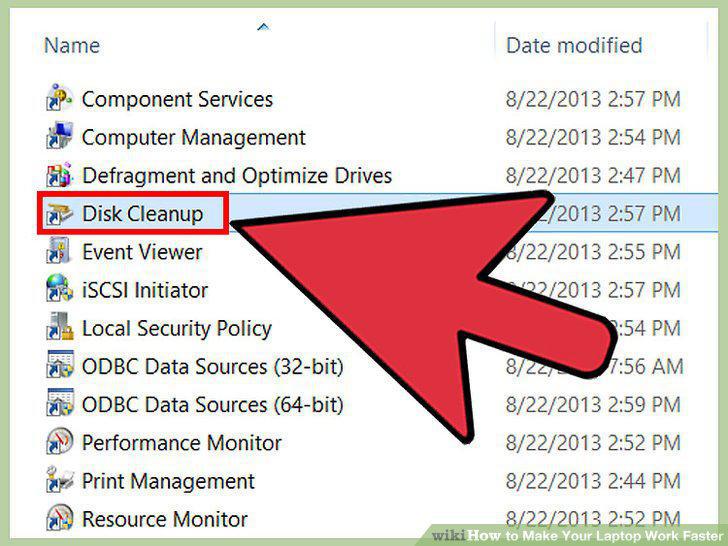
Clean up your disks.
Disable visual effects.
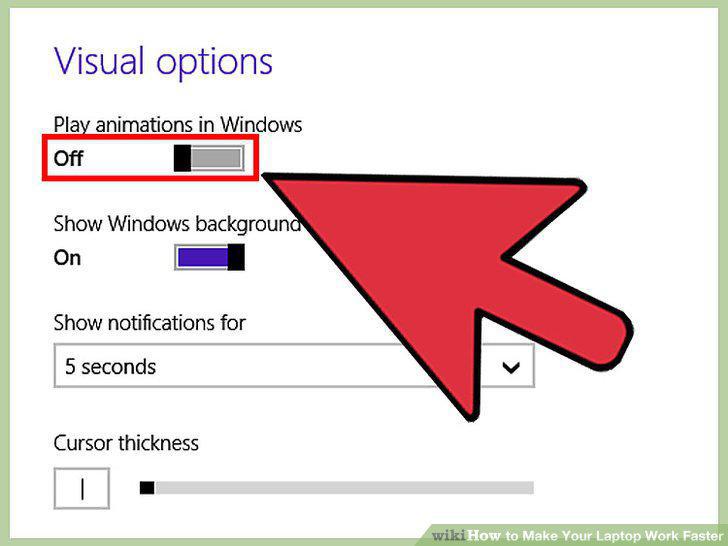
Disable visual effects.
Check for updates.
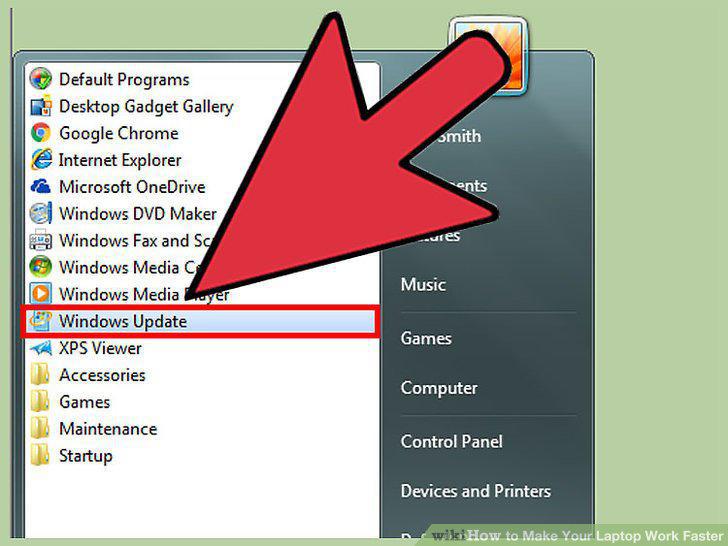
Check for updates.
Defragment your hard drive.
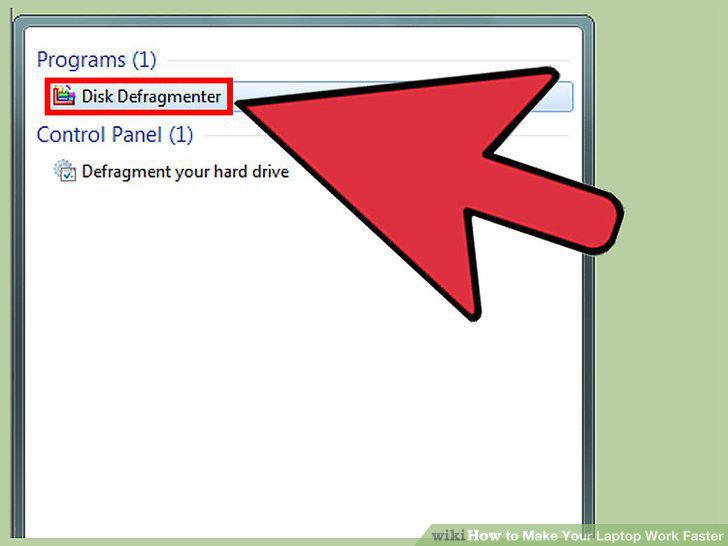
Defragment your hard drive.
Clean up your disks.
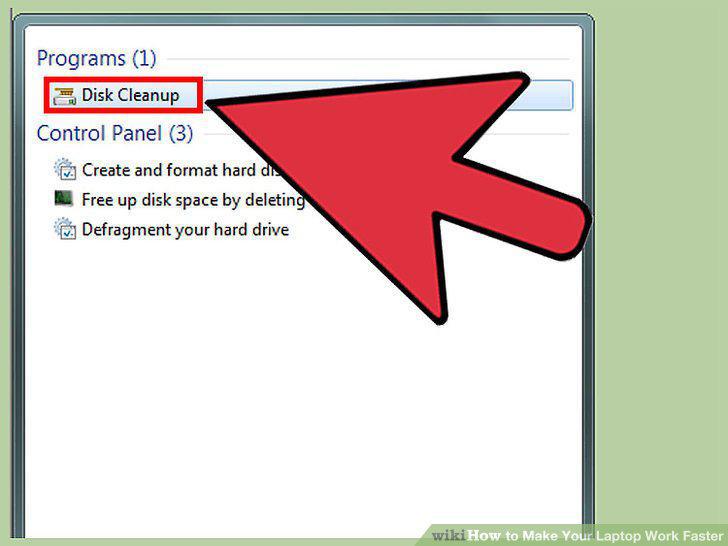
Clean up your disks.
Disable visual effects.
Disable visual effects.
Comments (0)
No comments yet. Be the first to share your thoughts!