How to Retrieve an iPad Password
Connect your iPad to your computer.. Click the device icon on iTunes or Finder.. Click Restore iPad.
Steps
1
Connect your iPad to your computer.
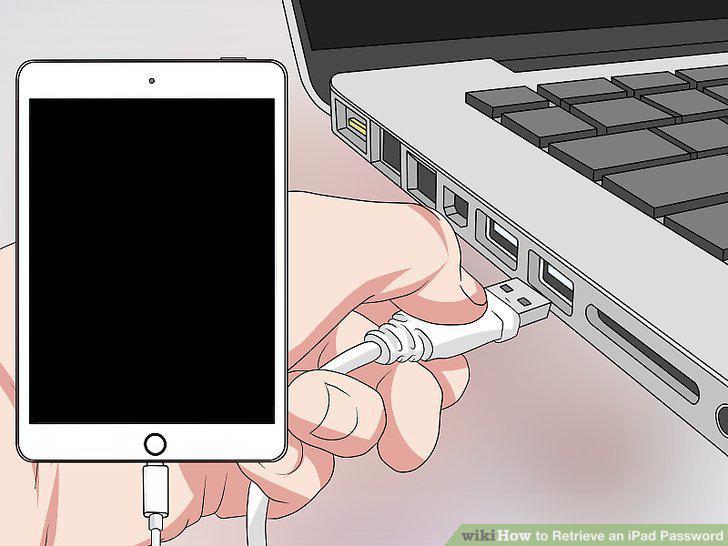
Connect your iPad to your computer.
2
Click the device icon on iTunes or Finder.
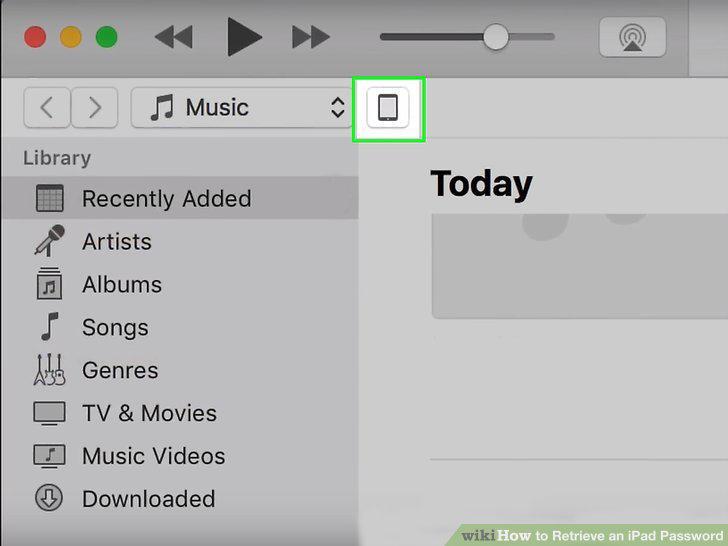
Click the device icon on iTunes or Finder.
3
Click Restore iPad.
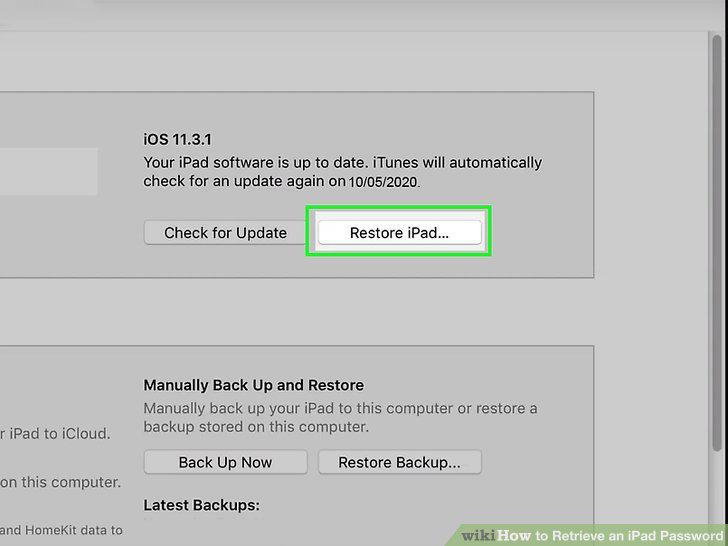
Click Restore iPad.
4
Confirm that you want to restore your iPad.
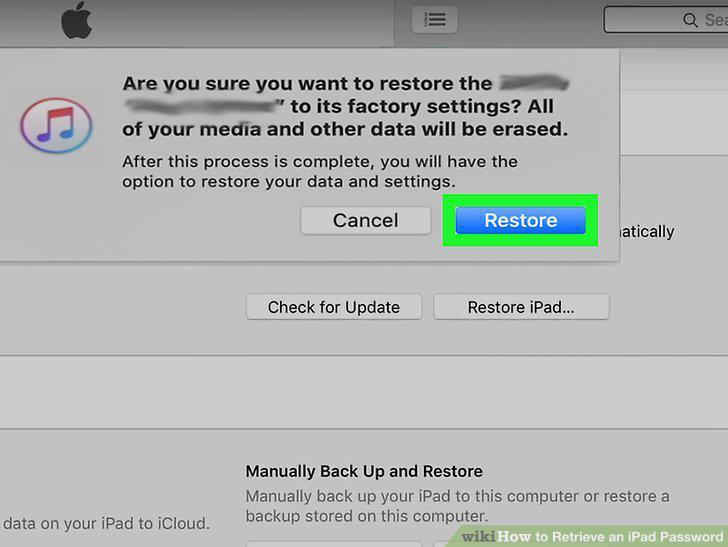
Confirm that you want to restore your iPad.
5
Put your iPad into recovery mode.
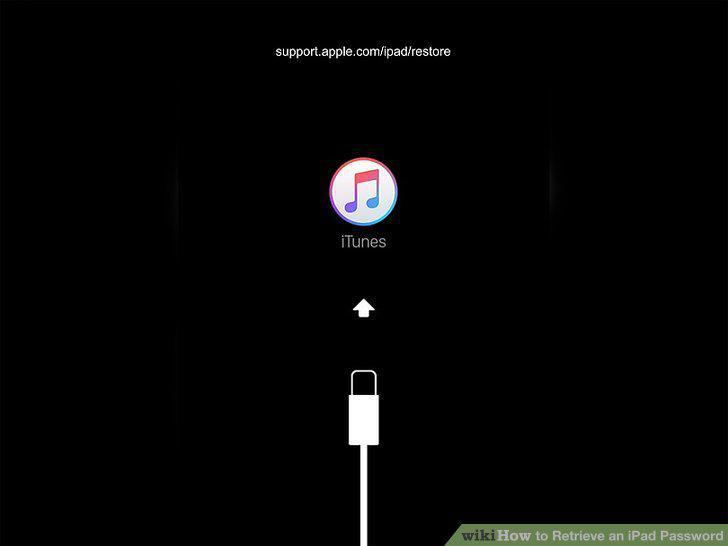
Put your iPad into recovery mode.
6
Connect your iPad to a computer.
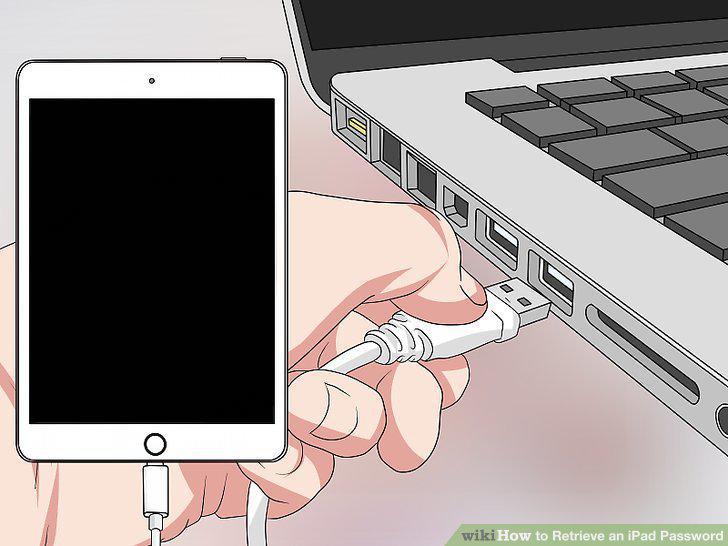
Connect your iPad to a computer.
7
Click Restore in iTunes or Finder.
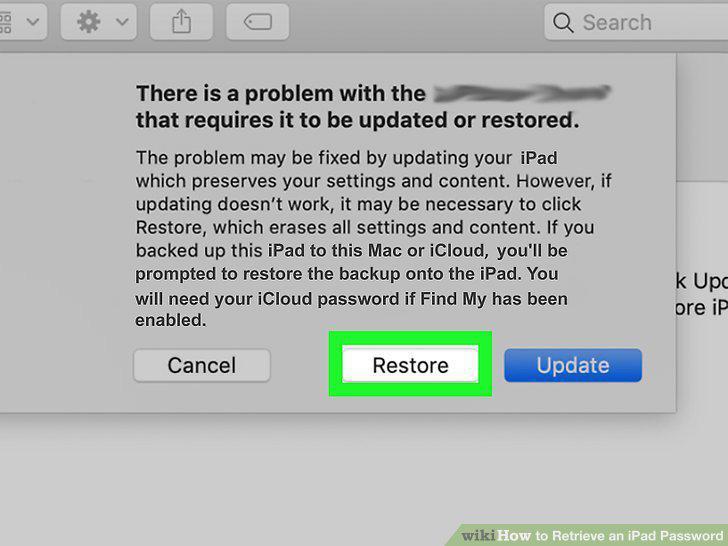
Click Restore in iTunes or Finder.
8
Follow the on-screen instructions to reset your iPad.
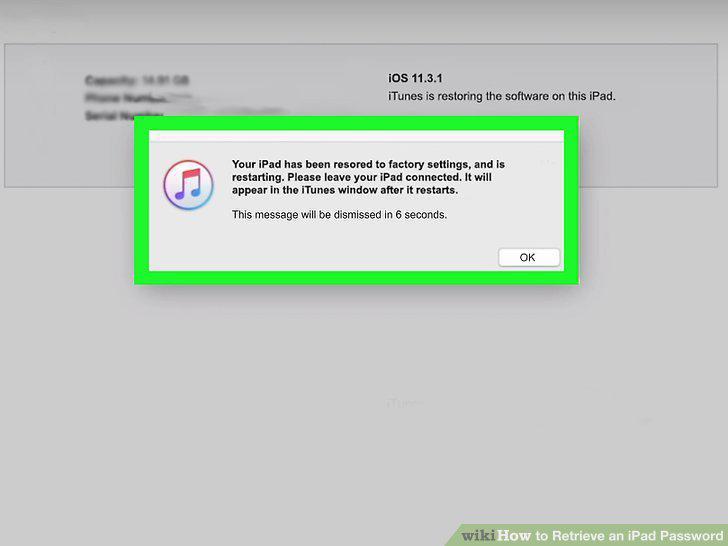
Follow the on-screen instructions to reset your iPad.
9
Go to https://icloud.com and log in.
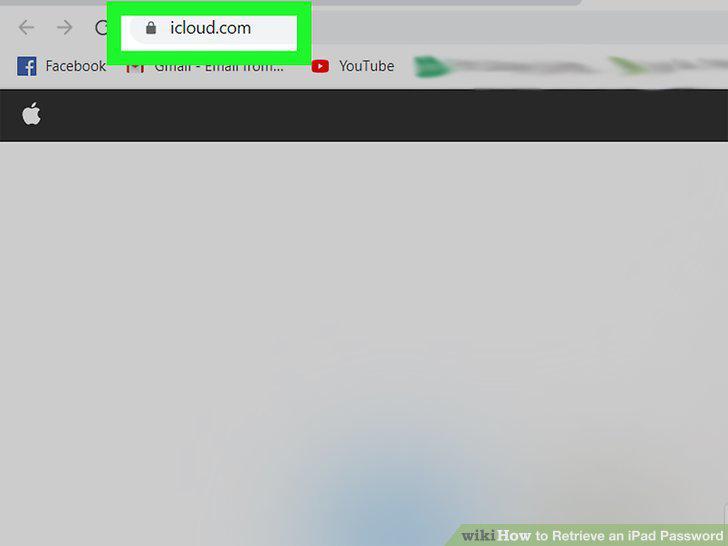
Go to https://icloud.com and log in.
10
Click Find iPhone.
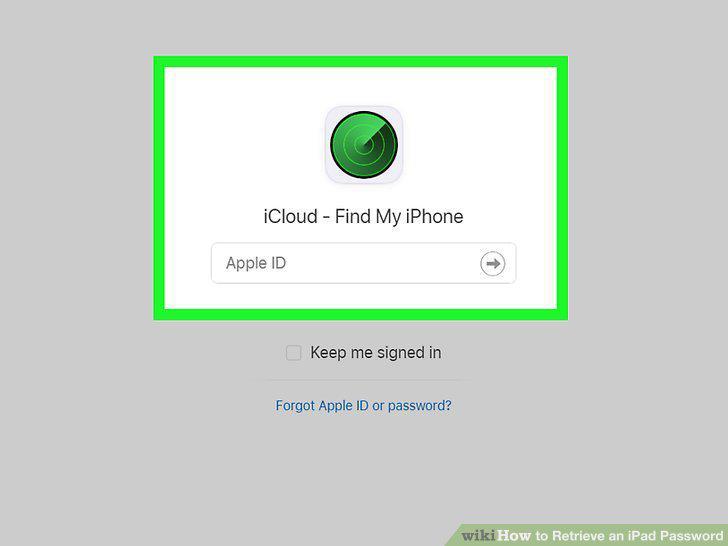
Click Find iPhone.
11
Click the All Devices tab and select your iPad.
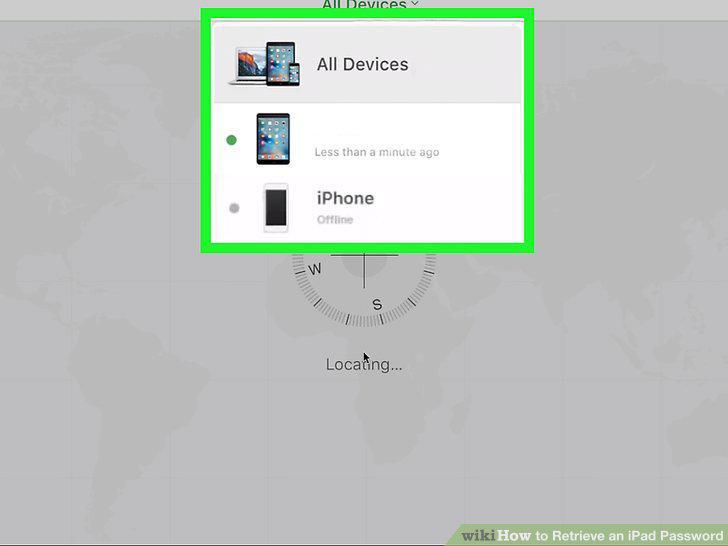
Click the All Devices tab and select your iPad.
12
Click Erase iPad.
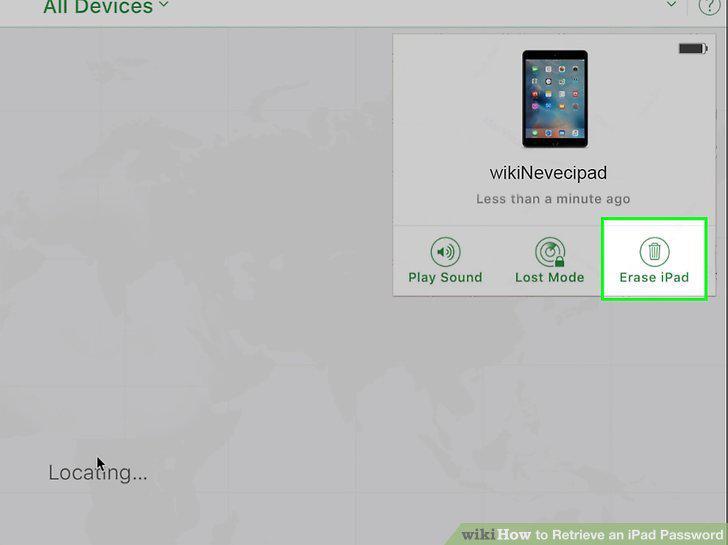
Click Erase iPad.
13
Confirm that you want to erase your iPad.
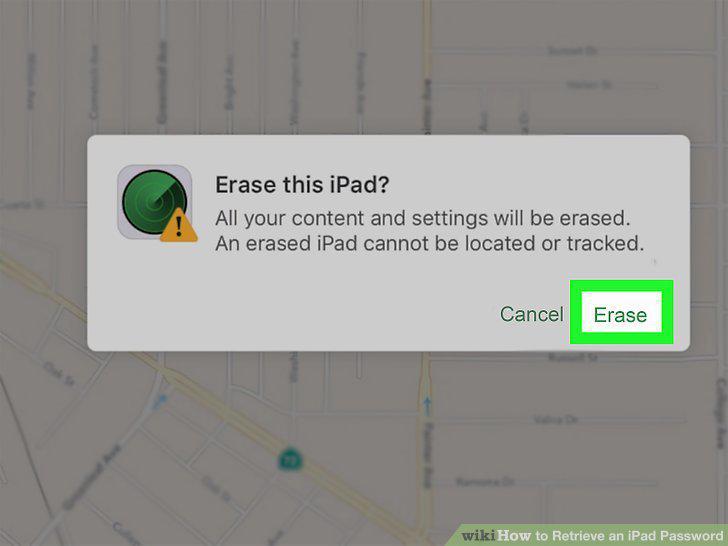
Confirm that you want to erase your iPad.
Comments (0)
No comments yet. Be the first to share your thoughts!