How to Update Music Library on Sonos on PC or Mac
Go to https://www.sonos.com/en-us/controller-app in a web browser.. Select either the Mac or Windows download link.. Double click on the downloaded file.
Steps
1
Go to https://www.sonos.com/en-us/controller-app in a web browser.
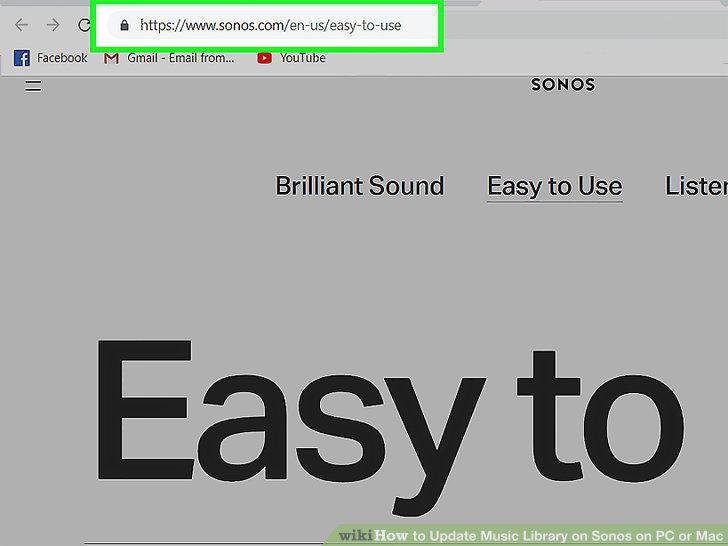
Go to https://www.sonos.com/en-us/controller-app in a web browser.
2
Select either the Mac or Windows download link.
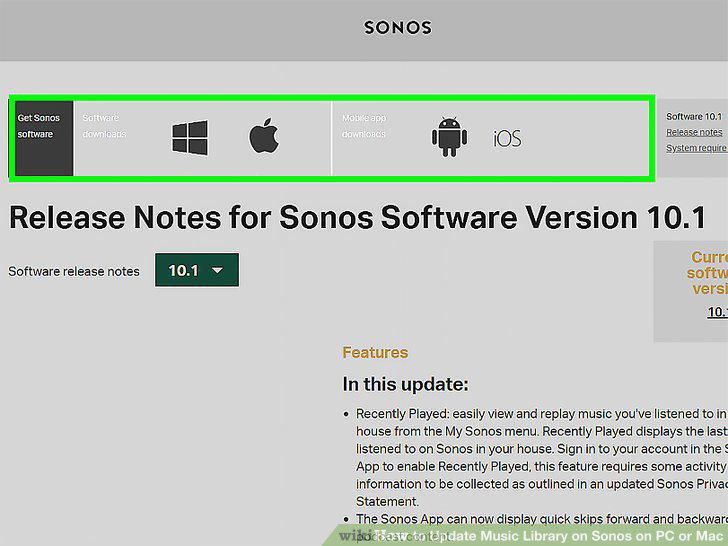
Select either the Mac or Windows download link.
3
Double click on the downloaded file.
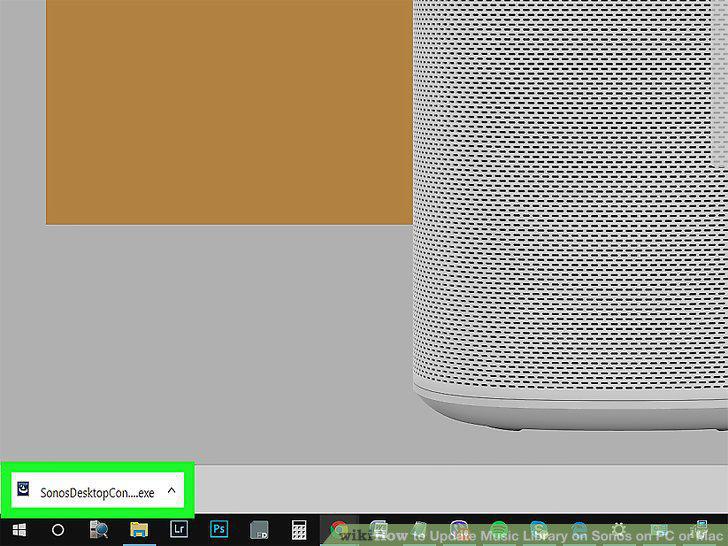
Double click on the downloaded file.
4
Follow the prompts to finish installing the app.
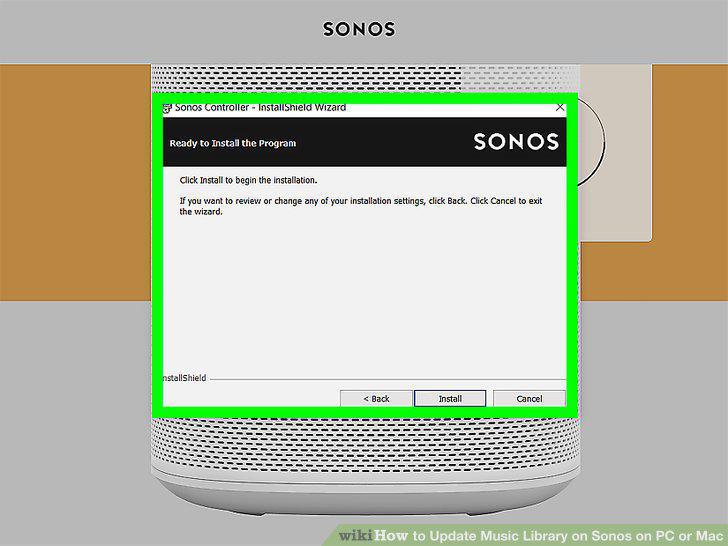
Follow the prompts to finish installing the app.
5
Open the Sonos Music Controller App for Desktop.
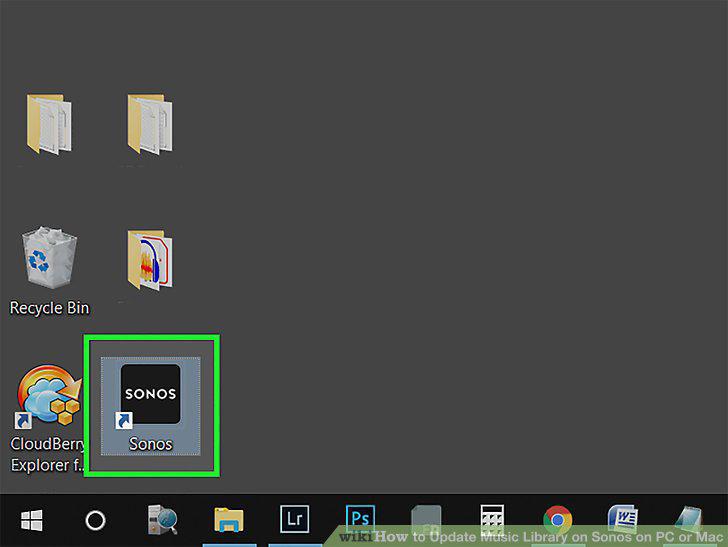
Open the Sonos Music Controller App for Desktop.
6
Choose to either set up a new system or connect to an existing one.
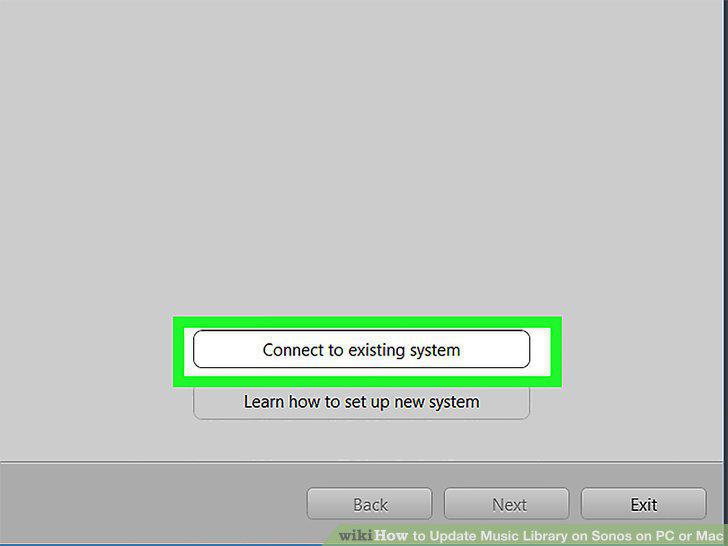
Choose to either set up a new system or connect to an existing one.
7
Click Music Library Settings.
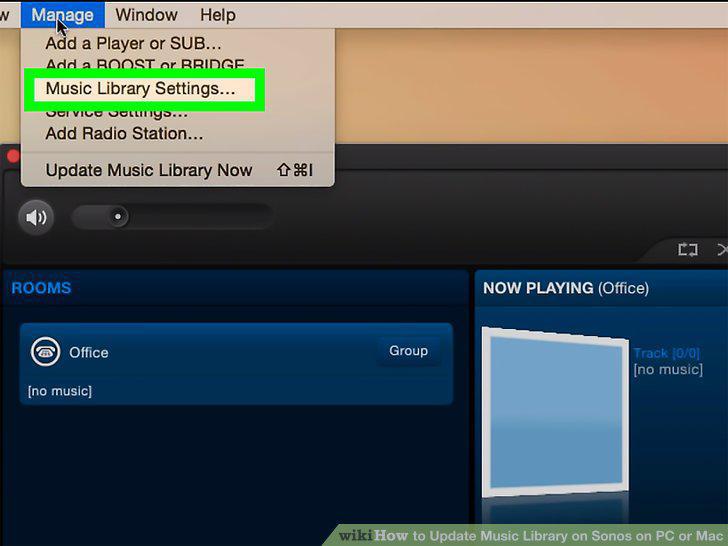
Click Music Library Settings.
8
Click the add icon.
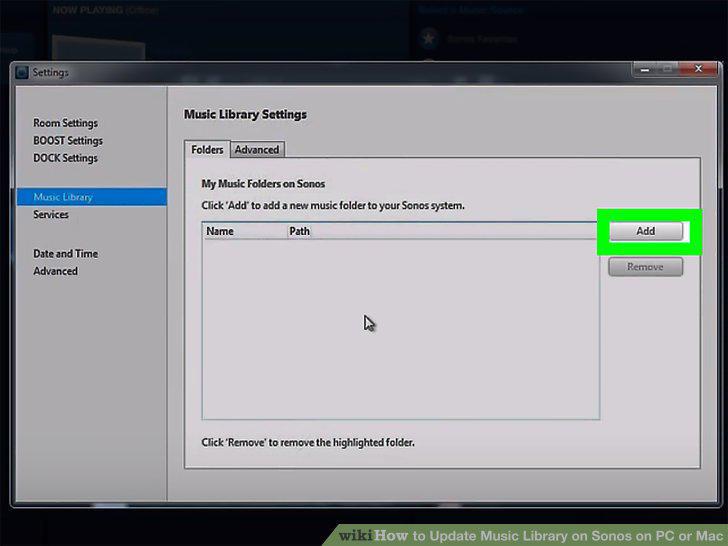
Click the add icon.
9
Navigate to your music.
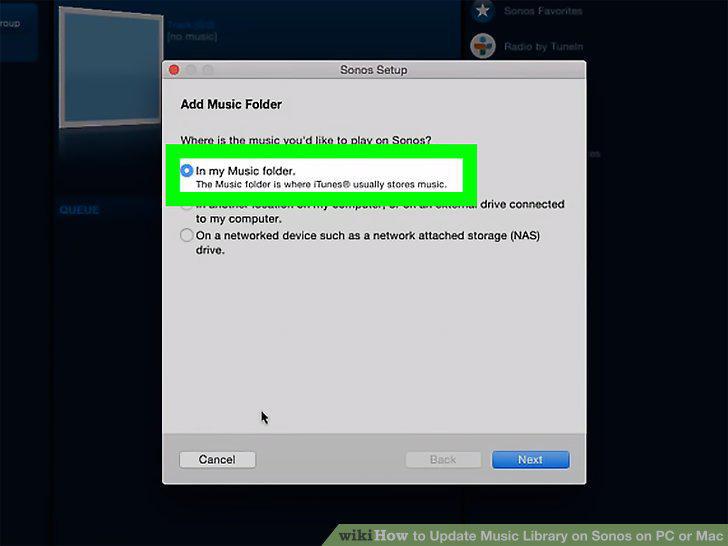
Navigate to your music.
10
Click Update Music Library Now.
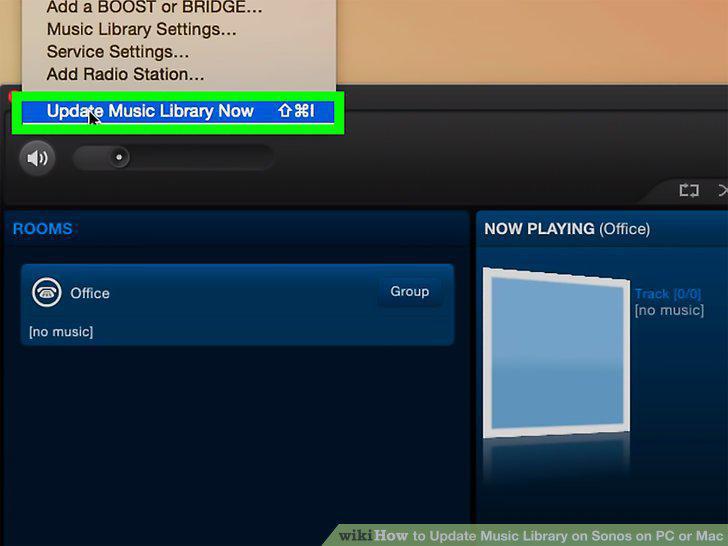
Click Update Music Library Now.
11
Schedule your music to auto-update (optional).
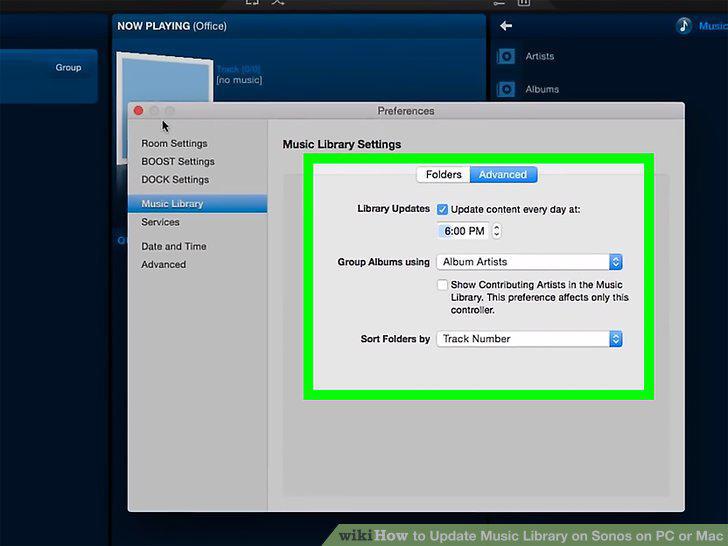
Schedule your music to auto-update (optional).
Comments (0)
No comments yet. Be the first to share your thoughts!